
On this video tutorial, Aaron Nace from Phlearn talks about color spaces, what they are and how to use different ones including sRGB, Adobe RGB, ProPhoto RGB in Photoshop and Lightroom.
First some background – color spaces represent the range of colors that you have to work with sRGB is the most “basic” but also the most common, Adobe RGB expands on it and ProPhoto RGB extends the range of colors (mostly the saturated ones) even further.
Then you might be asking yourselves – why aren’t all photographers using ProPhoto RGB (or similar extended color spaces) all the time? well, the answer is that what you can do with these color spaces is somewhat limited. Internet browsers can only show sRGB so if you are planning on using this image online there is no point in saving to any of the wider gamut color spaces.
So what can you do with them? well, if your monitor supports them you can show them on screen but more importantly – if you are printing with a high-quality photo printer (and your workflow is done right) you should be able to enjoy those highly saturated colors on your wall.
After the background discussion Nace covers the settings in Photoshop – which you can use from the image below:
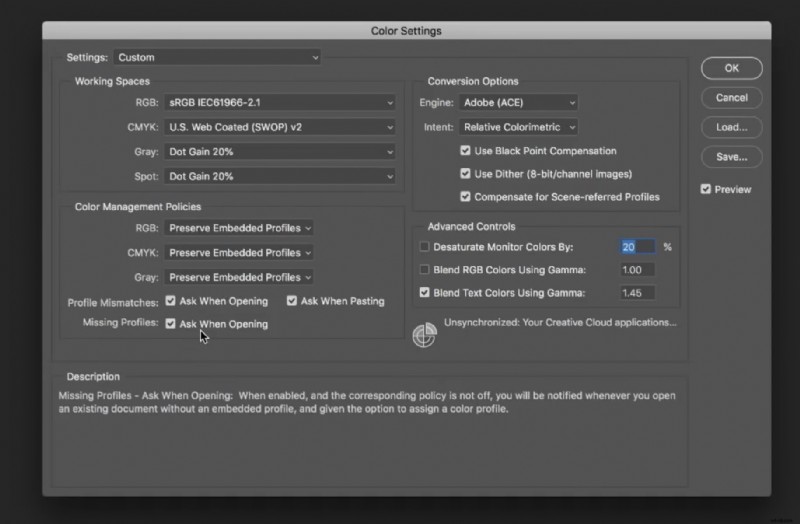
When you bring an image from your camera to Photoshop it really depends on the type of image in question – if it is a JPEG – you can choose in camera if you want sRGB or Adobe RGB (as far as we know ProPhoto RGB is not supported by most if not all cameras). If you shoot in RAW (which is almost always a good idea) you can make this choice in software.
If you are using RAW you can change the color space in Camera RAW at the lower part of the screen (10:15 in the video) and change the color space. In Lightroom there are pretty similar settings that you can change (13:00).
One more (important thing). If you are working in windows you should check that your operating system has the right color profile (read this to see how to do that) and make sure you calibrate your monitor (see here).
You can find many more Photoshop video tutorials on LensVid’s Photoshop section (and you can find a lot more Phlearn videos on our special Phlearn subsection).