
Recent versions of Photoshop have an automatic Red Eye Removal tool. But what do you do when that tool fails as it does all too often with people, and always with pets?
Here’s one technique that I like to use. I’m going to illustrate it on a pet photo featuring “green eye”, but the same trick works on people with red eye, too.
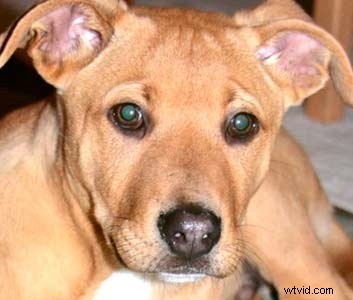
1. Zoom in on the eye of your subject
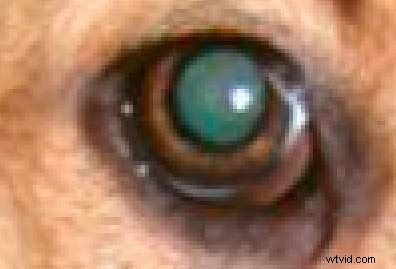
2. Get your Paintbrush (Keyboard shortcut B)
3. Set your foreground color to black

4. In the options bar, set the brush mode to Color, opacity 100%

By painting with the brush in this mode, we will desaturate the area that we paint.
5. Using a small brush with a medium-soft edge, paint the mis-colored part of the eye to desaturate it.
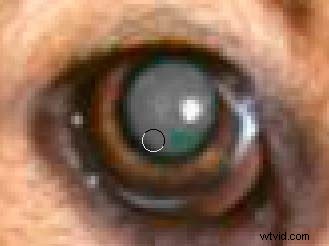
Since all we are doing is desaturating, this leaves the highlight and other gradients that reveal the shape of the eye intact. If we simply painted black we would destroy these details that make the eye look realistic.
After desaturating, all we need to do is darken the pupil.
6. Get the Burn tool
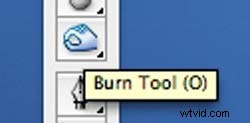
7. In the options bar, select Midtones, Exposure 20%

8. Paint gradually in the pupil to burn (darken) the Midtones
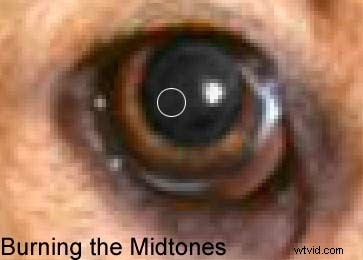
By restricting our burn to the Midtones, we avoid destroying the highlight in the eye or darkening that natural rim around the eye. We only affect the middle gray that was originally colored red or green.
9. Darken the pupil to a reasonably dark gray (not pure black), and you’re done!
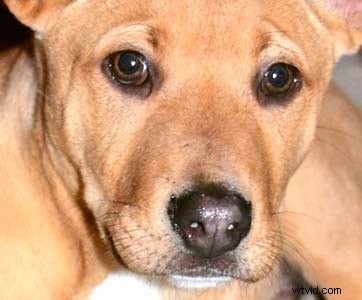
Of course, this technique won’t work in every case, because there are a lot of different types of “red eye” in people and animals, but it’s usually my first go-to method for tough cases.
To see a free video which includes this and several more techniques for difficult cases, visit SteeleTraining.com.
About the Author
: Phil Steele is the founder of SteeleTraining.com where you‚Äôll find free tutorials on photography, Photoshop, Lightroom and more. This article is based on an excerpt from his video training course “Photoshop Basics for Photographers”.