
Are you struggling to determine where Lightroom stores your photos? Looking for your Lightroom catalogs? Need to identify the location of your presets?
In this article, I’m going to share quick, easy ways to determine where Lightroom has stored all of these items – photos, catalogs, presets, and more.
And by the end, you’ll know exactly where to find your files.
Let’s dive right in.
Where is my Lightroom catalog stored?
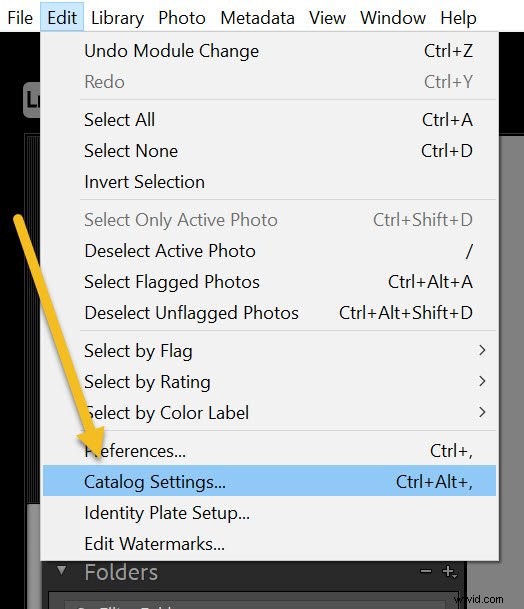
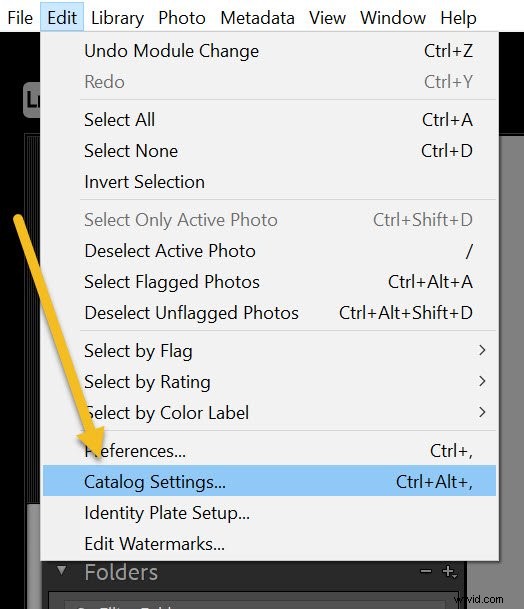
To find the storage location of your current Lightroom catalog, simply select Edit (Lightroom, if you’re on a Mac), then tap Catalog Settings:
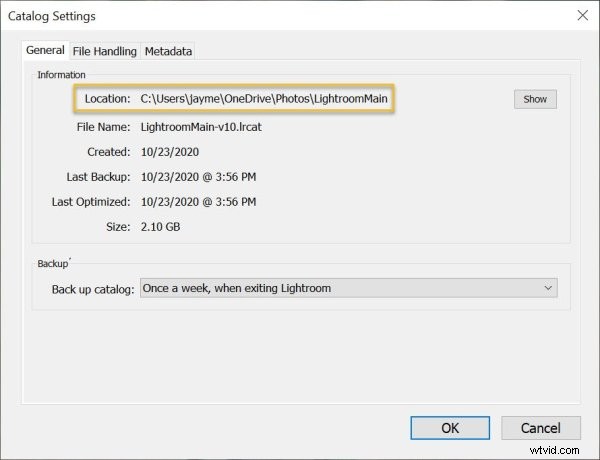
Lightroom will display where your catalog is stored:
To open your catalog’s location, click Show:
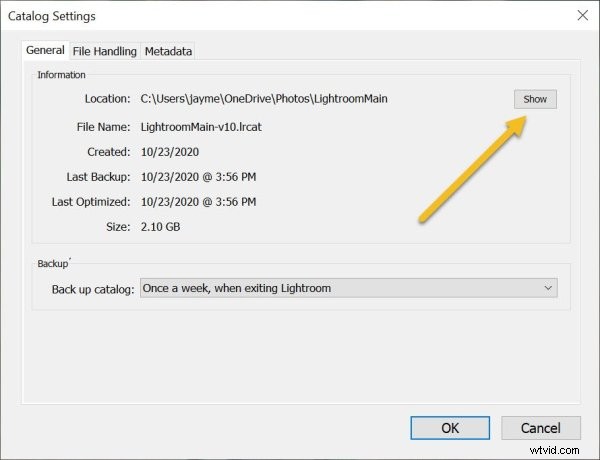
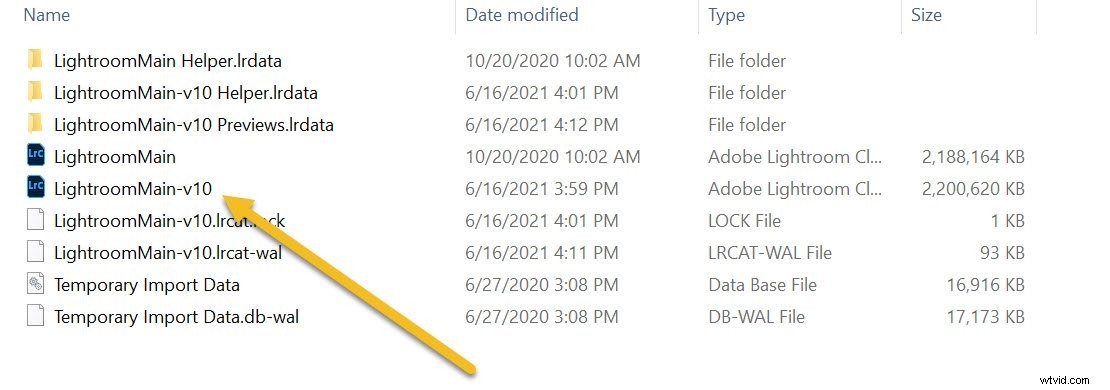
You’ll be taken to your catalog folder. And if you look inside, you’ll see your .lrcat files, which contain your catalog data.
You can also find the location of your catalog by right-clicking on the Lightroom title bar, then selecting Show Catalog location:
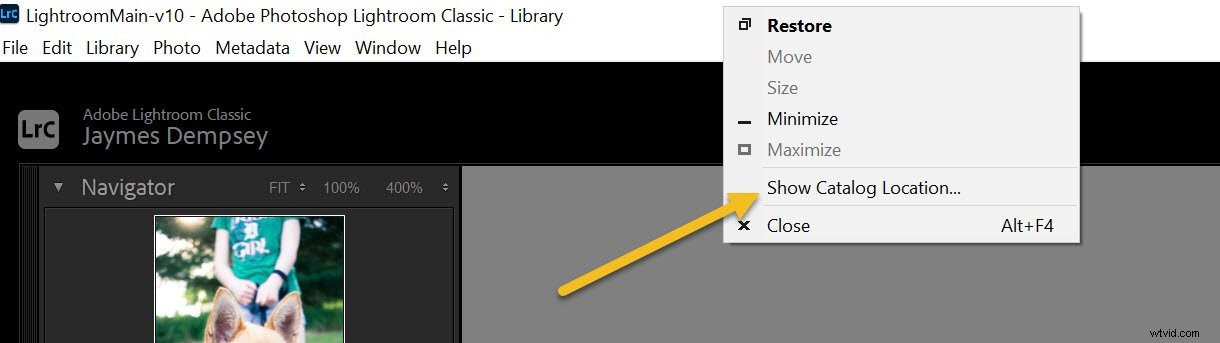
Your catalog file will pop open (though note that you’ll be one level deeper in the folder hierarchy compared to the previous method).
Where are my Lightroom presets stored?
There are two simple methods of finding your Lightroom presets; the first will take you to the folder containing all of your presets, while the second will take you to the location of an individual preset.
Method 1
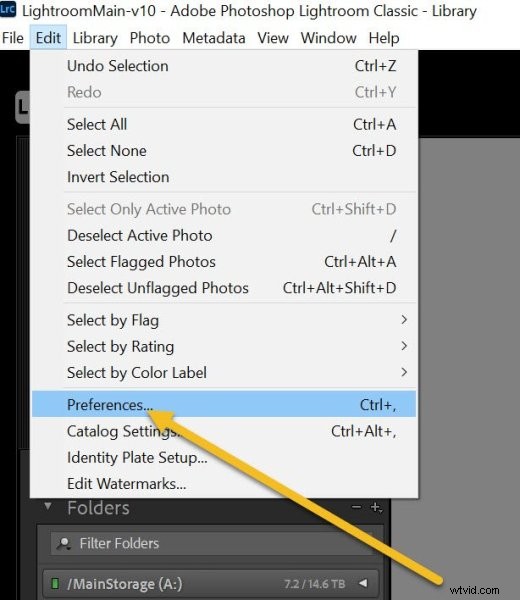
To find where your Lightroom presets are stored, select Edit>Preferences (Lightroom>Preferences if you’re on a Mac):
The Preferences window will open. Select the Presets tab:
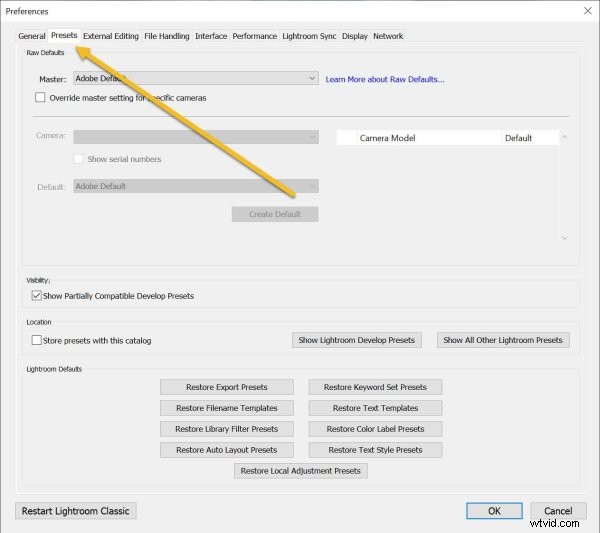
Finally, select the Show Lightroom Develop Presets button (depending on your version of Lightroom, this might instead say Show Lightroom Presets Folder):
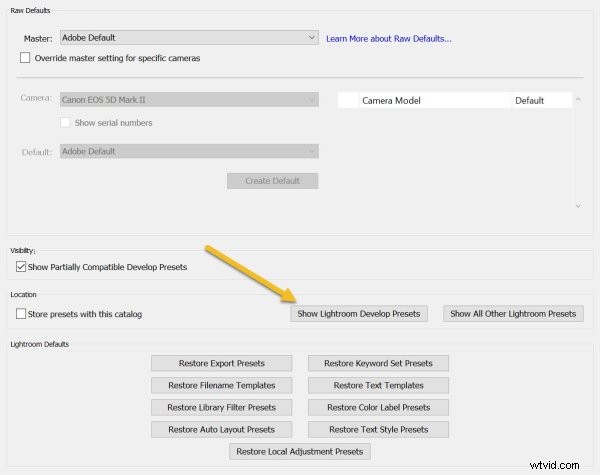
And you’ll immediately be taken to your preset storage location.
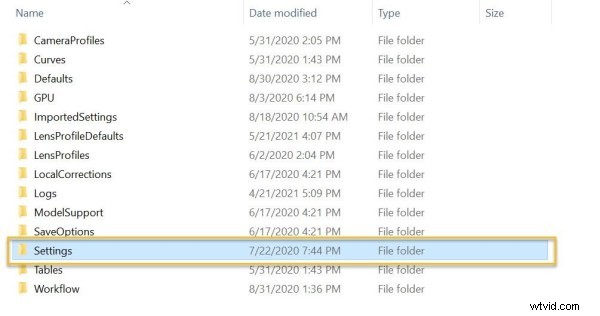
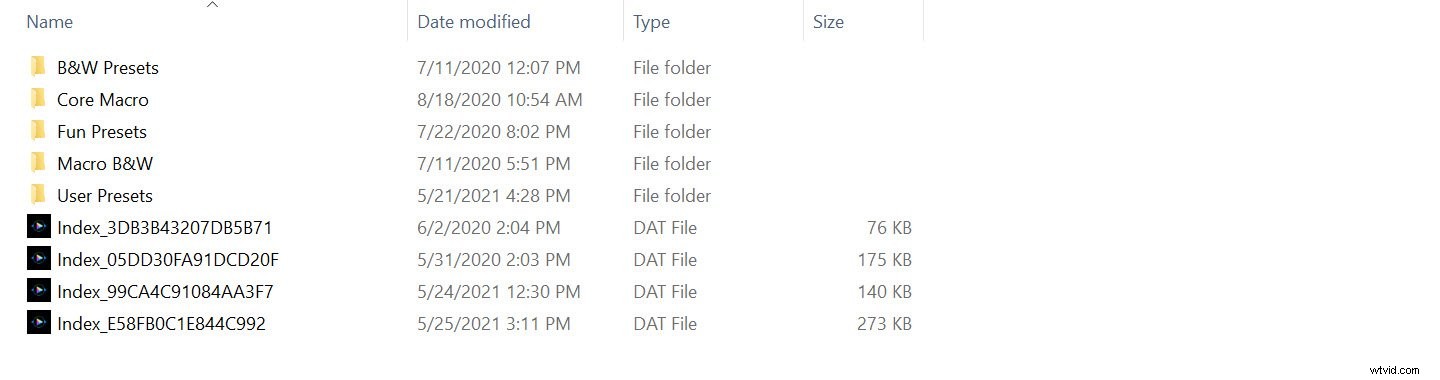
Note: You’ll need to click to see each individual preset folder:
Method 2
To find the location of an individual preset, here’s what you do:
First, open the Lightroom Develop module:
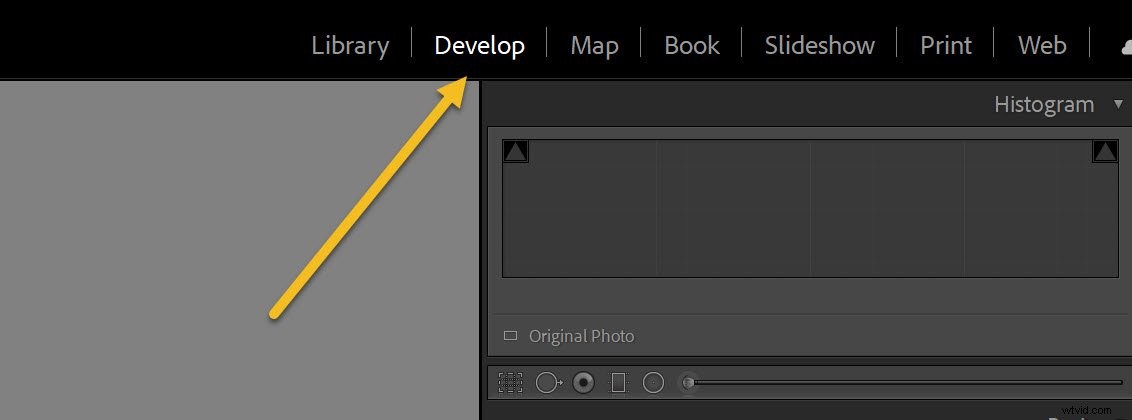
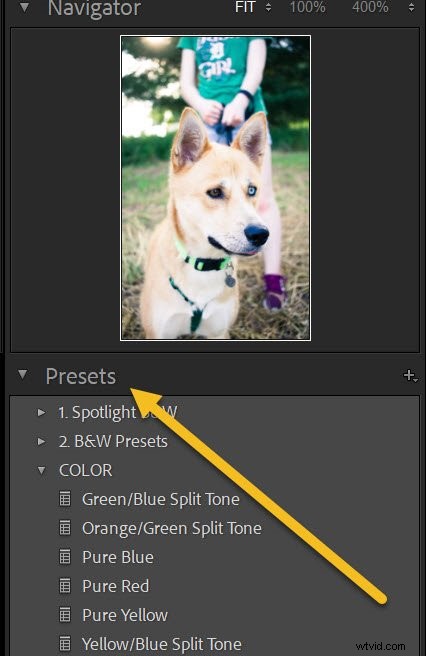
Then navigate to your Presets panel on the left-hand side:
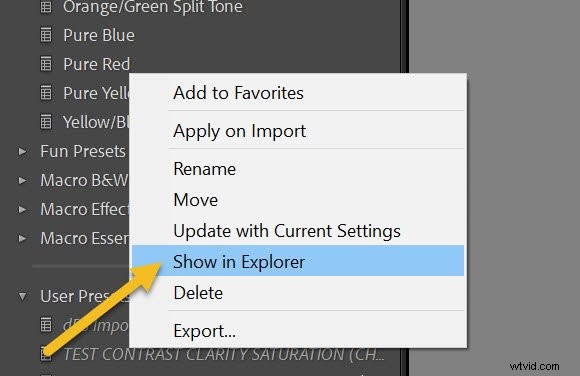
Right-click on a preset, then select Show in Explorer:
Lightroom will instantly open the preset in its corresponding folder:
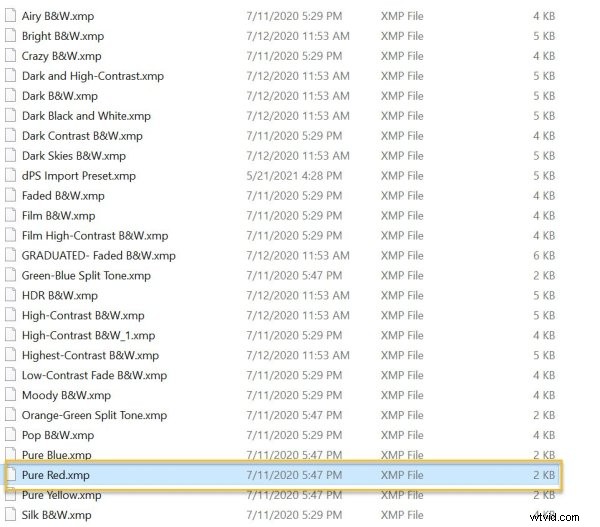
And you’ll be able to see many of your other presets, as well.
This is useful for situations when you’ve created your own preset and want to share it with others. You simply need to find the preset file, then share it!
Where are my Lightroom photos stored?
Lightroom is a catalog program, which means that it doesn’t actually store your images – instead, it simply records where your images are stored on your computer, then stores your edits in the corresponding catalog.
In other words, the images you import into Lightroom are located exactly where you chose to store them on your hard drive, USB drive, etc., and not in your Lightroom catalog.
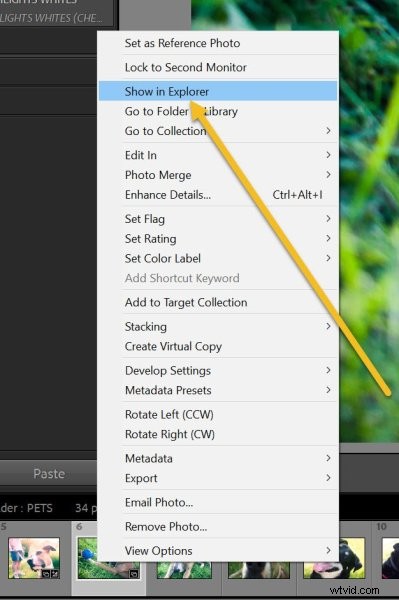
So to find the location of a photo, simply right-click on its thumbnail, and select Show in Explorer (or Show in Finder for Mac users):
The relevant folder will appear with your image selected.
You can also see where an image exists inside Lightroom by right-clicking on that image, then selecting Go to Folder in Library:
This will switch you over to the Library module and select the folder in which your image is stored:
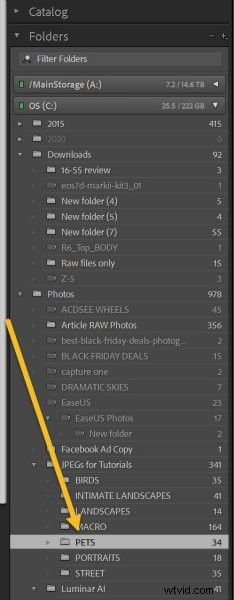
(Note that the selected folder corresponds to the actual hard drive location of your file.)
Why are my images stored in that location?
When you import photos into Lightroom, you’re given three broad options:
Copy, Move, or Add.

You can copy the photos, which creates a copy of each file in the selected location but leaves the originals alone. Then, when you ask Lightroom to show the location of the images, it will display the location of the copies.
You can move the photos, which deletes the originals and copies the files into your new selected location.
Or you can add the photos, which leaves the originals in place and makes no copy of the files; instead, Lightroom just records where you’ve stored your images. In this case, the images will stay where you initially stored them.
Where are Lightroom backups stored?
When you back up your Lightroom catalog, the actual catalog is backed up, but not your photos.
By default, the backup of your catalog is stored in the same location as your Lightroom catalog (in a folder called Backups).
However, if you want the exact backup location, or you’re struggling to find your backup folder, simply select Edit>Catalog Settings (or Lightroom>Catalog Settings on a Mac):
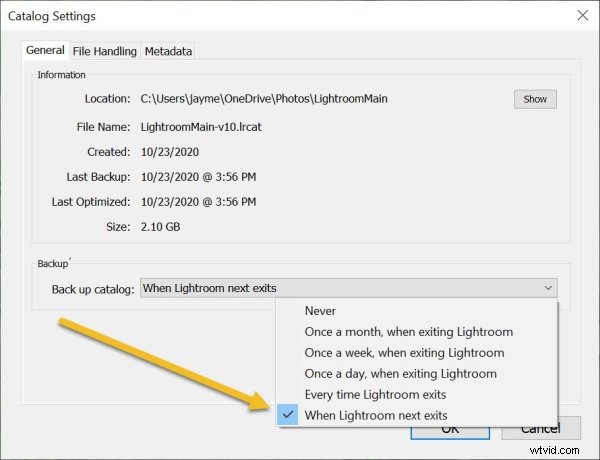
Then switch the Back up catalog option to When Lightroom next exits:
That way, the next time you exit Lightroom, you’ll see your backup folder location:
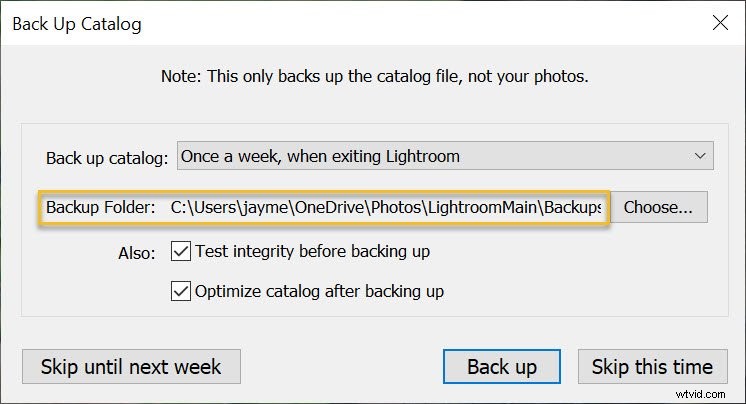
And you can also change the backup location if you like (by selecting a different folder).
Lightroom photos, presets, and catalog storage: conclusion
Hopefully, you now know the exact location of your Lightroom files.
So you should be ready to do anything you might need – such as move catalogs, find photos, and more.
Good luck!