
I laughed at Lightroom Mobile the first time I saw it. “Why would I ever want to use that stripped down gadget on a small screen?” And now, here I am about help you install and use it. Why is this?
It’s because I have found how totally useful the app is in sorting through hundreds or thousands of images from the world of “any time, any where”. Most notably, in a comfy chair with good light or on a weekly airplane flight. iPads also became lighter and iPhone screens larger.
Let’s start with how to set up Lightroom Mobile on your iPad or iPhone and then give some examples of how I find it useful in managing a huge library. I will be using a Collection of mine that is a work in progress to craft black and white images of the Himalayas.
Setting up Lightroom for mobile use
Connect Lightroom to your Adobe ID
The first step is to make sure you have the right version of Lightroom on your PC or Mac. You need to have version 5.4 or later, you can download the latest version from Adobe here. You also need an Adobe ID (free) for this to all work as it is the hub in the cloud that makes this all spin. If you don’t have one, sign up here.
With Lightroom open, you will notice in the upper left corner the phrase “Get started with Lightroom mobile”
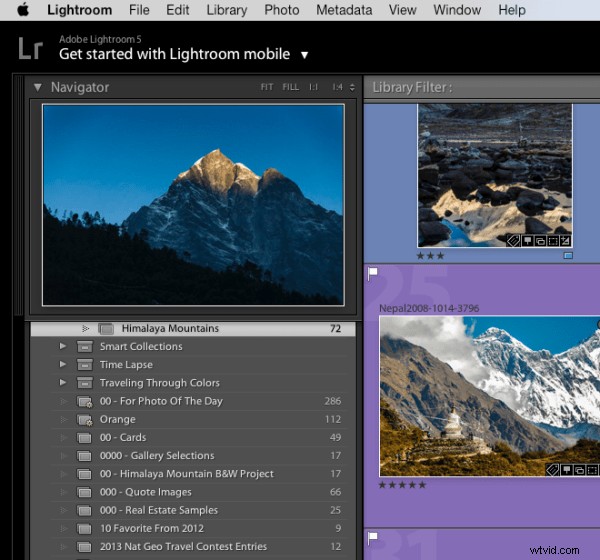
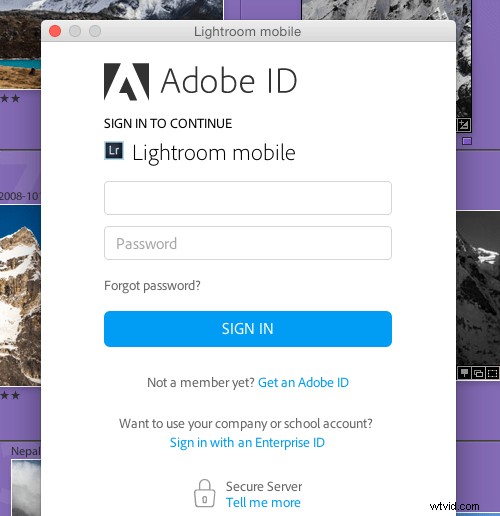
Click the triangle next to the words and log in with your Adobe ID
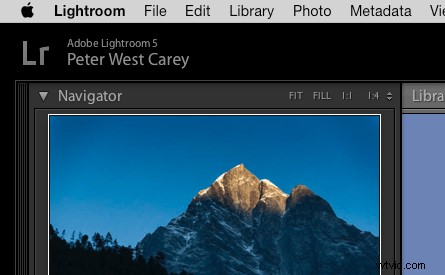
You will then see that the top left of the screen has changed to the name you gave to Adobe upon creating your Adobe ID.
Great! Now let’s set up Collections to synchronize
Setting up Collections to sync
Lightroom Mobile will currently only work with Collections. If you need help setting up a Collection, the free Adobe video here will help. To enable a Collection for syncronization, simply right click on the Collection and choose “Sync with Lightroom mobile”. Pretty easy!
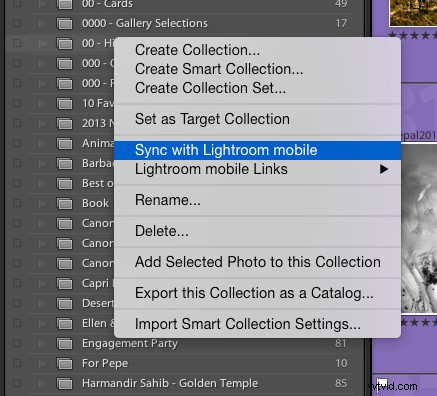
After clicking, you will notice a double arrow appears to the left of the Collection. This indicates the Collection will be syncing when sync is turned on.

Now, up in the top left, Lightroom will let you know it is starting the sync of those images.
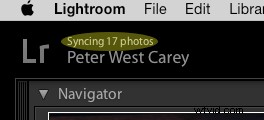
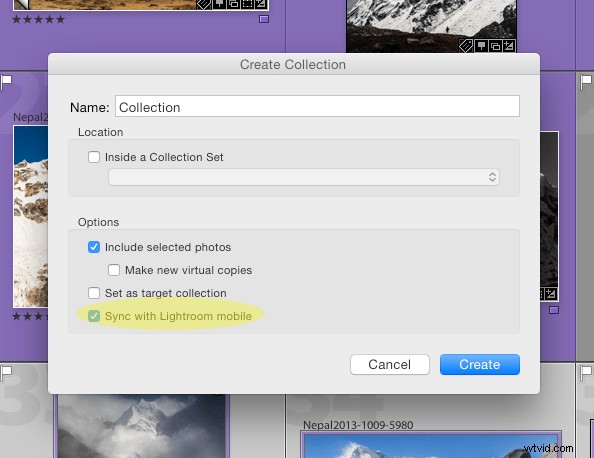
As a first pass, we are done! Simply repeat this process for Collections you have already created. Additionally, when creating a new Collection, there is a box that can be checked to automatically sync the new Collection. It looks like this:
Setting up your iPad or iPhone for use
This is the easy part. First, ensure your iPad/iPhone is connected to the Internet. Go to the App Store and search for Lightroom Mobile.
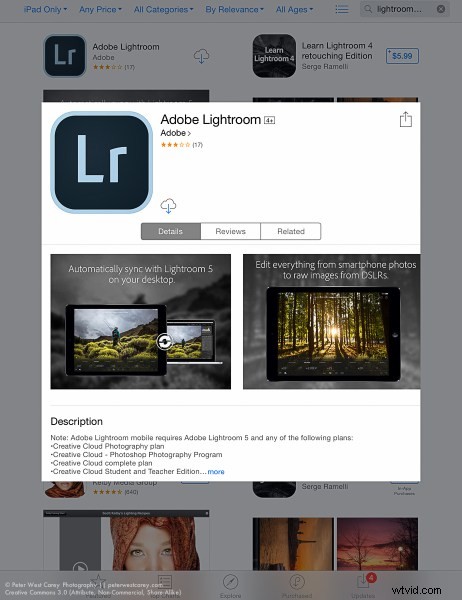
Install (it’s free) and then start the app.
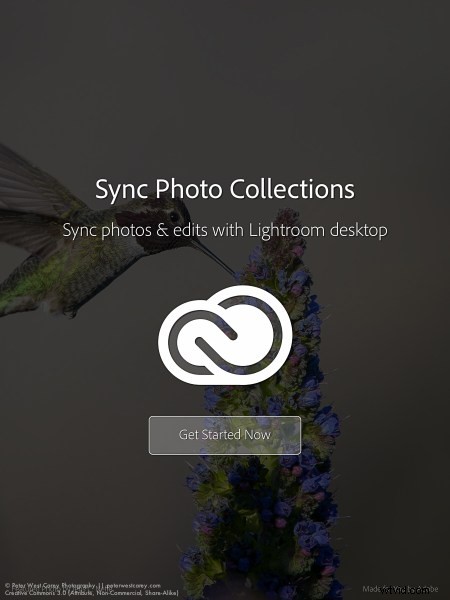
You will be presented with an Adobe ID screen after paging through the first time introduction.
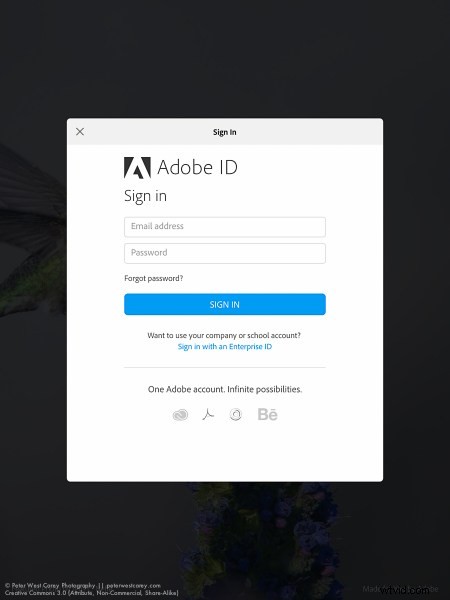
After signing in you will be taken to a page showing all the Collections you have set up to sync on the desktop version of Lightroom.

Tap the main image and you will be taken to the Collection itself. The first time you run through Lightroom Mobile it will give you helpful contextual hints.
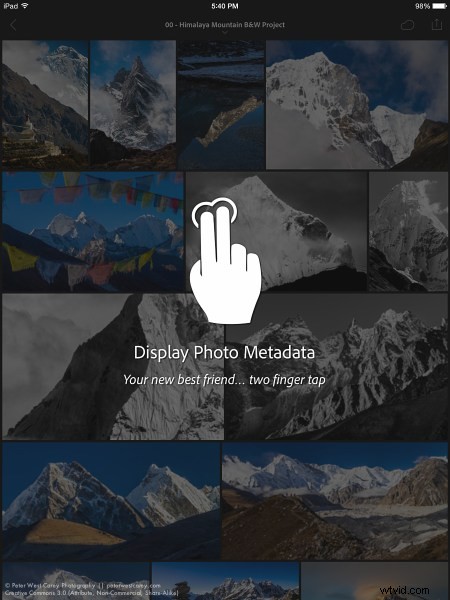
Tap on any picture to edit it.

Quick filtering with Lightroom mobile
While there are a lot of features in Lightroom Mobile that make it useful for photographers, this post is going to concentrate on the basics to get you started.
Now that you have a Collection synced to your iPad/iPhone (note: it might take a while to fully sync a larger Collection), you can start filtering. For me, filtering is the best use of this app, currently. I enjoy being able to filter my images from the comfort of my living room or while traveling. I also do some basic edits to images but I usually leave the major edits to my desktop. To filter images, I use both the flags and stars features. You can switch between changing those features by tapping the icons in the bottom left corner.

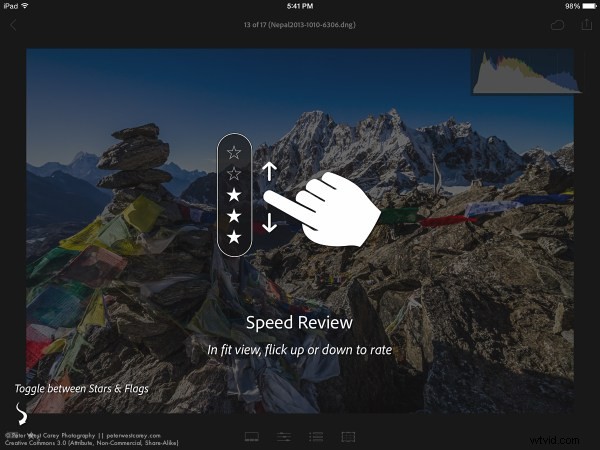
When the flag icon is highlighted, as it is here, simply move your finger up or down on the screen to pick, unpick or reject images. These settings will then sync over to your desktop within seconds as long as Lightroom is open on the desktop.


I use these two features to sort images. Flags are images I especially like and I know I want to work on back at my desktop. I then use two stars to indicate the image should be used for my stock photography work (the scale then goes up to three stars once edits are done, four stars when title and keywords are done and five stars when completely finished).
There are a lot of editing options available in Lightroom Mobile that can be accessed from tapping the icons at the bottom of the screen on an individual image.

All of these features are best left for a future post.
Offline use
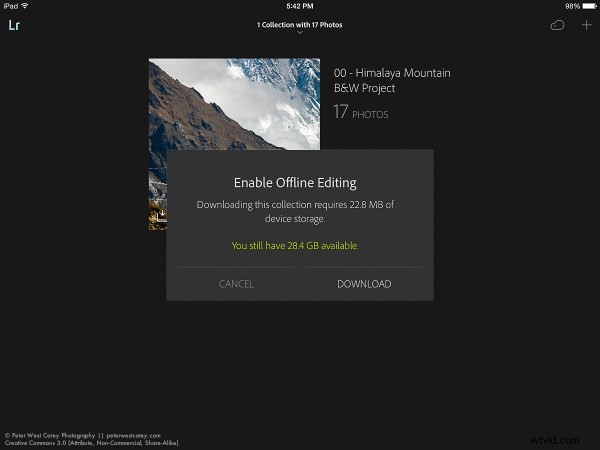
One last thing; Lightroom Mobile usually needs to ‘see’ your desktop’s version of Lightroom in order to show previews the first time and make edits. Therefor, once I have a Collection fully sync’d, I will then turn on Offline Editing which allows me freedom from wifi to make edits, knowing they will sync the next time I am online.
To do this, click on the three little dots on the bottom of the Collection image:

This brings up a menu with many options.
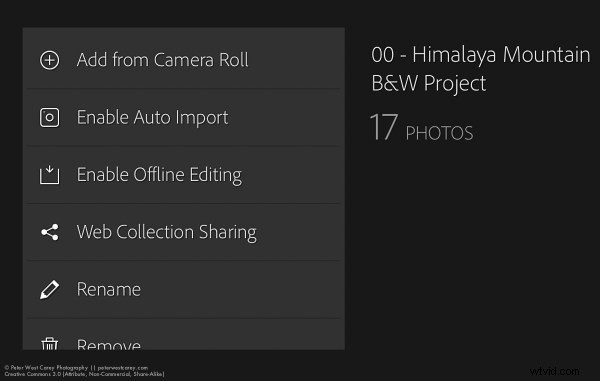
Choose to Enable Offline Editing and Lightroom Mobile will now bring across Smart Previews of the images to your mobile device.
How do you use Lightroom Mobile
Lightroom Mobile has a host of other features such as automatically uploading images shot on your iPhone/iPad into Lightroom on your desktop.
What about you? What have you found useful in Adobe Lightroom Mobile?