
Editing audio has never been easier. In 2026, a wide range of free, web‑based audio cutters let podcasters, musicians, and content creators trim, merge, and mix files without downloading any software. The tools we’ve vetted combine speed, security, and a user‑friendly interface to help you produce professional‑quality audio in minutes.
In this article
- Top 3 Popular Free Online Cutters Reviewed
- Important Considerations While Using Free Online Audio Cutters
- Bonus Tip: Filmora – A Feature‑Rich Desktop Alternative for Advanced Editing
Part 1: Top 3 Popular Free Online Cutters Reviewed
Gemoo
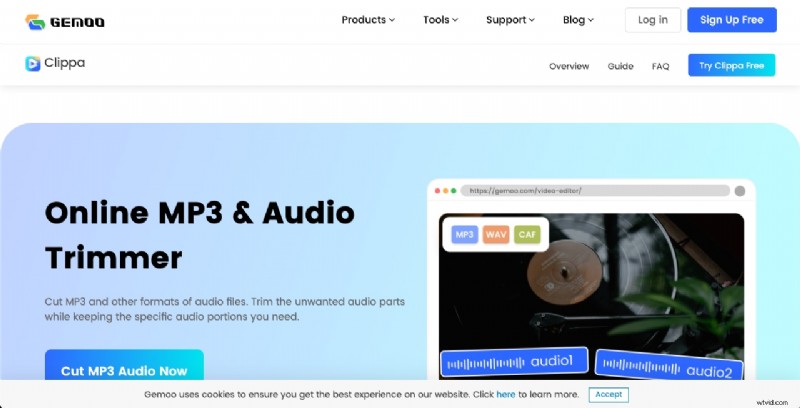
Gemoo is a lightweight online cutter that excels at basic trimming and merging tasks. Its straightforward interface makes it an ideal choice for beginners who need quick results.
Key Features:
- Trim Audio: Precise start‑and‑end selection for any clip.
- Merge Files: Combine multiple tracks into a single audio file.
- Format Support: MP3, WAV, AAC and other common formats.
- Cloud Storage: Securely store edited files online for later access.
- Intuitive UI: Minimal learning curve for quick edits.
Pros
- No download required.
- Fast processing even on modest connections.
- Multiple format compatibility.
- Free cloud storage for edited files.
Cons
- Limited advanced editing options.
- Requires an active internet connection.
Kapwing
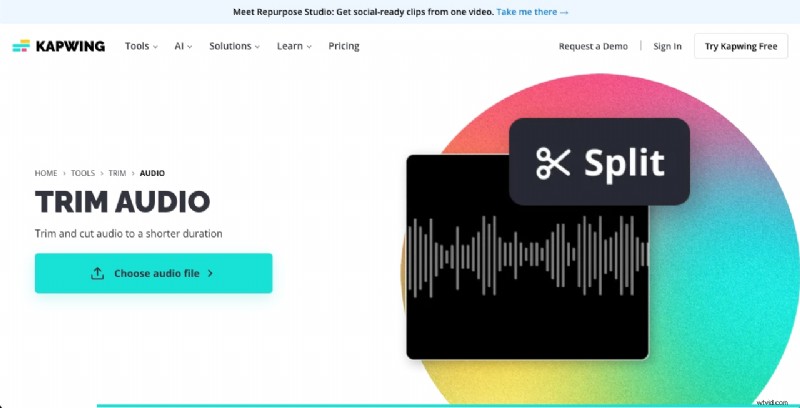
Kapwing offers a powerful, all‑in‑one media editor with robust audio tools suitable for both novices and professionals. Its collaborative features are especially valuable for teams.
Key Features:
- Drag‑and‑Drop Interface: Simple file handling for rapid workflow.
- Multi‑Track Editing: Edit several audio tracks simultaneously.
- Direct Export: Share finished audio straight to social media.
- Collaboration Tools: Invite teammates to edit in real time.
- Customizable Settings: Adjust bitrate, sample rate, and more.
Pros
- Intuitive drag‑and‑drop.
- Team collaboration built in.
- Direct social media sharing.
- Full control over export parameters.
Cons
- Watermark appears on free exports.
- File size and storage limits apply to free tier.
VEED
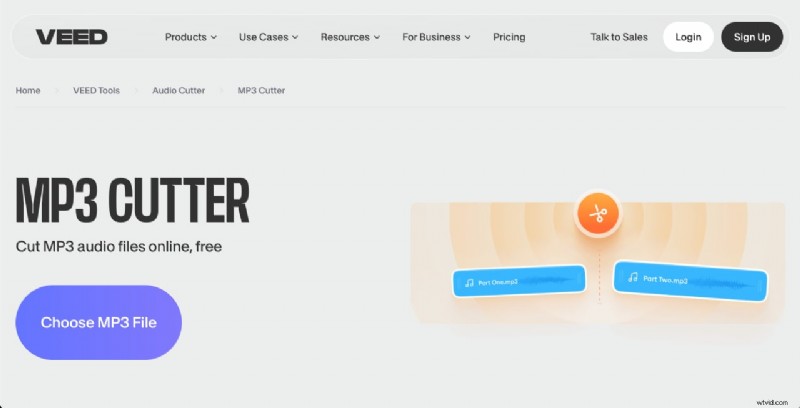
VEED is an all‑in‑one online video editor that also provides sophisticated audio editing capabilities. It’s ideal for creators who need to tweak audio within video projects.
Key Features:
- Waveform Visualization: Edit with a clear visual representation of audio.
- Audio Effects: Apply filters and enhancements directly.
- Export Options: Choose quality and format for final output.
- Text‑to‑Speech: Convert text into spoken audio.
- Subtitle Integration: Add captions to your audio‑heavy videos.
Pros
- Precise waveform editing.
- Wide range of audio effects.
- Multiple export presets.
- Built‑in text‑to‑speech.
Cons
- Watermark on free exports.
- Advanced features locked behind paid plans.
Part 2: Important Considerations While Using Free Online Audio Cutters
While free tools are convenient, certain limitations can impact your workflow. Below are key factors to weigh before choosing a cutter:
File Size Limits
Many free services cap the upload size, which can be problematic for long or high‑resolution tracks. Check the maximum file size before you begin.
Supported Audio Formats
Verify that the tool accepts the file types you work with. Common formats like MP3 and WAV are universally supported, but niche codecs may require conversion.
Security & Privacy
Uploading audio to the cloud raises privacy concerns. Opt for tools with a strong reputation, clear data‑retention policies, and, if possible, end‑to‑end encryption.
Feature Depth
Basic cut‑and‑paste is often free, but advanced features—such as multi‑track mixing, noise reduction, or batch processing—typically require a paid plan or desktop software.
Bonus Tip: Filmora – A Feature‑Rich Desktop Alternative for Advanced Editing
When you need a full suite of audio tools, Filmora’s desktop editor delivers. Its AI‑powered auto‑normalization, denoise, and vocal‑removal features streamline complex editing tasks.
Why Filmora?
- Auto‑Normalization: Equalizes volume across clips for consistent loudness.
- Fade In/Out: Smooth transitions for polished results.
- Denoise: Removes background hiss and clicks.
- AI Vocal Remover: Isolate instrumentals for karaoke or remixes.
- Silence Detection: Auto‑removes silent gaps.
Getting Started with Filmora
Step 1: Download & Install
Visit the official Filmora website, download the installer for your OS, and run the setup. The installation wizard will guide you through the process.
Step 2: Import Your Audio
Launch Filmora, click “New Project,” then “Import” to add your audio file. The track will appear in the media library.
Step 3: Place Audio on the Timeline
Drag the imported clip onto the timeline. Position the playhead where you want to start cutting.
Step 4: Trim & Split
Use the scissors icon to cut at the playhead. Repeat to isolate segments, then delete unwanted sections or drag clips together to remove gaps.
Step 5: Apply Advanced Features
Activate auto‑normalization from the audio tools menu, apply fade effects, or run the denoise filter before final export.
Step 6: Export Your Project
Click “Export,” choose format and quality settings, then save. Filmora preserves your edits with minimal compression artifacts.
Conclusion
Free online audio cutters are excellent for quick, straightforward edits—perfect for podcasts, short clips, or light mixing. If your projects demand higher fidelity, batch processing, or professional‑grade effects, a desktop solution like Filmora offers the depth and control you need. Evaluate your workflow, file sizes, and privacy requirements to choose the tool that best aligns with your creative goals.