
Adding subtitles transforms a video from a passive viewing experience into an engaging, accessible narrative. Whether you’re producing short clips for social media, educational content, or professional presentations, a reliable subtitle editor can streamline the process and elevate the quality of your final product.
Part 1: The Best Desktop Subtitle Editors
Below we highlight the most trusted desktop tools that offer robust subtitle creation, editing, and synchronization capabilities. Each entry includes supported operating systems, pricing tiers, key strengths, and potential drawbacks.
1. Wondershare Filmora
Filmora is a versatile video editor that also excels at subtitle creation. It allows you to import high‑resolution footage without file‑size restrictions, choose from a wide range of styles, fonts, opacities, and colors, and sync subtitles accurately.
Platform: Windows, macOS
Price: Subscription or perpetual license (starting at $49.95)
Pros:
- Unlimited subtitle placement and customization options.
- Intuitive drag‑and‑drop timeline for precise timing.
- No file‑size limit for imported video.
Cons:
- Rendering speed can be slower on older hardware.
Using Filmora on Mobile
- Step 1: Create a new project, tap “Text,” then select “AI Captions.”
- Step 2: Customize options such as “AI Emoji” to generate context‑appropriate emojis.
- Step 3: Export the video, choosing your preferred format and resolution.


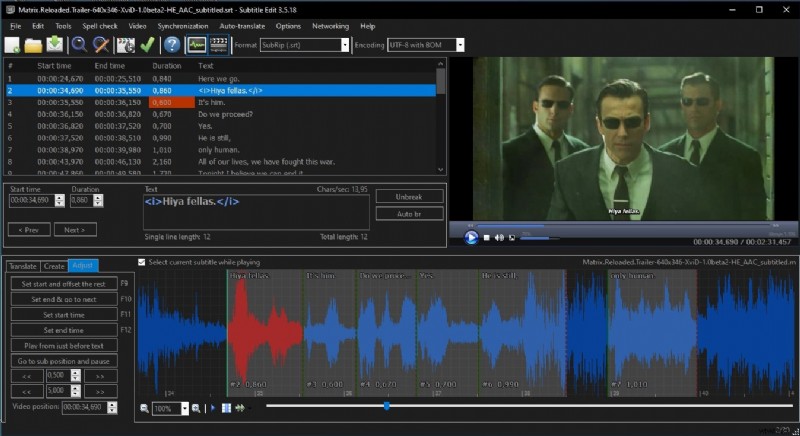
2. Subtitle Edit
Subtitle Edit is an open‑source solution that supports over 300 subtitle formats, including SRT, SubStation Alpha, and MicroDVD. It offers advanced time‑code editing, translation support for 32 languages, and a handy “Search & Replace” feature.
Platform: Windows
Price: Free
Pros:
- Extensive format compatibility.
- Multilingual translation capabilities.
Cons:
- Limited to subtitle editing; lacks broader video‑editing tools.
3. VideoProc Converter
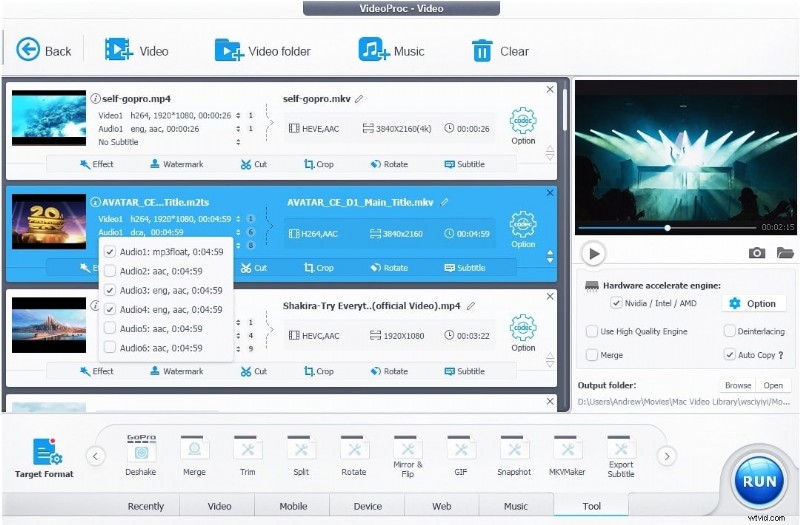
VideoProc is a feature‑rich editor that handles 4K and HD content effortlessly. It supports both hard‑coded and soft‑coded subtitles, along with a suite of visual effects such as brightness, contrast, hue, and saturation adjustments.
Platform: Windows & macOS
Price: Lifetime licenses from $78.90 (single PC) or subscription plans.
Pros:
- Advanced color grading and 16 built‑in visual effects.
- Simultaneous hard‑coding and soft‑coding options.
Cons:
- Interface may feel cluttered for beginners.
4. Jubler Subtitle Editor
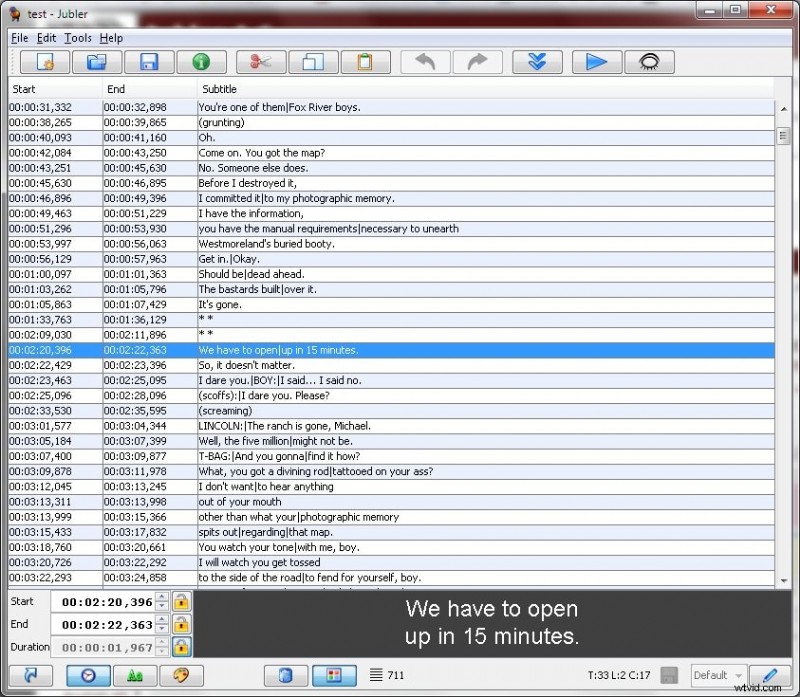
Jubler is a lightweight, cross‑platform editor (Windows, macOS, Linux) that offers spell‑checking, color‑coded subtitle display, and easy split/merge operations.
Platform: Windows, macOS, Linux
Price: Free
Pros:
- Spell‑checking with dictionary selection.
- Color‑coded subtitle editing while previewing.
Cons:
- Only available in English.
5. Movavi Video Editor
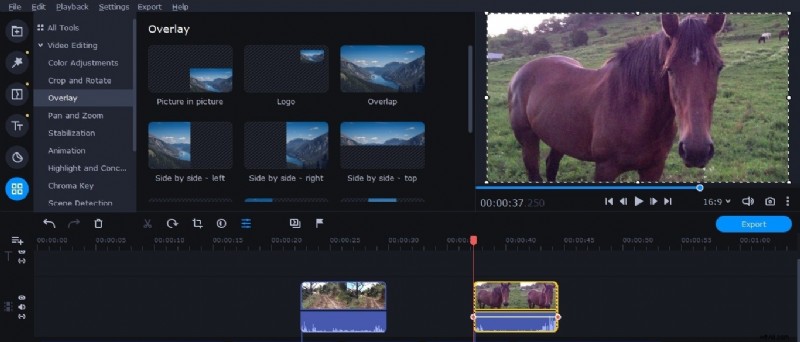
Movavi balances ease of use with powerful subtitle features. It allows precise synchronization, subtitle encoding for clarity, and high‑quality voice‑over integration.
Platform: Windows & macOS
Price: 1‑Year license $49.95, Lifetime $69.95, Suite $89.95
Pros:
- High‑quality voice‑over support.
- Stabilization feature for shaky footage.
Cons:
- Rendering speed can be slower than competitors.
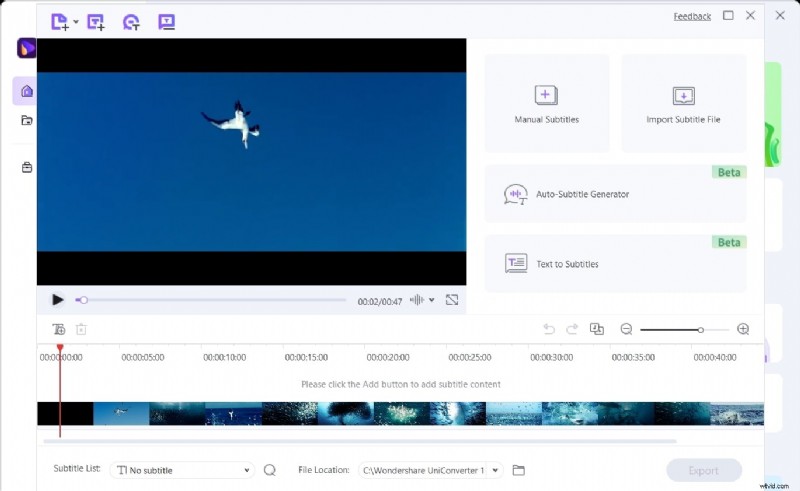
6. Wondershare UniConverter
UniConverter is a comprehensive media suite that handles format conversion, subtitle generation, and watermark editing. It includes a “Text to Subtitles” feature and supports a wide range of subtitle formats.
Platform: Windows & macOS
Price: Quarterly $29.99, Annual $39.99, Perpetual $55.99
Pros:
- Instant watermark removal/editing.
- Voice‑changer with multiple presets.
Cons:
- Some advanced tools are locked behind the paid tier.
7. Subtitle Processor
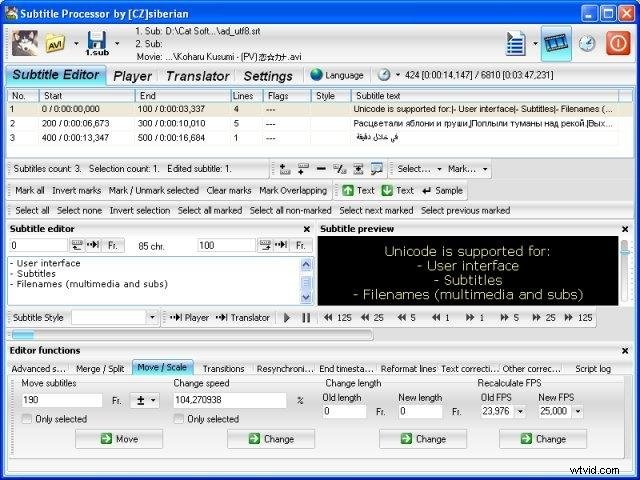
Subtitle Processor offers a built‑in media player for precise sync adjustments. It supports manual subtitle entry with a preview window and includes transition and resynchronization tools.
Platform: Windows
Price: Free
Pros:
- Transition effects between subtitle blocks.
- Multipoint linear resynchronization.
Cons:
- Cluttered interface; no help files.
8. DivXLand Subtitler
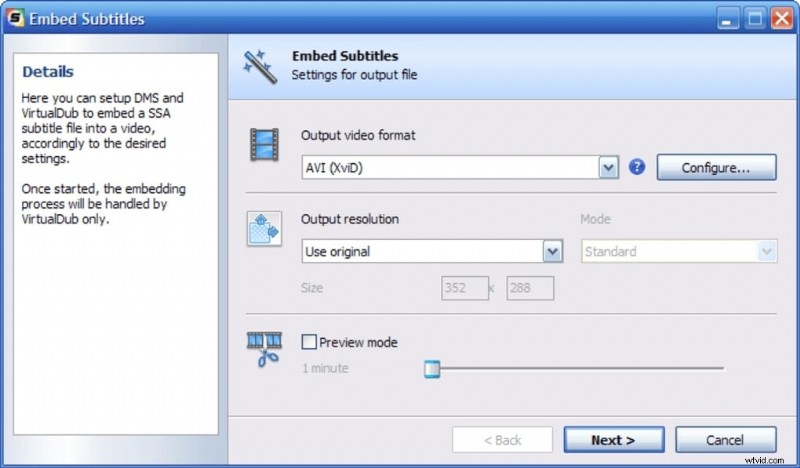
DivXLand Subtitler is lightweight and supports a broad range of video formats. It enables rapid subtitle import from external files and offers keyboard shortcuts for efficient editing.
Platform: Windows
Price: Free
Pros:
- Preview without saving to disk.
- Extensive keyboard shortcuts.
Cons:
- No auto‑generation of subtitles.
9. Sears
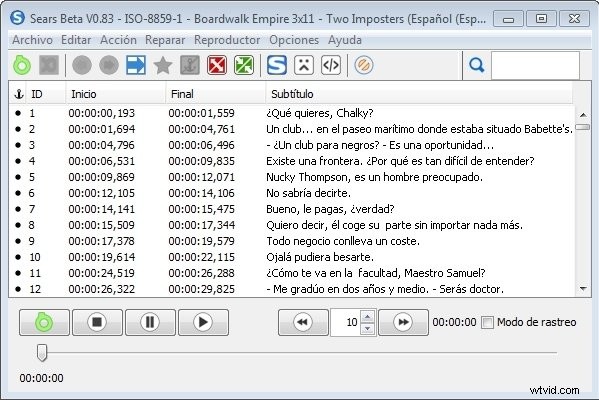
Sears focuses on subtitle synchronization and repair. It integrates with VLC for playback and provides tools to merge, split, and correct subtitle timing.
Platform: Windows
Price: Free
Pros:
- VLC playback support.
- Subtitle merging and splitting.
Cons:
- Only compatible with VLC 0.8.6.
Part 2: The Best 6 Online Subtitle Editors
For users who prefer browser‑based solutions, the following platforms deliver robust subtitle editing without any installation.
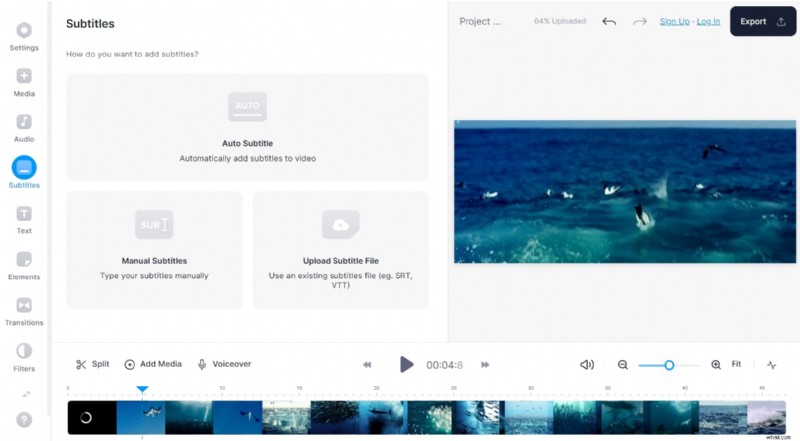
1. Veed
Veed offers a full suite of subtitle tools, including auto‑transcription, file upload, and manual editing. It’s also capable of live streaming with real‑time captions.
Price: Basic $18/mo, Professional $30/mo, Business $70/mo
Pros:
- Live streaming support.
- Background noise reduction.
Cons:
- Video trimming can be cumbersome.
2. Kapwing
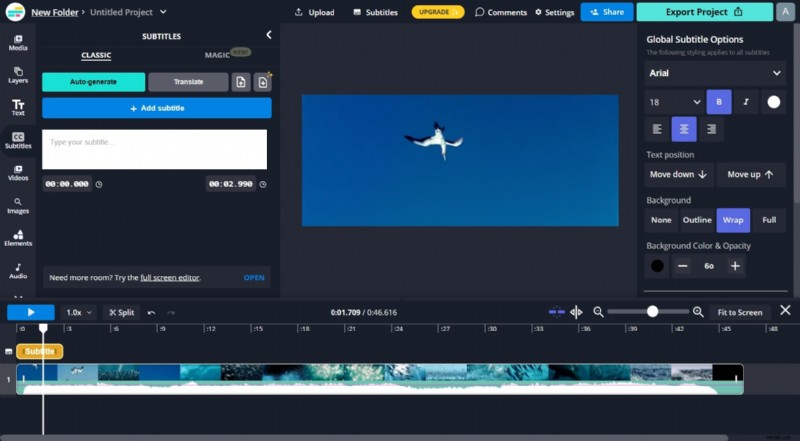
Kapwing provides advanced subtitle styling, background removal, and multilingual translation. Its templates help creators add a professional look quickly.
Price: Pro $24/mo, Teams $24/mo
Pros:
- Background removal tool.
- Video merging without quality loss.
Cons:
- 4K export quality may degrade.
3. Happy Scribe
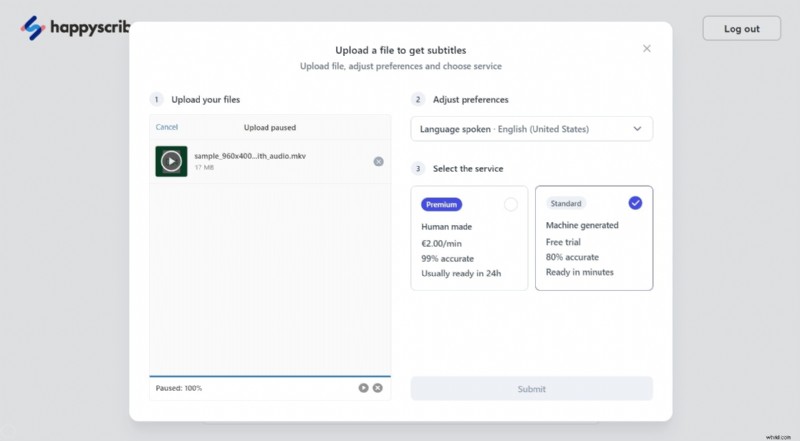
Happy Scribe specializes in automated transcription and subtitle conversion (SRT, STL, VTT). It supports direct YouTube URL uploads.
Price: Automatic €0.20/min, Hand‑made €2.00/min, Human Translation €20.85/min
Pros:
- Subtitle conversion to Word, Text, PDF.
- Visual timeline for editing.
Cons:
- Translation accuracy can vary.
4. Flixier
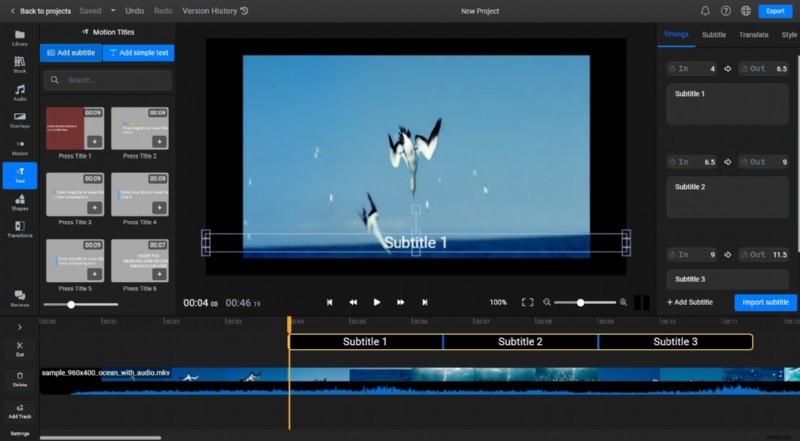
Flixier offers real‑time collaboration and advanced subtitle timing controls. It supports keyframe editing and custom font styling.
Price: Creator $14/mo, Business $30/mo
Pros:
- Screen recording capabilities.
- Picture‑in‑picture recording.
Cons:
- Customer support can be slow.
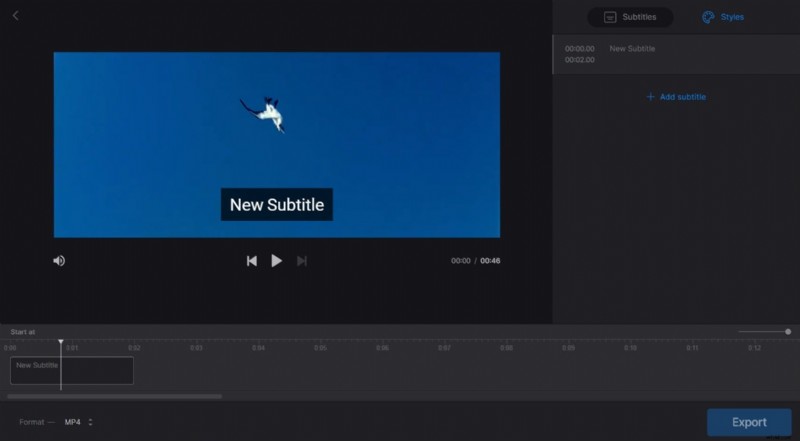
5. Clideo
Clideo offers a straightforward interface for adding subtitles, cropping unwanted elements, and compressing large files.
Price: Monthly $9, Annual $72
Pros:
- Crop tool for object removal.
- Lossless video compression.
Cons:
- Premium version lacks advanced features.
6. SpeechText
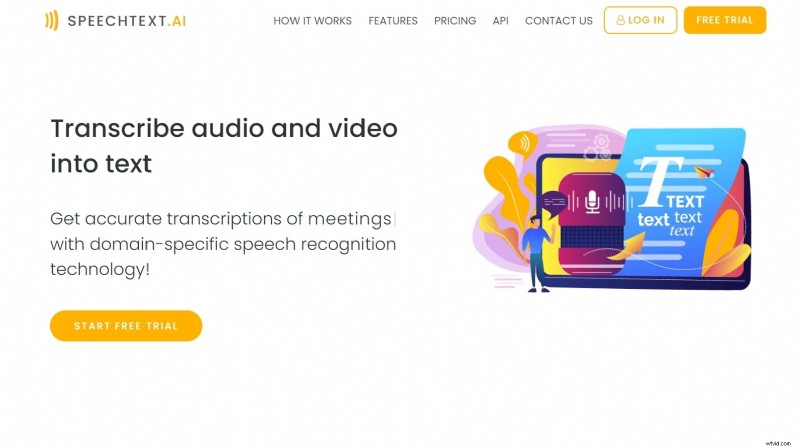
SpeechText handles multilingual auto‑transcriptions with voice‑recognition accuracy, even for non‑native accents. No account is required; everything runs locally in the browser.
Price: Starter $10, Personal $19, Standard $49, Business $99
Pros:
- Speaker‑detection for multi‑person conversations.
- Supports 30+ languages.
Cons:
- No built‑in video editing tools.
Part 3: Our Top 3 Subtitle Editor Picks
1. Wondershare Filmora – The Most Professional Choice
Filmora stands out with its comprehensive feature set that goes beyond subtitles. Advanced effects, transitions, and audio editing tools make it a one‑stop solution for polished, professional videos.
2. Wondershare UniConverter – Best for Format Versatility
UniConverter excels in handling a vast array of formats, making it ideal for users who need to work across multiple media types while keeping subtitles in sync.
3. Veed – The Most Convenient Editor
Veed’s browser‑based workflow eliminates the need for downloads, and its subtitle features are complemented by background‑noise removal and screen‑recording tools.
People May Also Ask
1. How can I create my own subtitles?
Start with a plain‑text editor (e.g., Notepad, TextEdit). Open your video and the text file side‑by‑side, then write subtitle lines with timestamps. Review carefully to avoid errors.
2. Should I use subtitles or closed captions?
Subtitles translate spoken dialogue for viewers who don’t understand the language. Closed captions include additional audio cues (sound effects, speaker labels) and are essential for accessibility.
Final Thoughts
Whether you prefer a desktop powerhouse or a cloud‑based convenience, the editors above provide reliable, feature‑rich solutions for every level of creator. Use this guide to pick the tool that aligns best with your workflow and audience needs.