
Maybe you have captured the perfect video but wished the background was different—or gone entirely? A messy or distracting background can take away from your video's impact.
So, you want to make your videos look super cool by removing the boring background? Imagine your friend talking in front of a spaceship, or your pet dog walking on the moon! Sounds awesome, right? Well, you can totally do that with CapCut, a super easy-to-use video editing app on your phone or computer.
CapCut's video background removerlets you cut out backgrounds without needing a green screen or expensive software. You can make your videos look professional look or eye-catching and creative.
In this tutorial, we'll guide you step-by-step on how to remove video backgrounds using CapCut. We’ll also talk about an alternative to keep your creative projects on track.

In this article
- How to Remove Background For Free Using Capcut Video Background Remover
- Is Capcut Still Available In Your Area?
- Software with Video Background Remover Feature Just Like Capcut
- 3 Ways to Remove Video Background Using Filmora AI Background Removers
Part 1. How to Remove Background For Free Using Capcut Video Background Remover
CapCut Video Background Removeris an AI-powered tool that intelligently detects and removes the background from your videos. It analyzes the video frame by frame, identifying the subject and separating it from the background. This allows you to easily replace the background with any image or video you choose.
Unlike traditional methods that require a green screen or complex software, it removes the background with just a few taps. It can handle various scenarios, such as:
- Simple backgrounds: Solid colors, blurred backgrounds, and even some textured backgrounds.
- Complex backgrounds: Scenes with multiple objects, moving elements, and varying lighting conditions.
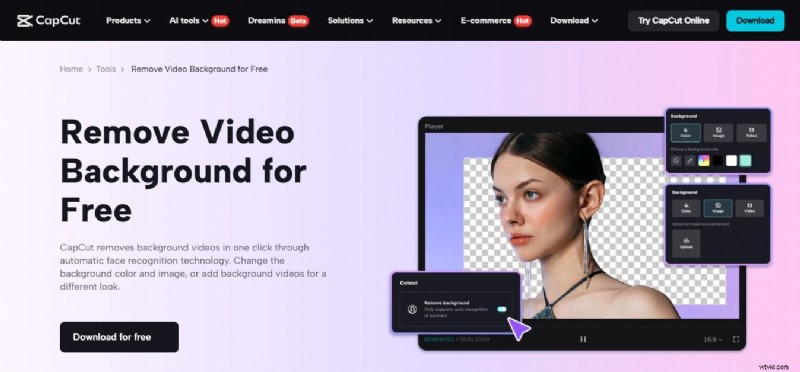
Benefits of Using CapCut for Background Removal
- The video background remover tool in CapCutis free to use, saving you money compared to premium editing software.
- Its user-friendly interface ensures that even those with minimal editing experience can navigate it with ease.
- With advanced AI, CapCut maintains the sharpness of your video subject while removing the background.
- The tool eliminates the need for additional equipment, making it ideal for on-the-go editing.
When to Use Background Removal
- Social Media Content: Make your videos stand out with clean, eye-catching backgrounds for platforms like Instagram, TikTok, and YouTube.
- Professional Presentations: Enhance your presentations with engaging visuals.
- Online Meetings:Deliver polished videos for client meetings, webinars, or tutorials.
- Educational Videos:Create engaging and informative educational content.
- Personal Projects:You can use it for personal projects like music videos, short films, and more.
How to Remove the Video Background in Capcut Without Using the Green Screen
Here’s the guide on how to use CapCut video background remover:
Step 1. Download and install the CapCut app on your mobile or desktop and open it. Tap on "New Project" and click Import to select the video you want to edit. Drag and drop it onto the editing timeline.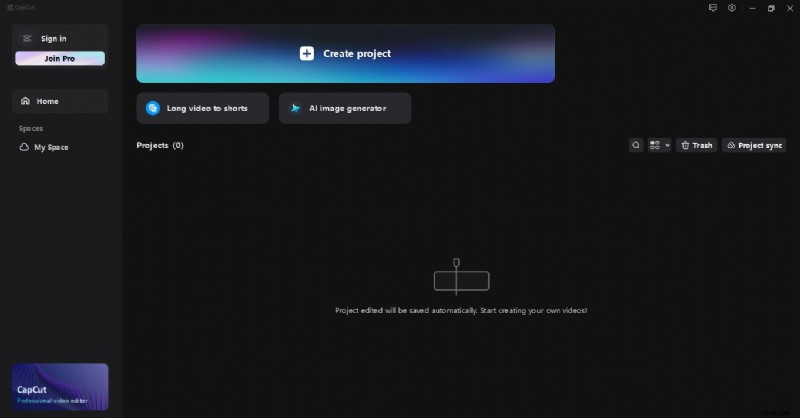 Step 2. Tap on the "Remove BG" in the top right corner to see background removal options.
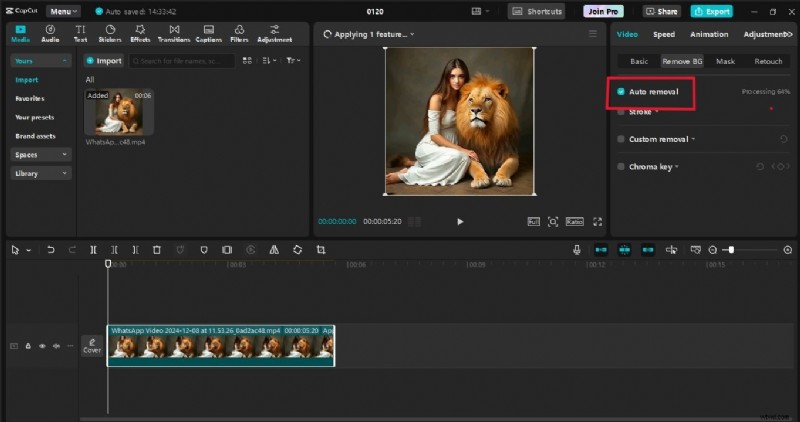 Step 3. Then select the auto removal option to remove the video background precisely. CapCut will automatically start processing your video. The processing time may vary depending on the video length and complexity. CapCut's AI is generally very accurate, but you can fine-tune the results with the provided tools if needed.
Step 4. To replace the background, go to the Library and tap on the "Background" option to get background video templates. You can also replace the background with a solid color or an image from your device as the background.
Step 3. Then select the auto removal option to remove the video background precisely. CapCut will automatically start processing your video. The processing time may vary depending on the video length and complexity. CapCut's AI is generally very accurate, but you can fine-tune the results with the provided tools if needed.
Step 4. To replace the background, go to the Library and tap on the "Background" option to get background video templates. You can also replace the background with a solid color or an image from your device as the background.
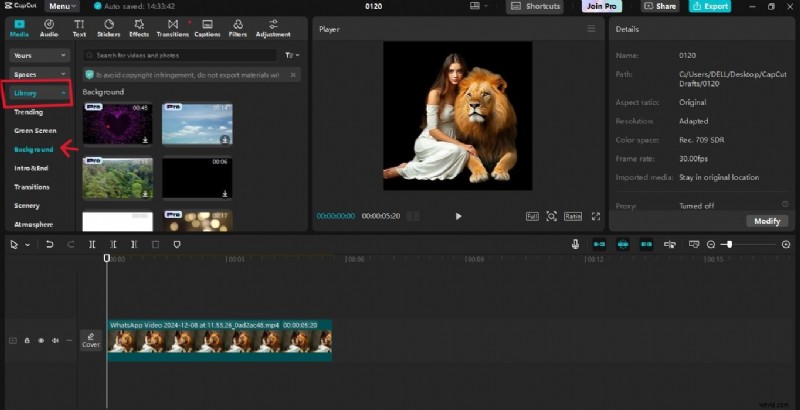 Step 5. After choosing the desired background, drag and drop it below your video. Adjust these two laters, fix the background on your video, and that's it!
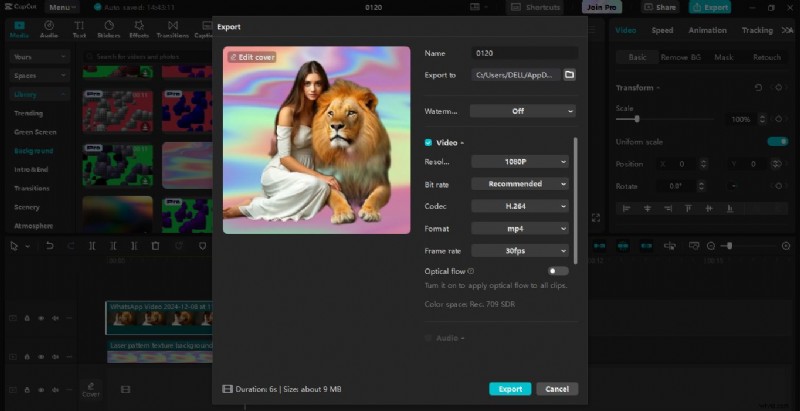
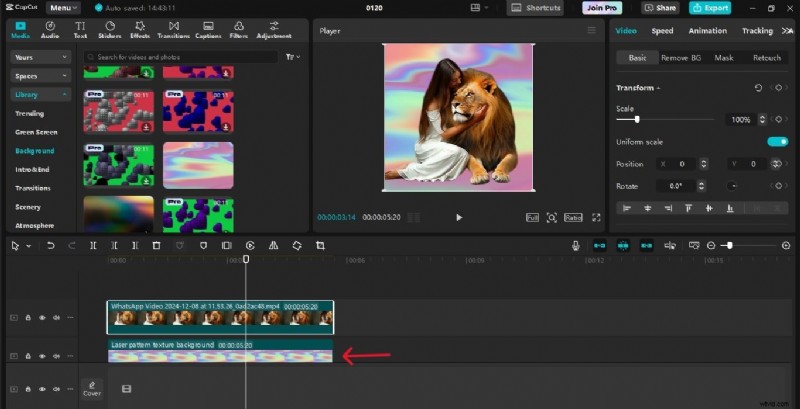 Step 6. Once you're satisfied with the results, tap on "Export" and choose the desired resolution and quality settings.
Part 2. Is Capcut Still Available In Your Area?
Recent news has seen TikTok and its powerful editing companion, CapCut, facing restrictions due to government regulations and security concerns in certain regions. This might leave you wondering about alternatives for your video editing needs, particularly the fantastic background removal feature.
If you find that CapCut is not accessible in your region, don't worry! There are several excellent Capcut alternative options available that offer similar functionality. One such option is Wondershare Filmora. This app provides powerful AI tools like the Capcut video background remover tool that can effectively meet your creative needs. You can easily edit and remove the background in your videos.
Part 3. Software with Video Background Remover Feature Just Like Capcut
If you're looking for a more advanced video editor with professional-grade results, Wondershare Filmora is an excellent choice! It's packed with tons of cool features. Whether you’re creating social media content, marketing videos, or cinematic projects, Filmora's advanced video editing features and background removal tools make it a powerful alternative to CapCut.

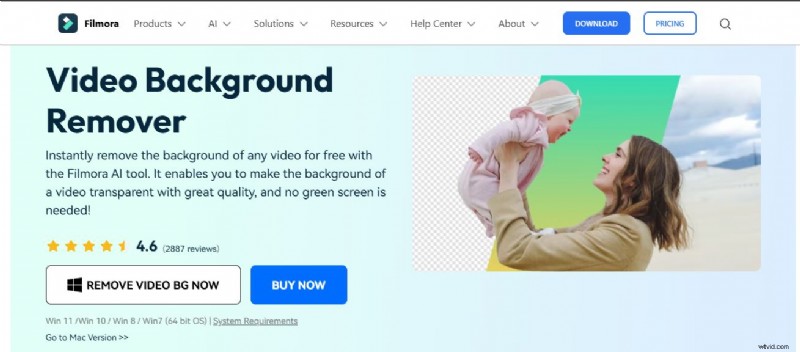
Filmora allows you to remove backgrounds with or without a green screen, giving you flexibility based on your resources and needs. It has amazing AI tools to instantly remove background in your videos. It uses super-smart AI to detect and remove the backgrounds. It's like having a tiny robot artist that perfectly separates you (or your subject) from the rest of the scene.
Part 4. 3 Ways to Remove Video Background Using Filmora AI Background Removers
First, we discussed how to remove the background in the Capcut, and now we’ll see how to remove it in Filmora. There are many different ways to remove video backgrounds in Filmora without relying on green screens. These methods cater to different needs that we will discuss in relevant sections further.
Method 1. Quickly Remove Background Using Filmora Smart Cutout Tool
This versatile tool is effective for removing backgrounds from various subjects, particularly those with well-defined edges. This method is so simple, quick, and accurate. Here is the step-by-step guide to removing video backgrounds using the Filmora AI Smart Cutout tool.
Make Videos with Wondershare Filmora
- Vast video/audio effects and creative assets.
- Powerful AI for effortless content creation.
- Intuitive, professional yet beginner-friendly.
- Works on Mac, Windows, iOS, and Android.


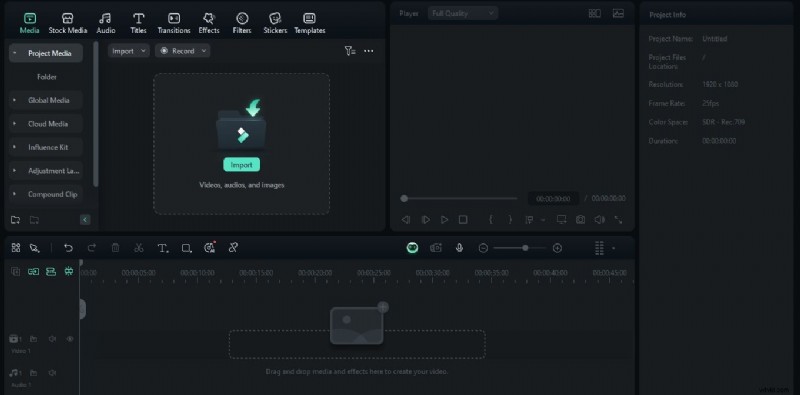
 Step 1. Download and install
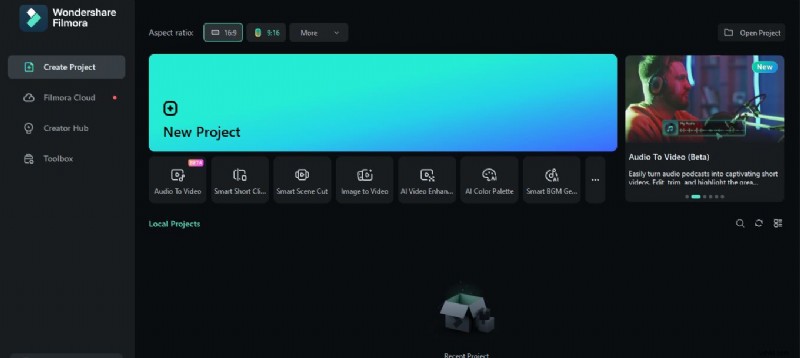
First, you need to download and install Filmora from the official Wondershare website. Open it and Click Create a Project.
 Step 2. Import your video
Click Import to get your video into Filmora. Drag and drop it onto the timeline.
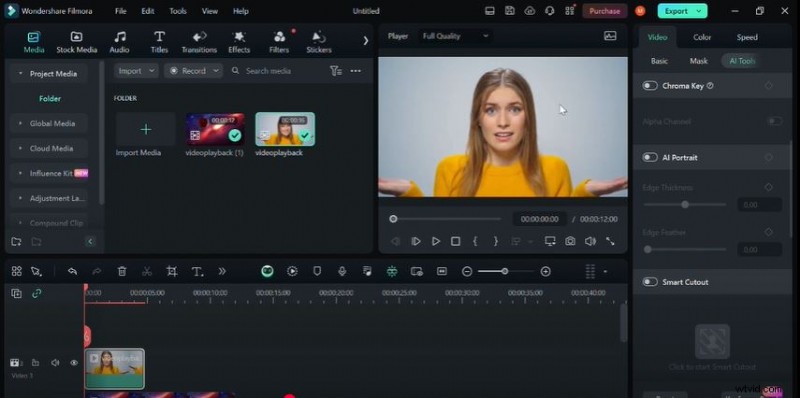
 Step 3. Select the AI Smart Cutout
Now go to the Videob option and Click AI Tools. Then activate the Smart Cutout from there.
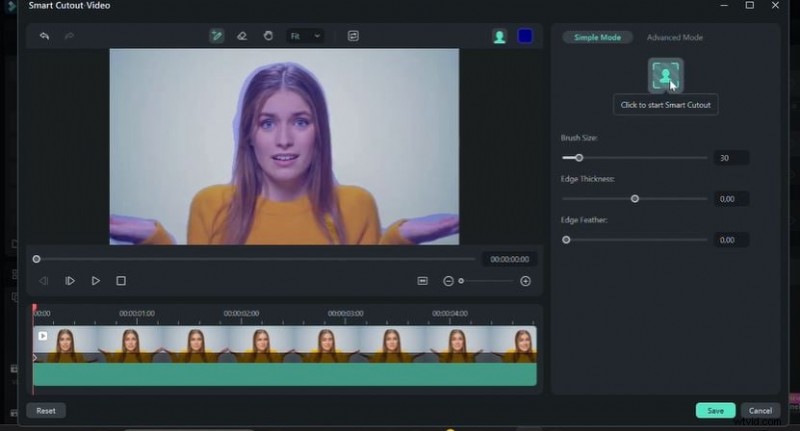
 Step 4. Mark the object
Use the "Smart Brush" to carefully paint over the object you want to keep. You can adjust the brush size for precision. Click the Smart cutout icon for processing and then hit the Save button.
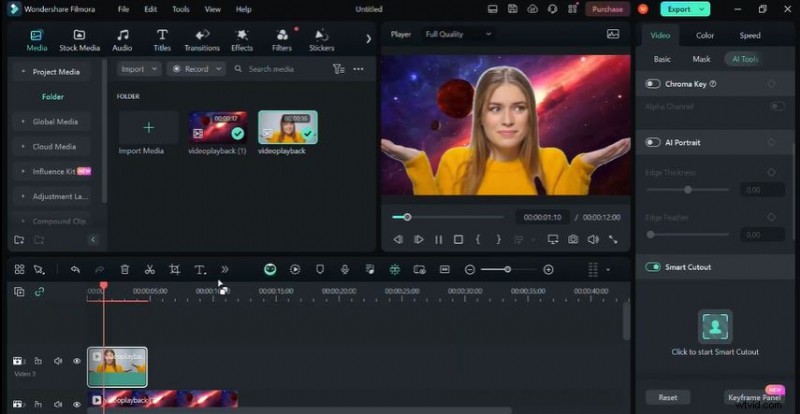
 Step 5. Replace/add background
Now you can add a background to your video according to your choice. You may either choose the background from the Filmora Library or import it from your device.
 Step 6. Export your video
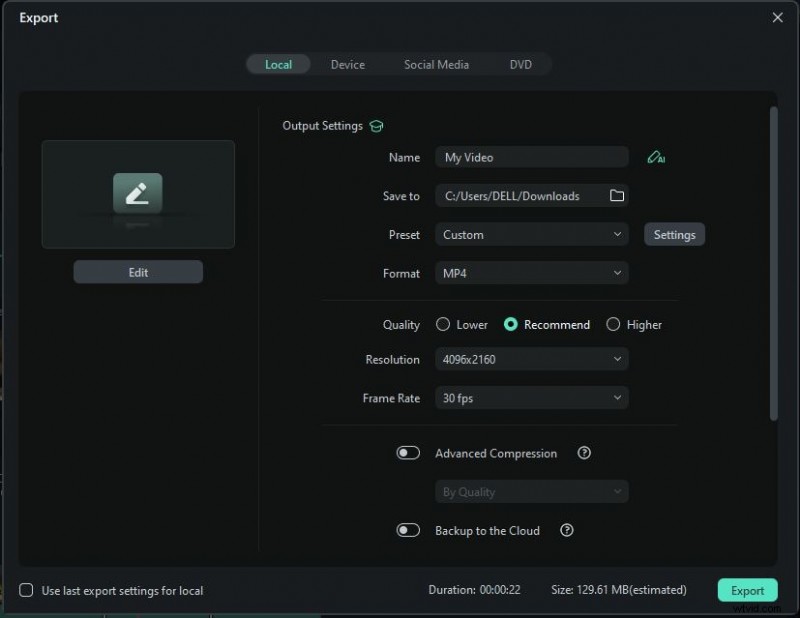
Preview the results. If needed, you can make edits as you wish. Once you're happy with the results, export your video. Choose the desired resolution and format for sharing.
Method 2. How to Remove Video Background Using Filmora AI Portrait Cutout
AI portrait is another tool that can help you easily remove video backgrounds without affecting video quality. This tool is specifically used in videos with human subjects or other characters. Because this method excels at accurately isolating people or characters from their backgrounds.
Follow these steps to remove the background in your video with human subjects.
Step 1. Import the video clip from which you want to remove the background. Drag and drop it onto the timeline. Then, go to the Video> click AI Tools in the top right corner.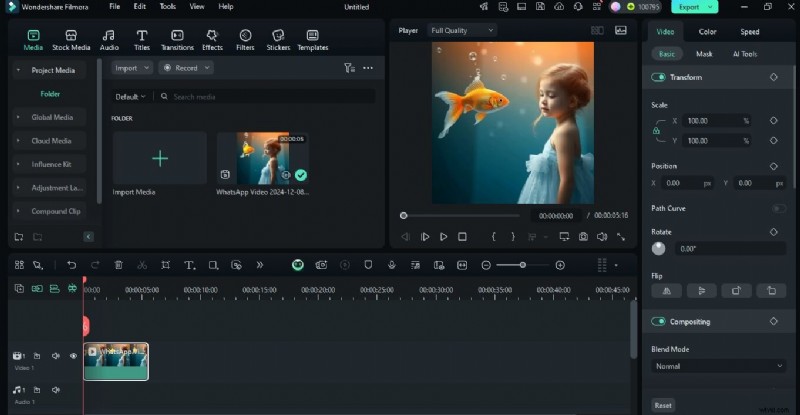 Step 2. Turn on the AI Portrait Cutout, this will remove the background behind your character.
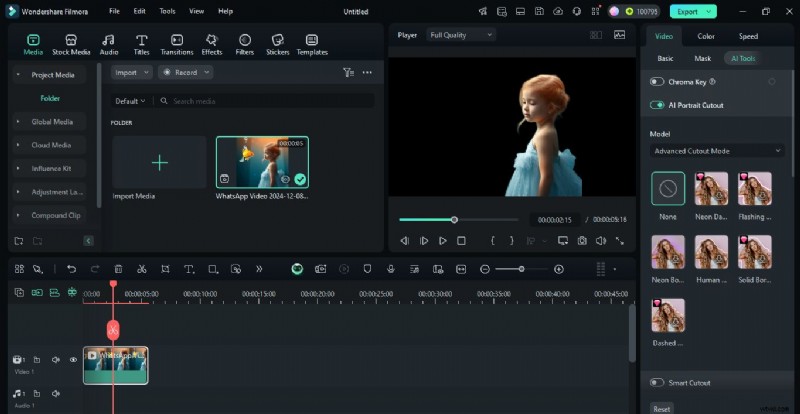 Step 3. Choose the cutout model_ quick cutout model or advanced cutout model. If you are choosing quick, adjust the edge feature and thickness to achieve perfection. You can also add a background of your choice either from the Filmora library or your device.
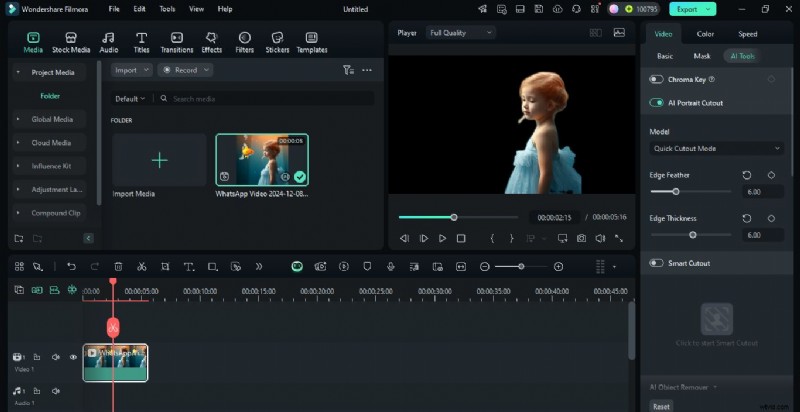
When you’re done, hit the Export button to save your video in the desired format.
Method 3. Instantly Remove Unwanted Objects in Video Background With AI Object Remover
Sometimes you don’t need to remove the entire background but instead some specific objects that are distracting your video. For these situations, the Filmora AI object remover tool is ideal. This intelligent feature allows you to precisely remove unwanted elements within your video, such as distracting people, objects, or even text.
Here is the stepwise process to remove unwanted elements in your video background.
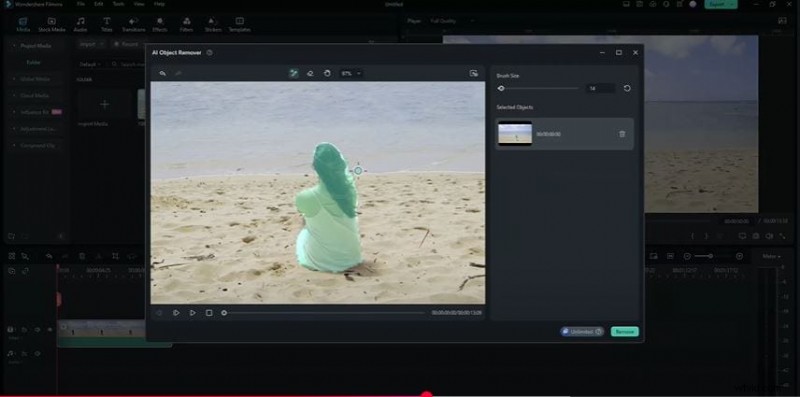
Step 1. Add your video to the Filmora timeline. Select the AI Object Remover tool from the editing panel. Step 2. Select the brush tool, adjust the brush size, and select the object you want to remove. Make sure to select your subject properly. When you’re done, click Remove and Filmora AI object remover will start processing- takes a few seconds.
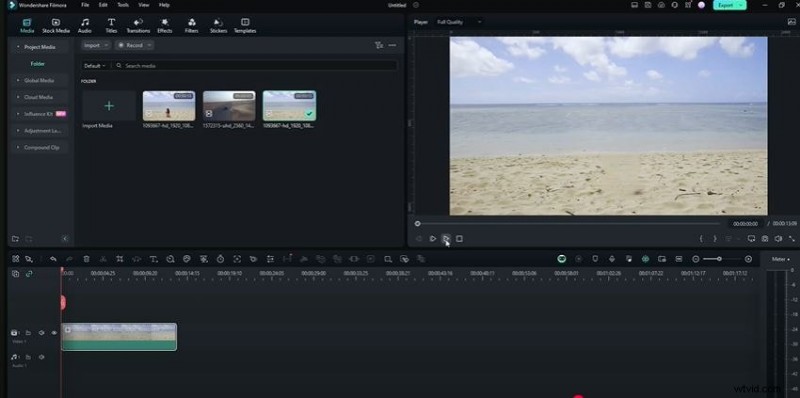
Filmora removes the selected object properly. Preview your video and export.
Conclusion
Removing video backgrounds has been much easier with tools like CapCut and Filmora. CapCut’s video background remover is a free, user-friendly solution to remove video backgrounds instantly. However, if Capcut isn’t available in your area, Wondershare Filmora is the best recommended choice for you. It takes it a step further with many professional-grade AI video background removers like AI Object Removers besides Chroma Key. Whether you’re editing for social media, professional presentations, or creative projects, both tools cater to different needs.
If you’re looking for advanced editing capabilities try Filmora. You can go for any background remover depending on your choice and the use cases that we discussed above. However, all these tools give you professional and accurate background removal. You may also try Filmora’s wide range of editing features to enhance your videos.