
In today’s fast‑moving digital world, the appetite for short‑form videos on TikTok, Instagram Reels, and YouTube Shorts is never-ending. Creators, podcasters, and marketers must keep up, yet manually editing long‑form footage is time‑consuming and costly. Generative AI promises a solution: automatically transform hours of video into ready‑to‑publish short clips.
Enter OpusClip. The platform claims to convert long‑form videos into a series of viral‑ready clips with just one click. In this review we examine every facet of the tool—features, pricing, real‑world performance, and how it stacks up against a full‑featured editor like Wondershare Filmora.
Part 1. What is OpusClip? A Deep Dive
OpusClip AI is a generative‑AI platform designed to automate the repurposing of long‑form video content into short, shareable clips. Rather than requiring users to scrub through hours of footage, OpusClip’s AI analyzes video and audio, identifies the most engaging moments, and reformat them for vertical viewing.
For a practical sense of its capabilities, watch candid reviews from creators such as Chris – That Tech Guy on YouTube:
OpusClip primarily targets:
- Content Creators & YouTubers – repurpose podcasts, vlogs, and interviews into a steady stream of social‑media content.
- Marketers & Brands – maximize ROI from webinars, product demos, and educational videos by creating bite‑sized promotional assets.
- Agencies & Social‑Media Managers – scale content production across multiple clients efficiently.
At its core, OpusClip tackles the critical problem of content velocity, drastically cutting the time and effort needed to feed the algorithms of modern social media platforms.
OpusClip Pricing Plans: Which Tier is Right for You?
OpusClip uses a credit‑based pricing model, where one credit equals one minute of video processing. The following table summarizes the plans available as of 2026.
| Feature | Free Plan | Starter ($15/mo) | Pro ($29/mo) | Business (Custom) |
| Price | $0 | $15/month | $29/month or $174/year | Custom Pricing |
| Processing Credits | 60 min/mo | 150 min/mo | 300 min/mo (3600/year) | Unlimited |
| Watermark | Yes | No | No | No |
| AI Virality Score | No | Yes | Yes | Yes |
| AI B‑Roll | No | No | Yes | Yes |
Show more / Show less |
||||
Part 2. Core Features of OpusClip AI
OpusClip’s value lies in its sophisticated AI suite. Below are the key capabilities that make it stand out.
AI‑Powered Clipping and Virality Score
The platform’s AI scans a full video, identifies highlight-worthy segments, and assigns each clip a Virality Score from 1 to 100. While the score is an AI prediction, it can help prioritize which clips to publish first.
Auto Reframe & Multi‑Platform Optimization
The ReframeAnything model intelligently converts landscape footage into vertical 9:16 format, keeping the main subject centered through AI object tracking. Manual adjustments are available if needed.
Automated Animated Captions
OpusClip generates captions with over 97% accuracy in more than 20 languages. Users can choose from a variety of templates to style fonts, colors, and add animated highlights that mirror popular caption aesthetics.
Part 3. How OpusClip Works: Step‑by‑Step

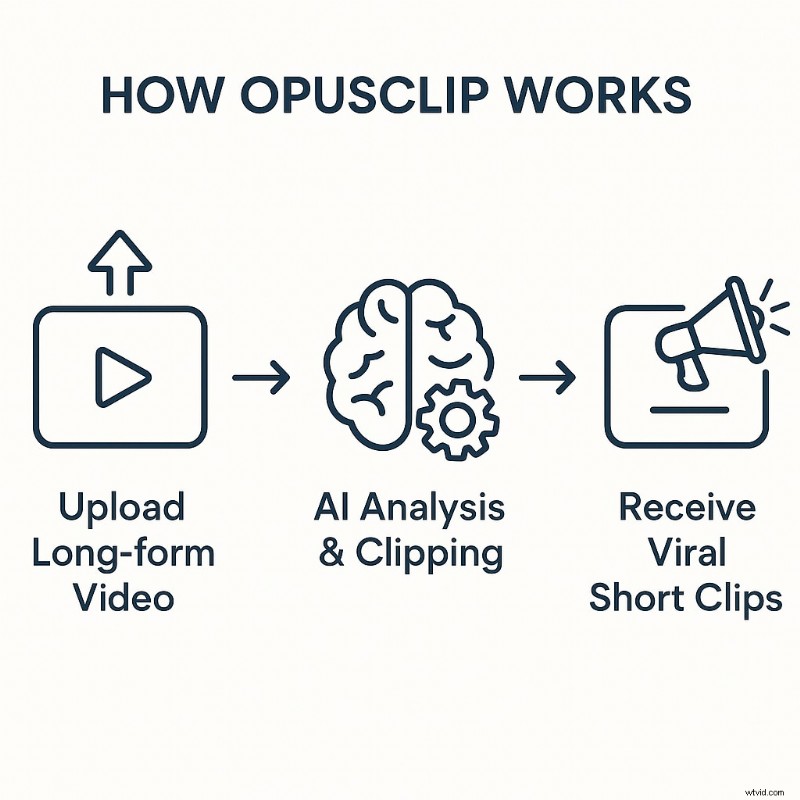
- Upload – import a local file or paste a YouTube link.
- AI Analysis – the system evaluates the footage and presents a library of clips, each tagged with a virality score.
- Review & Edit – trim, correct captions, and tweak styling to match your brand guidelines.
- Export or Publish – download in 1080p or schedule direct posts to TikTok, YouTube Shorts, and Instagram Reels.
Part 4. Verdict: Pros & Cons
- Massive time‑saver – cuts editing time by up to 80%.
- Intuitive interface – quick onboarding for new users.
- High‑quality captions – improves accessibility and engagement.
- Effective AI curation – reliably surfaces engaging moments.
- Direct social posting – streamlines distribution.
- Limited free tier – includes watermark and 3‑day clip expiration.
- Processing can be slow for very long videos.
- Editing tools are basic; not a full‑featured editor.
- Virality Score is predictive, not guaranteed.
- AI B‑Roll feature still experimental.
Part 5. When OpusClip Falls Short: Complementing with Wondershare Filmora
OpusClip excels at rapid repurposing but lacks the depth of a dedicated editor. For creators who need narrative control, advanced effects, or detailed color grading, Wondershare Filmora is a natural next step.

Core Editing Features of Filmora
- AI Copilot Editing – suggests cuts, effects, and music based on footage analysis.
- AI Text‑Based Editing – edit video by modifying its transcript.
- AI Smart Masking & Cutout – remove backgrounds or isolate subjects automatically.
- AI Music Generator – create royalty‑free tracks that match video mood.
- AI Copywriting – integrates with ChatGPT to draft scripts, titles, and descriptions.
Pros & Cons of Filmora
- Pros – complete creative control, vast library of effects, robust AI workflow, one‑time purchase option.
- Cons – steeper learning curve, requires more hands‑on effort than OpusClip.
Who Should Choose Filmora?
Filmora suits beginners launching their first video and seasoned creators needing a powerful, flexible editing suite. It’s ideal when OpusClip’s automated output feels too restrictive.
Why Filmora Might Be a Better Choice
While OpusClip focuses on quick repurposing, Filmora offers full production capabilities—unique effects, precise color grading, and sophisticated audio mixing—to create polished, brand‑aligned content.
Conclusion
OpusClip remains a valuable tool for rapid generation of social‑media clips, but its limitations become apparent for creators seeking deeper creative control. For those who need a comprehensive editing solution, Wondershare Filmora’s AI‑assisted workflow delivers the flexibility and polish required to stand out in a crowded content landscape.

Frequently Asked Questions (FAQ)
- Is OpusClip really free? – OpusClip offers a limited free trial with 60 processing minutes per month. Watermarked clips expire after three days.
- How accurate is the OpusClip Virality Score? – The AI‑driven score is a useful guide but not a guarantee of viral success; its accuracy varies.
- What are the main limitations of OpusClip? – Basic editing, slow processing for long videos, and a restrictive free tier make it a repurposing tool rather than a full editor.
- Can I use OpusClip for non‑English videos? – Yes; the platform supports automated captioning in over 20 languages.
- Why choose Filmora over OpusClip? – Filmora provides complete creative control over narrative, effects, color, and audio, whereas OpusClip focuses on automated repurposing.