
Choosing the right video editor for Windows 10 can feel overwhelming. Whether you’re a budding YouTuber, a corporate presenter, or a social‑media enthusiast, the right tool turns raw footage into polished content. In this 2026 guide, we’ve tested 17 software solutions—free and paid—to help you pick the perfect fit.
Part 1 – Quick Comparison: Best Video Editors for Windows 10
The table below offers a side‑by‑side snapshot of our top picks. We focus on three key dimensions that matter most to everyday users: ease of learning, ideal audience, and a standout feature.
| # | Tool | Ease of Use | Advanced Features | Platform | Best For |
|---|---|---|---|---|---|
| 1 | Wondershare Filmora | Very beginner‑friendly; intuitive timeline and guided tutorials | AI tools (text‑to‑video, motion tracking, keyframing), presets, stabilization, chroma key | Windows, macOS, Android, iPhone | Novices seeking polished videos quickly |
| 2 | OpenShot | Drag‑and‑drop interface; cross‑platform | 4K/8K support, keyframes, unlimited tracks, FFmpeg‑based formats | Windows, macOS, Linux | Beginners on a budget needing basic edits |
| 3 | VSDC Free Video Editor | Moderate complexity; steeper than simpler editors | Split‑screen, chroma key, screen capture, filters | Windows | Intermediate users seeking free advanced tools |
| 4 | HitFilm Express | Moderate—clear layout but learning curve exists | VFX, motion tracking, advanced export options | Windows, macOS | Creators wanting cinematic effects, free |
| 5 | Microsoft Photos Editor | Extremely simple and intuitive (built‑in) | Basic trimming, text, transitions | Windows (built‑in) | Casual quick edits without learning overhead |
| 6 | Avidemux | Very basic and straightforward | Cutting, filtering, file format conversion | Windows, macOS, Linux | Simple clip edits, no complexity |
| 7 | InVideo | Easy once online setup is done | Templates, auto voice‑to‑text, social presets | Web browser | Social media creators needing quick templates |
| 8 | Machete Lite | Minimalistic and fast interface | Clip slicing, audio removal | Windows | Fast trims on limited formats |
| 9 | VideoPad | User‑friendly; drag‑and‑drop with tutorials | 360° editing, transitions, audio enhancements | Windows, macOS | Beginners needing polished finishes quickly |
| 10 | Adobe Premiere Pro | Professional layout; steep learning curve | VR/3D, advanced plugins, full pro workflow | Windows, macOS | Pro editors requiring extensive control |
| 11 | Lightworks | Moderate; onboarding required | Multicam, proxy editing, histogram tools | Windows, macOS, Linux | Semi‑pro editors on a budget |
| 12 | WeVideo | Very easy via browser; template‑based | Cloud editing, collaboration, stock assets | Web browser | Remote teams or casual creators |
| 13 | PowerDirector | Very easy with polished interface; praised by multiple sources | AI tools, templates, motion tracking, multicam, mask designer | Windows (also mobile apps) | Semi‑pros needing powerful, accessible tools |
| 14 | Movavi Video Editor Plus | Very intuitive; excellent tutorial support | Animated titles, transitions, 4K, voiceovers | Windows, macOS | Quick mastery with polished output |
| 15 | Vegas Pro | Moderate to complex interface | Advanced audio suite, effects, compositing | Windows | Audio‑focused production professionals |
| 16 | Pinnacle Studio Ultimate | Moderate learning curve | Masking, overlays, screen recording | Windows | Creators needing advanced visuals |
| 17 | EaseUS Video Editor | Easy; straightforward interface for beginners | Standard editing + 50+ effects, transitions, text‑to‑speech, free converter | Windows | Beginners wanting simple edits with extras |
Part 2 – Our Top Recommendation: Wondershare Filmora
Wondershare Filmora has become the industry standard for creators who want a blend of power and simplicity. Its latest iteration, Version 14, builds on the solid foundation of earlier releases while adding new AI‑driven tools that streamline editing and elevate creativity.

Why Filmora Is Ideal for Windows 10 Users
- Full Format Support – Compatible with MP4, WMV, MOV, AVI, and more.
- Intuitive Interface – Drag‑and‑drop timeline, guided tutorials, and an organized workspace.
- Creative Freedom – Access to over 200 presets, titles, transitions, and music tracks.
- Affordable Licensing – One‑time purchase or subscription, with a generous free trial.
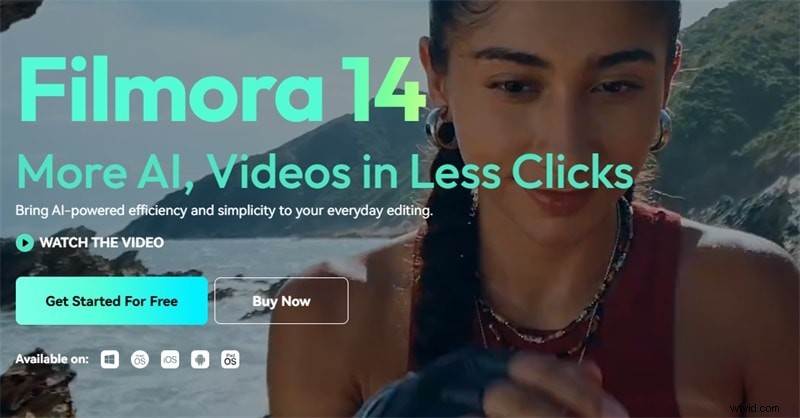
Key Features of Filmora V14
1. Smart Scene Detection
Automatically splits long footage into logical scenes using AI, saving editors hours of manual trimming.
2. Smart Short Clips
Generate bite‑size highlights optimized for TikTok, YouTube Shorts, and Instagram Reels, complete with auto‑captioning and music suggestions.
3. Keyframe Path Curve
Precise motion control for objects, text, and visual effects, with multiple easing options.
4. AI Video Enhancer
One‑click restoration that removes noise, corrects color, and upscales footage to 4K.
Filmora also offers stabilization, chroma keying, color grading, and a robust audio suite. Whether you’re a hobbyist or a professional, Filmora’s blend of features and usability makes it the go‑to editor on Windows 10.
Download Filmora
Try the free trial or purchase the perpetual license today.
Part 3 – 8 Free Video Editors for Windows 10
For creators who prefer zero‑cost solutions, the following editors provide solid functionality without watermarks.
1. OpenShot
Open‑source, cross‑platform, and free. Drag‑and‑drop editing, keyframes, 3D animations, and a library of over 70 languages.
Pros: Unlimited tracks, no watermark, 3D effects. Cons: Outdated UI, limited hardware acceleration.
2. VSDC Free Video Editor
Supports numerous codecs, split‑screen, chroma key, and screen capture. Ideal for YouTubers and hobbyists.
Pros: Full HD export, chroma key, low system requirements. Cons: Feature limitations in free tier, UI complexity.
3. HitFilm Express
Free with 400+ effects and presets. Light on resources, but offers add‑on packs for expanded capabilities.
Pros: No watermark, 4K export, motion tracking. Cons: Overwhelming for beginners, limited transitions.
4. Microsoft Photos
Built‑in Windows editor with basic trimming, text, and transitions. Great for quick edits.
Pros: OneDrive integration, intuitive UI. Cons: Limited features, no background editing.
5. Avidemux
Open‑source, frame‑by‑frame editing, and support for multiple formats.
Pros: Precise cuts, low requirements. Cons: Some features hard to use, occasional crashes.
6. InVideo
Online editor with thousands of templates. Requires internet for full functionality.
Pros: Social‑media templates, automated text‑to‑speech. Cons: Limited template switching, bandwidth dependent.
7. Machete Lite
Fast, free trimming tool for WMV/AVI, audio removal, and screenshot capture.
Pros: Keyframe editing, metadata tweaks. Cons: Few supported formats, limited features.
8. VideoPad
Drag‑and‑drop editing with 50+ transitions, audio enhancements, and 360° support.
Pros: Intuitive UI, multiple formats. Cons: No animations, some interface elements feel dated.
Part 4 – 8 Advanced Video Editors for Windows 10
When you’re ready to tackle more complex projects, the following professional‑grade editors offer comprehensive toolsets.
1. Adobe Premiere Pro
Industry‑standard for film, TV, and web. Supports 4K, VR, 3D, and advanced plugins.
Pros: Unlimited effects, advanced audio, multi‑camera editing. Cons: Steep learning curve, hardware‑heavy.
2. Lightworks
Lightweight yet powerful. Includes 4K support, multicam, and customizable UI.
Pros: Drag‑and‑drop, color correction. Cons: No high‑quality audio mixer, UI could be more intuitive.
3. WeVideo
Cloud‑based editor with collaborative features and a vast media library.
Pros: Text editing, stock media, cloud storage. Cons: Quality limits on free plans, feature caps.
4. PowerDirector
All‑in‑one solution with AI‑powered editing, 360° support, and mobile sync.
Pros: 3,000+ templates, fast processing. Cons: Occasional crashes, AI inaccuracies.
5. Movavi Video Editor Plus
Easy‑to‑use with animated transitions, voice‑over tools, and 4K support.
Pros: Quick learning, extensive effects. Cons: Slow rendering, limited effect control.
6. Vegas Pro
Robust audio editing, 3D tilting, and compositing capabilities.
Pros: Nested timelines, autosave, frequent updates. Cons: Requires codecs, no motion graphics.
7. Studio Ultimate
Feature‑rich with advanced masking, overlay, and screen‑recording options.
Pros: User‑friendly interface, flexible masking. Cons: Limited motion tracking, learning curve.
8. EaseUS Video Editor
All‑in‑one with a free converter and text‑to‑speech. Great for beginners.
Pros: 50+ effects, voiceover, aspect‑ratio control. Cons: Watermark on free version, limited advanced tools.
Conclusion – Choose the Best Video Editor for Your Needs
Every editor excels in specific areas. If you’re looking for a balance of power and simplicity, Filmora remains the top recommendation. For truly free, no‑watermark options, OpenShot and HitFilm Express are excellent starts. For professional‑grade production, Adobe Premiere Pro and Lightworks offer unmatched depth.
Try the free trials, compare your workflow, and select the tool that aligns with your creative goals.
Frequently Asked Questions
- What is the best alternative to Windows Movie Maker? Wondershare Filmora combines Movie Maker’s simplicity with advanced AI and creative features.
- Which is the easiest video editing software on Windows 10? Filmora’s drag‑and‑drop interface and guided tutorials make it the most beginner‑friendly choice.
- Can I edit 4K videos on Windows 10 without lag? Yes—choose a performance‑optimized editor like Filmora, PowerDirector, or Adobe Premiere Pro and ensure your hardware meets the recommended specs.
- Is there free video editing software for Windows 10 without a watermark? OpenShot, HitFilm Express, and VSDC Free offer watermark‑free exports; however, paid plans unlock full functionality.