
With content creation booming, finding the right video editor is crucial. Our in-depth FlexClip video editor review for 2025 explores this popular online tool, focusing on its new AI features, templates, and overall performance. But can a simple browser-based editor truly compete with professional desktop software?
In this guide, we provide an honest look at the FlexClip online video maker, highlighting its strengths for beginners and social media creators, while also comparing it to powerful alternatives like Filmora. Discover if FlexClip is the ideal choice for your video editing needs.
Part 1: What is FlexClip?
The FlexClip video editor allows users to easily create videos on a browser with no prior skills needed. It also has millions of users because it comes with templates, stock videos, and even songs. Marketers, educators, and content creators have easy-to-use technology that helps them create professional videos within a short time, and with no complicated steps.
The table below outlines FlexClip's core strengths, including editing quality and creative assets to support compatibility and user satisfaction.
Key Features Overview
| Aspect | Details |
| Team Editing Features | Group workspace tools for shared projects 👥 |
| Security Standards | Built-in security for privacy and safe content storage 🔒 |
| Learning Support | Step-by-step guides, how-tos, and tutorials 📚 |
| Multilingual Interface | Supports subtitles and content in 140+ languages 🌐 |
| Video Definition | Export videos up to stunning 4K resolution 📺 |
| Templates | 6,000+ pre-designed and fully editable layouts 🎨 |
| Media Assets | Access to 4M+ stock videos and photos 📸 |
| User Community | Over 5M active creators globally 🌍 |
| Music & Audio Library | 74,000+ royalty-free music tracks 🎶 |
| Output Formats | Save videos as MP4, GIF, and more 📂 |
| Always-On Support | 24/7 customer assistance via multiple channels 📞 |
| Cross-Device Compatibility | Works across all browsers and devices 💻 |
| Customer Satisfaction | Rated highly by users for ease of use and results ⭐ |
| Feature Rollouts | Frequent updates with new features and improvements 🔄 |
|
Show more Show less |
FlexClip's AI Tools, Templates, and Libraries
Beneath FlexClip's clean interface lies a powerful toolkit designed for speed and creativity. Its true value shines in the details—from smart editing tools to built-in AI and ready-made visuals. We'll explore its top features, including its extensive template library, powerful AI tools, and massive stock media collection.
Templates
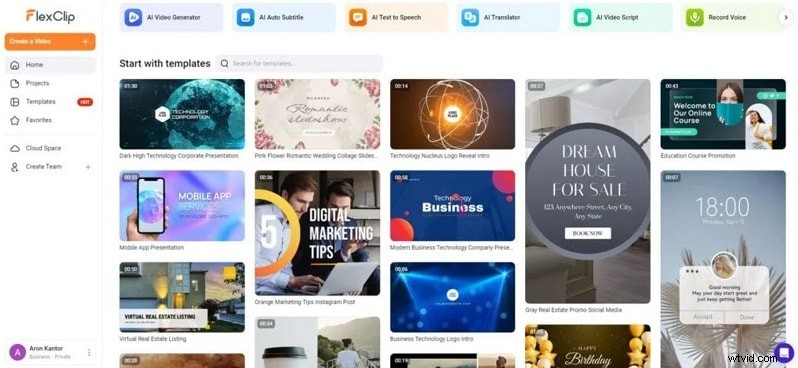
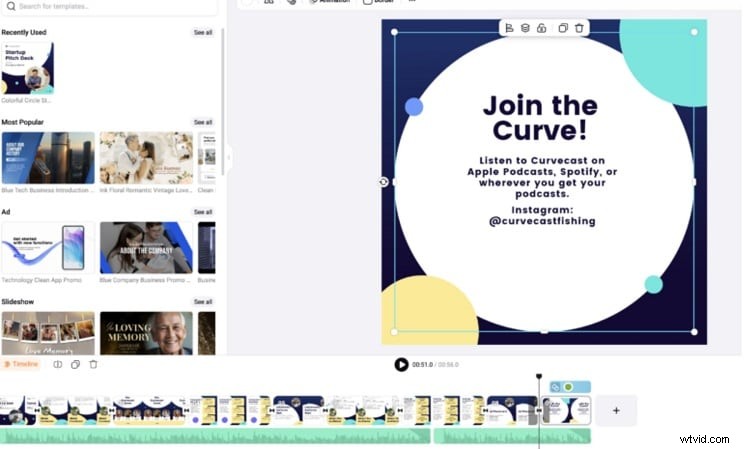
FlexClip video editor's collection of pre-designed templates stands out as one of the most time-saving features. These templates can be customized for briefs, ads, intros, and outros, as well as social media posts. You simply pick a design, replace the media or text, and export. It's ideal for users who want fast results without building from scratch.
Video editing
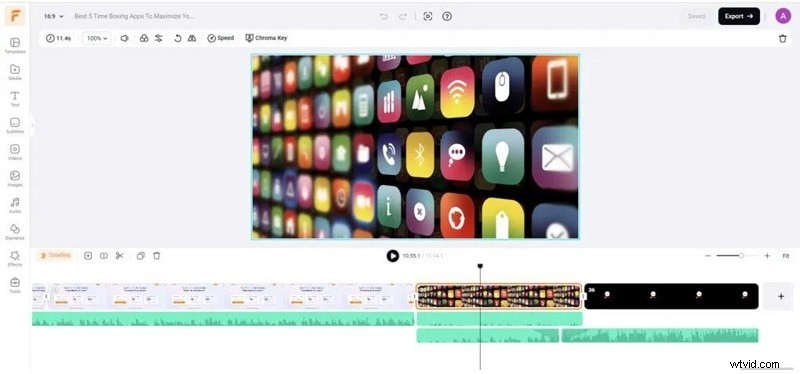
With FlexClip, you can do all editing-related tasks. Editing clips is as easy as pie: cut, split, combine, overlay audio, and add text. Making adjustments to speed and applying transitions is simple, and you can export your work in different resolutions. The interface is smooth, so editing feels natural, even for first-timers.
AI tools
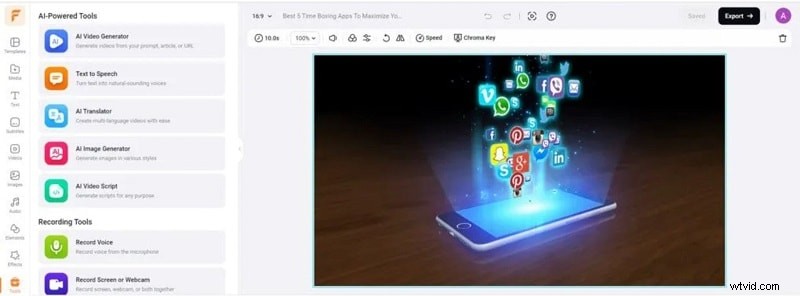
FlexClip includes intelligent features that speed up production. Videos can be created from text or hyperlinks using an AI video generator. Equally noteworthy, speech synthesis, automatic translation, an AI text script creator, and a response image generator that creates images based on described prompts. These functionalities greatly assist users in video production efficiently and streamline the process.
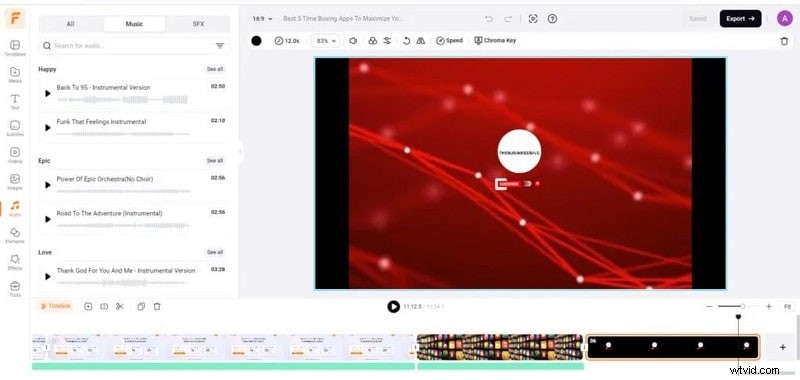
Audio clips
There are a plethora of royalty-free audio files available on this site. These files are sorted by genre and mood, so whether it is travel vlogs or product demos, you can find the right music and sound effects. You will not have to pay for any licenses since all songs are sorted by genre and mood.
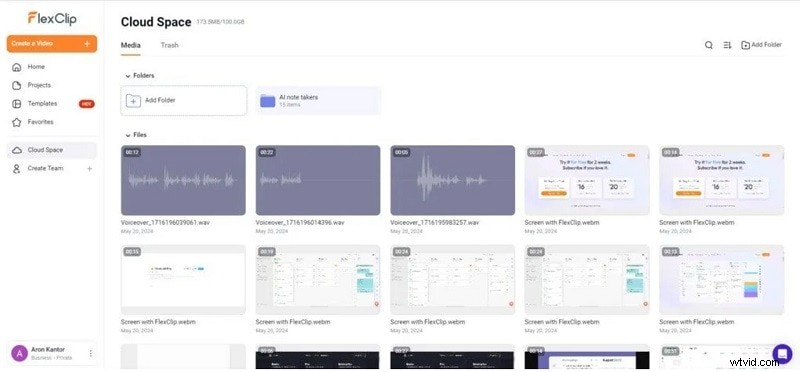
Cloud storage
FlexClip enables customers to save their media directly in the cloud. Users can categorize files into various folders and upload their own files to FlexClip. This is very useful to regular creators because it enables them to stay organized.
Video library
If you need filler footage or scene transitions, FlexClip's video library has you covered. It offers royalty-free stock clips searchable by theme or keyword. These clips can help you tell better stories without recording everything yourself.
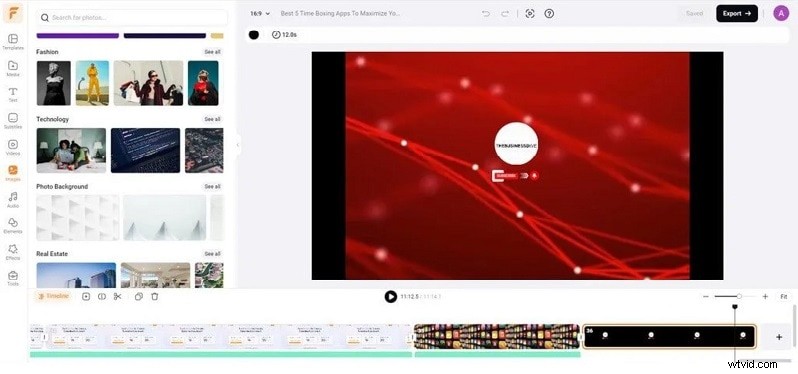
Image library
FlexClip offers a broad range of stock images that you can find through filtering by categories or searching for specific terms. These images can be placed in your projects and they can be customized using filters or effects and text. These can be added to match the look of your video.
What's New in 2025
Even if FlexClip's primary tools are good, the rest will be even better in 2025. Its latest updates focus on smarter AI, better control, and creative effects that take your edits further.
AI Video Models
New and improved AI models are now compatible with the FlexClip video creator. These models include Hailuo, Kling, and Google Veo 3. These enhancements help users control how AI-created videos start, finish, and how they move within and between scenes, which makes the results look much more realistic and polished.

Flexible Canvas Zoom
The editing area now has a zoom range of 10% to 400%. This helps fine-tune your project with better control over layout, spacing, and alignment of details within the FlexClip editor.
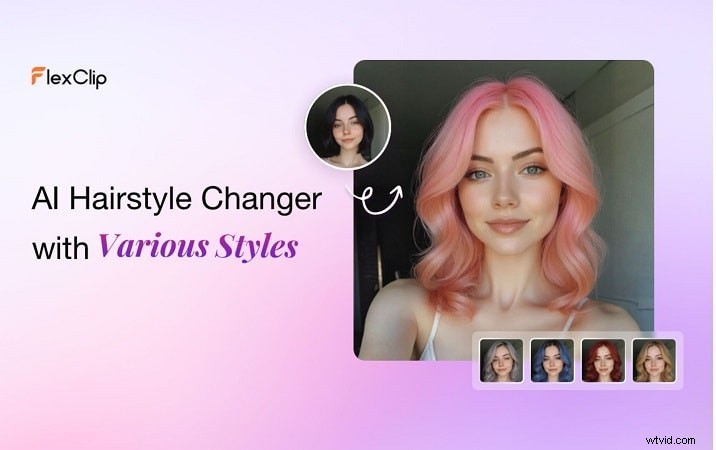
AI Hairstyle Changer
This fun new tool lets you experiment with different hairstyles and colors, whether you're editing male or female clips. The personal touch it gives to character-focused videos is quick, imaginative, and effortless.
AI Video Effects
Hug, kiss, and squish are some of the new visual effects that FlexClip introduced. These animated styles bring life to your scenes and are easy to apply using the FlexClip online video editor.

Pricing and Plans
- The Free plan (USD 0.00/month) is suitable for testing, with limited stock access, a watermark on exports, and up to 12 projects under 10 minutes each.
- The Plus plan (USD 11.99/month) includes more AI credits and unlimited projects, but still limits stock usage per video.
- The business plan (USD 19.99/month) unlocks 4K downloads, 100GB storage, and full access to stock media. It is ideal for frequent or professional use.
Part 2: FlexClip's Key Strengths: AI Tools, Templates & Usability
While FlexClip is easy to start with, its simplicity is both its strength and its limitation.
FlexClip's Core Features
Templates with animations
The FlexClip editor includes dynamic templates styled like movie intros, action trailers, or news openers. These animated designs help users create professional-looking videos without starting from scratch.
AI image editing tools
FlexClip's AI tools go beyond basic filters. You can remove unwanted objects, swap faces, or modify clothing in your images. These features work well for personalized edits or visual cleanup.
Chroma Key
Chroma Key allows users to substitute a solid background for pictures, using either a green screen or a blank wall, and seamlessly merge subjects into new orientations.
AI Image-to-Image Generator
AI Image-to-Image Generator lets users transform an image into different artistic styles such as pencil sketches, cartoons or oil paintings. Users can creatively enhance their images using FlexClip's video editor.
Usability for Beginners
The template-first, click-and-drag structure makes FlexClip very approachable. Users can start editing almost instantly after choosing a template. No downloads are needed since it is web-based.
FlexClip has a clean and minimal interface with labeled icons and hover tips. Marketers and small business owners who are not very technical will find it very helpful.
Part 3: Real-World Experience with FlexClip
While FlexClip's features look promising on paper, how do they hold up in real use? Let's explore how the FlexClip video editor performs when put to the test by actual creators.
User Experience and Performance Review
Users frequently highlight FlexClip's straightforward interface and fast learning curve. Many note it feels seamless right away, even for first-timers. As reported on alternatives.co:
"It is fast and simple to implement… I can easily create alluring videos faster…"
Reviewers add that the tool works well for social media and podcast clips, especially in storyboard mode. However, exporting high-res videos may take time, and mobile performance can lag slightly.
For some users, it's not perfect. Longer videos may lag during editing and exports, especially in 1080p or 4K, which can be slow. capterra.com Some users also find the timeline editing too limited for detailed work.
Best for and Use Case Scenarios
The FlexClip video editor is best suited for short, simple content. It works well for:
- Beginners who want fast results without a learning curve
- Small businesses creating product promos or ads
- Social media managers posting reels, stories, and brand updates
- Educators or trainers making short tutorials or explainers
- Non-technical users who need to create clean videos quickly
Not Ideal For:
- Not suitable for cinematic edits or YouTube full-length videos
- Creators wanting precise controls
Part 4: Pros and Cons of FlexClip
Every tool has its trade-offs. Based on real usage, here's where the FlexClip video editor stands tall and where it quietly holds back.
Pros
- Massive media library with royalty-free videos, images, and music
- Plenty of templates to speed up the editing process
- Beginner-friendly interface that requires no editing experience
Cons
- Multi-track editing for audio and video
- Custom motion graphics or 3D effects
- High-end keyframing and color grading
- The free plan includes a watermark and limits export resolution
- Advanced transitions and effects are minimal
Part 5: Stronger Desktop Alternative for Advanced Users: Filmora
 Secure Download
While FlexClip video editor is excellent for quick, browser-based edits, it eventually hits a ceiling for users needing more power and precision. For those ready to step up, Wondershare Filmora offers a comprehensive desktop solution with advanced features that simply aren't possible in an online video editor.
Here’s a head-to-head comparison to help you choose the right tool:
FlexClip vs. Filmora: Detailed Feature Comparison
| Feature | FlexClip (Online Editor) | Filmora (Desktop Software) | Notes |
| Editing Complexity | Template-based, ideal for simple, short videos. | Multi-track timeline, keyframing, and advanced controls for complex projects. | FlexClip is faster to learn; Filmora gives more creative control. |
| AI Capabilities | Basic AI tools (text-to-video, image generator). | Advanced AI features like AI Smart Masking, AI Vocal Remover, and AI Text-Based Editing. | Filmora’s AI suite is far more powerful and versatile. |
| Performance | Can lag on longer videos; export speeds can be slow. | Optimized for desktop GPUs, providing fast, stable performance and quick exports (4K supported). | FlexClip is slower on large projects; Filmora handles heavy workloads better. |
| Accessibility | Edit from any browser, no installation needed. | Requires download; offers deeper control and a more stable environment. | FlexClip is better for quick online edits; Filmora is for dedicated editing setups. |
Features That Go Beyond FlexClip
AI Smart Masking and Planar Tracking
Filmora's masking tool now works with advanced planar tracking. Instead of just tracking one point, you can pin text, images, or graphics to flat surfaces like walls or screens. The system automatically follows motion and adjusts the mask in real time. It's not perfect in busy scenes, but fixing small errors takes minutes, not hours.
AI Text to Video
This tool turns a written prompt or script into a complete video. It selects clips, adds transitions, and even generates voiceovers. While the visuals are basic and the voice may sound robotic, it's still a quick way to draft ideas, far beyond what tools like FlexClip video maker currently offer.
Smart Background Music + AI Vocal Remover
Filmora helps solve the music search struggle with AI-generated tracks. Just pick a mood and length the software creates royalty-free music automatically. For existing songs, the AI Vocal Remover cleanly separates vocals from instrumentals. This is ideal for background music or remixing content without copyright worries.
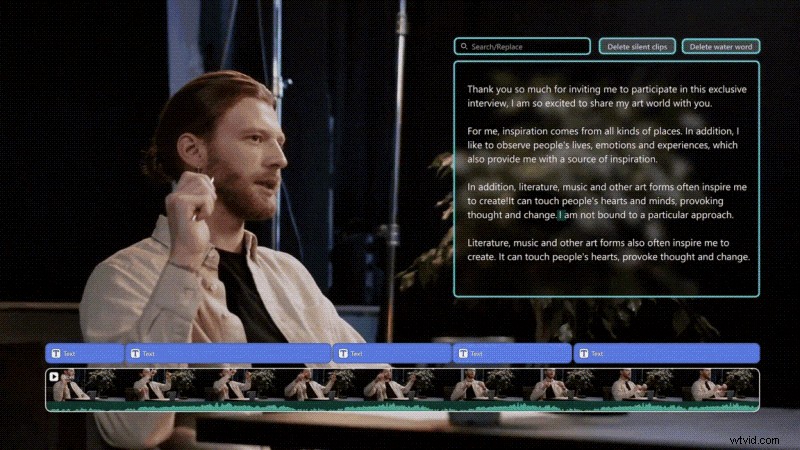
AI Text-Based Editor
With this tool, you can transcribe spoken content from your video. The text appears beside the footage, and you can edit the script like a document. As you delete or change text, the video updates in real time. It also supports subtitle export and translation, something the FlexClip editor doesn't yet offer.
Transitions and Effects
Filmora comes packed with visual extras. There are drag-and-drop transitions, motion elements, customizable overlays, and animated text. You also get audio effects and a dedicated pan-and-zoom tool for images. These assets add polish and personality to any project.
Smart Color Correction
Filmora offers tools to help you sharpen your footage with LUTs, as well as with custom grading techniques. Adjusts to brightness, contrast, and even the tone. The color tools work for total beginners and seasoned editors looking for more freedom.
Editing Tools
Filmora includes advanced modules like lens correction, stabilization, compositing, and auto-enhance. You have the option to add drop shadows, fix any shaky video, and rotate the clip. Blend modes are also applicable. While auto-enhance does work for some types of footage, it works well most of the time and improves the footage with just a click of a button.
Conclusion
FlexClip video editor is ideal for anyone needing a fast way to create videos online. As a web-based tool, it stands out for simplicity. Its strengths include easy file access, drag-and-drop stock media, and AI assistance for short videos. For social clips, tutorials, or marketing visuals, it provides a smooth, no-fuss experience.
However, FlexClip shows limits when advanced control is needed. Slow export speeds and no multi-layer editing are key drawbacks.
In contrast, Filmora offers a desktop space with AI tools and deeper control. It lets you craft, not just trim, delivering creative depth that browser tools can't match.

Filmora
AI Video Editing App & Software
Best tool for making videos anywhere for all creators!
Simplify all your steps in video editing, from the pre-processing to finalizing, Filmora AI stays tuned.