
Millions of creators are debating CapCut vs Canva. While both tools enjoy widespread popularity, they cater to distinct creative goals.
CapCut has surpassed 300 million active users and one billion global downloads, positioning itself as a go‑to mobile video editor. Canva, meanwhile, serves over 240 million monthly users and produces more than one billion designs each month, excelling in branding and graphic design.
This article offers a side‑by‑side comparison of features, pricing, and workflows, answering the core question: Is CapCut better than Canva for video editing?
1. Snapshot Table
Canva is renowned as a template‑driven design platform that enables non‑designers to produce professional visuals quickly. CapCut, by contrast, prioritises video editing, delivering a suite of tools that feel both approachable and powerful.
In terms of user base, Canva vs CapCut tells two different stories. Canva dominates in business, education, and marketing teams, while CapCut thrives among creators producing short‑form content for TikTok, Instagram, and YouTube.
| Metric | CapCut | Canva |
| Relative cost | Higher than video‑editing category average | Higher than design category average |
| Adoption trend | ~9% Q‑on‑Q | ~1% Q‑on‑Q |
| Primary user segment | 78% micro‑ and SMB‑owners | 75% micro‑ and SMB‑owners |
| Best for | Solo creators and small businesses needing robust video editing without a steep learning curve | Small‑ and medium‑size firms requiring design support without hiring specialists |
2. CapCut in Depth
CapCut has become a favourite among creators who demand advanced functionality paired with a straightforward interface. The freemium model offers essential editing tools for free, while CapCut Pro unlocks premium effects, AI features, and additional resources.
Its popularity spans short‑form social media, advertising campaigns, and independent creative projects. CapCut’s mobile‑first focus makes it the natural choice for creators who produce quick, viral content on the go.
Key Features
| Feature | Description |
| Multi‑track editing | Arrange and refine multiple video and audio tracks simultaneously. |
| Dynamic text animations | Stylish titles and captions with customizable animated templates. |
| AI‑powered auto captions | Generate subtitles automatically, enhancing accessibility and reach. |
| Background removal | AI tools to eliminate or replace backgrounds in video and images. |
| Trending effects | Filters and visual effects aligned with current social media trends. |
| Image enhancement | Improve sharpness, resolution, and colour for higher‑quality output. |
| Cloud storage | Securely store and access projects across devices. |
| Real‑time collaboration | Co‑edit projects with teammates via cloud‑based workflow. |
| Text‑to‑speech | Convert scripts into natural‑sounding voiceovers. |
| Video translation | Create multilingual captions for global audiences. |
| Template library | Choose from customizable templates for quick production. |
| Performance analytics | Track viewer engagement and measure video performance. |
| AI characters & try‑ons | Generate virtual presenters and showcase products with AI try‑on tools. |
3. Canva in Depth
Canva is built to democratise content creation. From students and freelancers to marketing teams and enterprises, Canva removes the barrier of advanced design skills through templates and drag‑and‑drop editing.
In the CapCut vs Canva debate, Canva wins for branding, graphic design, and collaborative workflows. It is the optimal choice for businesses and organisations that need consistent visuals without the overhead of hiring professional designers.
Key Features
| Feature | Description |
| Drag‑and‑drop editor | Intuitive interface for arranging images, text, and elements. |
| Template library | Thousands of pre‑designed layouts for posts, slides, posters, and more. |
| Brand kit | Store logos, fonts, and colours to maintain brand consistency. |
| Collaboration tools | Share projects, comment in real time, and co‑edit with team members. |
| Magic resize | Instantly adapt a design to multiple formats. |
| Photo editing tools | Crop, filter, adjust images or remove backgrounds with a single click. |
| Elements & media | Millions of stock photos, icons, graphics, and videos. |
| Video & animation | Build short videos, add animations, and apply motion effects. |
| App integrations | Connect with Google Drive, Dropbox, Slack, and more. |
| Export & sharing | Download designs in multiple formats or share directly to social media. |
4. Head‑to‑Head Comparison
Below are the decisive categories that determine which platform best meets your needs.
4.1 Ease of Use
CapCut offers a polished interface that balances professionalism with beginner‑friendliness. The layout is responsive, allowing users to rearrange panels, drag media onto the timeline, and access shortcuts via hover hints.
Canva focuses on a template‑centric dashboard, prioritising drag‑and‑drop simplicity. Its clean navigation makes it ideal for users who need polished results quickly.
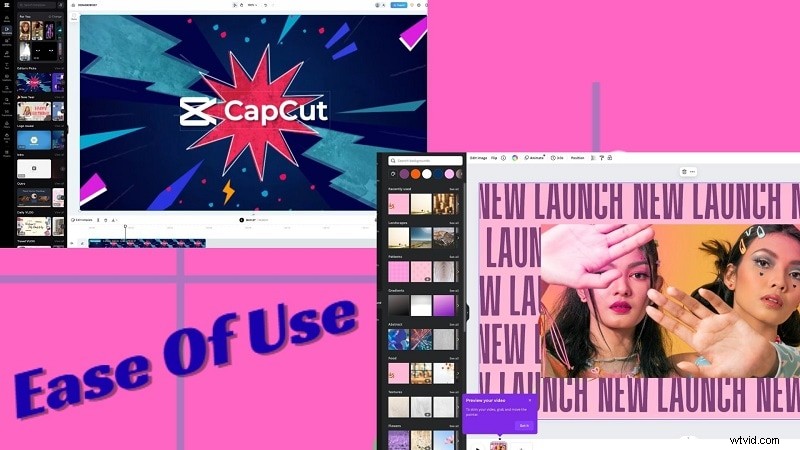
Verdict: Canva is easier for pure beginners seeking quick design work, while CapCut offers a more advanced editing experience for those willing to invest time.
4.2 Editing Power & Content Specialisation
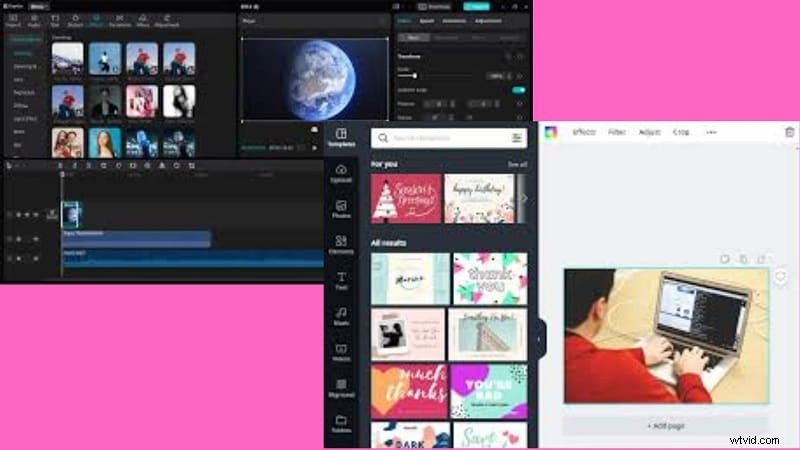
CapCut is laser‑focused on video workflows, providing AI captions, green‑screen tools, and trend‑based effects. Canva, meanwhile, excels at multi‑format design, embedding video within posters, ads, and presentations.
| CapCut | Canva |
| Geared toward short‑form video editing. | Geared toward multi‑format design. |
| Includes AI captions, green screen, and trend‑focused effects. | Allows video placement inside posters, ads, and presentations. |
| Mobile‑first editing, built for quick viral content. | Broad creative use for marketing and branding teams. |
| Best for creators who lead with video. | Best for designers handling varied content types. |
Verdict: CapCut outperforms for video‑centric projects; Canva shines when combining design with light video.
4.3 Platform Accessibility
CapCut supports mobile, desktop, and web, offering seamless syncing across devices. Canva operates primarily in the cloud, running smoothly in browsers with app support for most functions.

| CapCut | Canva |
| Works on mobile, desktop, and web. | Optimised for web with app support. |
| Syncs edits between platforms. | Stores projects safely in the cloud. |
| Best suited for mobile editing workflows. | Best suited for online collaborative projects. |
Verdict: CapCut excels in mobile freedom; Canva excels in cloud‑based collaboration.
4.4 Pricing and Value
Both platforms offer free tiers and premium plans, but their value propositions differ.
| CapCut | Canva |
| Free tier covers essential video tools. | Free tier covers wide design basics. |
| Pro: $9.99/month, adds unlimited captions and premium effects. | Pro: $6.50/month, expands creative assets and formats. |
| Budget‑friendly for individual editors. | Teams: $5/month per person, built for collaboration. |
Verdict: CapCut offers better value for cost‑conscious video creators; Canva delivers broader benefits for teams and multi‑format projects.
4.5 Collaboration and Workflow
CapCut focuses on solo or small‑team projects with limited real‑time collaboration. Canva provides robust real‑time editing, feedback tools, and brand kits for consistent visual output.
| CapCut | Canva |
| Limited options, mostly project sharing. | Real‑time editing and feedback tools. |
| Best fit for independent creators. | Brand kits keep team visuals consistent. |
| Workflow for groups feels less efficient. | Smooth setup for client or team projects. |
Verdict: Canva leads in collaboration; CapCut is better suited for individual creators.
4.6 Social Media Optimization
Both tools aim to produce polished, platform‑ready content, but their approaches differ. CapCut leverages video trends and auto‑resizing, while Canva offers a wide range of templates and multi‑format support.
| CapCut | Canva |
| Built for short‑form platforms like TikTok and Instagram. | Covers multiple formats, from posts to videos. |
| Offers auto‑resizing, aspect ratio tools, and viral effects. | Includes resizing and templates but fewer advanced video effects. |
| Strong choice for creators focused on video‑first content. | Better for those balancing visuals across many channels. |
Verdict: CapCut edges ahead for video‑first social media creators; Canva excels for multi‑channel visual consistency.
5. Pros and Cons
Below is a consolidated view of each platform’s strengths and limitations.
CapCut Pros
- Intuitive for beginners.
- Rich library of effects, filters, and retouching tools.
- Free core features support creators and small teams.
- Cross‑platform availability (web, desktop, mobile).
- Cloud storage for seamless project access.
CapCut Cons
- Some AI tools and filters require a subscription.
- Limited advanced multi‑track controls.
- Performance can lag with large video files.
Canva Pros
- Free plan includes Magic Edit, Brand Kit, and background remover.
- Auto‑save and cloud storage.
- Available on web, mobile, and desktop.
- Built‑in collaboration for teams.
- Extensive library of stock assets and templates.
Canva Cons
- Limited export formats.
- Restrictions on premium tools.
6. Use‑Case Scenarios
Choosing CapCut vs Canva hinges on the type of content you produce.
Canva is the better choice when:
- Teams need polished marketing visuals and social media graphics quickly.
- Groups with little design experience seek an intuitive platform.
- Businesses require a vast library of templates, stock assets, and easy collaboration.
CapCut is the better choice when:
- Creators focus on short‑form content for TikTok, Instagram Reels, or YouTube Shorts.
- Users desire mobile editing with dynamic effects and auto captions.
- Teams or individuals build engaging video workflows for social engagement.
7. A Serious Editing Alternative
When the limitations of CapCut and Canva become apparent, many creators turn to a more advanced solution: Wondershare Filmora.
Filmora offers full creative control, transparent licensing, and no hidden data terms. Creators retain ownership of their content, even after deletion.
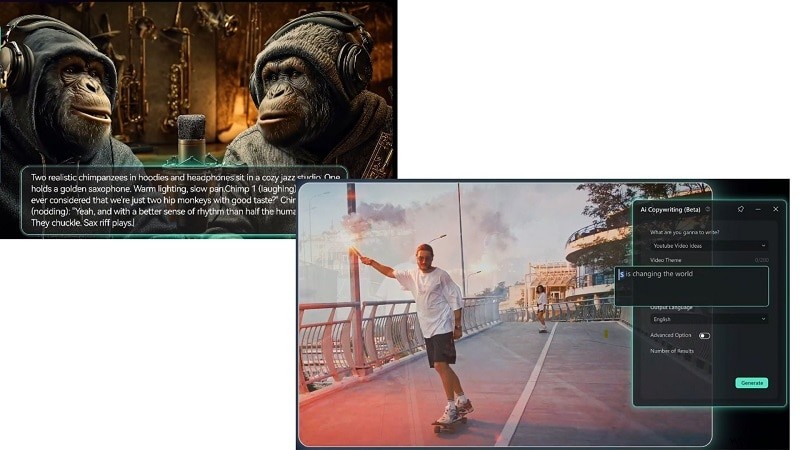
With a desktop‑first interface that also supports iPad, Android, and iOS, Filmora provides a watermark‑free trial and a professional feature set.
Key Highlights:
- AI Editing Tools: Script‑to‑video, text‑to‑speech, voice cloning, quick text editing.
- Export Options: MP4, MOV, and other formats without limits.
- Cloud Collaboration: 100 GB storage for syncing and team workflows.
- Desktop Pro Features: Keyframe animation, Mocha tracking, path curve, adjustment layers, compound clips.
- Flexible AI Usage: 2 000 monthly AI points with pay‑per‑use flexibility.
- Color Grading Suite: HDR support, color wheels, auto white balance, curves, match options.
Conclusion
The CapCut vs Canva debate illustrates that each tool excels in distinct arenas. CapCut is the go‑to platform for video‑first creators, while Canva thrives in team environments that demand brand consistency and rapid design.
For creators seeking more control, privacy, and advanced features, Filmora bridges the gap between quick mobile edits and professional design.
In short, if your goal is robust video editing on a budget, CapCut is the clear winner. For design‑centric, collaborative work, Canva leads. Serious creators often look beyond both, gravitating towards Filmora for full‑stack editing power.
FAQs
1. Is CapCut Better than Canva for Video Editing?
Yes. CapCut outshines Canva for video editing, offering a richer set of tools, effects, and features tailored to creating and enhancing videos. Many creators eventually transition to Filmora when they need pro‑level AI tools, advanced color grading, and multi‑track control.
2. Does Canva Generate Captions for Videos?
Canva can display captions on uploaded media but does not export them as SRT or TXT files. For downloadable subtitles, Filmora is the ideal solution.
3. Can I Use CapCut to Edit Photos Like Canva?
CapCut focuses on video editing but allows adding text, filters, and stickers to still images. However, it lacks the depth of Canva’s photo‑design capabilities. For professional graphics, Canva remains the better choice.