
AI content is getting more and more common, and you see it pretty much everywhere now: from TikTok and Instagram to marketing videos and even serious productions. With that rise, more and more AI models are trying to break through the noise, and one of the names popping up a lot lately is Luma Labs AI.
Luma AI comes with its Dream Machine feature, which lets you turn text prompts and images into short cinematic videos with just a few clicks. But in a sea of AI video generators right now, how good is Luma AI Dream Machine really?
That’s what we’re here to find out. Below, we’ll break down everything you need to know about the tool, so you can decide if it’s actually worth your time and money.
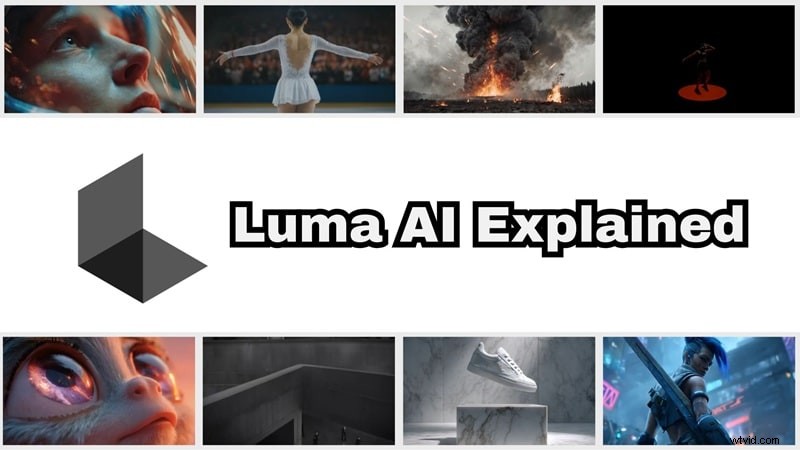
Part 1. Quick Snapshot: What Luma AI Actually Is
Before we go any deeper into how Luma AI works, let’s take a quick, high-level look at what this tool brings to the table. A quick snapshot like this makes it easier to see whether Luma Labs AI fits what you want to create or if it’s just something to experiment with for fun.
| Feature | Overview |
| Editing Features | AI video and image creation through text prompts and image inputs |
| AI Model | Uses Luma Labs AI models including Dream Machine and Ray3.14 |
| Ease of Use | Clean layout that feels easy to pick up even on a first try |
| Performance & Speed | Fast for short clips though results can vary depending on the prompt |
| Value for Money | Fine for testing ideas but can get expensive if you rely on it heavily |
Part 2. Plans, Credits, and Real Costs (Free vs Paid)
If you are wondering if Luma AI is free, the answer is yes, but only in a very limited way. That's because everything you do with Luma AI runs on credits. The free plan gives you just enough credits to try the tool, adds watermarks to your exports, and is not meant for commercial work.
Once you move past the free tier, Luma AI pricing is split into several paid plans with different monthly credit amounts. If you want to see the full breakdown, Luma has a dedicated pricing page that explains everything in detail. You can also take a look at the pricing table below to get a quick idea of how the plans compare and which one makes sense for your workflow.
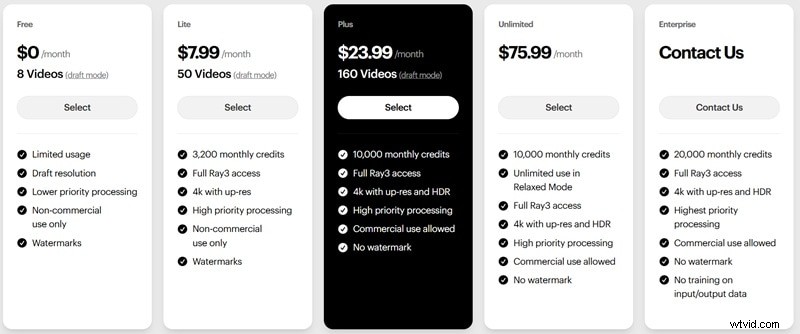
So, the exact Luma AI price depends on how often you generate videos and how many retries you need. That means the more you experiment, the faster those credits disappear, especially if you are trying to fix small details.
Part 3. What Makes Luma AI Stand Out (Core Features Explained)
At its core, everything in Luma AI revolves around Dream Machine, which is the main video generator inside the platform. Dream Machine runs on the Ray3 AI model, and Luma Labs AI recently updated it to Ray3.14. This update makes videos look cleaner, generate faster, and follow prompts better while using credits more efficiently.
When you look at Luma Labs AI Dream Machine creations, you start to see how flexible the tool can be. So, let's break down what you can actually create and where the tool shines the most.
Describe: Turning Ideas Into Short Video Clips
This is the main thing you do inside the Luma AI Dream Machine. You type a prompt or upload an image, and Luma AI turns it into a short cinematic clip. There’s no setup or timeline to deal with, just describe what you want and let it generate.
On the free plan, Luma AI videos are about five seconds long, while paid plans go up to ten seconds. Because of its short length, it works best for quick ideas, mood shots, and visual experiments rather than full scenes or long stories.
Keyframe: Linking Photos Together
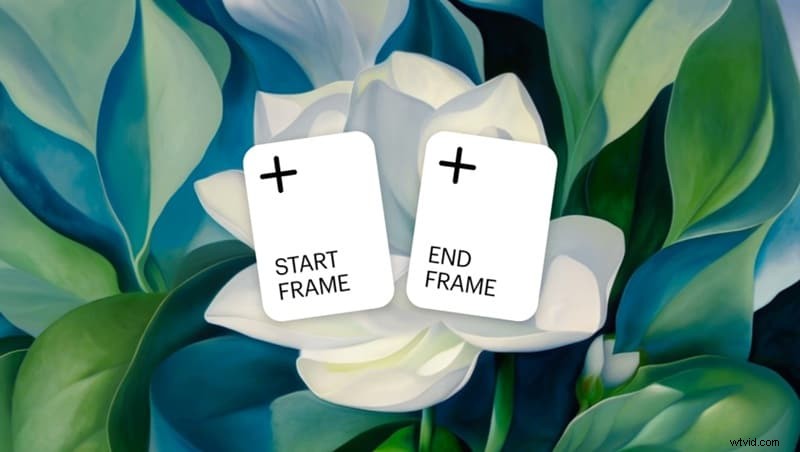
With Luma AI image to video, you are not stuck with just typing a prompt and hoping for the best. The keyframe feature lets you guide the video by setting a starting image and an ending image, so the motion in between feels more intentional.
You can upload your own photos for each keyframe or generate the images directly inside Luma AI Dream Machine. It is a nice way to create smoother transitions and get results that look closer to what you had in mind.
Reference: Keeping the Look Consistent
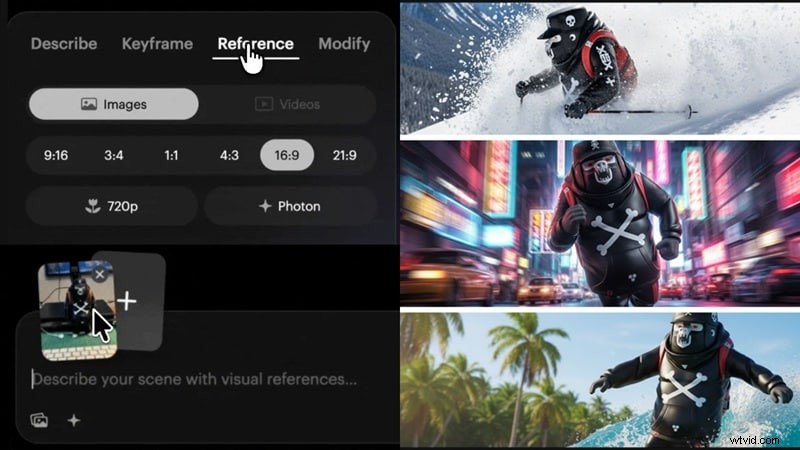
Luma AI also has a reference feature that helps you keep a certain look or style consistent. You just upload an image and write a prompt describing how you want to use it, and the tool follows that visual direction instead of starting from scratch every time.
This is not the same as Luma AI photo to video, though. For now, it only works for images and runs on the Photon model, not Ray3.
Modify: Editing Real Footage With AI

The Modify feature lets you take existing footage and change how it looks while keeping the original motion intact. You are not generating everything from scratch, which makes it feel more practical in real use. With Modify, you can do things like:
- Add or swap backgrounds.
- Apply visual effects without re-shooting.
- Change the overall look while keeping people and movement consistent.
One thing to keep in mind is that Luma AI free only supports modifying images. If you want to modify actual videos, you will need to upgrade to one of the paid plans.
NeRF: Turning Real Objects Into 3D
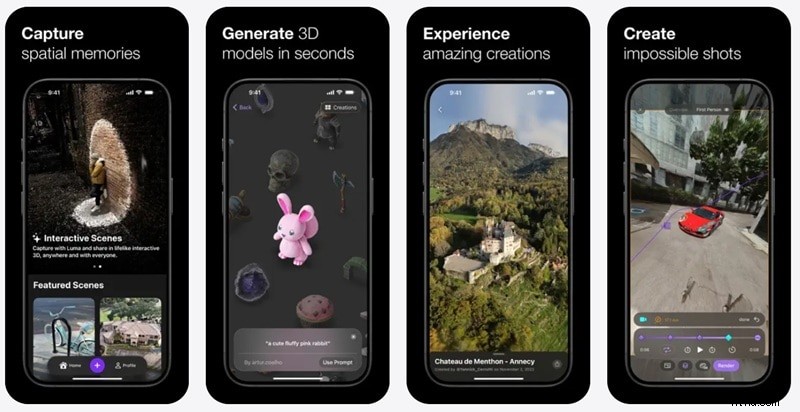
There is also Luma AI NeRF, which is how it handles Luma AI 3D captures. NeRF takes a short video or a set of photos and turns them into a realistic 3D model you can look around in. It feels a bit like scanning the real world and bringing it into a digital space.
Right now, Luma Labs NeRF only works on mobile, specifically on iOS. So if you are looking for Luma AI NeRF on Android, that option is not available at the moment.
Part 4. Using Luma AI in Real Life (Workflow Walkthrough)
Now, let's try to actually use Luma AI to really get how it works. The workflow is pretty simple, but the experience changes a bit depending on where you use it. Since Luma AI is available on the web and on iOS, it makes sense to look at both so you know what to expect before jumping in.
How to Use Luma AI Online
Luma AI web is where most people start since it gives you a bigger screen, easier prompt typing, and a clearer view of your results. To see how to use it, follow the simple steps below:
Step 1
Open Luma AI Dream Machine on Web

Step 2
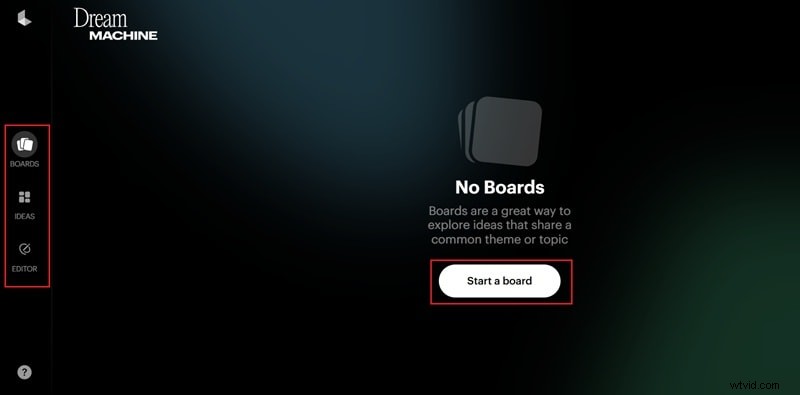
Create Your First Board
You will land on the Boards page once logged in. Click Start a board.
Step 3
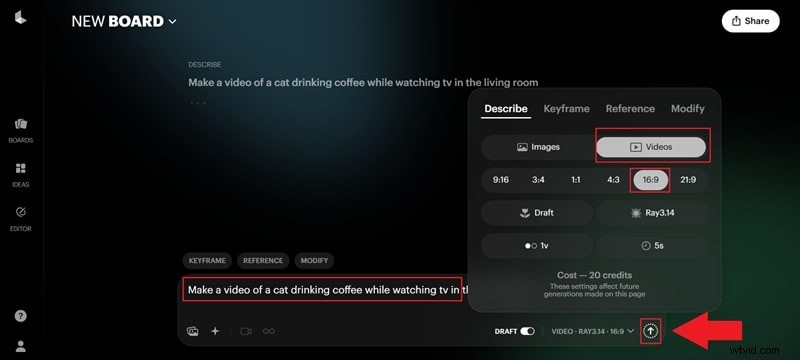
Write Your Prompt and Generate Video
Type your prompt in the description box using natural language. Choose image or video mode, and pick an aspect ratio. Adjust resolution if needed before submitting. Click the arrow icon to start the generation process.
Step 4
Refine Your Results
Preview the results once generation is complete. If you like to make changes, use Modify to request changes by using prompts.
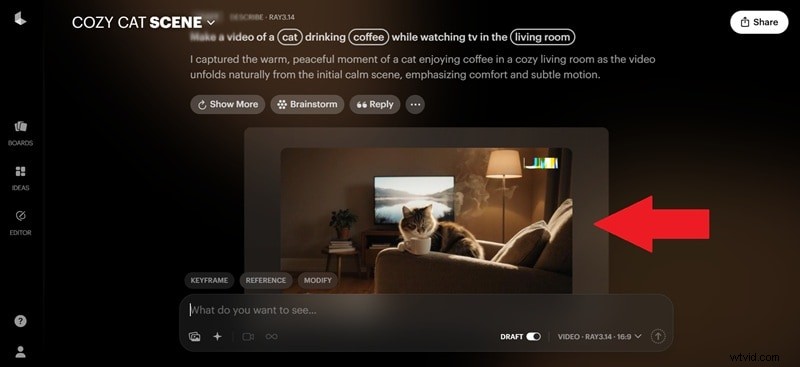
That’s pretty much all you need to get started with Luma AI Dream Machine. If you want a deeper walkthrough, Luma AI has an official tutorial on YouTube that goes through everything in more detail.
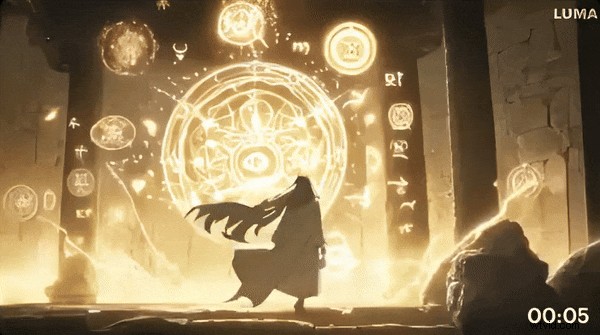
Just keep in mind that on the free plan, any video you generate is basically a draft. You can preview and download it to your device, but it includes a watermark and you’ll need to upgrade to a paid plan if you want to remove it. Now, take a look at the result below!

How to Use Luma AI on iOS
You can actually download Luma AI on your phone, which is honestly pretty convenient when you just want to test ideas without sitting at a desk. The Luma AI app on iOS runs smoothly and gives you access to core features in Dream Machine, so it feels more capable than you might expect from a mobile tool.
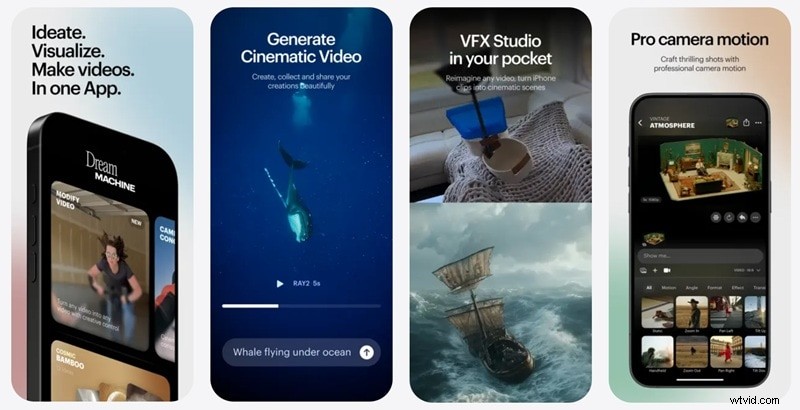
If you are new to the app, the guide below walks through how to use it step-by-step and shows what the mobile experience actually looks like in real use.
Step 1
Open the Luma App and Choose a Concept
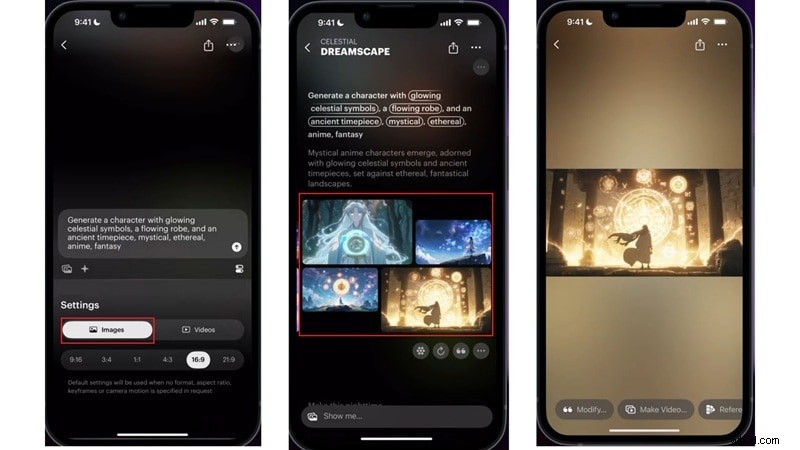
Open the Luma AI app and tap the plus button. For a quick start, you can tap Give me ideas and pick from the suggested concepts. Tap a suggested idea like a character or scene you like. The prompt will automatically fill in the text box.
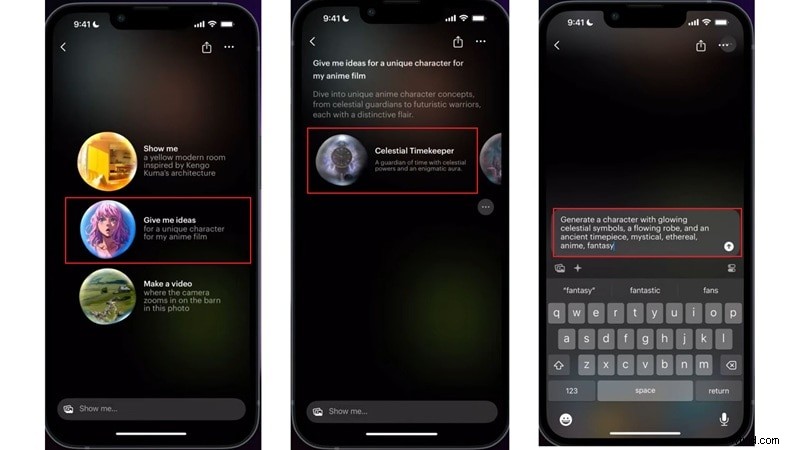
Select image mode and press the arrow to generate. Luma AI will create four image options for you to choose from. Scroll through the results and pick the one that stands out.
Step 3
Turn an Image Into a Video
Choose the image you want to animate and tap Make video. Open the star menu to adjust camera motion, style, or playback. Set your aspect ratio, and select video. Press the arrow to generate the video and wait for the results. Once the generation finishes, you will see two video options. Tap a video to preview it and pick the one you like.
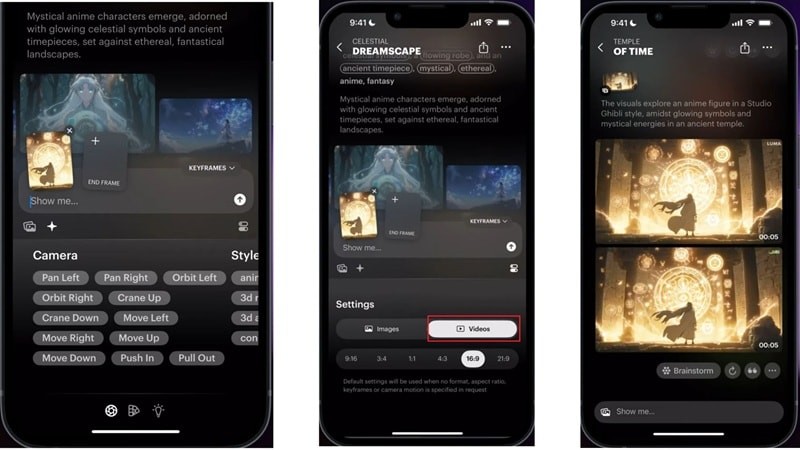
And that’s it! You’ve now tried two ways to make videos with Luma AI. You can generate a video straight from text, or create an image first and add motion to it. Now, take a look at the video you made in the Luma AI app and see how it turned out.
Is Luma AI Available on Android?
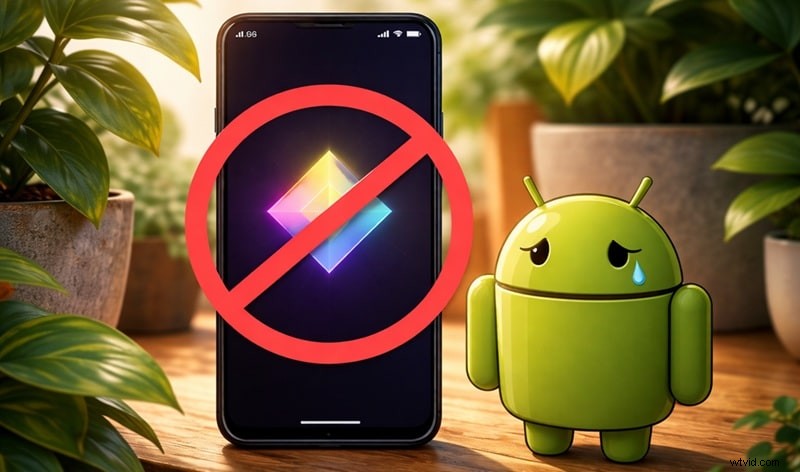
After going through the steps on iOS, it is totally fair to wonder about Luma AI for Android. But unfortunately, Luma AI Android is simply not available. You might see suggestions online to download a Luma AI APK, but that is really not a good idea. Here is why:
- There is no official APK from Luma Labs AI, so you cannot know if it is safe.
- Unofficial APKs can put your device and personal data at risk.
- Updates and features will not work properly without official support.
Part 5. The Good and the Bad of Luma AI
After spending some time actually using Luma AI, it becomes pretty clear that the tool has its strong points and its weak spots. Some things feel genuinely impressive, while others can slow you down or get frustrating depending on how you plan to use it.
To make it easier to decide whether Luma AI fits your needs, let’s walk through the good and the not-so-good side-by-side.

Pros
- Easy To Jump In: Luma AI feels friendly right from the start. There is no setup or learning curve to worry about, so even first-time users can start generating videos without feeling lost.
- Good Looking Results: Luma AI Dream Machine often produces clean and cinematic visuals. Lighting and motion usually come together in a way that looks polished.
- Flexible Inputs: You can work with text prompts or upload images to guide the output. This makes Luma AI easy to use whether you start with an idea or a visual.
- Free Plan Available: Luma AI free access lets you test the tool without paying. It is limited, but enough to get a feel for how everything works.
Cons
- Short Video Lengths: The videos generated by Luma AI are brief, even on paid plans. This makes it harder to build longer scenes or tell complete stories.
- Inconsistent Results: Using the same prompt twice does not always give similar results. Sometimes the output looks great, other times it feels off without a clear reason.
- Speed Varies: Performance can feel inconsistent depending on your internet. On slower connections, generation times can stretch longer than you would like.
- No Manual Editing: Luma AI does not include a traditional editor. If something looks wrong, you usually have to generate it again instead of adjusting it directly.
Part 6. A Smarter Workflow Option: Wondershare Filmora
Luma AI and its Dream Machine are impressive, but there’s one major limitation that really affects long-term use. It doesn’t have its own traditional video editor. That might sound minor, but it matters a lot when your AI output isn’t perfect. You end up regenerating prompts again and again, burning through credits just to fix small issues.
That is why a tool like Wondershare Filmora feels more practical. You can still use AI to generate videos, but you are not locked into starting over every time. You can create AI clips, drop them straight into the editor, and adjust timing, transitions, or visuals without starting over.
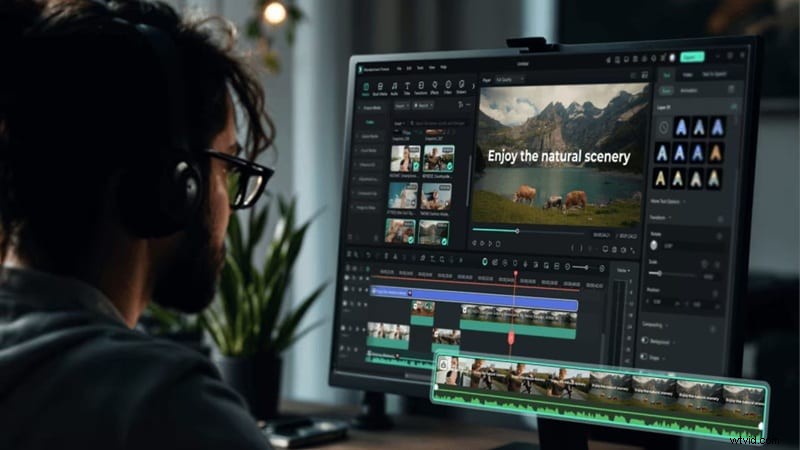
Filmora also supports newer AI models like Veo 3.1 and Sora 2, so you still get strong text to video and image to video tools, just with a lot more control and flexibility.
 Secure Download
Why Filmora Makes More Sense for Real Projects
Advanced AI Workflows

Filmora lets you generate AI videos or images and drop them straight into the timeline. You can keep working in the same space instead of jumping between tools or starting over.
Extensive Media Library
Music, stickers, effects, and filters are already there when you need them. You add what fits your clip instead of rewriting prompts just to get background music or visuals.
Works On Desktop And Mobile
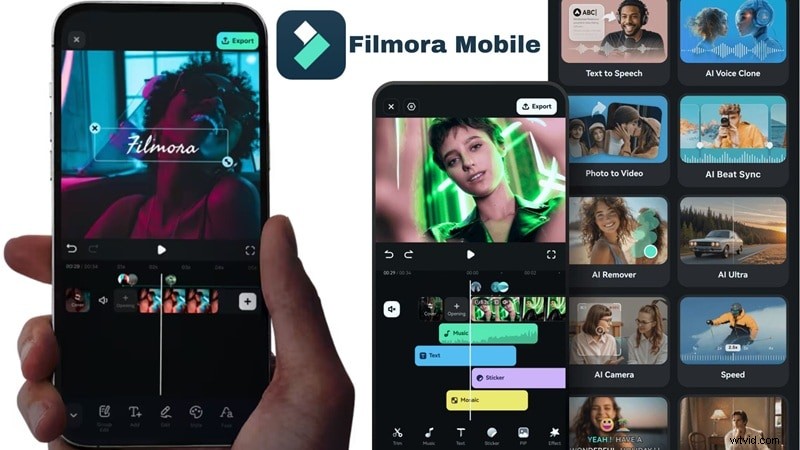
Filmora runs smoothly on Windows and macOS, and Filmora Mobile works just as well on Android and iOS. You can start a project on your phone and finish it later without changing tools.
Costs Stay Predictable

With Filmora, small tweaks do not come with extra costs. You can trim clips, adjust timing, or fix pacing as much as you want without worrying about credits running out.
Built For Finished Videos
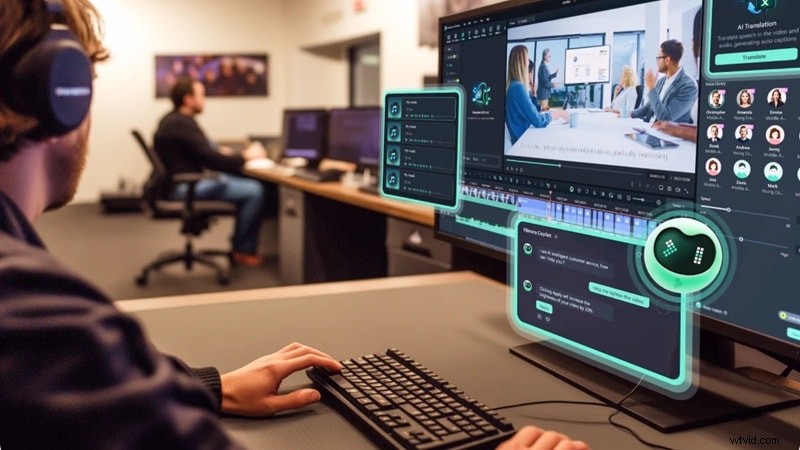
Filmora is made for turning ideas into complete videos, not just short experiments. It fits better when your goal is a polished result instead of quick AI tests.
Secure Download
Luma AI vs Filmora: Side-by-Side Comparison
Now that we have looked at Filmora as another option worth considering, it makes sense to see how it actually stacks up against Luma AI Dream Machine. Both tools use AI, but they are built for very different kinds of work.
To make things easier to compare, here is a simple breakdown of how Luma AI and Wondershare Filmora differ in real use.
| Feature | Luma AI | Filmora |
| Main Focus | AI video generation through prompts | Full video editing with built in AI tools |
| Editing Style | Prompt based generation only | Timeline based editing with manual control |
| AI Video Creation | Short cinematic clips using Dream Machine | AI text to video, image to video, and audio to video with editing |
| Fixing Small Issues | Requires regenerating clips and using credits | Edit directly on the timeline without extra cost |
| Media Assets | Limited to generated visuals | Large built-in library of music effects and stickers |
| Video Length | 5 - 10 seconds | No hard limits for full videos |
| Platform Support | Web, iOS | Windows, macOS, Android, iOS |
| Best For | Quick ideas and visual experiments | Real projects and finished videos |
|
Show More Show Less |
Secure Download
Conclusion
Luma Labs AI has quickly made a name for itself as an AI video generator, especially with the visual style and speed of Luma AI Dream Machine. After breaking down its key features and actually creating Luma AI videos, it is clear that the tool works best for short cinematic clips and creative experiments. That said, the lack of a timeline editor makes it harder to refine details, and fixing small issues often means starting over from scratch.
That is where Filmora fits in nicely. As an AI video editor, Filmora gives you both AI generation and a full timeline to shape your videos the way you want. You can adjust pacing, clean up scenes, and add music or effects without worrying about credits running out. For anyone who wants to move beyond quick AI clips and finish real projects, Filmora offers a more complete and flexible workflow.