
Are you curious about how to export DaVinci Resolve projects without messing up your video quality or format? Exporting videos is the final and most important step to share your edits with the world. However, many users get confused about which settings to choose.
If you're unsure how to export from DaVinci Resolve, this blog breaks down everything you need to know. This guide also includes a bonus alternative editor for easier edits and exports.
Keep reading to learn how to export in DaVinci Resolve projects smoothly from start to finish.
When your edit is done, it's time to wrap things up with a clean export. Learning how to export DaVinci Resolve videos correctly ensures that your project maintains its quality and plays smoothly on any platform.
Method 1: Using the Quick Export Tool
Use the Quick Export feature for a fast and easy way to export your project. It lets you upload straight to platforms like YouTube, Vimeo, or Twitter. You can also use it if you just want a basic H.264 file without extra settings.
Here's how to export from DaVinci Resolve using the Quick Export tool:
Step 1After your edit is done, there are two ways to access the Quick Export tool in DaVinci Resolve:
- Go to the File tab > Quick Export option.
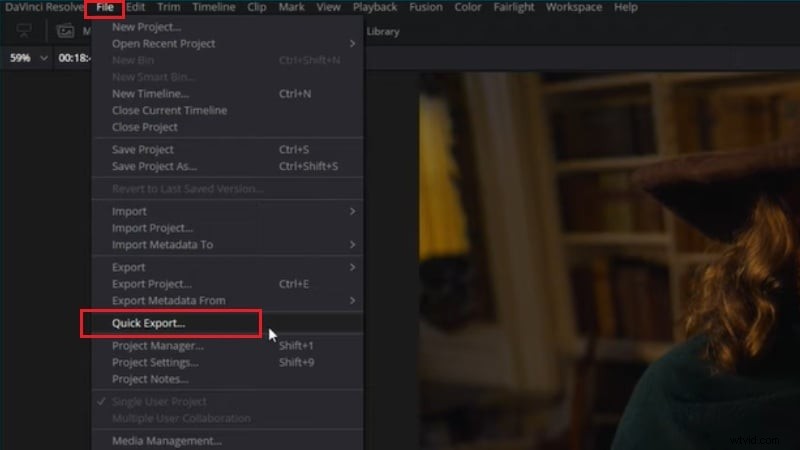
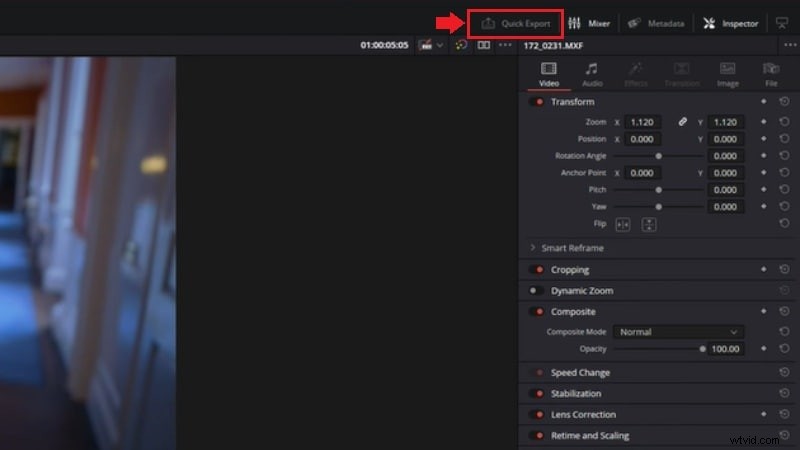
Step 2Now, you'll see the Quick Export window open, and it will give you a few different options. Choose your desired preset, such as YouTube, TikTok, or H.264 Master.
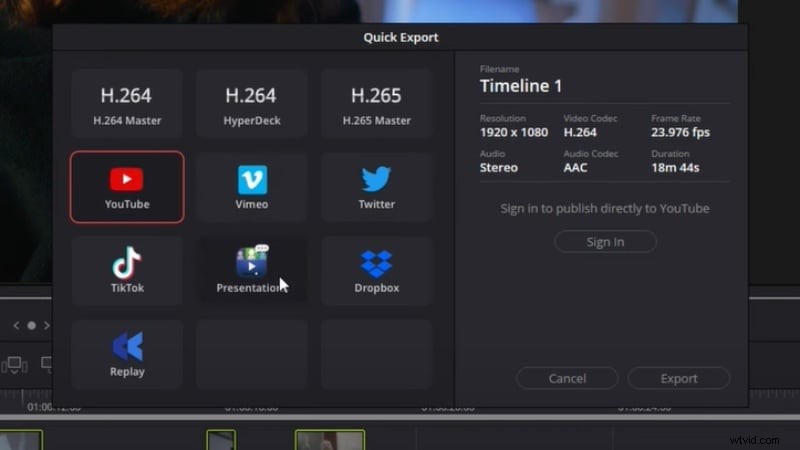
Step 3Click Export to start the process.
Note: The Quick Export tool doesn't allow parameter adjustments. Its settings are tied to your timeline configuration.
Method 2: Using the Deliver Export Tool (Advanced Export)
Quick Export handles the basics, but if you want more control, go with the Deliver Export tool. It lets you customize resolution, bitrate, codec, and format of the video. This method gives you full control over how to export video from DaVinci Resolve.
Follow these steps to export videos from the DaVinci Resolve Deliver page:
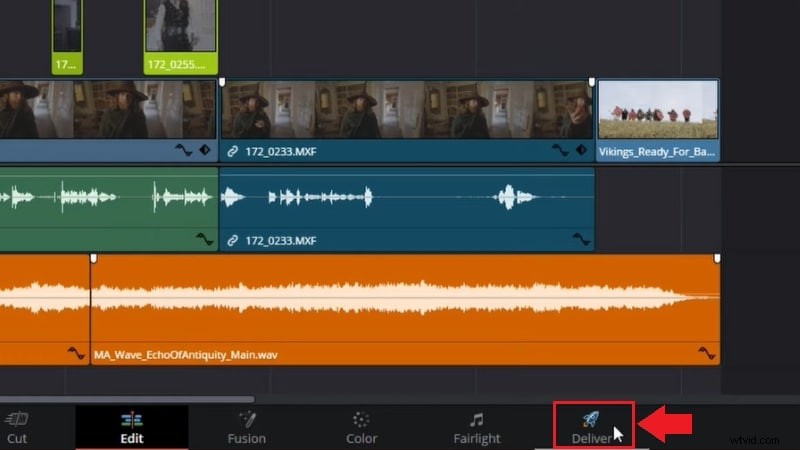
Step 1Go to the Deliver tab at the bottom of the workspace. It will take you to the export workspace where you can access detailed export options.
Step 2On the top-left panel called Render Settings, you'll find a list of export presets. You can pick one of those or select Custom Export to fine-tune your settings.
Step 3Set your file name in the Filename box. Then choose the folder where you want the video to be saved under Location.
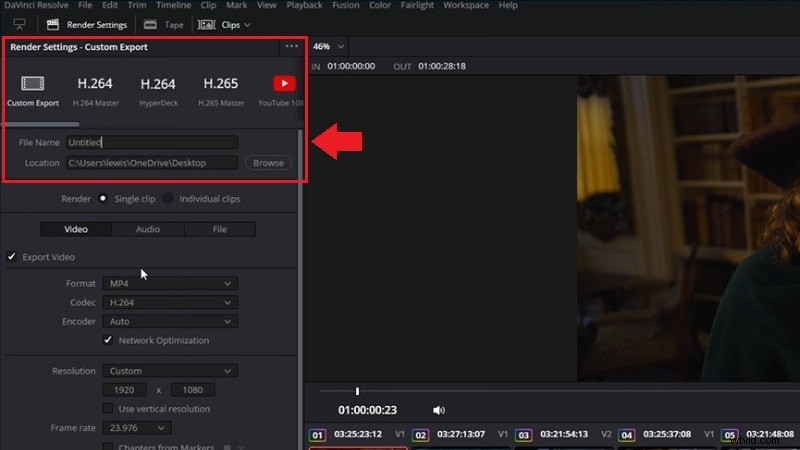
Step 4Now it's time to fine-tune your export settings:
- Select the Format and set the Codec. MP4 with H.264 or H.265 is ideal for online platforms, while QuickTime suits professional-grade exports.
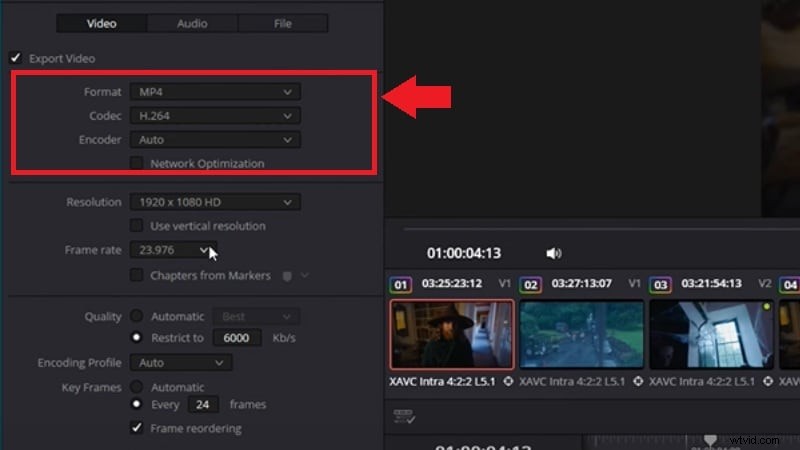
- Match the Resolution and Frame Rate to your timeline settings (e.g., 1080p @ 30fps).
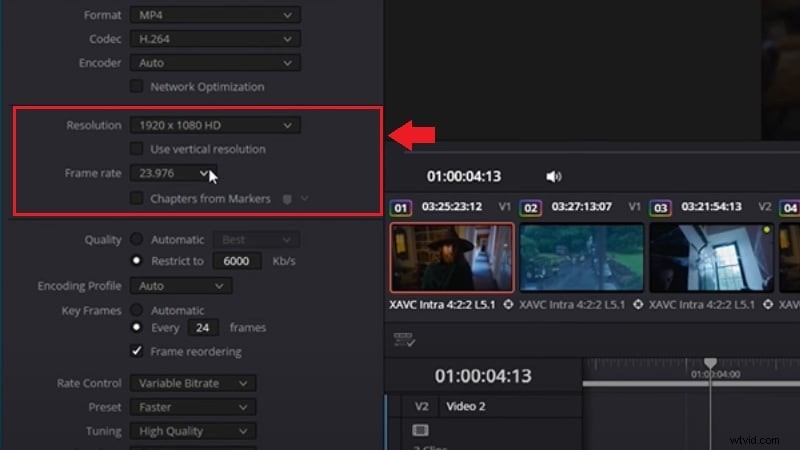
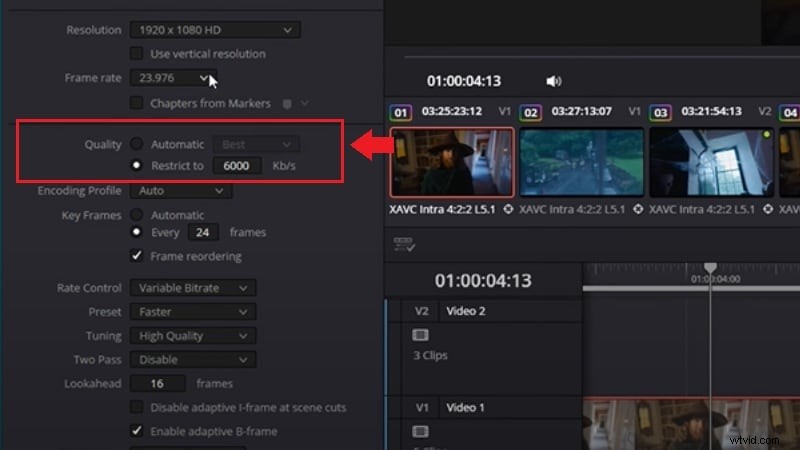
- Adjust Quality settings by enabling Restrict to and setting a bitrate value based on your target platform.
Note: Higher bitrate yields better quality but larger file sizes. YouTube recommends 8,000–12,000 kbps for 1080p and 35,000+ kbps for 4K. View official specs.
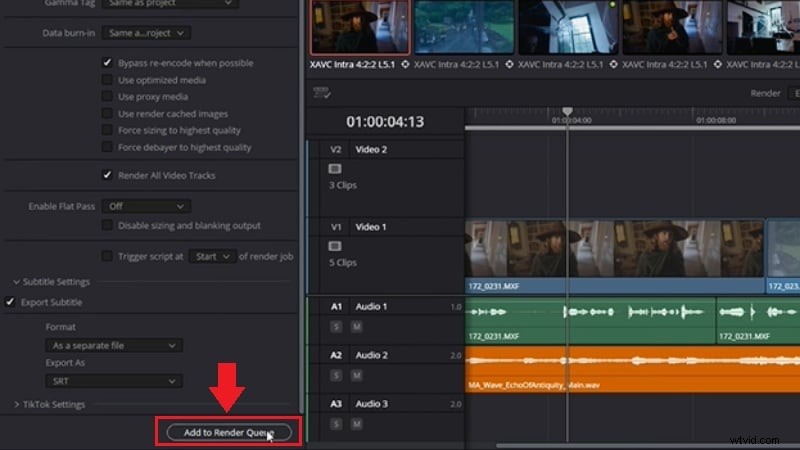
Step 5Once everything's set, click Add to Render Queue at the bottom. This will schedule your export task.
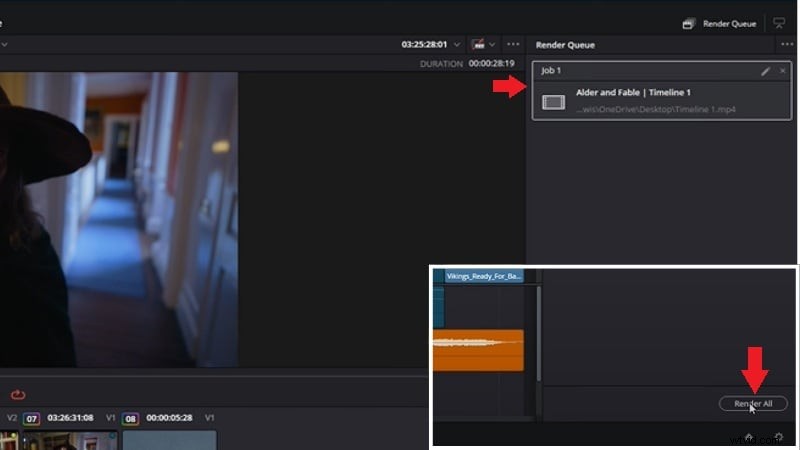
Step 6Now head to the Render Queue panel on the right and click Render All. Rendering time depends on video length, resolution, and quality settings.
Part 2. Reviewing the Export Tools in DaVinci Resolve
After learning how to export on DaVinci Resolve, you might want to dive deeper into its export tools. This editor is known for its powerful video editing capabilities. But it's also known for being a bit complex, especially for new users.
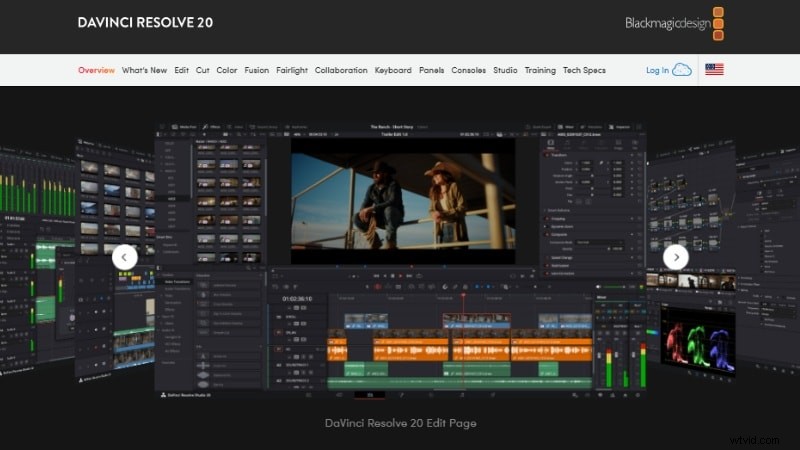
DaVinci Resolve comes packed with advanced export features. Its Deliver page gives you full control over how your project is rendered, saved, and optimized for different platforms. Here's a quick look at what makes DaVinci Resolve's export tools stand out.
Multiple Export Formats Supported
DaVinci Resolve lets you export videos in formats like MP4, QuickTime (MOV), and MXF. If you're learning how to export DaVinci Resolve as MP4, you can easily do it through the Deliver page.
Full Control Over Output Settings
You can adjust settings like resolution, bitrate, codec, and frame rate to suit your project needs. This level of control helps balance quality and file size to meet platform-specific requirements.
Export Presets for Popular Platforms
DaVinci Resolve offers built-in export presets for YouTube, Vimeo, Twitter, and ProRes Master. These presets automatically configure your format and codec for smoother uploads.
Batch Exporting with Render Queue
With the Render Queue, you can queue multiple projects or timelines for batch exporting. This is especially useful for processing several clips at once without manual repetition.
You can line up multiple export tasks using the Render Queue instead of rendering one file at a time. This feature is useful for handling multiple timelines or creating different versions of a project.
Pros & Cons
- Advanced Export Control: You can customize resolution, bitrate, codec, and frame rate to suit different platforms or delivery formats.
- Multiple Output Formats: Supports MP4, QuickTime (MOV), DNxHD, and more.
- Quick & Batch Export: Offers Quick Export presets for fast sharing and a Render Queue to export multiple timelines efficiently.
- Steep Learning Curve: The interface may overwhelm beginners unfamiliar with advanced video tools.
- Audio Export Issues: Videos may render without sound if audio settings are misconfigured or routing is incorrect.
- Performance Limits: Large projects with heavy effects or high-res footage may cause crashes, especially on low-end systems.
Pricing
DaVinci Resolve offers two versions:
- DaVinci Resolve: Free
- DaVinci Resolve Studio: $295 (one-time purchase, and the price may vary depending on your region.)
Compatibility
Windows, macOS, and Linux
Part 3. Alternative Editor for Easier Export and High Precision Audio
If you find the export process in DaVinci Resolve a bit complex or technical, you're not alone. While it's packed with professional-grade tools, it may take time to master—especially if your focus is simply on getting high-quality videos out quickly and smoothly.
👉 Some common challenges creators may encounter during export include:
- Configuring audio and codec settings correctly
- Longer render times for high-resolution projects
- Unfamiliar export presets or parameter adjustments
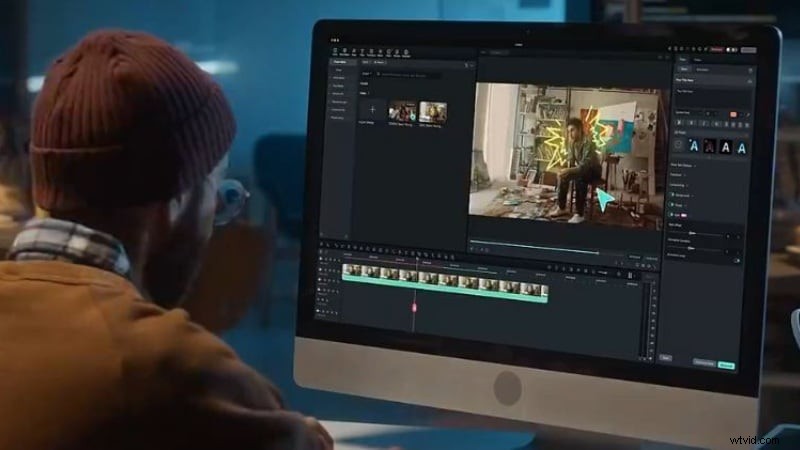
If you're looking for a more streamlined option, Wondershare Filmora offers a user-friendly export experience with intuitive controls and flexible output settings. From resolution to bitrate and even 32-bit float audio export, Filmora makes it easier to ensure your final video meets your expectations—without extra complexity.
 Secure Download
Wide Format and Customizable Output Settings
You can export to MP4, MOV, AVI, MKV, WMV, GIF, and more. Filmora also lets you
adjust the video resolution, bitrate, frame rate, and encoder in the Settings panel before exporting.
Clean and Reliable Audio Export
Filmora automatically handles audio exports correctly, avoiding common routing or codec issues. What you hear on the timeline is what you'll hear in your final file.
Direct Upload to Platforms
Filmora lets you upload your edited videos straight to YouTube, Vimeo, or TikTok without leaving the app. You only need to log into your account during export, and your video will be rendered and published in one go.
High Precision Audio Export
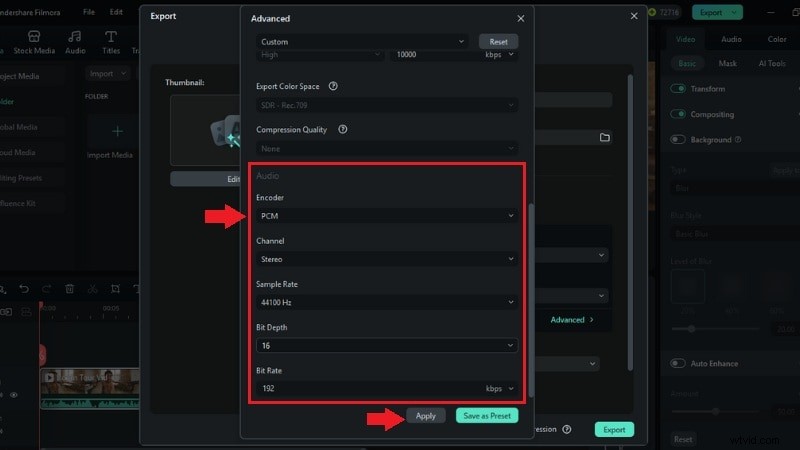
Filmora supports 32-bit float audio export, allowing for professional-grade sound with wider dynamic range and reduced distortion. You can choose between 16-bit and 32-bit (float) formats for cleaner, non-destructive audio, even during heavy edits or mastering.
Pricing: For more details, please visit the purchase page where various pricing plans are available.
Compatibility: Windows and macOS
How to Export Videos from Filmora
Follow these steps to get high-quality video and professional-grade audio in Filmora:
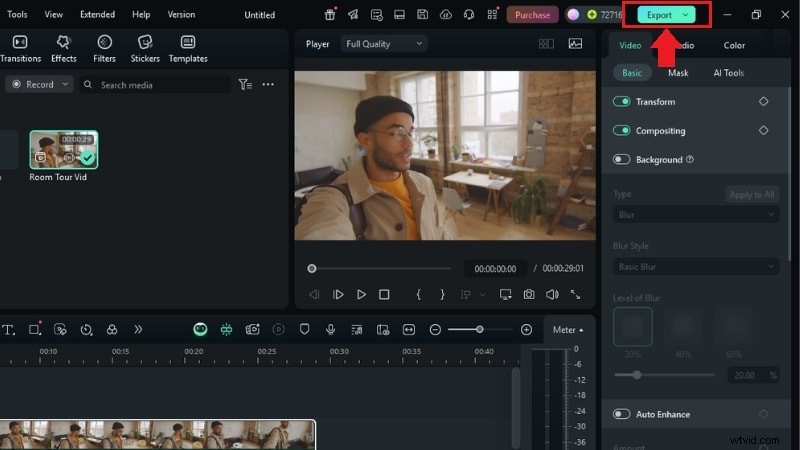
Step 1Once your video is ready, click the Export button at the top-right corner of the Filmora interface.
Secure Download
Step 2In the export window, choose where you want to save your video. Select Local to export it to your computer.
Step 3Enter your desired file name in the “Title” bar. Then, choose where you want to save the exported video in the “Save to” bar.
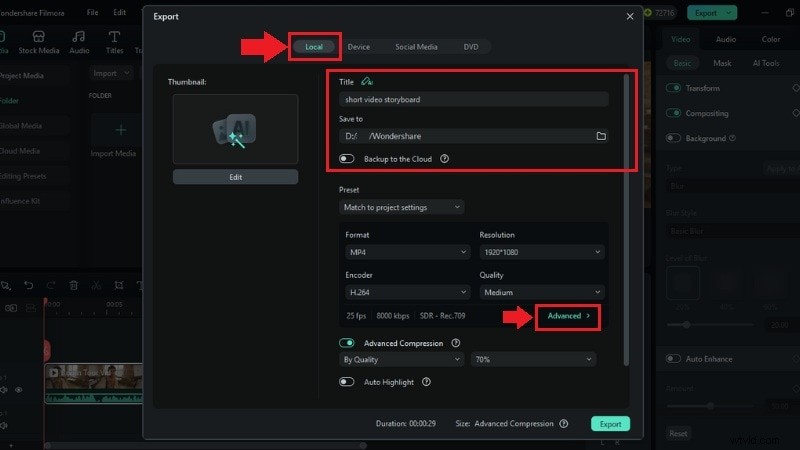
Step 4Adjust export settings by clicking the Advanced button. From here, you can customize the Video Format, Resolution, and Frame Rate.
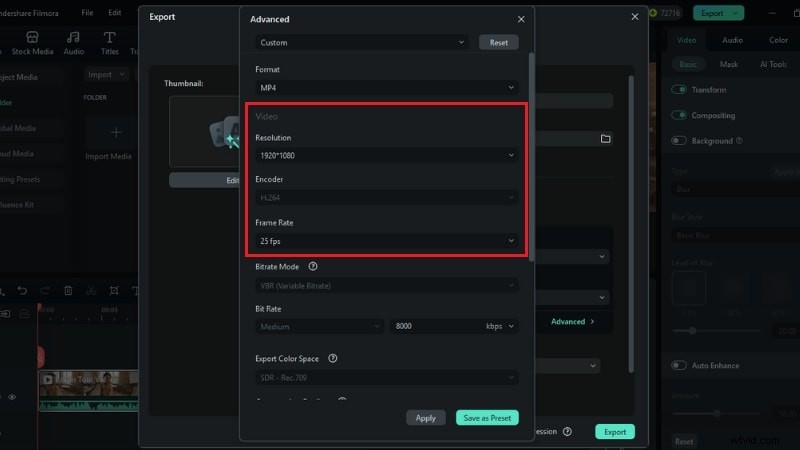
Step 5Scroll down to adjust the audio settings. To apply the High Precision Audio, switch the Audio Encoder to PCM. Here, you can change the Sample Rate and Bit Depth to ensure clean, high-fidelity sound. Then, click Apply to save the edit.
Step 6Click the Export button at the bottom to start the saving process.
Part 4. DaVinci Resolve vs. Filmora - Which One Should You Use to Export?
Now that you've seen how both DaVinci Resolve and Filmora handle exporting, it's easier to spot the differences. While DaVinci Resolve is packed with pro-level settings, Filmora offers more beginner-friendly features.
Here's a quick side-by-side comparison to help you decide:
| Features | DaVinci Resolve | Wondershare Filmora |
| Best For | Professionals, advanced editors, and filmmakers. | Beginners, content creators, educators, and vloggers. |
| Ease of Use | Complex interface with a steep learning curve. | Beginner-friendly with intuitive controls. |
| Export Complexity | Full control, but requires manual setup. | Easy export with format flexibility and basic customization. |
| Export Quality | Professional-grade output with support for advanced codecs. | High-quality export with minimal setup required. |
| Audio Reliability | Can be tricky, manual routing and codec settings may cause export issues. | Stable audio export with built-in 32-bit float support. |
| Batch Rendering | Supported via Render Queue. | Not supported. |
| Direct Upload | Available for YouTube and Vimeo (via Quick Export) | Direct upload to YouTube, Vimeo, and TikTok. |
| Pricing | Free version available; Studio version $295 (one-time purchase). | $9.99/mo, $34.99/yr, or $49.99 lifetime. |
|
Show more Show less |
Both DaVinci Resolve and Wondershare Filmora have their own strengths in different ways. If you need advanced control and don't mind the complexity, DaVinci Resolve is the option. But if you value ease of use and want a faster export process, Filmora is a great pick.

Filmora
AI Video Editing App & Software
Best tool for making videos anywhere for all creators!
Export high-quality video and professional-grade audio in Filmora.
Conclusion
Exporting your videos is the final—and often most important—step in the creative process. As we've seen, DaVinci Resolve offers advanced export features tailored for professionals who want full control over settings like bitrate, codec, and render queue. However, for creators who prefer speed, simplicity, and reliable audio-visual results, tools like Wondershare Filmora provide a more beginner-friendly export workflow.
Whether you're delivering high-resolution content for clients or sharing your latest project on YouTube, the best export tool is the one that fits your workflow and comfort level. Take the time to test both options, and choose the editor that helps you focus more on creativity—and less on technical barriers.