
Older footage often suffers from noise, compression artifacts, and missing detail that conventional upscaling or sharpening cannot fully recover. Topaz Labs’ Topaz Project Starlight is a breakthrough AI video enhancement solution designed specifically for editors working with low‑quality, heavily compressed, or archival footage.
This article explains how Starlight works, its intended use cases, and how you can leverage it to restore and elevate your video clips.
1. What Is Topaz Project Starlight?
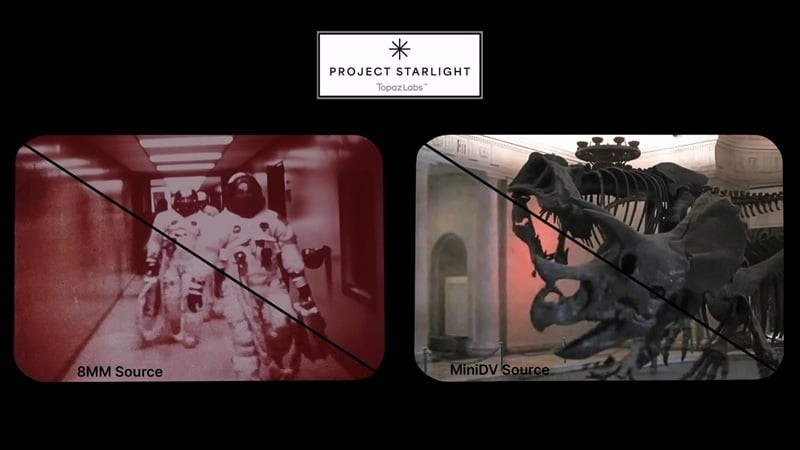
Topaz Project Starlight is a research‑grade tool developed by Topaz Labs that transforms low‑resolution and heavily degraded video into high‑quality footage. Unlike traditional upscalers that simply enlarge pixels, Starlight uses diffusion‑based AI to analyze hundreds of surrounding frames, rebuilding structure and detail across time.
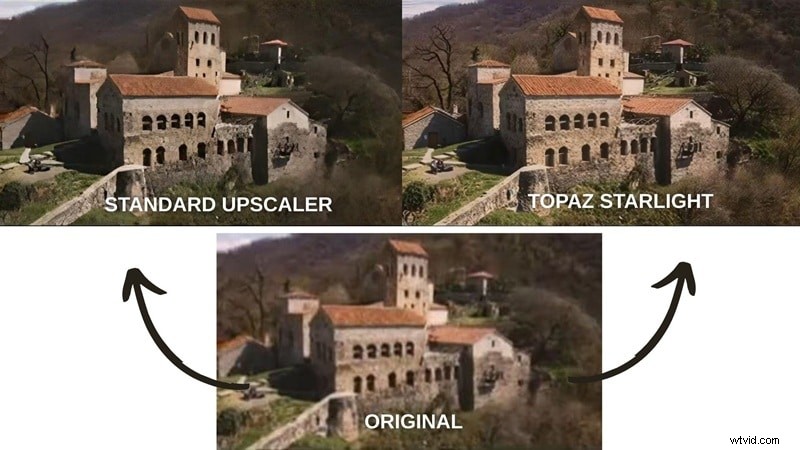
Because it focuses on reconstructing motion and texture rather than merely sharpening, the results appear more natural. Even when standard upscaling leaves video noisy or artificial, Starlight delivers cleaner, more realistic footage.
Diffusion‑Based AI vs. Traditional Upscaling
| Topaz Starlight | Traditional AI Upscaling | |
| Core Technology | Diffusion‑based AI that rebuilds structure and detail across time | Interpolation or super‑resolution models that enlarge pixels |
| Output Quality | More natural | Can appear artificial or over‑processed |
| Temporal Consistency | High consistency with minimal flicker or jitter | May introduce flicker or crawling textures |
| Noise & Artifact Handling | Excellent | Often amplifies noise or blocky artifacts |
| Speed | Slower | Faster |
Because diffusion processing is more demanding, running Starlight requires a powerful GPU and higher system specifications than conventional AI upscalers. Check the system requirements here.
Pricing and Availability
Starlight is available inside Topaz Video AI. To use it locally, you need the Pro subscription. Below is the pricing structure for Topaz Studio, which bundles all Topaz Labs apps.
| Topaz Studio | Topaz Studio Pro | |
| Pricing* | $37/mo | $75/mo |
| Starlight Access | Cloud‑only | Local access |
| Commercial Use | Limited | Full |
*Annual billing, paid monthly.
Free Trial?
New users can try Topaz Video AI with a free trial. When using Starlight online via Astra, you typically receive 20 free credits to evaluate the model.
2. Key Features and Supported Footage
Starlight’s versatility makes it suitable for a wide range of video sources:
- 8 mm and 16 mm film
- VHS and Betamax tapes
- Early mobile phone footage
- Low‑resolution AI‑generated content
- And more
Diffusion‑Based Enhancement
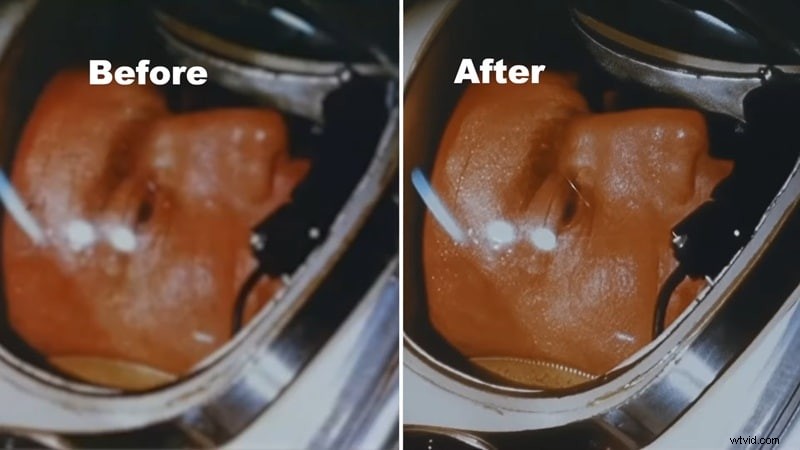
Diffusion AI, commonly used for video generation, is repurposed in Starlight to reconstruct missing detail instead of creating new content.
Upscaling to 4K
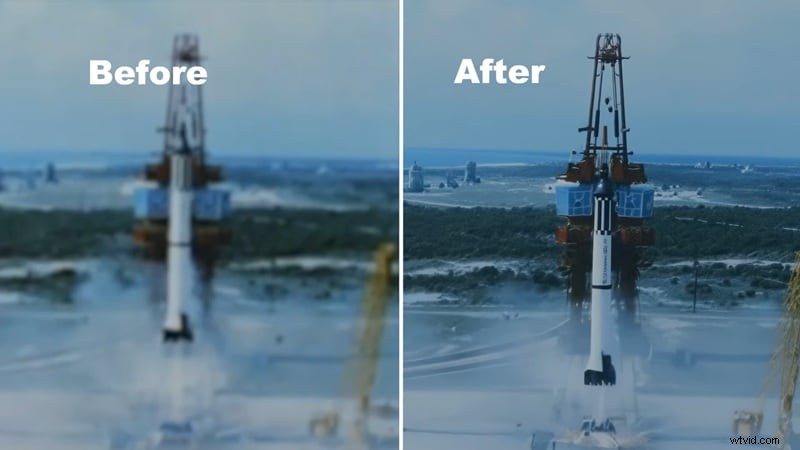
Starlight can upscale any video up to 4K resolution, but it does more than stretch pixels. By learning patterns within the footage, the model rebuilds high‑resolution detail, reducing distortion in low‑resolution clips.
Denoising and Artifact Reduction
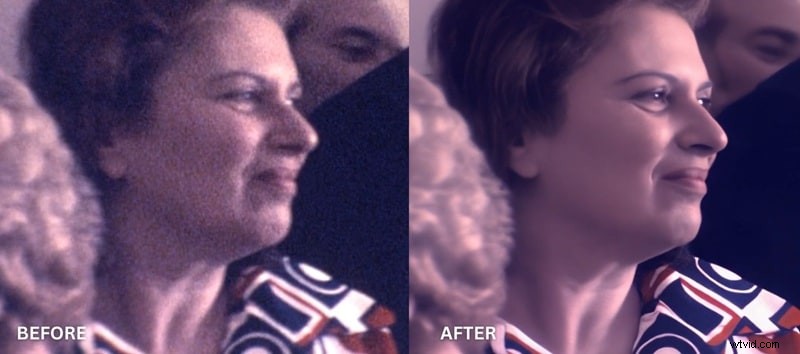
Unlike traditional tools that blur noise, Starlight separates grain and compression artifacts from genuine detail, delivering a cleaner result while preserving textures such as skin, fabric, or film grain.
De‑aliasing and Deblurring
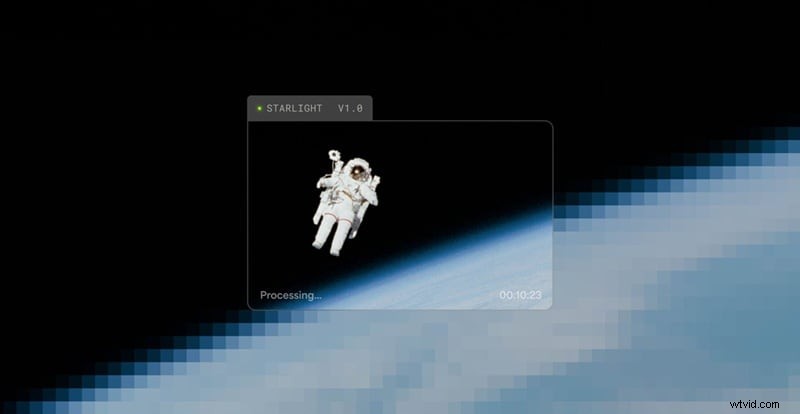
Starlight smooths jagged edges and motion blur by reconstructing pixel transitions. While very fine or heavily blurred text may still be imperfect due to insufficient detail, most fast‑moving or diagonal lines appear solid and flicker‑free.
3. How to Use Topaz Starlight
Starlight can be accessed via Astra’s online interface or the Topaz Video AI desktop application. Processing requires credits, which vary with clip length and processing complexity.
Using Starlight in Topaz Video AI
1. Launch Topaz Video AI and import the clip you wish to enhance.
2. Select Starlight as the enhancement model and start the restoration process.
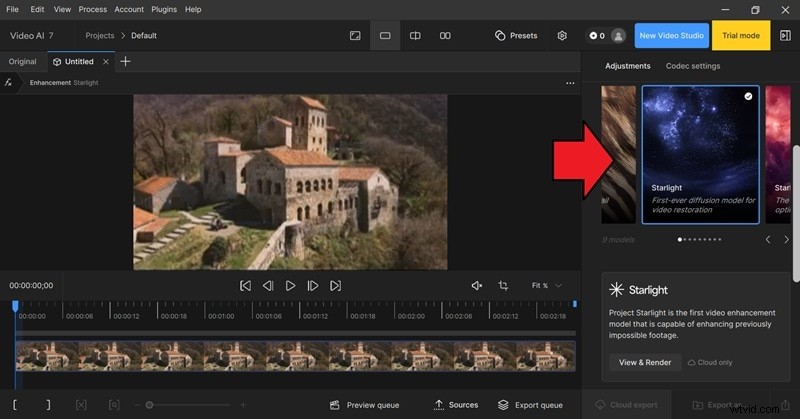
When working online on Astra, you can choose between two modes:
- Precise – Closer to the original footage, faster, lighter detail recovery.
- Creative – Stronger detail reconstruction with adjustable strength; slower processing.
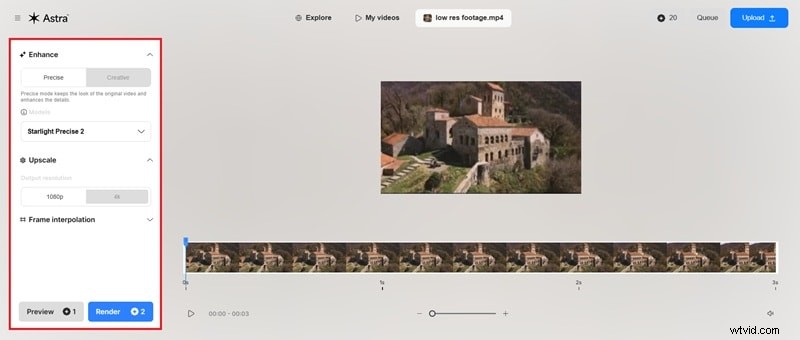
After setting the desired resolution, click Render to generate the enhanced video.
Starlight Mini & Starlight Sharp
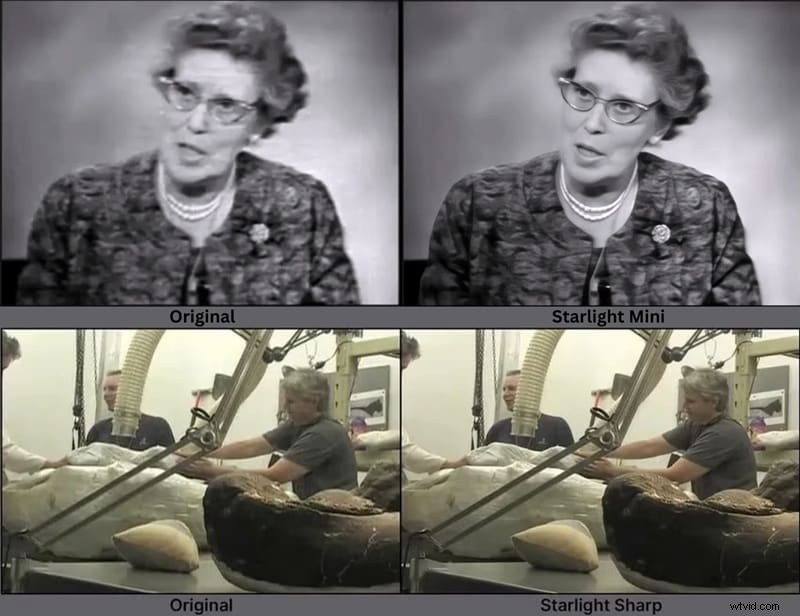
For more complex footage, try the following variants:
- Starlight Mini – An in‑app variant that runs locally on supported hardware, delivering stronger restoration but requiring extended rendering times.
- Starlight Sharp – Optimized for very low‑resolution footage, it recovers fine detail more effectively than the standard model.
4. Seamless Integration into Filmora
Enhancement alone is rarely the final step. After upscaling, editors still need to trim, color‑grade, clean audio, resize for platforms, and add effects. Re‑exporting between separate tools can interrupt workflow and degrade quality. Integrating Starlight directly into an editing timeline addresses these challenges.
Why Embed Starlight in the Timeline?
- One project, one timeline – Enhancement, editing, and final export occur in a single environment.
- Reduced re‑exporting – Less compression loss and faster iteration.
- Faster delivery – Immediate changes reduce turnaround time.
- Versatile use – Works for restoration, as well as regular editing tasks.
Using Starlight in Filmora
1. Ensure you have Filmora 15.2 or newer.
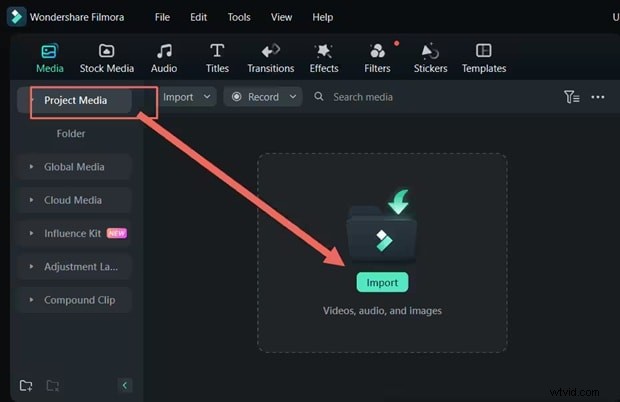
2. Open Filmora, create a new project, and import the video onto the timeline.
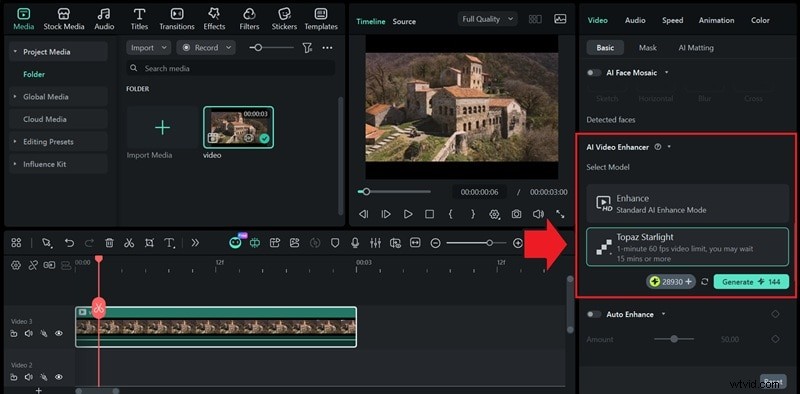
3. Click the clip on the timeline, go to Video > Basic, and under AI Video Enhancer select Topaz Starlight. Click Generate to start processing.
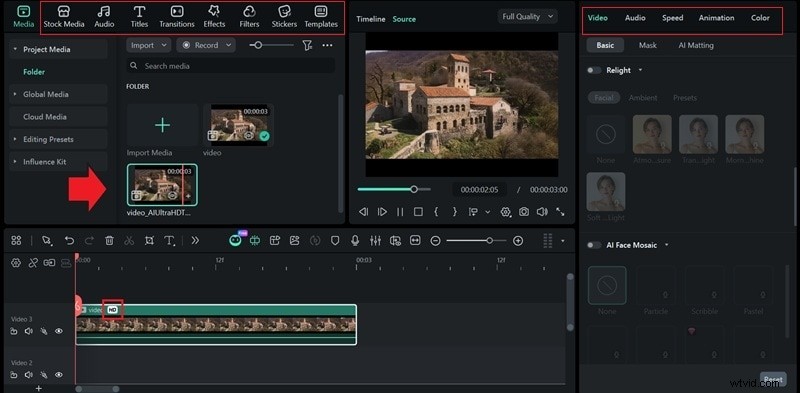
4. Once finished, apply final edits with Filmora’s tools: add music, text overlays, filters, audio adjustments, and speed changes.
- Add music, captions, and visual effects.
- Apply color and tone filters.
- Adjust audio levels.
- Modify playback speed.
5. Export the finished video or share it directly to social media.
Conclusion
Topaz Project Starlight redefines what’s possible with old or degraded footage. By reconstructing motion and detail through diffusion AI, it delivers smoother, more natural results than traditional upscalers. If your archival clips feel beyond salvage, try Starlight and watch them transform. Use it inside Filmora for a streamlined, end‑to‑end workflow that keeps you productive from enhancement to final export.

Filmora – AI Video Editing App & Software. The best tool for creating videos anywhere, for creators of all levels. Filmora integrates Topaz Project Starlight’s diffusion AI, enabling you to restore and enhance old footage directly within a comprehensive editing timeline for a seamless workflow.