
KineMaster is a powerful video editing app, which has some cool video editing features. This mobile video editor allows you to perform some exciting video editing tasks right from your smartphone. You can trim and cut videos without quality loss, and you add transitions, audio and other effects to make your videos attractive. And you can share your videos on social platform directly after editing.
Unfortunately, KineMaster is available only on iOS and Android devices. Even though KineMaster for Mac is unavailable yet, you can still download it on your Mac. Don't know how? Don't worry! This article provides a step-by-step guide to make sure you enjoy KineMaster on Mac. Let's dive in to know better.
- Part1: How to Download KineMaster on Mac
- Part2: Best KineMaster for Mac Alternatives
Part1: How to Download KineMaster on Mac
KineMaster is accessible just for mobile devices. To download it on Mac, you need the assistance of an Android Emulator. Android Emulator is an outsider software that allows running Google Play Store on MacBook. Let’s dive into the steps it requires to cover.
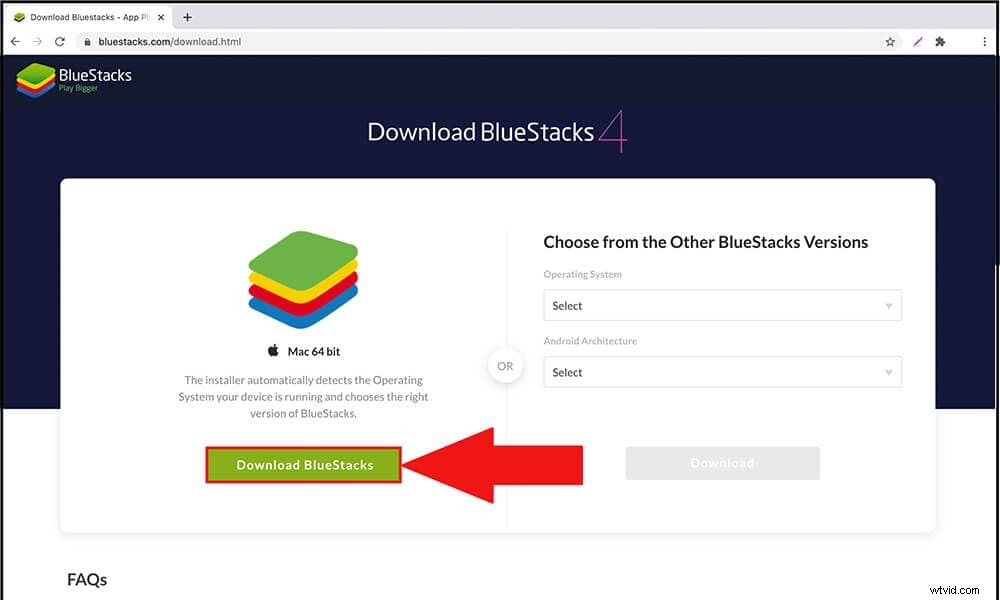
Step1: Download BlueStacks Emulator/NoxPlayer
BlueStacks Emulator and NoxPlayer both are great emulators, here we take BlueStacks as an example. Download and install BlueStacks on Mac, and Open it after.
Step2: Access Google Play
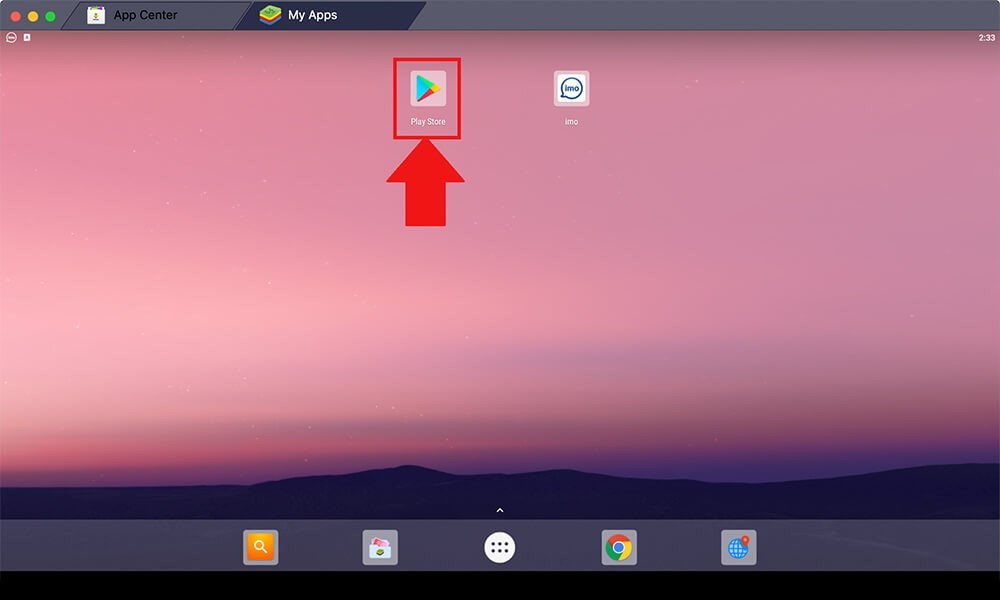
Access Play Store from the main screen of BlueStacks. And you need to Log in with Google Account.
Step3: Install KineMaster on Mac
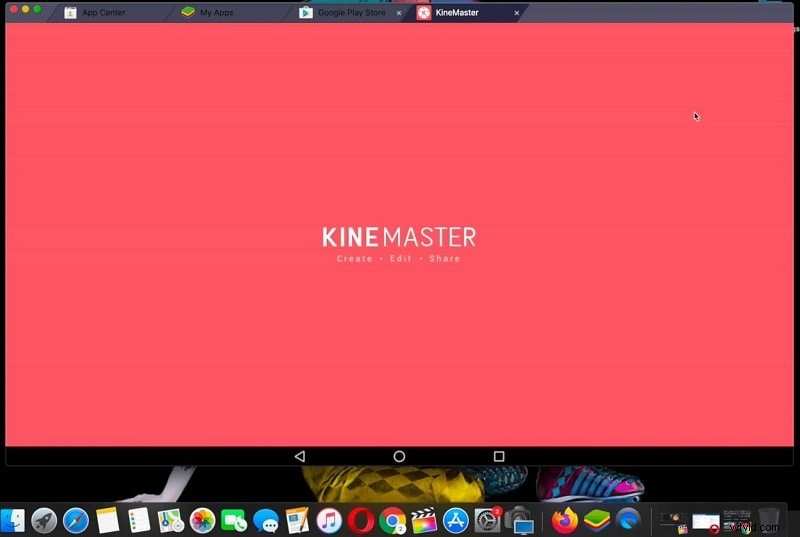
Simply type KineMaster in the search bar and install KineMaster on Mac. There you go, you can edit with KineMaster on Mac now.
Part2: Best KineMaster for Mac Alternatives
KineMaster is basically for smartphones, it can likewise be introduced on your MacBook with our guide above. But here’s the kicker as you might find it ambiguous while dealing with some handy editing tasks. For that, we have picked two best video editor for beginners as alternatives to KineMaster for Mac. Let’s have a look into it.
1. Wondershare Filmora for Mac
The top-notch alternative to KineMaster for Mac is the Wondershare Filmora. It’s a feature-packed video editing tool that runs smoothly on MacBook without any third-party emulator. The user-friendly interface of Filmora permits you to edit video easily even without any prior experience. You can trim, crop, split and merge your videos within few clicks. What’s more, you can make your video more compelling with advanced tools like key framing, motion tracking, green screen and AR stickers.
Main Features:
- Basic editing features including trimming, cropping, and merging videos
- Advanced editing features including motion tracking, key framing, audio ducking and more
- Cloud-based effect library including filters, titles, transitions and more.
- You can also share your edited videos with YouTube and Vimeo.
- record your screen and camera for future video editing.
2. iMovie
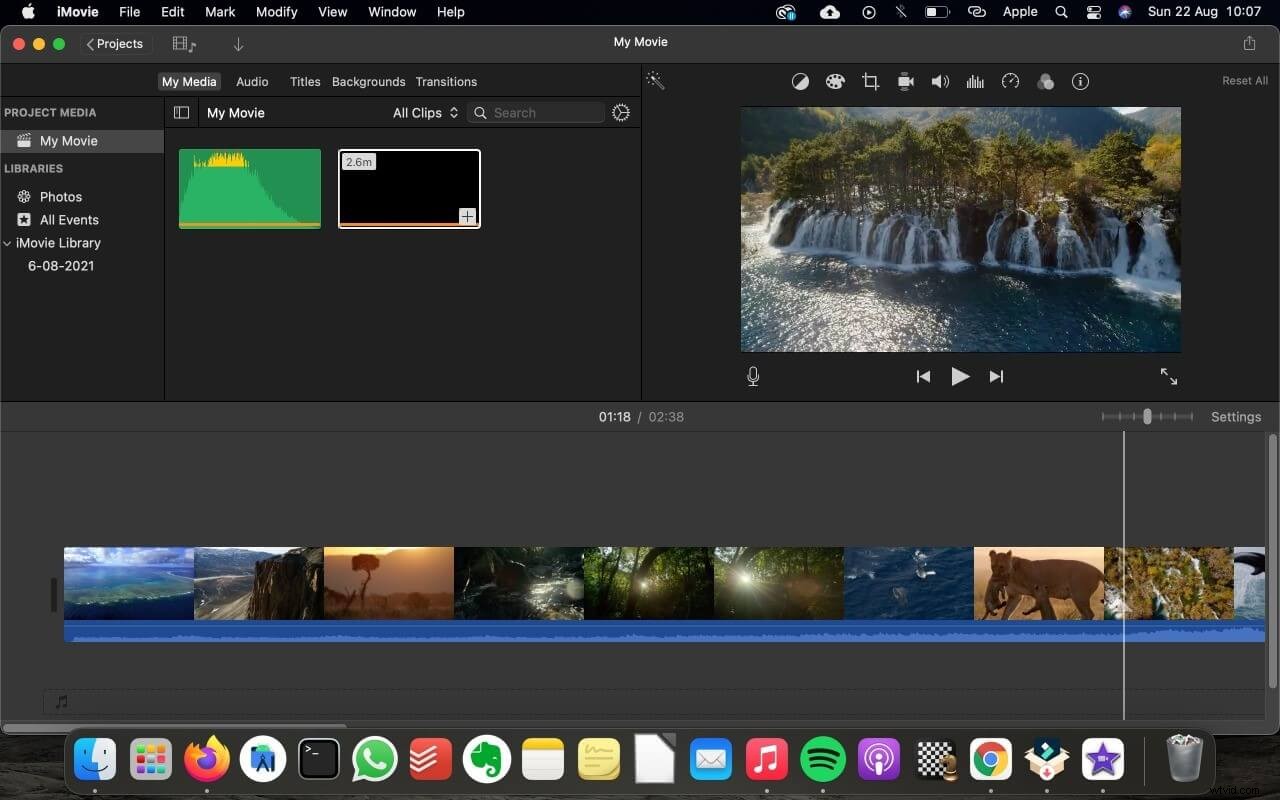
Another best option in contrast to KineMaster is iMovie. This video editor for Mac permits users to conduct basic video editing quickly. You can also add build-in video effects, transitions to polish your video. iMovie is one cool video editor that can replace KineMaster whenever. This editor device accompanies an exceptionally easy-to-use interface that is friendly for beginners.
Main Features:
- Very simple interface
- Color matching for consistent movie looks
- Classy themes
- Great chroma-keying tool
- Lots of audio tools
- Excellent movie templates
Conclusion:
KineMaster for Mac is a renowned video editing software that offers some pro-level features for both novice and expert. But still, it lacks some exciting features. Be that as it may, we recommend you to get Filmora for your video editing task. It is easy to use and you can edit like a pro quickly.