
The latest updates for the DaVinci Resolve Color Page have improved your workflow. Again. Let’s take a look at the new Node Graph developments.
Since Blackmagic has focused on refining Resolve’s edit page and introducing a dedicated audio page, it’s fair to say that the color page has received little attention over the past two years. However, when your color page is already world class, I guess there isn’t much to improve upon.
However, Blackmagic is still fixing bugs and implementing new ideas for the color page. In the recent 14.1 update, they updated the node graph, so let’s have a look at the updated feature.
Mostly, the node graph is a glorified copy-and-paste tool — but an essential one, to be sure.
Here, I have a set of stills with specific grades that I can apply to different shots throughout my sequence.
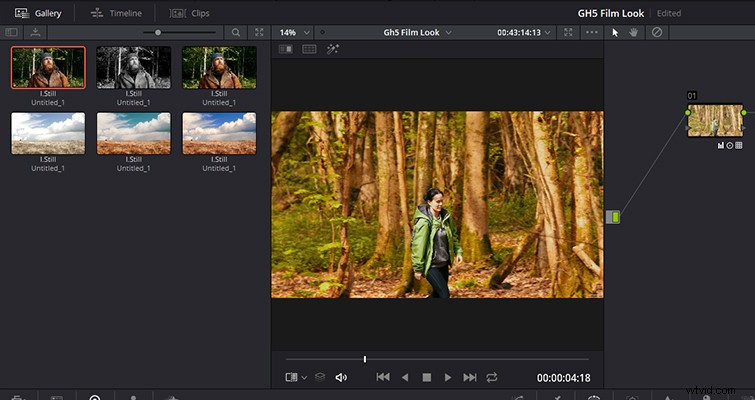
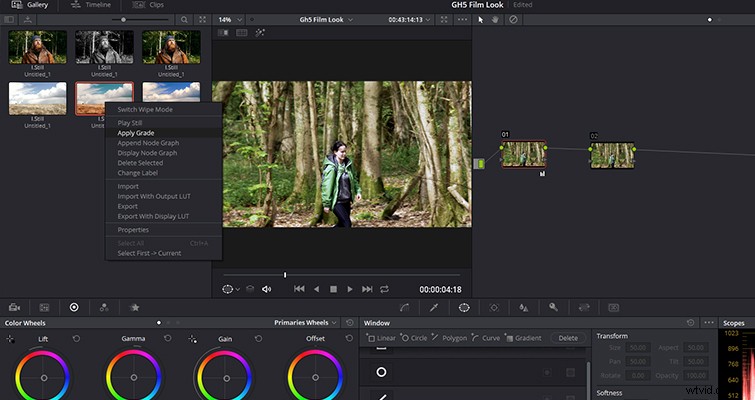
A standard go-to option has always been to right-click on the still and select apply grade. The node data from the still would then copy onto the selected clip.
Alternatively, we could right-click on a still and select open node graph, and then we could individually drag the nodes that made up the grade to the new clip. This method is perfect for bringing over one node without the others.
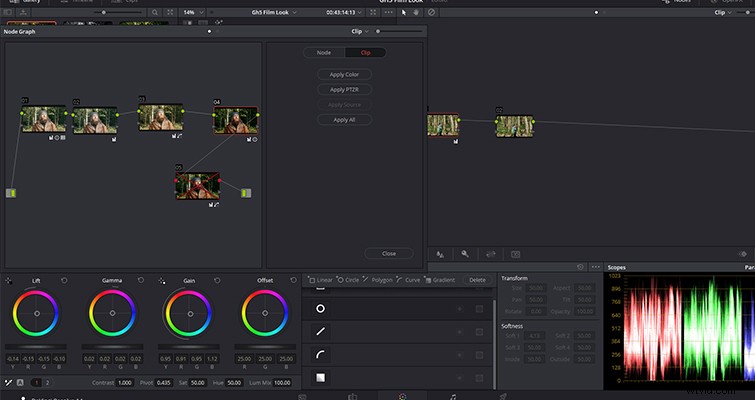
There’s nothing inherently wrong with this, but everything can use a little improvement, right? With 14.1 (and as of the writing of this article, Blackmagic has released 14.2), Resolve has introduced a new panel within the node graph — and this increases efficiency when using the node graph option. When dragging a node from the graph to the selected clip, previously, all elements of that node would copy to the new location. For example, if that node also had a tracking window or a qualifier, that too would copy to the selected clip, and usually, such elements are unique to one shot. That would require you to delete that unwanted information, which wastes time.
With the new update, when you open the node graph and click to the Node panel, you can now prevent specific elements from copying. Want to copy the color correction and qualifier but leave the blur behind? No problem. Just uncheck the appropriate box, and you are a step ahead.
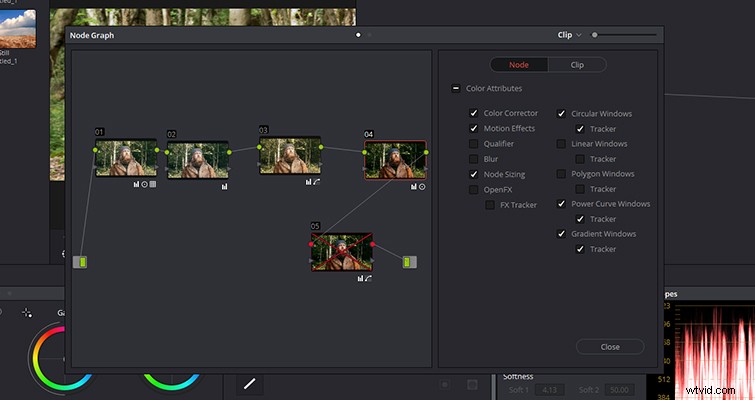
It is such an obviously necessary feature that after you use it, you’ll wonder why it was never an option in the first place.
This is the main update to the node graph window, but there have also been two other fixes that support this new feature:
• Added support for a zoom slider in the Display Node Graph window.
• Added support for accessing both the clip and the timeline node graph for a Still in the Display Node Graph window.
Lewis McGregor is a certified Blackmagic Design DaVinci Resolve Trainer.
Looking for more on Resolve 14.1 and 14.2? Check out these articles.
- How to Replicate Cast Shadows In DaVinci Resolve
- Check Out the Latest Developments in Resolve 14.1 and 14.2
- How To Create A Sub Mix In DaVinci Resolve 14 – Video Tutorial
- Resolve 14’s Best Editing Features For The Online Content Creator
- What You Need to Know About Resolve 14’s Latest Media Page