
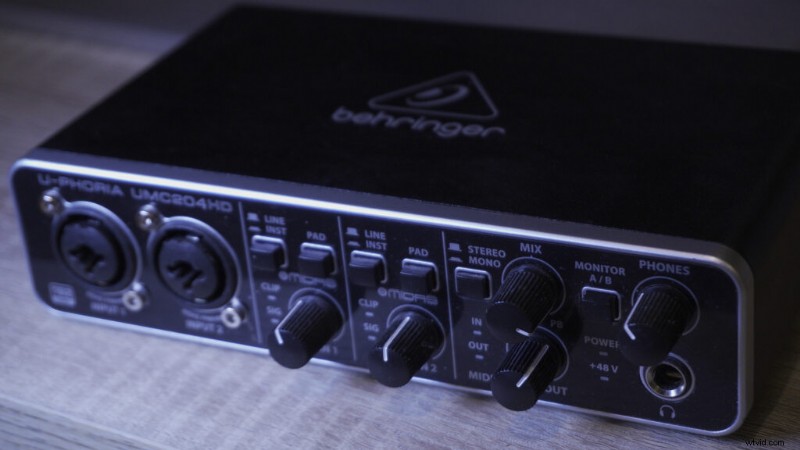
To record simultaneously with two (or more) XLR microphones at the same time you will have to own an audio interface with multiple XLR inputs, such as Behringer U-Phoria UMC204HD, Focusrite Scarlett 2i2 and many more.
There is also an alternative way to record using two microphones with a single XLR input audio interface, but this method has some caveats. We will cover it as well.
Recording with 2 (or more) XLR microphones on an audio interface with multiple inputs
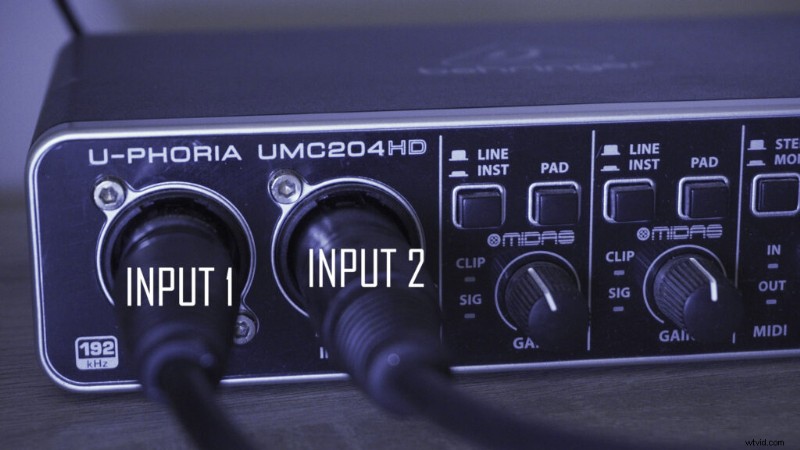
You can record with as many XLR microphones as you have as long as your audio interface supports enough XLR inputs and your DAW has a multitrack editor.
Here’s a step-by-step guide on how to record with 2 (or more) XLR mics
- Plug in 2 (or more) XLR microphones into an audio interface via XLR cables
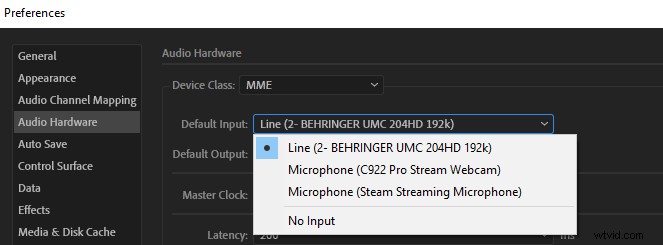
- Open your DAW and select your audio interface as a default input
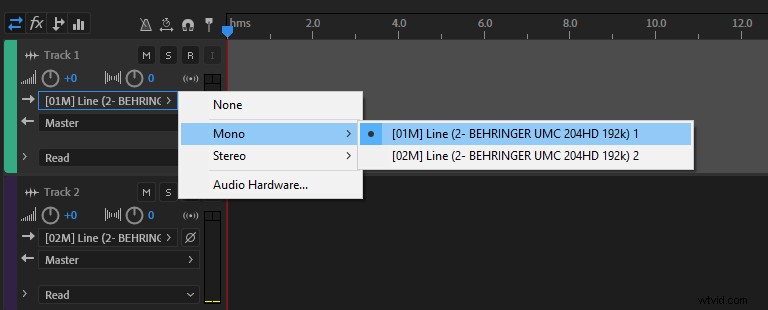
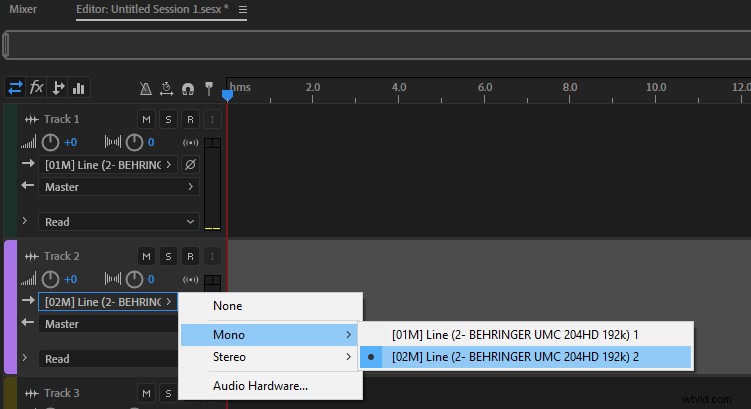
- Open multitrack editor in your DAW
- Select appropriate input lines for separate tracks
- Press record
How to record with 2 XLR microphones with a single input audio interface?
To record with 2 XLR microphones using a single input audio interface you will have to purchase an XLR cable splitter that splits a single XLR male end into two female ends.
You will be recording with 2 separate microphones simultaneously into a single audio track since you will be using only a single input audio interface.
This causes some issues when editing later in post because you won’t be able to edit audio from separate microphones independently. Also, you will have to use a single gain setting. This means that you will most likely have to use the same kind of microphone or they should have similar sensitivity to produce identical audio levels.