
MiniTool MovieMaker 8.6 brings a suite of refinements that make creating polished videos easier and faster. Key upgrades include Japanese and German language support, a new color palette for text, an enhanced walkthrough guide, streamlined error logging, and accelerated export times for GPU‑based effects.
Quick Navigation:
- MiniTool MovieMaker 8.6 Supports Japanese and German
- MiniTool MovieMaker 8.6 Allows for Custom Text Colors
- Other Improvements in MiniTool MovieMaker 8.6
- Conclusion
MiniTool MovieMaker is a user‑friendly video editor designed to help beginners and seasoned creators produce high‑quality videos with minimal effort. Version 8.6 introduces several enhancements that elevate the editing experience:
- Japanese and German language packs for a fully localized interface.
- A new color palette that lets you tailor text hues to match your video’s theme.
- An improved walkthrough guide that accelerates the learning curve.
- Direct access to log files for quick troubleshooting.
- Optimized export speeds for projects that use GPU‑accelerated effects.
Explore the latest release of MiniTool MovieMaker to edit and create videos more smoothly, faster, and with greater creative freedom.
MiniTool MovieMaker – Download (100% Clean & Safe)
MiniTool MovieMaker 8.6 Supports Japanese and German
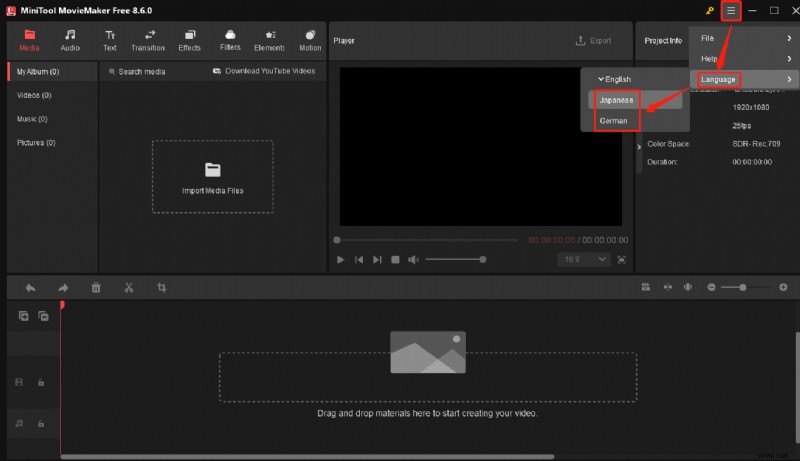
Version 8.6 introduces native Japanese and German language options, allowing users in those regions to navigate the software without language barriers and focus entirely on the creative process.
To change the display language, open the main interface, click the More icon (three horizontal lines) in the top‑right corner, hover over Language, and select Japanese or German from the dropdown list.
MiniTool MovieMaker 8.6 Allows for Custom Text Colors
The new text‑color palette empowers creators to match titles, captions, and credits precisely with their video’s aesthetic. Below is a step‑by‑step guide to using this feature.
Step 1: Import a Video
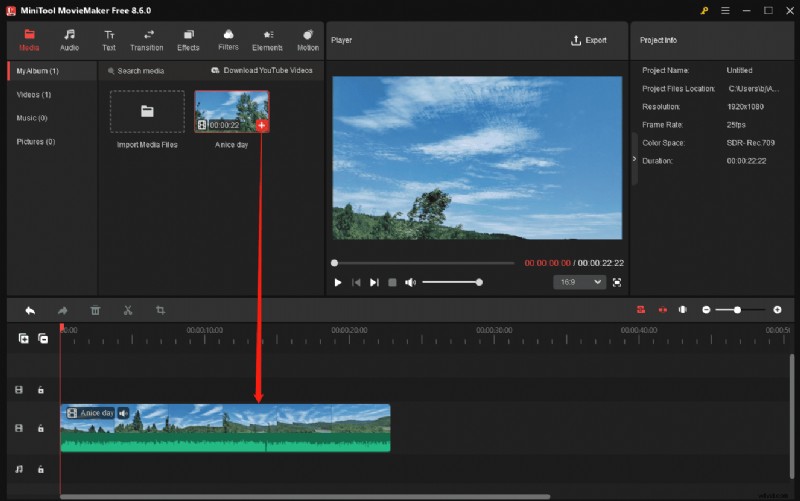
Launch MiniTool MovieMaker, click New Project, then Import Media Files to add your footage. Drag the video onto the timeline by clicking the + icon.
Step 2: Add Text
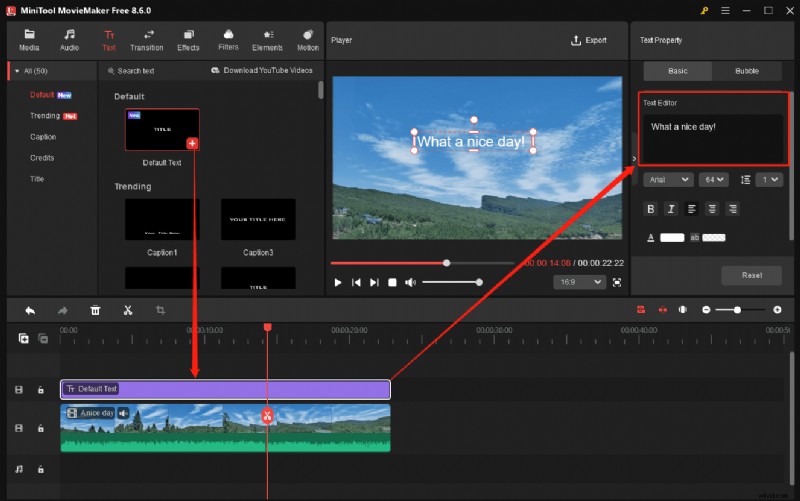
Click Text on the top toolbar and choose a category from the left sidebar:
- Default – static text overlays.
- Caption – animated captions.
- Credits – end‑credits.
- Title – opening title cards.
Select a template, add it to the timeline, and open the Text Editor to type your content.
Step 3: Customize Text Color
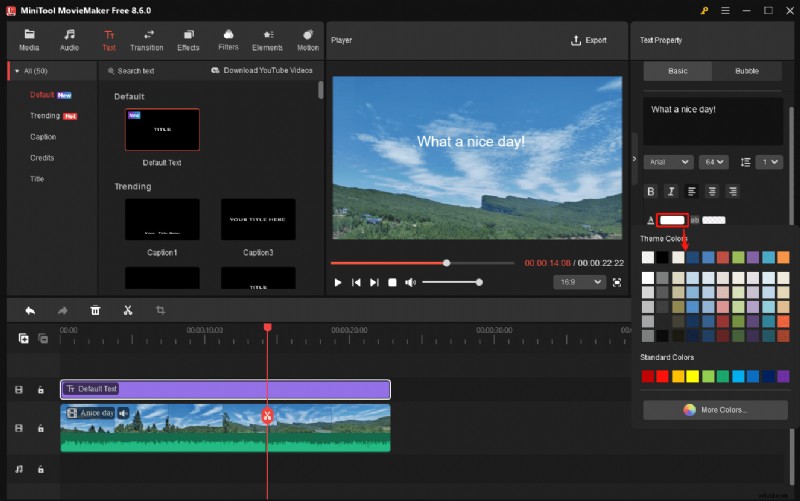
In the Text Property panel, click the Text Color tab to open the Theme Colors dialog. Choose a preset or click More Colors… to specify a custom hue.
The Select Color pop‑up lets you define a color via HSV, HSL, or RGB. Confirm with OK to apply the hue to your text.
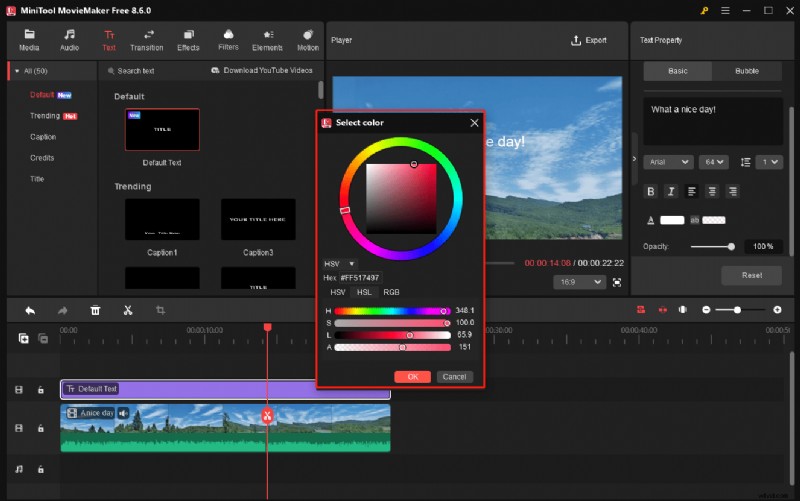
Step 4: Export the Video
Click Export in the upper right corner, confirm the output settings, and hit Export to render the finished video.
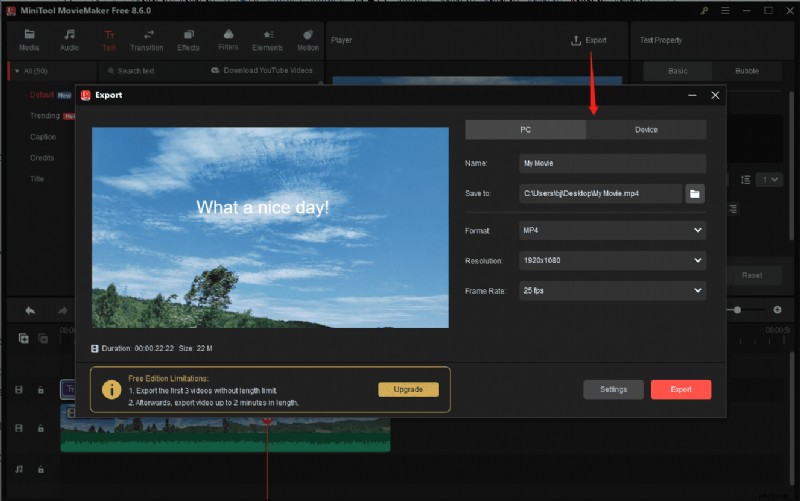
Other Enhancements in MiniTool MovieMaker 8.6
Optimized Walkthrough Guide
The updated guide offers a step‑by‑step walkthrough that helps first‑time users master importing media, arranging clips, applying filters, and exporting projects.
Quick Access to Log Files
Encounter an error? Navigate to More > Help > Log file location to retrieve logs instantly. This data can be shared with support for rapid issue resolution.

Faster Export Speeds
Version 8.6 optimizes rendering for projects that use GPU‑based effects or filters, significantly reducing export times.
Conclusion
MiniTool MovieMaker 8.6 delivers essential updates that enhance usability and creative control: native Japanese and German support, customizable text colors, an intuitive walkthrough, streamlined troubleshooting, and improved export performance. Try the new release today and experience smoother, faster video production.