You have probably all used an SRT (SubRip) file. Supported by almost all video software, it is the most widely used subtitling format in the world.
Yet, quite suprisingly, it does not code a lot of your subtitles information. For exampe, it does not take into account subtitle positioning, customization and synchronization.
That’s too bad, we agree…

Fortunately, it turns out that the WebVTT format is the perfect answer to overcome these shortcomings. Adapted to web reading, it takes into account more information than SRT while being supported by an almost equivalent number of software (Youtube, social networks…).
We’ll show you why you should use .vtt files and how you can generate them easily.
Why use a WebVTT file?
Created in 2010 by the Web Hypertext Application Technology Working Group (WHATWG) community of HTML developers, the WebVTT format aims to improve the tracking of text data on HTML5.
From the beginning, this type of file has been thought of as a more elaborate alternative to the SRT format, having even been named “WebSRT” before being changed to “WebVTT”.
Although it is still under development and acceptance by the W3C organization, it is now readable by almost all browsers (Google Chrome, Safari, …) video players (Vimeo, JW player, BrightCove …) and social networks (Youtube).
You can therefore use its features on many media, although for example on Youtube only the positioning parameters are taken into account. The benefit though is that the format is expanding on the net, and could bring even more innovations in the future.
So why use a .vtt file rather than a universally recognized .srt file? Well, it has a number of much greater features :
- You can add HTML tags to manage the formatting of your text (bold, highlight, italic): <b text /b>
- Customize the positioning and size of the display of your subtitles: size: 50%
- Indicate the name of the speakers with the tag <v /v>
- Adding metadata and comments to make your work more collaborative : NOTE
- Displaying your text in a more progressive way with the addition of more precise time codes <00:19.000> in the sequence (interesting for a karaoke version)
- Compatible with a more advanced CSS customization (colors, subtitle font if you implement your video on your website
So it’s a very flexible tool to get more control over your subtitling work!
Vtt format: how to make a file by yourself?
Although quite similar to the structure of an SRT file, WebVTT has its own specificities in terms of formatting. We explain how to design one by yourself.
Coding the basic structure
To get started, get a text editor that can convert to UNIF-8 like Notepad on Windows or TextEdit on Mac. You can then transcribe your video in this form :
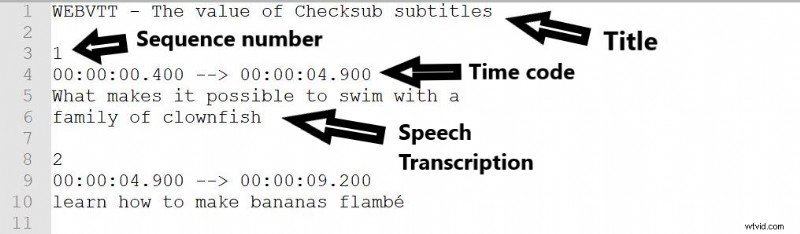
Adding additional specifications
For now, the structure is very similar to SRT. But there are additional code possibilities. You can add style settings to customize the size, positioning, and the font of your subtitles. Not all features are supported by video players, but it’s still worth a try.
Here are 2 ways to set the style of your subtitles.
By defining a label in the beginning of the code :

By defining it within the text sequence :

By applying one of this method, you can then add the style label that you want and that are all listed here.
Here are a few tips to make your subtitles as accessible as possible:
- Try to divide your subtitle sequences into 2 lines that overlap in an equivalent way
- Divide your sentences as logically as possible (e.g., using punctuation, etc.).
- Try to synchronize the beginning of your sequences at the exact moment when the speakers start moving their lips.
- Keep subtitle positioning centered towards the bottom of the screen. Don’t make your subtitles too big or too small.
- Make numerous proof readings of your work
More info to improve your transcription on this page.
How to use a WebVTT automatic generator?
Well, as you have seen, it is quite a complex coding job. That’s why, obviously, it’s better to use dedicated software to make the process easier.
Good thing is, there are some automatic subtitling solutions that allow you to easily generate custom .vtt files. Here we show you how to use our subtitle generator, Checksub.com.
Our solution has many advantages for video creators, including :
- An advanced speech recognition API
- A machine translation engine to translate your video, including 128 different languages available.
- A powerful and easy-to-use online subtitle editor
- A collaborative platform for working with translators, clients and other partners
This will save you a lot of time to focus on video production, while keeping control of your workflow.
How to use an automatic .vtt solution
To get started, upload your video to the Checksub interface. You must then choose the original language of your video content and possibly the languages you want to translate. Our solution will then automatically generate a transcript that you can edit. Check the transcription and synchronization, editing as you wish. You can cut your sentences into several pieces with the tool symbolized by a wheel.
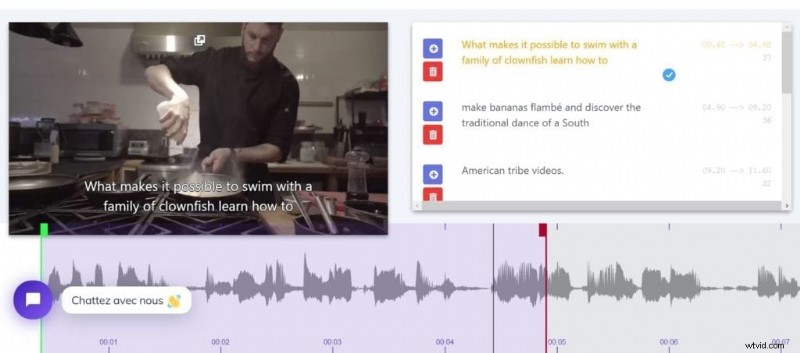
When you have finished working on the subtitle editor, you can then export your transcription in a WebVTT format. Our solution does not yet integrate the style modifications but you can easily make them on the file by following our advice above.
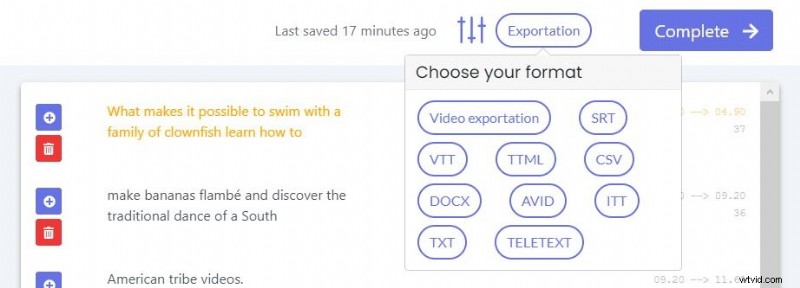
Now all you have to do is download this file on video or implement it on your site. We hope this will make your content accessible to a lot of people!