
How do I create an M3U playlist on Windows and macOS? In this post, I will teach you how to create M3U playlists in Windows Media Player, iTunes and VLC media player and introduce serval best IPTV M3U playlist URLs.
What is an M3U file? M3U is an audio playlist file, which points to audio and video sources. M3U playlists can be played by many media players such as VLC media player, Winamp, iTunes, and more. (Need an HD video player? Try MiniTool MovieMaker.)
Want to create M3U playlists? Here are 3 best M3U playlist creators to make M3U playlists.
Create M3U Playlist in Windows Media Player
For Windows 7 users, they can create M3U playlists in Windows Media Player. Windows Media Player is a media player that can be used to play videos, music, and view photos.
Take these steps to create an M3U playlist in Windows Media Player.
Step 1. Create a new folder on your computer and move the needed audio files to the folder.
Step 2. Open the Windows Media Player and drag the folder into the Unsaved List section.
Step 3. Then, you can rearrange these audio files by dragging an audio file up and down.
Step 4. Click on the drop-down menu at the top right corner and select the Save list as… option.
Step 5. Select a destination folder, enter the file name and choose M3U as the output format. Click the Save button to start creating an M3U playlist.
Create M3U Playlist in iTunes
For Mac users, they can use iTunes to make M3U playlists. iTunes can create and play M3U files. Besides that, it also allows you to watch movies & TV shows and listen to music & podcasts.
Here’s how to create an M3U playlist in iTunes.
Step 1. Open iTunes, go to Playlists, click the + and choose New Playlist.
Step 2. Click on Add To to import the audio tracks you want to use.
Step 3. Click on File in the top-left corner of the window and choose Library > Export Playlist.
Step 4. Choose a folder to save the M3U file, name the file and select M3U Files from the Save as Type list.
Create M3U Playlist in VLC Media Player
VLC media player is a popular multimedia player. It’s capable of playing any video& audio, streaming online videos, downloading web videos and creating M3U playlists. It’s available for Windows, macOS, Linux, etc.
To create an M3U playlist, take the steps below.
Step 1. Download, install and open VLC media player.
Step 2. Right-click on the Playlist window and choose Add File… or Add Folder… to load the audio files or a folder.
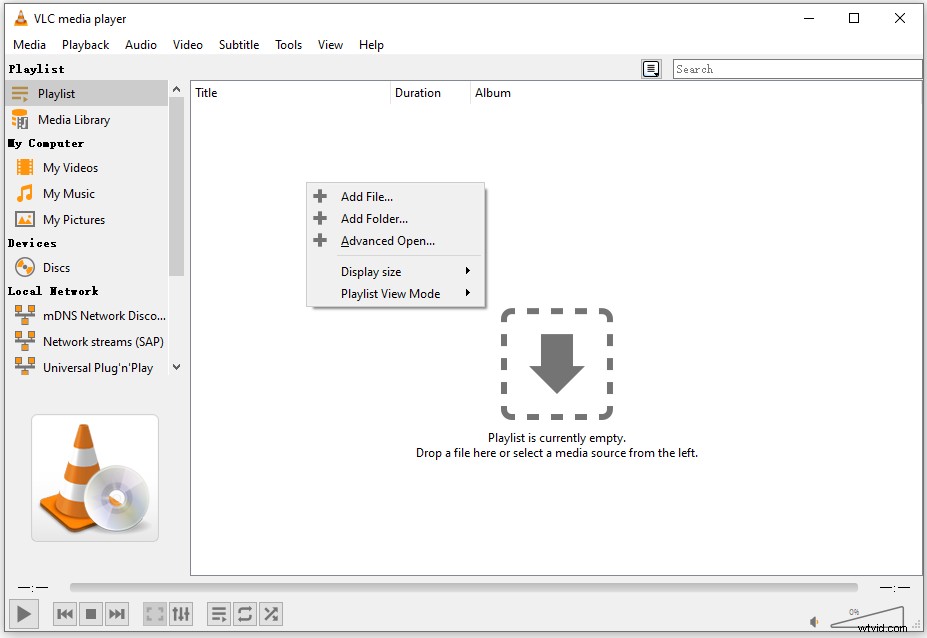
Step 3. Shift the order and then press “Ctrl + Y” to create an M3U playlist.
Step 4. Select a location, rename the file and save the type as M3U playlist. After that, click on Save.
Best IPTV M3U Playlist Links
Do you want to watch TV shows online for free? Here are some 100% working IPTV playlist links for you.
https://iptv-org.github.io/iptv/categories/news.m3u (News)
https://iptv-org.github.io/iptv/categories/sport.m3u (Sports)
https://iptv-org.github.io/iptv/languages/hin.m3u (Hindi Movies and TV shows)
https://iptv-org.github.io/iptv/languages/ara.m3u (Arabic Channel)
https://iptv-org.github.io/iptv/countries/ru.m3u (Russia Channel)
https://iptv-org.github.io/iptv/countries/cn.m3u (Chinese Dramas and Movies)
Conclusion
Now, try the above M3U playlist creator to create M3U playlists for free!