
Instagram is a good place to share your videos and photos. But sometimes the quality of the uploaded Instagram video is too bad. Why are my Instagram videos blurry? How to fix it? This post offers 6 solutions to fix the problem “Instagram video blurry”.
Why Are My Instagram Videos Blurry?
Your video looks blurry after uploading to Instagram Story. It’s very annoying, right? Many of you may wonder why are my Instagram videos/stories blurry? There are many reasons for that, including bad internet connection, an old version of the Instagram app, wrong aspect ratio, and quality, and more. (Try MiniTool MovieMaker to make an Instagram slideshow with music.)
How to Fix Instagram Videos Blurry
How to fix Instagram videos blurry? Here are 6 solutions for you to make a blurry Instagram video look good.
Solution 1. Check Network Connection
When you are on a slow internet connection, the uploaded video may look blurry. So, you need to check your network connection. If the internet speed is slow, switch between mobile data and Wi-Fi.
Solution 2. Adjust Instagram Setting
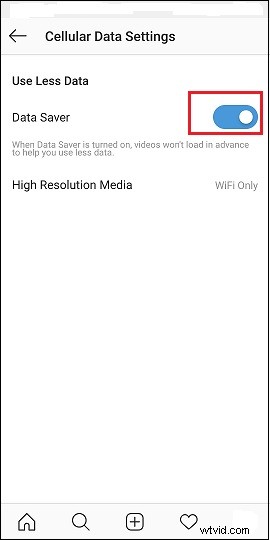
Instagram offers a feature called Data Saver. When it’s turned on, Instagram will reduce the video quality to help you save data. To fix blurry Instagram videos, you check if the Data Saver is enabled or not.
- Open the Instagram app, click your Profile
- Tap on the menu button at the top right corner of your screen.
- Open Settings > Account > Cellular Data Use.
- Then toggle the Data Saver off and check your video.
Solution 3. Use Instagram’s Camera
Another solution to fix blurry Instagram videos is to use Instagram’s built-in camera. Instagram will keep the original quality of the video recorded by Instagram’s camera. Just press the plus icon at the bottom and tap Video to start recording a video.
In addition, using this camera to take photos is also a good way to post full size photos to Instagram without cropping.
Solution 4. Update the Instagram App
The quality of your story may be blurred after uploading if you’re using an older version of the Instagram app. So, update to the latest version of the app and re-upload your story to Instagram. For Android, open Google Play, find Instagram, and click Update. For iOS, open the App Store, search for Instagram, and update it.
Solution 5. Resize Video for Instagram
The uploaded video must meet the Instagram video upload requirements. Otherwise, your video will be compressed and cropped.
- The Instagram video size is up to 4GB.
- The aspect ratio of the Instagram video should be 1:1, 4:5, 9:16, 16:9.
- The recommended Instagram video format is MP4.
- The frame rate of 30fps.
To fix the blurry Instagram video, you should use a video resizer to resize your video for Instagram or convert the video for Instagram using MiniTool MovieMaker or MiniTool Video Converter.
Solution 6. Upload High Quality Videos to Instagram
How to upload high quality videos to Instagram without quality loss? First, using a camera or iPhone to shoot videos in 4K. Then edit them use a 4K video editor and make sure that the output videos meet the Instagram video specifications.
Conclusion
That’s all about how to fix Instagram video blurry. If you have other suggestions, please share them with us!