
Do you want to partner with other influencers or brands to co-create Instagram content? Wondering how to use the Instagram Collab post feature for Reels and feeds? In this post, we will share almost everything you need to know about the Instagram Collab post feature.
Instagram is one of the most popular video-sharing platforms. If you want to make short videos or edit them on your Windows PC, you can try the handy and free video maker – MiniTool MovieMaker.
What Is Instagram Collab Post Feature?
In the beginning, let’s figure out what is Instagram Collab post feature. In fact, it is a feature that enables Instagram users to collaborate with one another on both Feed posts and Reels. Once the co-author approves the Instagram Collab tag on your post, you can share interactions for the collaborated post/reel. As a result, it is a great way to increase the reach and boost engagement.
Tips:
With this feature, you can add up to 20 co-authors to an Instagram Collab post. The co-author can be public or private Instagram accounts but it needs to be approved first.
How to Use the Instagram Collabs Feature?
As we can see, this is a great feature to increase visibility and engagement. Well, how to make an Instagram Collab post? How to do Instagram Collab post anyway? This part got you covered. Simply follow these steps below to learn how to do Instagram Collab posts:
1. Open the Instagram app on your phone. Tap on the Create menu (+ icon in the top-right of the app).
2. Create a Feed post or Reel as normal. You can take a photo or pick one from your camera roll. If you want to create a carousel post, then select multiple images. You can also upload a video if you wish.
3. On the page where you can add your post details, choose the Tag people option.
4. To invite collaborators, tap on Invite collaborators and search for the Instagram account(s) you’d like to collaborate with, and tap to select them as co-authors.
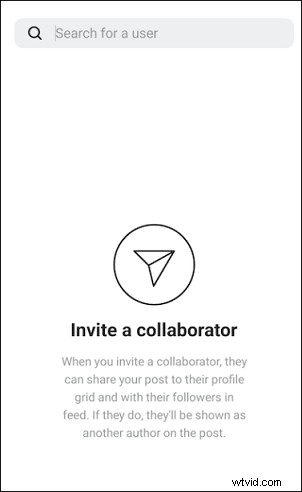
You can add multiple people as collaborators for a single post. But keep in mind that they will have to accept your Collab request in order to show up as authors of the post.
5. Once you’ve selected the user(s) you want to collaborate with, tap on Done to save your settings.
6. Then, you can add more details to your post such as writing a caption, adding a location, adding music, etc. After you are done, tap on the Share button to create your very first Instagram Collab post.
That’s it! Once you publish the post, all the collaborators of the post will receive a notification informing them of the collaboration. To accept, the co-author just needs to tap on the notification and choose Review to see the post and select either Accept or Decline.
How to untag yourself on Instagram? Read How to Untag Yourself on Instagram? [Simple Steps].
If you are invited as a co-author in an Instagram Collab post, how to accept a collaboration on Instagram? Follow the steps below:
- Open up your DMs. If someone has requested a Collab with you, it will appear here.
- Click on the invite notification. Tap on the blue Review button.
- Select Accept and that’s it. You’ve accepted your very first Instagram Collab request and will be shown as the author of the post.
Conclusion
In this post, we share the method on how to make an Instagram Collab post. Now, it is your turn to make your first Instagram Collab post!