
Animated video titles are an awesome way to brand your content and improve viewer engagement. Even including simple video title effects will help you grow your YouTube channel!
But the best part is, you don’t need to settle for basic video titles because creating professional titles for videos is really easy to do.
Whether you want to learn how to make titles for YouTube videos on your channel or are looking to create cool titles for videos you’re uploading elsewhere, this video title effects tutorial will show you exactly how to do it step-by-step.
The methods we’ll run through will work no matter what video editing software you’re using. Adobe Premiere Pro, Final Cut Pro, Screenflow, iMovie, DaVinci Resolve… you name it!
Here’s exactly what we’ll cover:
- Built-In Animated Titles
- D.I.Y. Animated Titles
- Placeit Animated Titles
- Videohive Animated Titles
Let’s get started.
Built-In Animated Titles
This is definitely the easiest method. Using the built-in preset animated titles in your video editing software is super simple.
Some software will have a ton of built-in titles while others won’t have many at all. So we’ll cover this method first, because it might offer everything you need.
The exact process will change depending on the video editing software you use.
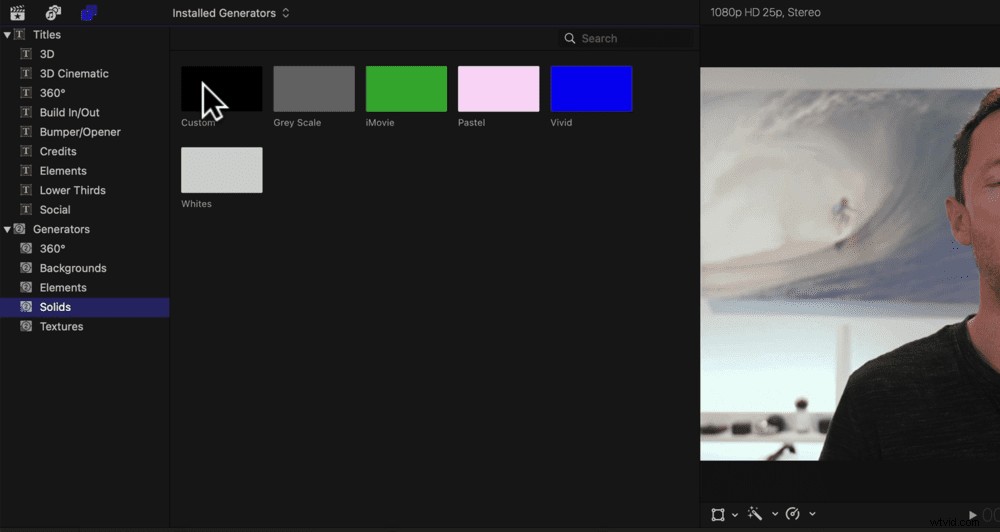
For example, on iMovie you’ll just need to go to Add Title and there’s a good number of animated titles you can choose from. All you need to do is click and drag the title onto your editing timeline.
Double click on the text clip to open up the text edit box. Then edit the text and you’re done!
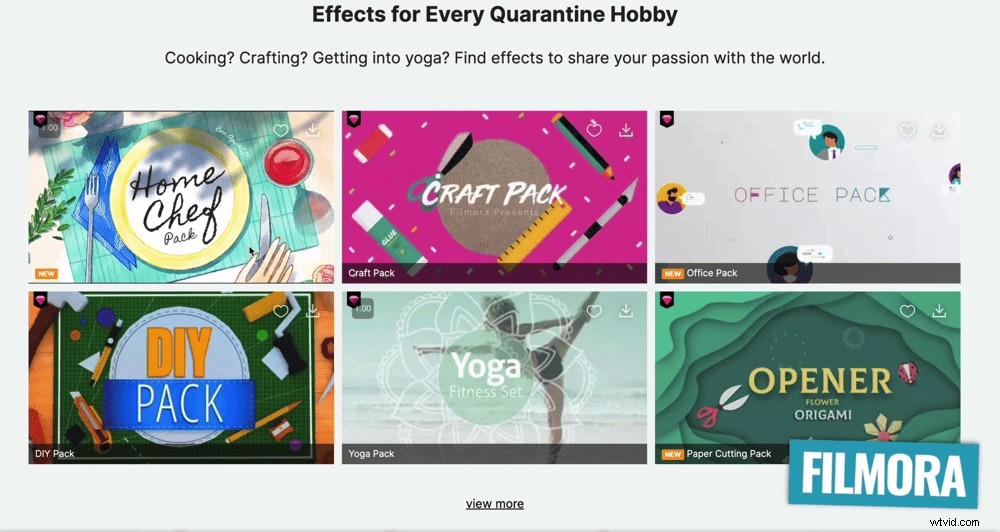
PRO TIP: Some video editing software such as Filmora and Kinemaster have dedicated shops where you can purchase and download a ton of extra animated titles.
So check what you’ve got built-in to your editing application to see if this easy method works for you.
Now let’s take a look at making DIY animated titles.
D.I.Y. Animated Titles
This method builds upon the previous option. It’s to animate text inside your editing software.
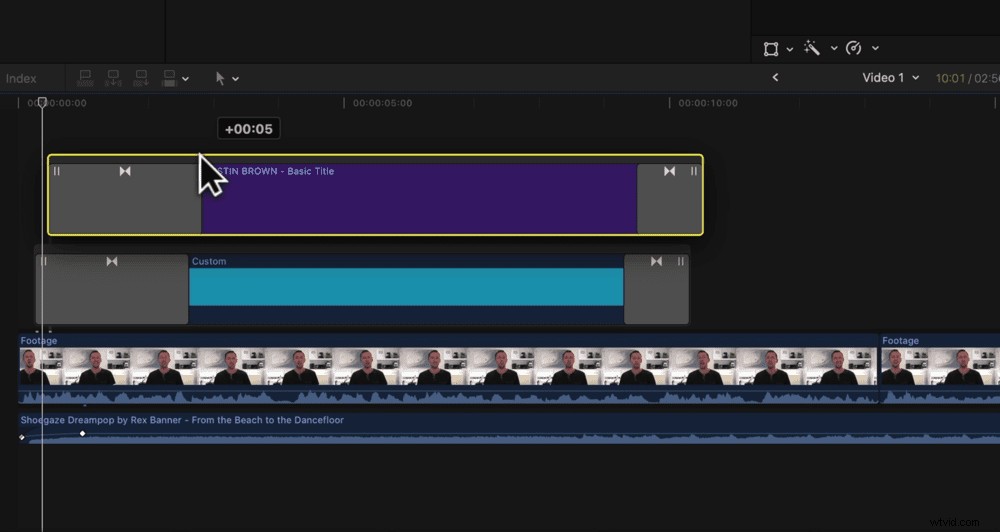
We’ll run through this example on Final Cut Pro. Instead of using one of the presets, start by adding a basic title.
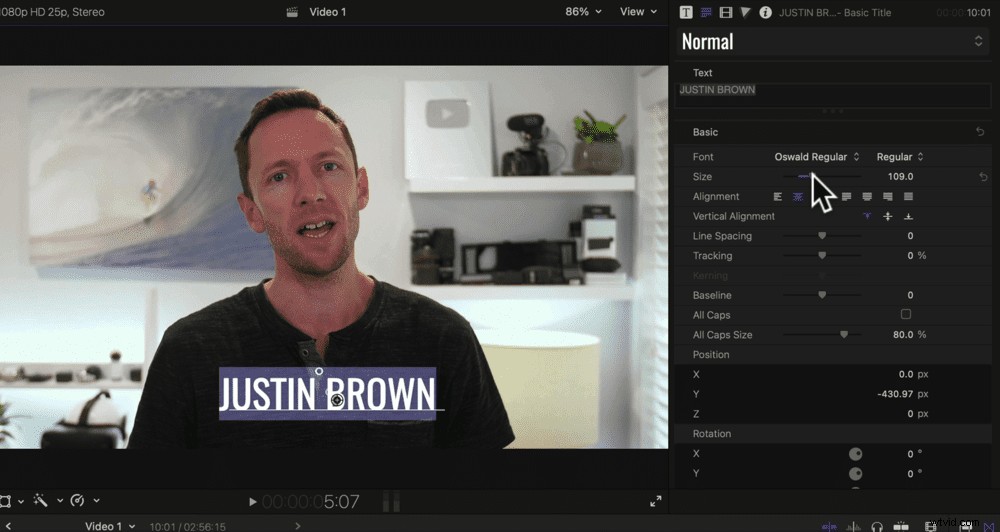
Make any customizations to the font, size and placement of the title.
Then you can add transitions. This will make your title look way more interesting than if it just suddenly appears on screen.
If you want to adjust the speed of the transition, simply extend the transition clip on your editing timeline.
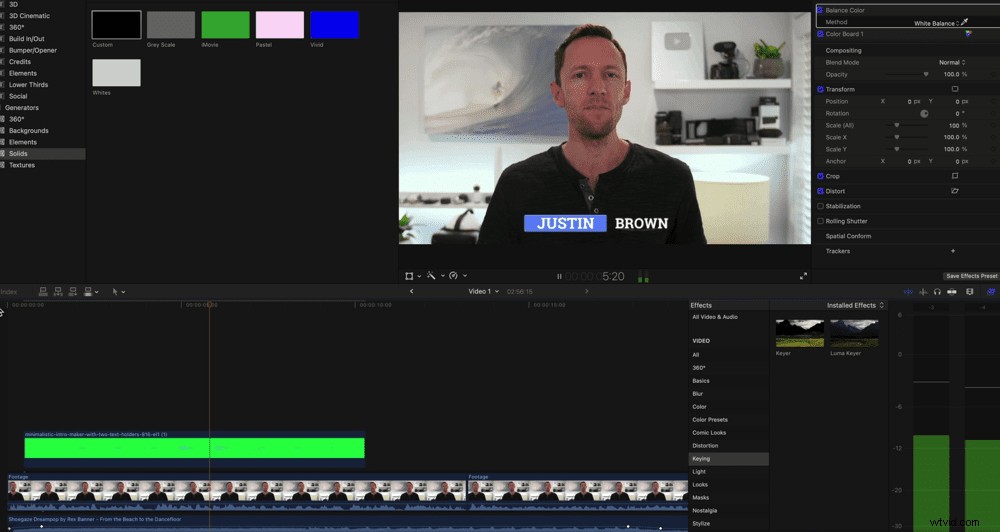
Once you’re happy with the transition, adding a shape behind your title is a super easy way to take your animated title to the next level.
Again, the method will vary depending on the software you’re using but you want to add a solid custom background image to your editing timeline beneath the title clip.
You can then scale or crop it down so that it fits nicely behind the text. Don’t forget to make any adjustments to the color.
Another great tip is to add the same transition to the colored block. To do this, select the transition, go to Edit → Copy and then select the block clip and go Edit → Paste Effects.
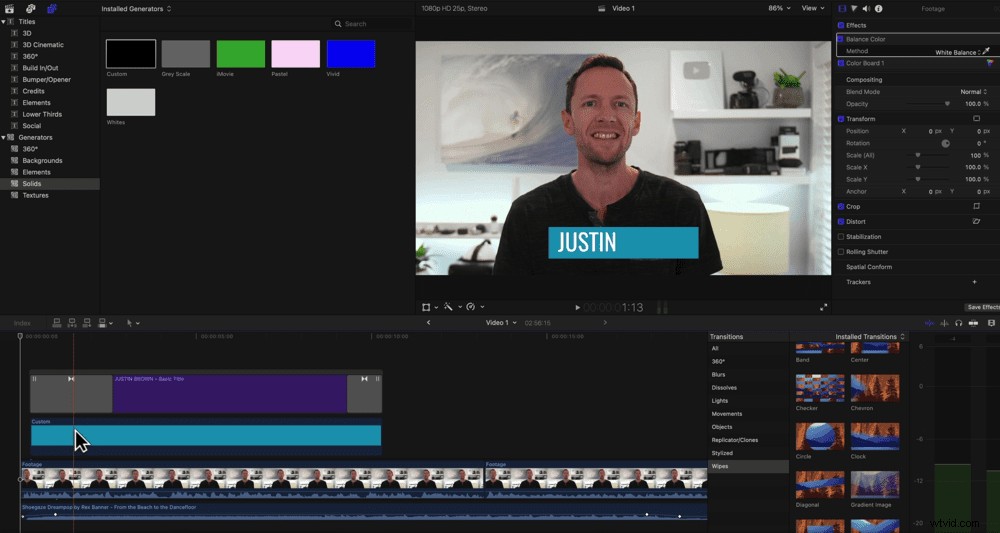
PRO TIP: You can even adjust the start times of the different clips so that the background shape comes in first and the text comes in a tiny bit later.
This method allows you to get really creative so play around and have some fun with it!
Once you’ve created a title you’re happy with it, you can copy and paste it between projects so you don’t need to start from scratch every time.
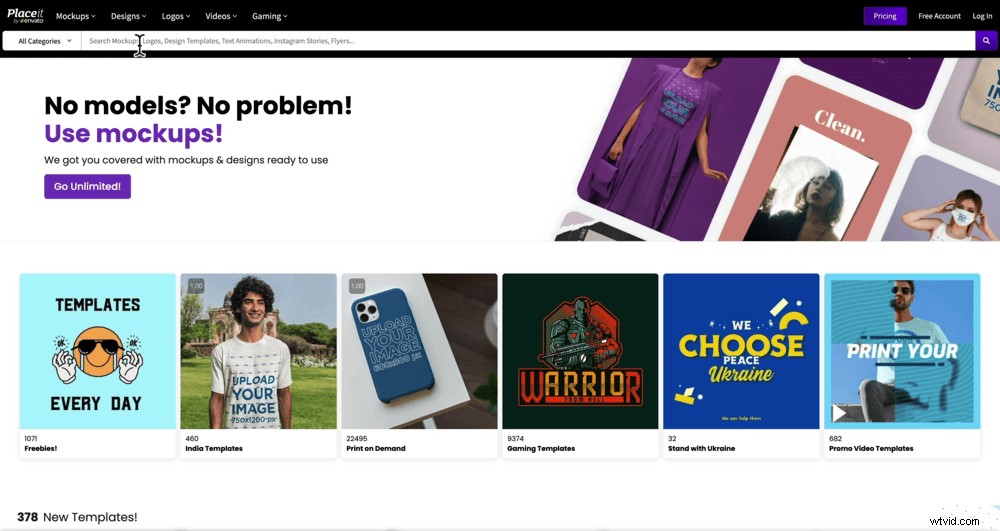
If you want to take things to the next level, using a service like Placeit might work better for you.
Placeit Animated Titles
Placeit is a super powerful tool. It has a ton of animated title presets and templates. While this tool isn’t free, it is incredibly cheap!
Inside Placeit, search for Title. Scroll through until you find an animated title that you like.
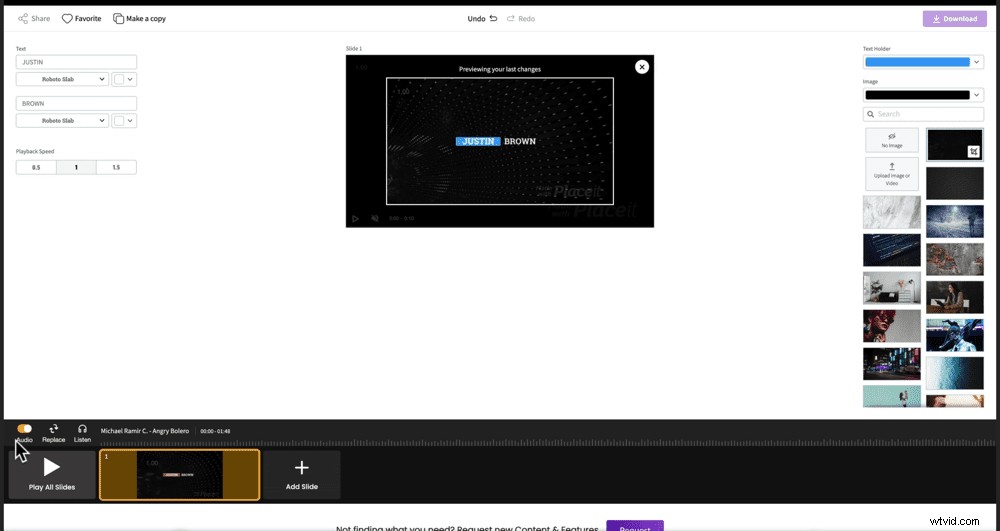
The titles can be customized and edited live on the website. All you need to do is type in your title text.
You can customize the colors, turn on or off the accompanying music, adjust the playback speed, change the font and select a different background image.
Once you’re happy with the title, download it and drag it onto your editing timeline.
These are designed to be full screen titles but there is a work around to be able to use them as overlay titles.
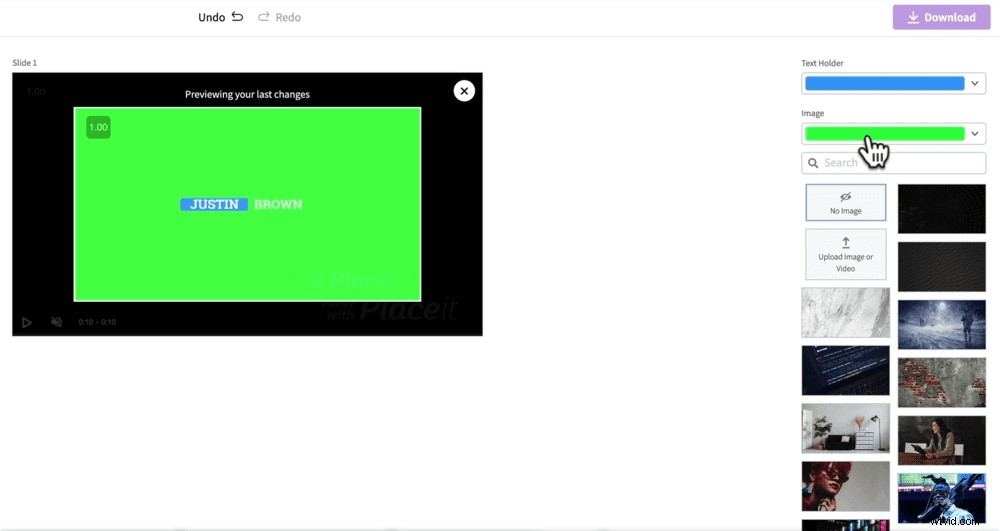
So if you don’t want the background included, this is how you do it.
While editing in Placeit, select No image to remove the background image.
Then under Image, select a bright green background (this can also be bright blue, or another solid color that you haven’t used in your video).
Download the title again and drag onto your editing timeline.
Now you need to apply a green screen effect or a chroma key effect to that title.
This will change depending on your software, but inside Final Cut you go to Effects → Keying → Keyer and drag that effect onto the title clip. Then the green will automatically be removed.
Placeit also already has some lower third titles with green backgrounds. So, if one of those titles suit your project you can quickly customize that and you’ll be ready to go.
Placeit Pricing
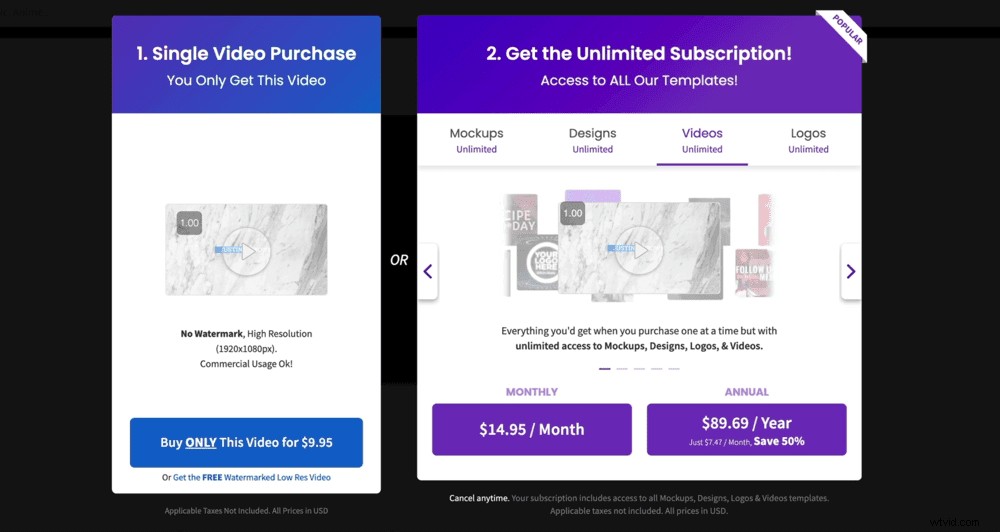
You can download Placeit titles for free but they will have a watermark. We strongly recommend purchasing the title for a more professional and polished final product. There are a couple of pricing options:
- Single purchase: Remove the watermark and unlock full HD for $9.95
- Subscription: Unlimited access to all templates for $14.95/month or $89.69/year
Videohive Animated Titles
This last method is a little bit more complicated but it does allow for a lot more customization. Plus, we think this option gives you the best looking motion graphic titles and animations!
Downloading a title animation pack from services like Videohive and Motion Array (those are our two top picks) is a great way to create incredible animated titles.
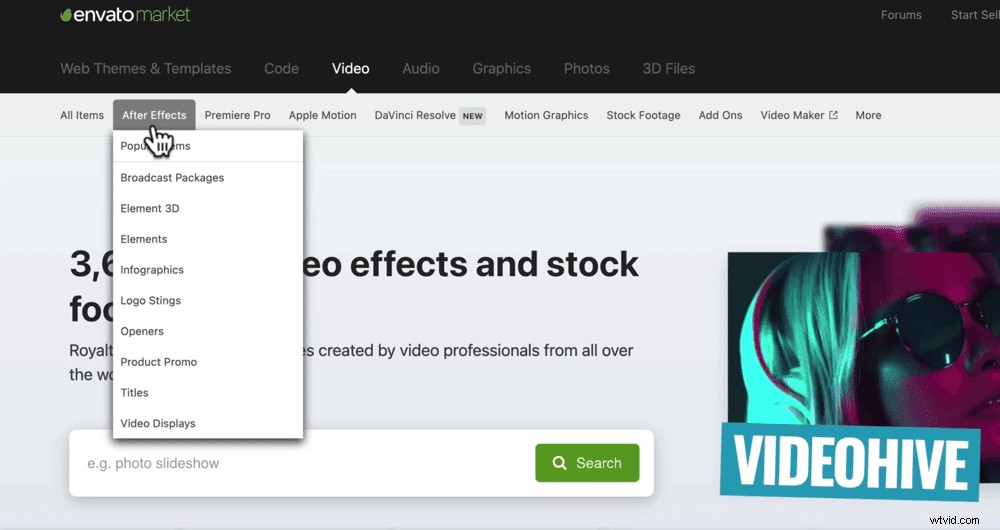
Inside VideoHive, there are title animation packs for After Effects, Adobe Premiere Pro, Final Cut Pro and DaVinci Resolve.
If you’re not using one of those applications, you can use the generic motion graphics which will work in any video editing software.
Alternatively, you can google “*name of your video editing software* motion graphics” to see if there are any preset templates out there that you can buy and customize.
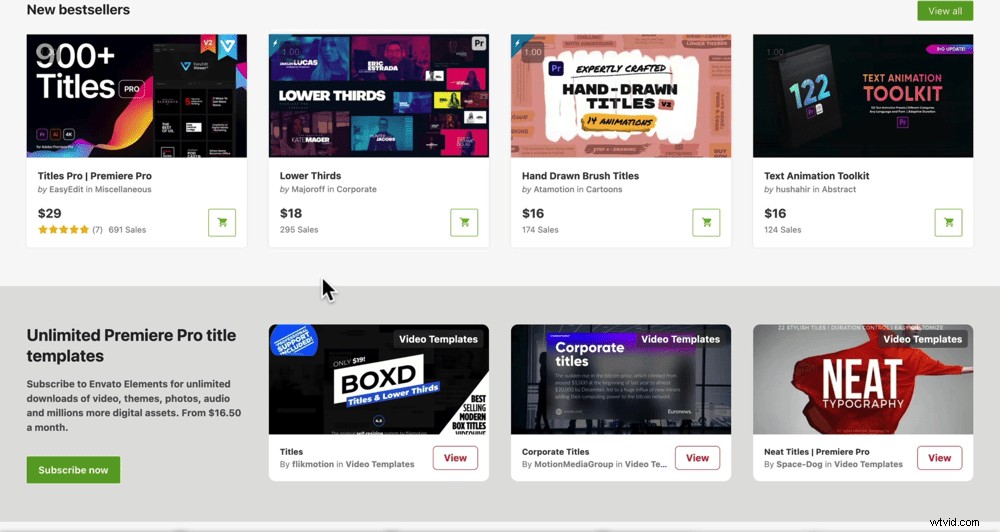
Have a scroll and you’ll see a ton of different packs. As an example, there’s one with over 900 titles and graphics for $29. All of these are fully customizable.
Once you find one you like, purchase the pack and then install it into your video editing software.
Again, this will vary for different software but inside Premiere Pro you’ll need to go to Graphics and Titles → Install Motion Graphics Templates and select the template you want to install.
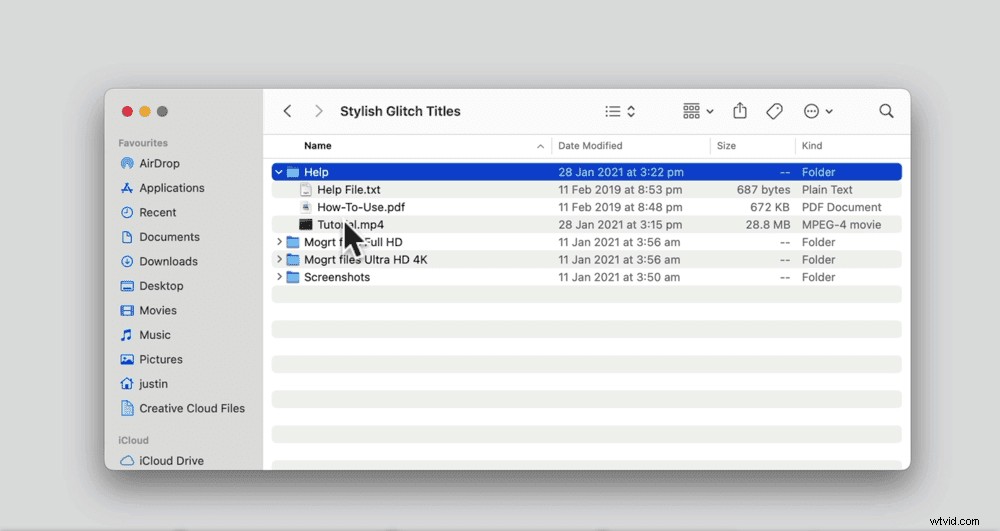
Then search for the effect and drag it onto your timeline. You can make any customizations until you’re completely happy with it.
PRO TIP: If you don’t want to customize the titles yourself, you can always purchase the title templates and then find someone on Fiverr or Upwork to customize it for you.
Top 3 Titles Every Creator Should Have
As promised, here are the three animated titles every creator should have:
- Name card (or lower third) – something you’d likely use towards the start of every one of your videos
- Title screen – so you can include the title of your video inside the video
- Call to action – this could be asking viewers to give your video a thumbs up, subscribe to your channel, visit your website or any other call to action you’d like
These are titles that you’re likely going to be using in every one of your videos. So having them pre-made and ready to go means that you can copy and paste or drag and drop them into your project, saving you a ton of time!
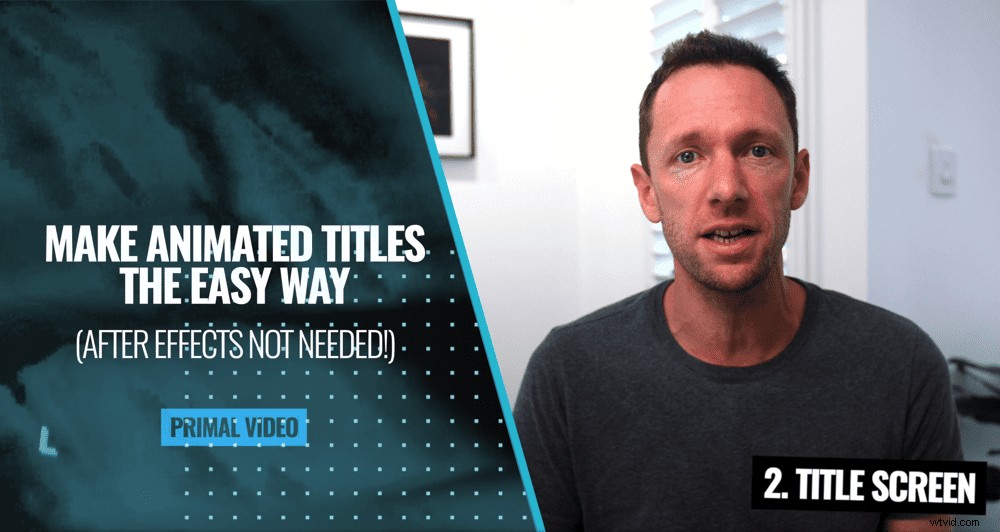
This might sound simple but it really is going to be a massive time saver when you’re creating videos!
There you have it – the best (& easiest!) ways to create animated video titles without After Effects.
For more video editing tips and tricks, download the Primal Video guide on the ULTIMATE Process for Editing Videos Faster. With the help of this free guide and the right software, you’ll be editing videos like a pro in no time!