
Compress your videos to fit WhatsApp’s 100 MB limit with our expert guide and alternative solutions.
Sending videos through WhatsApp—or any messaging platform—can be challenging, especially when files are large or lengthy. Many formats aren’t fully supported, and lossless codecs, while offering pristine quality, often exceed the platform’s limits. In this article we dive into the nuances of WhatsApp’s specifications, reveal proven statistics, and help you choose the most effective method for sharing videos from your mobile device. Spoiler: there are three primary options.
Table of contents
- Why video compression matters for WhatsApp
- Understanding the fundamentals of video compression
- Top ways to compress large videos for WhatsApp
- Step‑by‑step: compressing with Clideo
- Frequently asked questions
- Conclusion
Why video compression matters for WhatsApp
With roughly 3 billion active users, WhatsApp is a cornerstone of modern communication. Sending videos efficiently is essential to keep conversations flowing without unnecessary delays.
Supported video formats
WhatsApp accepts MP4, MKV, AVI, MOV, 3GP, and FLV. Among these, MOV and MP4 are the most versatile, delivering high compatibility across devices and platforms.
File‑size limits
The platform caps a video attachment at 100 MB when sent at 720p with a fast connection; on slower links the limit drops to 64 MB and 480p. Sending a video as a document bypasses these constraints, allowing up to 2 GB.
Common pitfalls
- Unsupported format
- Exceeding the size threshold
- Slow upload speeds
- Length restrictions (e.g., status videos can’t exceed one minute)
Compression mitigates these issues by reducing file size, accelerating transfers, and conserving device memory.
Understanding the fundamentals of video compression
Compression techniques vary from lossless—simply reorganizing data—to lossy, where redundant frames and high‑frequency details are trimmed to lower bitrate.
Quality vs. size
Finding the sweet spot is key. The H.264 codec, for example, balances visual fidelity and file‑size efficiently. On a typical smartphone, the difference between 1080p and 4K is negligible, so opting for 720p or 1080p is often sufficient.
Top ways to compress large videos for WhatsApp
WhatsApp’s built‑in compressor
Every video you send is automatically compressed to a lossy MP4, which can degrade quality. Sending the file as a document preserves the original, though you still must respect the 2 GB cap.
Phone‑native options
- Set a lower resolution in the camera settings before recording (iOS > Settings > Camera > Record Video).
- In iOS, edit the clip in iMovie and export at a reduced quality (Share > Save Video).
- With iOS 17+, reduce file size during sharing (Files > Select video > Share > Export > Reduce File Size).
Android users can:
- Record at a lower resolution (Camera > Settings > Video Size).
- Compress via Google Photos (Share > Create Copy > Export).
- Use Samsung’s built‑in editor (Gallery > Select video > Edit > Resolution/Export Options).
Desktop solutions
- HandBrake (Windows, macOS, Linux) offers platform‑specific presets but has a steep learning curve.
- VLC Media Player is lightweight, supports many formats, and is suitable for quick compression tasks.
Online compressors
- Clideo: Browser‑based, supports AVI, MOV, WMV, MP4, and more. No editing experience required.
- YouCompress: Handles most formats but may suffer quality loss on large files.
- FreeConvert: Customizable presets, though the free tier contains ads and limits.
Mobile apps
- Video Compressor (Android/iOS): Local solution, no internet needed, but consumes device resources.
- InShot: Full‑featured editor; not ideal for quick compression due to its extensive feature set.
Cloud storage as an alternative
When compression compromises quality, uploading to a cloud service and sharing a link keeps the file intact. Dropbox Transfer is one example:
- Open Dropbox Transfer and sign in.
- Create a transfer and drag your video into the upload area.
- Copy the generated link once the upload completes.
- Paste the link into WhatsApp.
This bypasses WhatsApp’s size limits entirely.
Step‑by‑step: compressing with Clideo
Upload your video
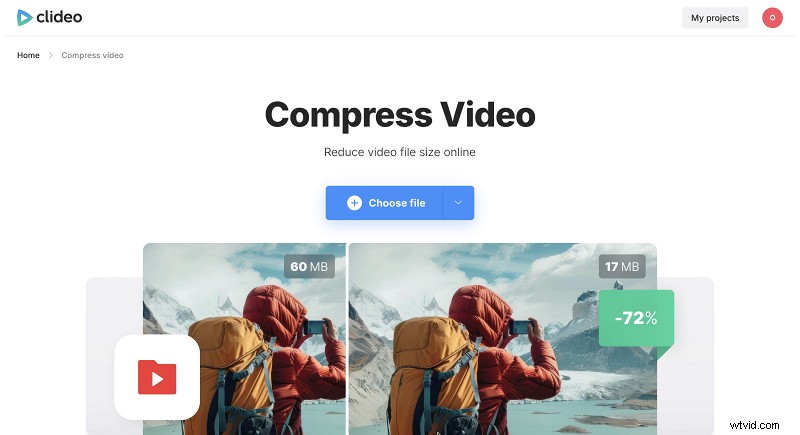
Open Clideo’s compressor in any browser, click “Choose file,” and select a local file or import from Google Drive or Dropbox.
Select a WhatsApp‑optimized preset
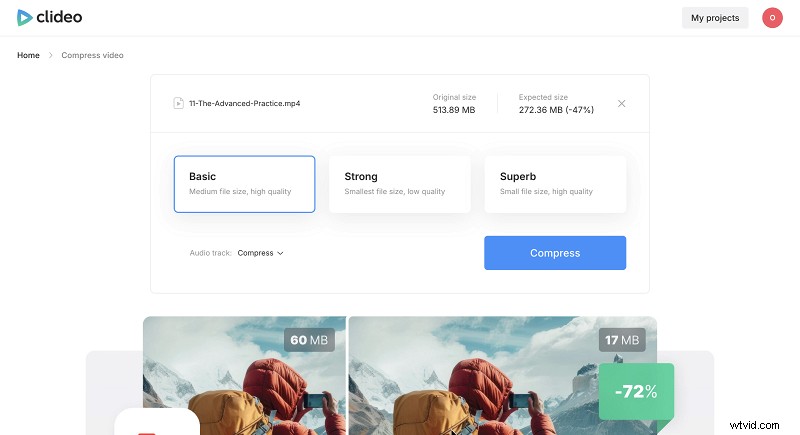
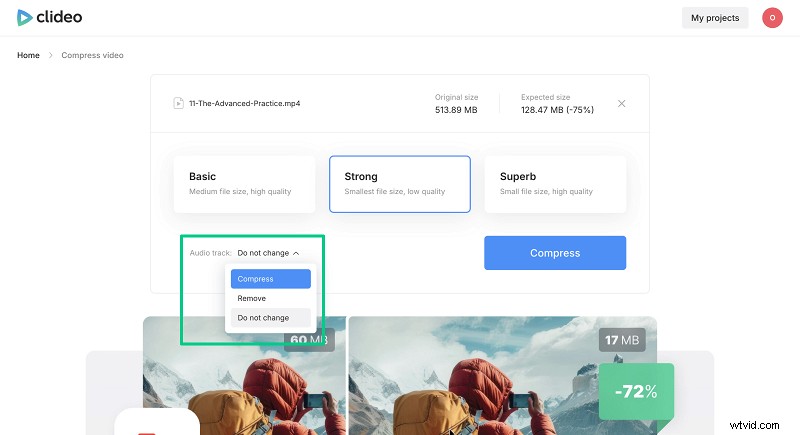
Choose Basic, Strong, or Superb. The tool shows an estimated output size. Removing audio can further reduce the file.
Compress and preview
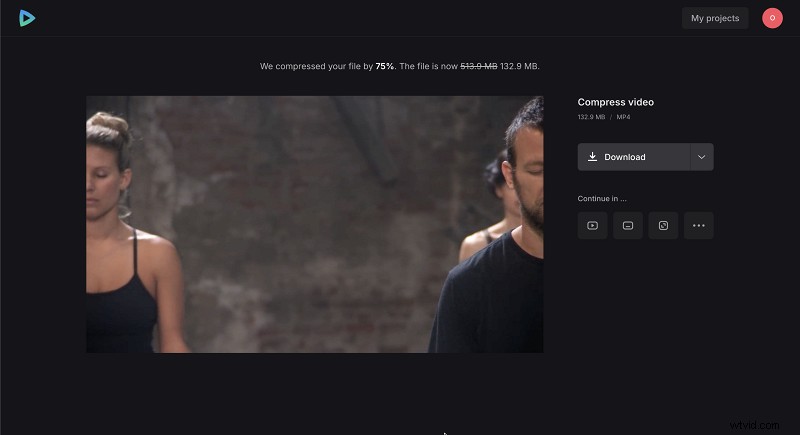
Click “Compress.” Once done, preview the result to confirm acceptable quality, then download to your device.
Share via WhatsApp
Remember that WhatsApp will re‑compress videos unless you send the file as a document.
Pro tips for best results with Clideo
- Store large clips in the cloud to free local storage and speed uploads.
- If playback issues arise, try VLC or the browser’s native player.
- Strong preset works well for static or low‑motion videos; high‑motion content may need a less aggressive setting.
- For offline compression, the Clideo app offers basic presets but adds a watermark unless you purchase the separate subscription.
Clideo vs. other tools
- Clideo: Browser‑based, intuitive, ideal for beginners.
- HandBrake: Advanced, desktop‑only, steep learning curve.
- VLC: Free, multifunctional, requires installation.
- Mobile apps: Convenient but can drain resources and may lack the polish of desktop solutions.
Frequently asked questions
What is the maximum video file size I can send on WhatsApp?
If you send the file as a video, the cap is 100 MB. As a document, you can upload up to 2 GB.
Is compression without losing quality possible?
Yes, but WhatsApp’s built‑in compressor always reduces quality. Third‑party tools let you control the trade‑off.
Can I compress large files on my phone without an app?
Upload the video to an online compressor like Clideo, then download the result.
How long does Clideo take to compress a video?
Time depends on length, format, and chosen settings.
Is Clideo free for WhatsApp compression?
You can compress up to 500 MB for free (watermark added). Pro unlocks watermark‑free output up to 10 GB and enhanced presets.
Conclusion
Compression is a simple yet powerful way to share videos across messaging apps. WhatsApp’s automatic lossy compression limits control, so leveraging a third‑party solution like Clideo gives you quality, size, and flexibility. Try Clideo today and keep your video sharing fast and reliable.