
Creating GIFs from MOV files on Apple devices is straightforward once you know the right tools. This guide walks you through native options and top third‑party solutions, so you can share engaging animated images in minutes.
Why Apple Users Deal with MOV Files
Apple’s native video format, MOV, is the default for iPhone, iPad, and Mac cameras. It delivers high‑quality footage in a compact size, optimized for Apple hardware for smooth playback and fast editing.
While MOV excels as a source format, converting it to the older GIF format can feel cumbersome because GIF lacks modern codecs and offers limited color depth. The conversion process therefore requires a tool that bridges the gap between video and animated image.
Built‑in Options for Turning MOV into GIF on Apple Devices
MOV to GIF Using Shortcuts
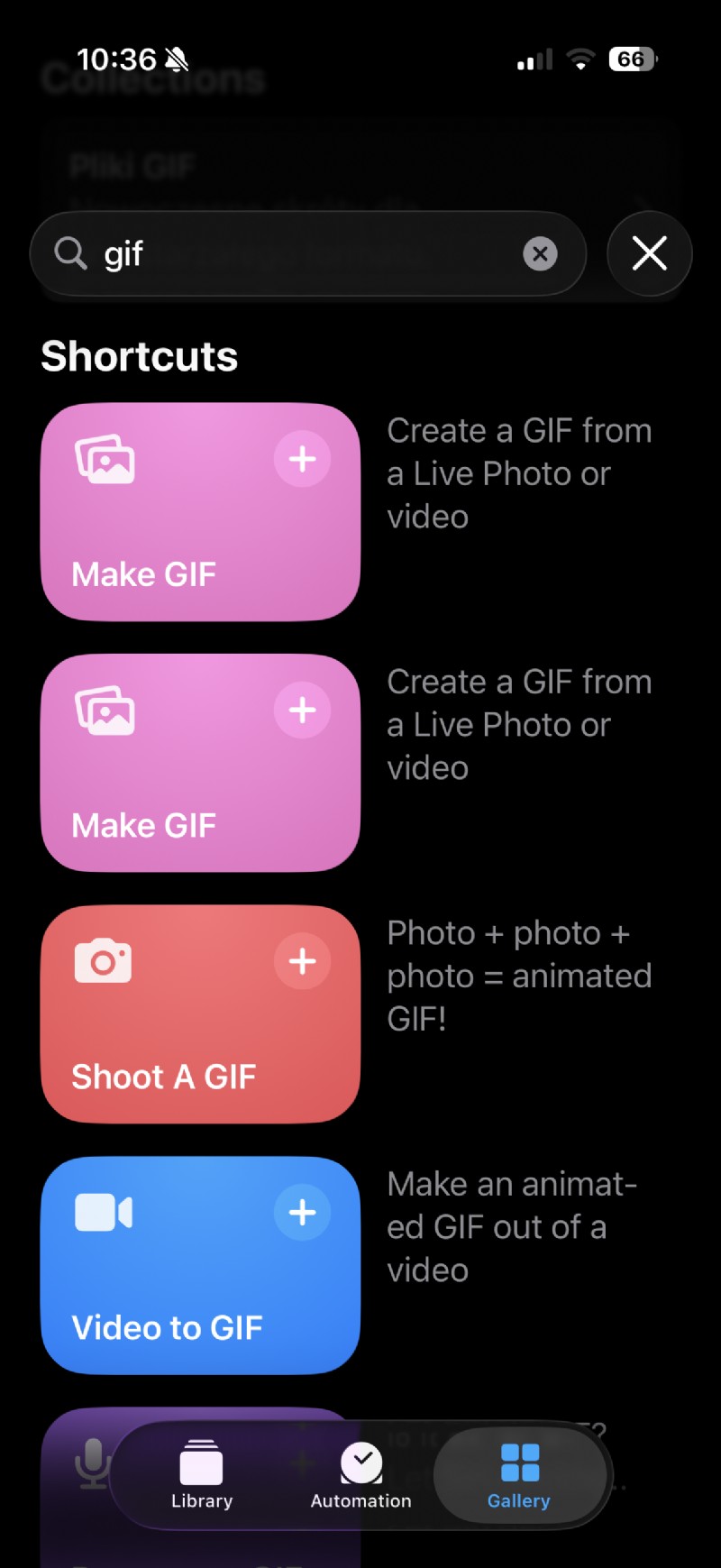
The Shortcuts app—Apple’s automation framework—includes ready‑made actions for turning a live photo, video clip, or multiple photos into an animated GIF. Once you add the "Create GIF" shortcut to your library, you can run it from the app or via Siri, making the process almost one‑click.
iMovie + Keynote on Mac
For users who want to edit the video before converting, iMovie and Keynote work in tandem. First, trim and annotate your clip in iMovie, then export it as an MP4 or MOV. Import the file into Keynote and choose File → Export To → Animated GIF to generate the final GIF.
Limitations of Built‑in Tools
- Editing is minimal—no multi‑track support or advanced effects.
- Customisation options are generic, often yielding a standard look.
- Setting up Shortcuts can be unintuitive for new users.
These constraints make third‑party converters attractive for users seeking greater flexibility without installing heavy software.
The Smarter Option: Use Clideo Video Editor Online
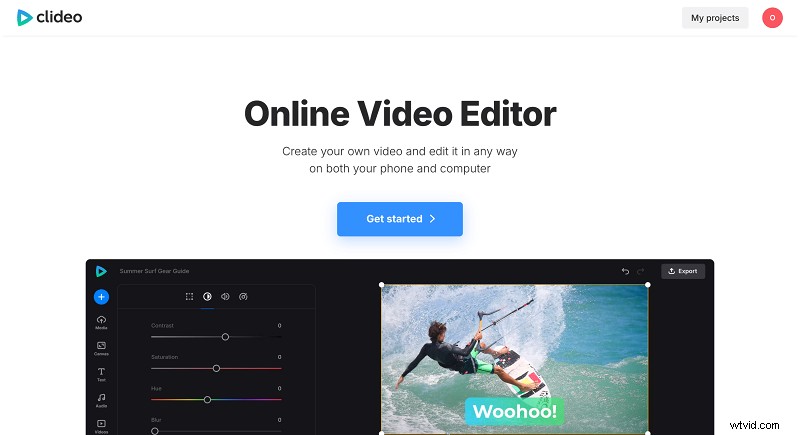
Clideo Video Editor is a browser‑based, cross‑platform tool that eliminates the need to download anything. After registering, your projects sync across devices, and you can edit, crop, and export directly as a GIF—all from your iPhone, iPad, or Mac.
Step‑by‑Step: Create a GIF from MOV with Clideo
- Navigate to Clideo Video Editor and click Get Started.
- Upload your MOV file or any other supported format. You can also import from Google Drive, Dropbox, or the built‑in media library.
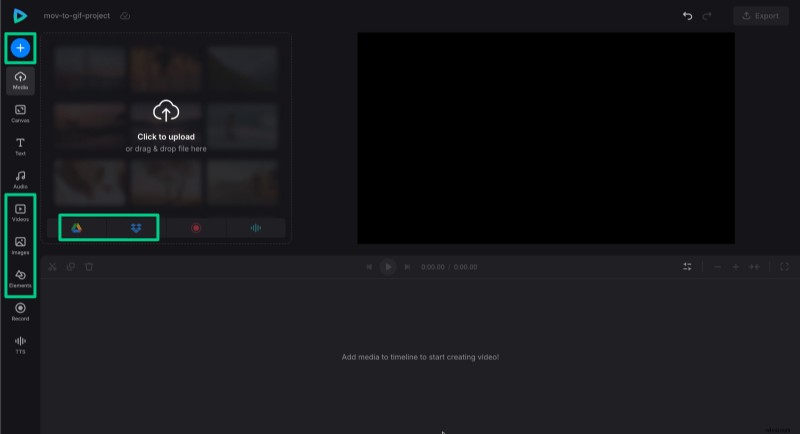
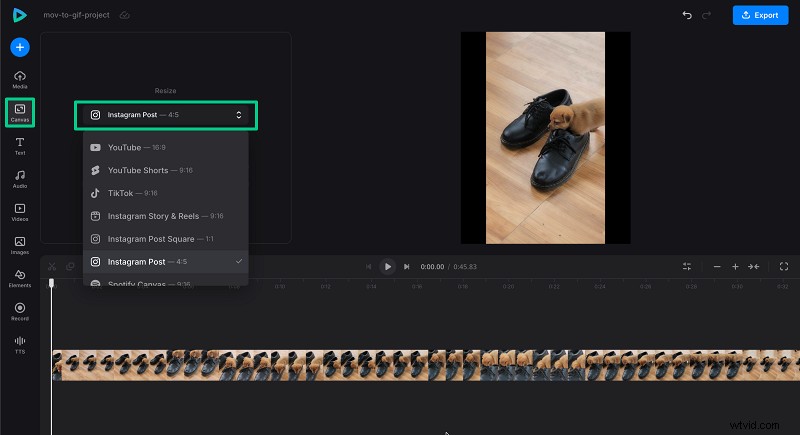
- Adjust the canvas for social‑media dimensions or crop the clip using the timeline tools.
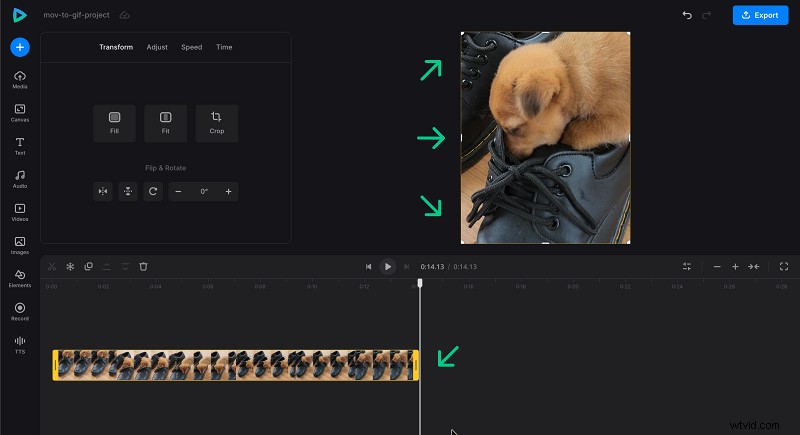
- Trim the video to a concise segment—ideally 2–5 seconds—to keep file size small while preserving quality. Clideo limits GIFs to 30 seconds.
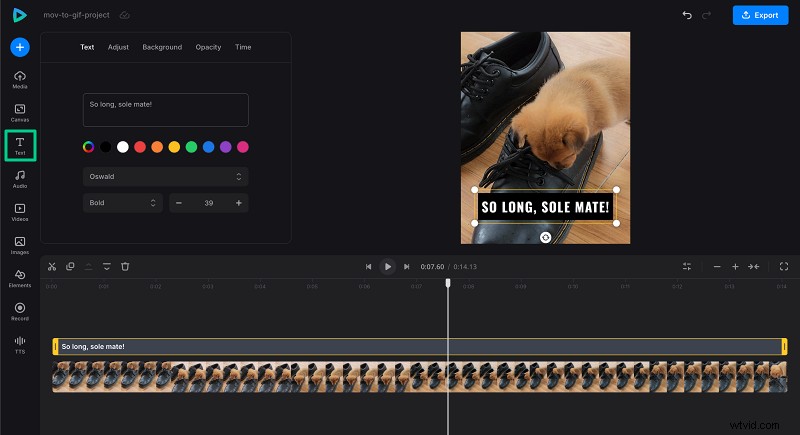
- Add captions, stickers, or emojis from the Elements tab, and style the text with the built‑in presets.
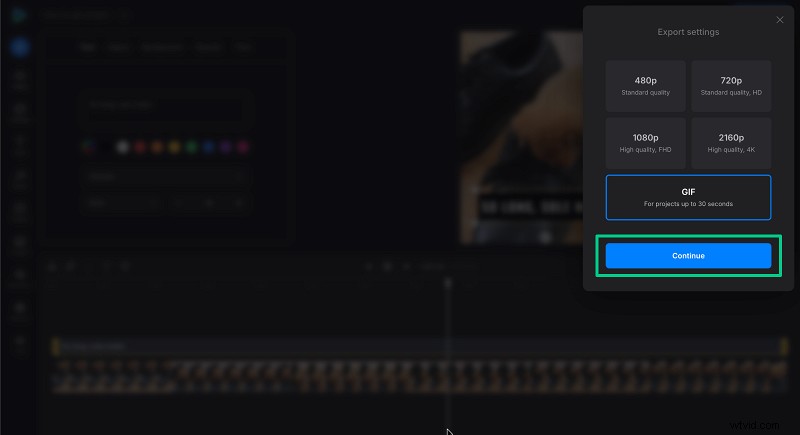
- Click Export in the top right, choose GIF, and then Continue.
- After processing, download the GIF or share it directly to Instagram, WhatsApp, Twitter, and other platforms.

Other MOV‑to‑GIF Solutions to Consider
- Quick converters like Clideo’s MOV‑to‑GIF tool or Convertio offer instant conversion without additional editing.
- Professional apps—Photoshop, Final Cut Pro, or Adobe Premiere—allow layer‑by‑layer editing and precise control over color palettes and output size.
- Mobile apps such as GIF Maker or ImgPlay provide on‑the‑go conversion but may compress quality and lack advanced features.
While each option serves different needs, Clideo’s editor balances ease of use with powerful customization, making it ideal for both beginners and seasoned creators.
Frequently Asked Questions
Why are iPhone videos in MOV format?
Apple designed MOV to be the native, high‑performance video container for iOS and macOS, ensuring optimal compatibility and file efficiency.
Can I turn a Live Photo into a GIF on iPhone?
Yes—use the Shortcuts app or a dedicated GIF maker to convert Live Photos to animated GIFs.
Is there a way to convert MOV to GIF without an app?
Online services like Clideo allow you to upload and convert directly in your browser, bypassing any downloads.
Does Clideo work on Safari and mobile browsers?
Absolutely. Clideo is browser‑compatible and works on iOS Safari, Chrome, Edge, and other major browsers.
Can I convert videos of any type to a GIF?
Most converters support MP4, AVI, QuickTime, and other common formats, but MOV remains the most reliable source on Apple devices.
Conclusion
Apple’s MOV format is ideal for capturing high‑quality footage, but translating that footage into GIFs requires a thoughtful approach. Native tools like Shortcuts and iMovie+Keynote provide basic options, while Clideo Video Editor offers a seamless, feature‑rich solution that caters to all skill levels.
Give Clideo a try—convert and customise MOV files into polished GIFs that are ready to share across social media in seconds.