
Extracting subtitles from an MP4 file is a common requirement for content creators, educators, and accessibility specialists alike. Whether you need a transcript for editing, wish to repurpose dialogue into social‑media captions, or simply want to make a video more accessible to viewers with hearing impairments, the process is straightforward when you have the right tools.
Clideo’s Auto Subtitle Generator is a trusted, AI‑powered solution that turns speech in any MP4 into editable subtitle files in seconds. This guide walks you through the steps, explains the underlying subtitle formats, and offers practical tips to improve accuracy.
Table of Contents
- Why extract subtitles from a video file
- Subtitle formats explained
- Ways to extract hard‑coded subtitles
- Step‑by‑step extraction with Clideo
- Tips for higher‑quality subtitles
- Frequently Asked Questions
- Conclusion
Why Extract Subtitles?
Subtitle text provides a readable record of a video’s dialogue, which:
- Improves accessibility for the hearing‑impaired and silent‑mode viewers.
- Facilitates translation into other languages.
- Enables repurposing of spoken content into blog posts, newsletters, or social‑media snippets.
Subtitle Formats Explained
Subtitles can be delivered in two main ways:
- External subtitle files – .srt or .vtt files that sit beside the video and can be edited with any text editor.
- Embedded subtitles – either soft‑coded (separate stream in the container) or hard‑coded (burned into the video frame). Hard‑coded captions cannot be toggled off and require special techniques to retrieve.
Extracting Hard‑coded Subtitles
When subtitles are burned into the video, the extraction process involves:
- Manual transcription – watching the video and typing each line.
- Optical Character Recognition (OCR) – software that “reads” the text from video frames. Works best with clear fonts and high contrast.
- Speech‑to‑Text recognition – AI listens to the audio and generates subtitles. Accuracy depends on audio clarity and speaker accents.
Step‑by‑Step Extraction with Clideo
-
Upload Your MP4
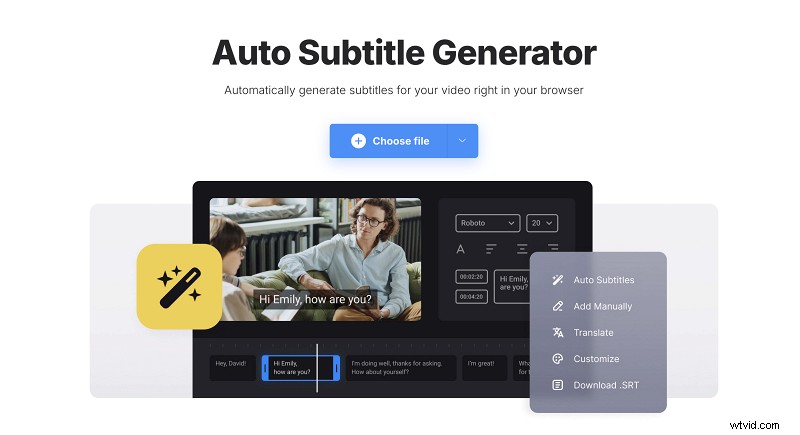
Log in to Clideo and navigate to the Auto Subtitle Generator. Click “Choose file” to upload your MP4 from your device or cloud storage.
-
Generate Subtitles
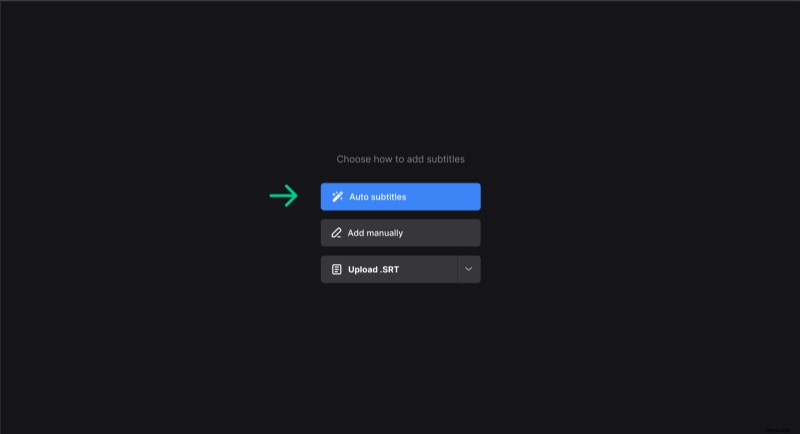
After upload, click “Auto subtitles,” select the video’s language, and choose “Do not translate” if you need the original text. Click “Generate.”
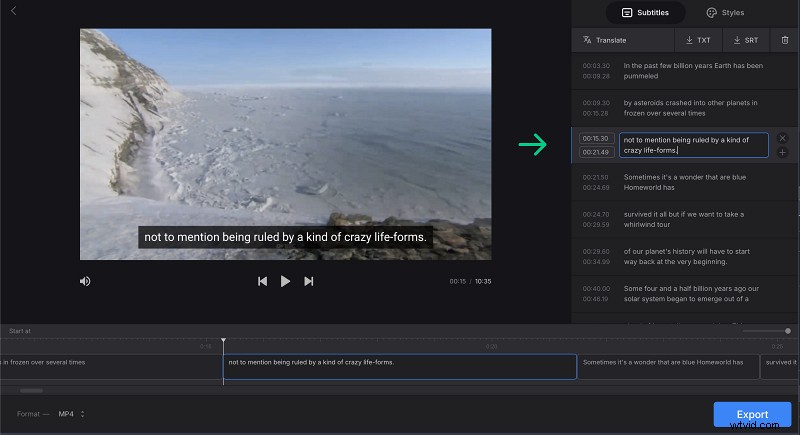
Review the generated captions; edit any errors directly in the editor.
-
Download Subtitles
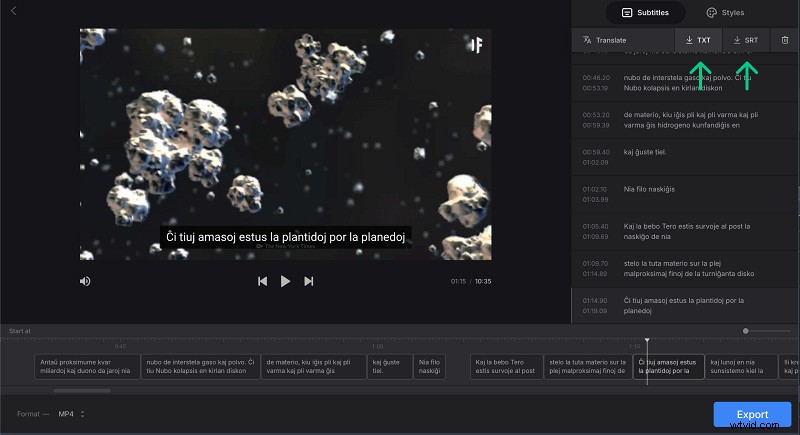
Save your work as an .srt or .txt file by clicking the respective button on the right panel.
-
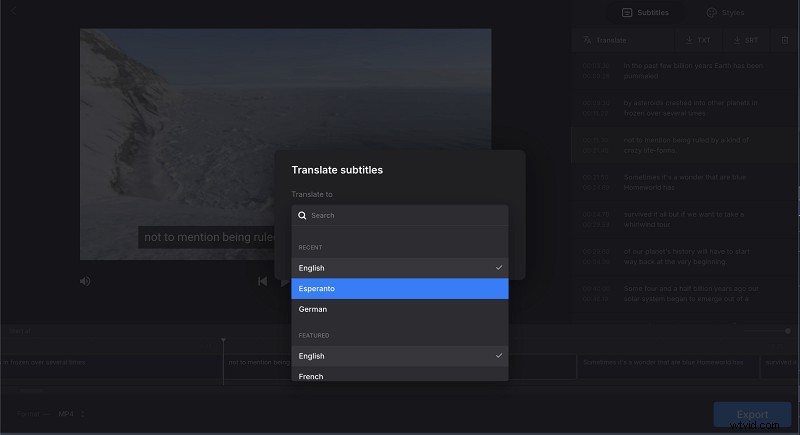
Translate (Optional)
To translate, click “Translate,” choose the source and target languages, then generate. The translation will replace the original text.
-
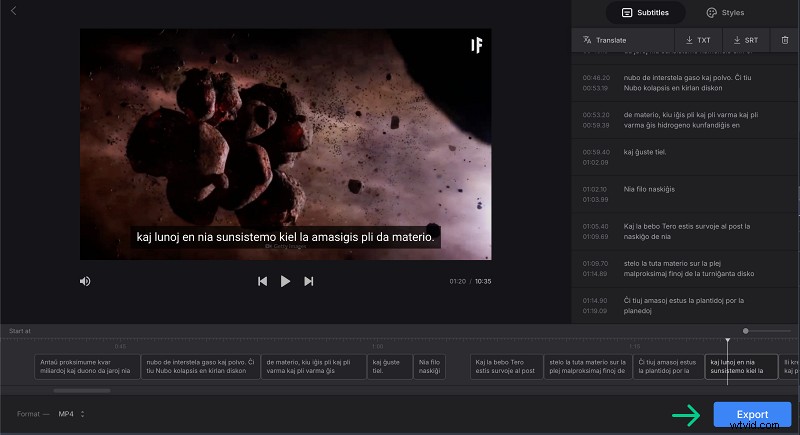
Export Video with Embedded Captions
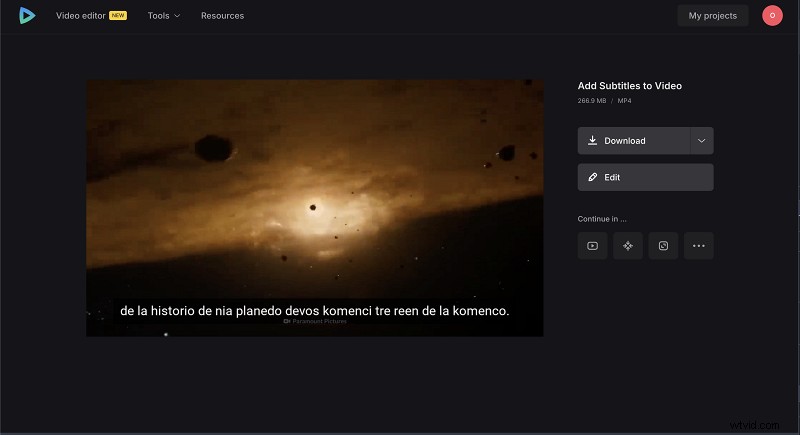
After editing or translating, click “Export video” to embed the captions into the MP4. Preview and download the updated file.
Tips for Higher‑Quality Subtitles
- Select the correct language variant to improve transcription accuracy.
- Ensure the audio track is clear; avoid overlapping speakers or mixed languages.
- Always proofread subtitles for timing, punctuation, and contextual accuracy.
- Generate the original subtitles first before translating to maintain better context.
Clideo continually updates its tools. For the latest features and detailed guidance, visit the Help Center.
Frequently Asked Questions
Can hard‑coded subtitles be extracted?
Hard‑coded captions can be recovered by manual transcription or using OCR/Speech‑to‑Text tools that read the video frames.
What subtitle formats does Clideo support?
Clideo exports subtitles in the widely used SRT format, compatible with most media players and captioning software.
Can I translate subtitles within Clideo?
Yes, the platform offers an automated translation feature for many languages.
Does Clideo handle other video formats?
Clideo supports MOV, AVI, MKV, and many others, plus audio files for transcript generation.
Conclusion
Extracting subtitles from MP4 videos is no longer a daunting task. Clideo’s Auto Subtitle Generator turns spoken content into editable subtitles or plain text in minutes, enabling greater accessibility, easier translation, and efficient content repurposing. Try it today and streamline your video workflow.