
Curious about turning an audio track into a video file that can be shared on YouTube and other platforms? The process is simpler than you think, and with the right tools you can produce professional‑looking videos in just minutes.
In short, converting an audio track to a video file means combining your audio with visuals—whether a single image, a slideshow, or a blank background—using a video editing tool. The result is a standard video format (MP4, AVI, etc.) that can be uploaded to any social‑media or video‑sharing site.
This conversion is valuable because many platforms prioritize video over audio‑only files. Whether you’re sharing a song, a podcast, or a spoken‑word recording, turning your audio into a video makes it accessible and shareable. With user‑friendly online tools, you can do this quickly on any device—phone or computer—without prior editing experience. The following guide shows how to convert an audio track to a video file directly in your browser.
Table of contents
- Is it possible to convert an audio track to a video file?
- How to convert an audio track to a video file using Clideo
- Tips for converting audio files
- Frequently asked questions
- Conclusion
Is it possible to convert an audio track to a video file?
Yes, absolutely. Converting an audio track to a video file simply involves pairing your audio—whether MP3, WAV, or AAC—with visual elements to create a video format such as MP4 or AVI. This can be done with any video editor and may include static images, slideshows, or dynamic visualizers that accompany the audio.
Such a conversion allows you to share music, podcasts, or spoken content alongside images, captions, or plain backgrounds. It also makes it easier to create engaging videos for social media, YouTube, or presentations.
Professional software like Adobe Premiere Pro, Final Cut Pro, and DaVinci Resolve are ideal for complex projects. However, many straightforward online editors let you perform the same task in a browser, requiring no prior video‑editing experience.
How to convert an audio track to a video file using Clideo
If you want to share your music, podcast, or audio recording, converting your audio track to a video file is a practical solution—and Clideo’s online editor makes it simple.
Clideo Video Editor is an all‑in‑one, browser‑based editor that supports audio, video, and image files. It offers trimming, cropping, text overlays, volume adjustment, and more.
The free plan lets you upload files up to 500 MB and adds a small watermark. Upgrade to the Pro plan for larger uploads, HD or 4K exports, and watermark removal.
Here’s how to combine audio with visuals using Clideo’s Online Video Editor:
-
Add your audio
Open Clideo’s Video Editor and click "Get started".
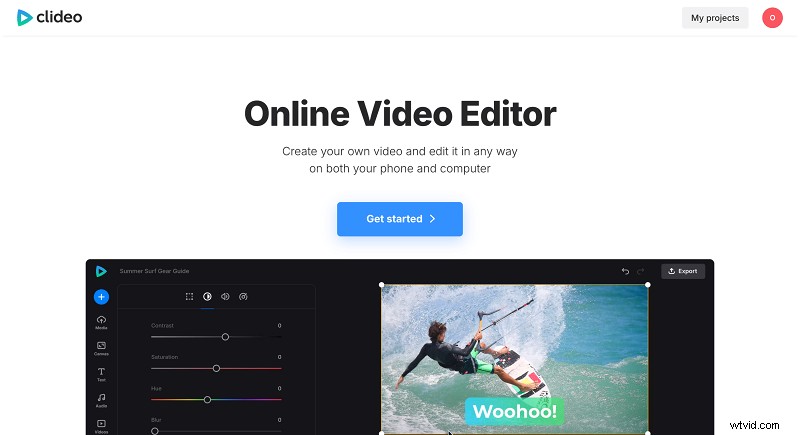
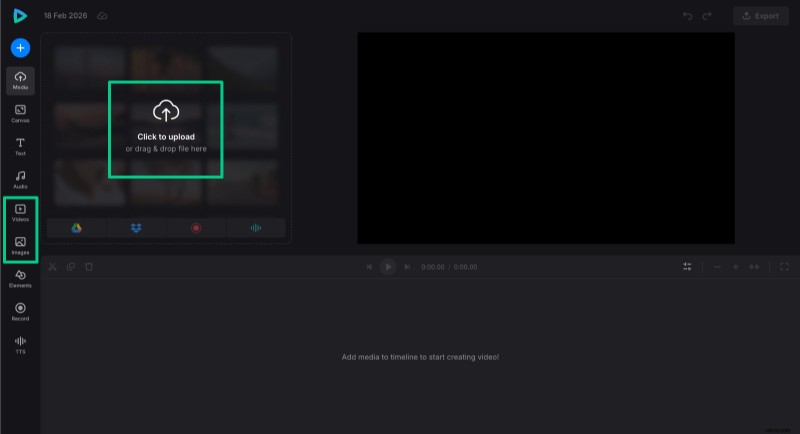
Upload the audio from your device, Google Drive, or Dropbox. If you prefer a plain background, leave the visuals blank; otherwise, add an image or video clip from the built‑in library or upload your own media. The tool supports most common audio, image, and video formats.
-
Edit your project
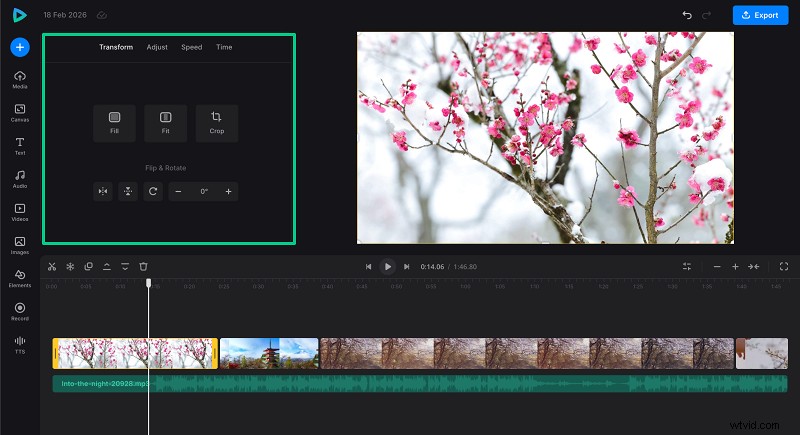
In the "Canvas" tab, choose the aspect ratio that matches your target platform—16:9 for YouTube, 9:16 for Shorts, etc. Edit each file individually: crop, trim, adjust speed and volume for both audio and video.
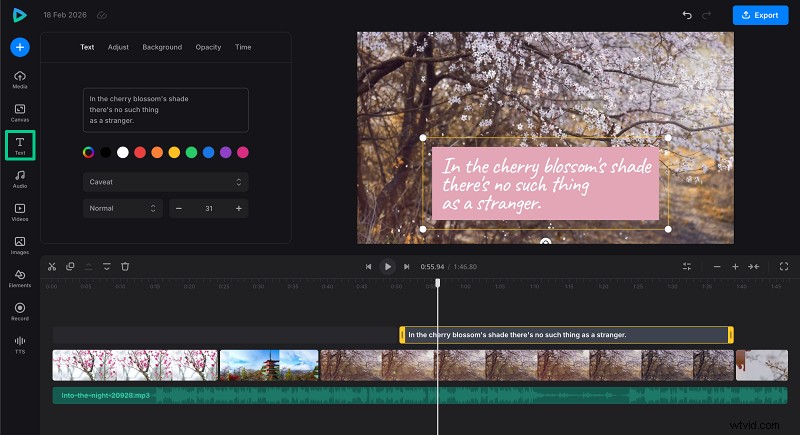
To add captions or lyrics, select a preset in the "Text" tab and customize font, color, and size.
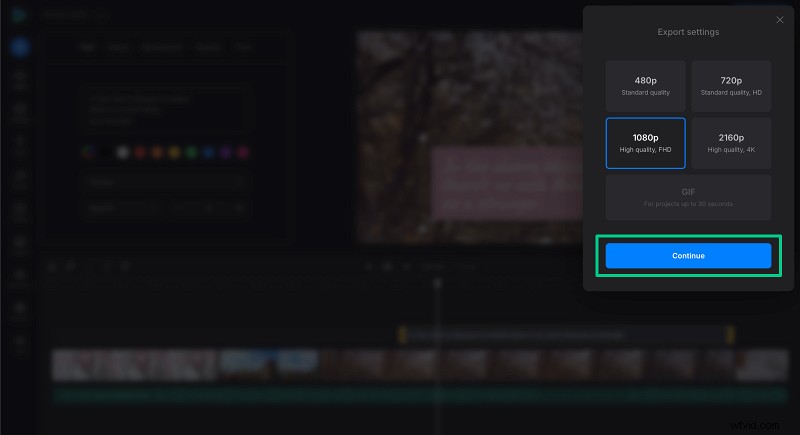
When finished, click "Export" and choose your output settings.
-
Save the video
Preview the final video. If you need changes, click "Edit" again. When satisfied, click "Download" to save the video to your device or cloud storage.

Looking for an even faster solution? Try our quick MP3‑to‑video converter: upload an image, import your audio, and choose the desired format—all without any editing experience.
For more details on all our tools, visit Clideo’s Help Center.
Tips for converting audio files
Converting audio to video is straightforward, but a few best practices can elevate the final product:
- Choose the correct aspect ratio for your target platform (16:9 for YouTube, 9:16 for TikTok).
- Use high‑quality audio (WAV or high‑bitrate MP3) to preserve sound quality; you can also extract audio from existing videos.
- Add a relevant static image or slideshow to keep viewers engaged.
- Include captions or lyrics to improve accessibility.
- Balance audio levels so background music doesn’t overpower voice or main sound.
- Preview the video before exporting to catch sync or volume issues.
- Keep the video length aligned with the audio length to avoid awkward pauses.
- Use the editor’s content library for free images or sounds if needed.
- If you’re using multiple audio clips, arrange them on the timeline carefully to avoid overlaps.
Remember, even a simple visual can boost your audio’s reach—don’t stress about elaborate graphics unless you want to.
Frequently asked questions
How do I convert an audio file to a video file with a static image?
You can use Clideo Video Editor to import your audio and add any static image as the visual. Once combined, export the project as an MP4 video file.
Can I add multiple audio tracks to a video?
Yes, Clideo Video Editor lets you add multiple tracks with background music, voiceovers, or sound effects.
What audio formats are supported for converting to video?
Common audio formats include MP3, WAV, AAC, FLAC, and others. Refer to our supported formats list for details.
Is it possible to control audio and video volume independently?
Yes, Clideo Video Editor allows you to adjust each track’s volume separately, along with other settings for each asset.
Can I convert audio to video directly from my mobile phone?
Yes, Clideo Video Editor offers a mobile‑friendly interface and an iOS app that lets you convert audio to video on smartphones.
Conclusion
Converting an audio track to a video file is a practical way to share your content on platforms that require video formats. By pairing your audio with images or captions using an intuitive editor like Clideo, you can create engaging videos quickly on any device. Whether you’re sharing music, podcasts, or stories, this process opens up new possibilities for reaching your audience.