
After hours of mixing, mastering, and fine‑tuning, your track is finally ready to shine. In 2026, a song without a visual is simply an audio file. To compete, you need a compelling music video that tells your story.
Historically, creating a video meant draining a five‑figure budget or settling for a static album cover on YouTube. The cost, not the creativity, was the real hurdle.
Generative AI has dismantled that barrier, giving independent artists, marketers, and creators the power of a full production studio. All you need is a concept and the right tool.
This guide is your new director’s handbook. We move from “what if” to “how to,” showing you step‑by‑step how to produce a professional music video with AI using the Renderforest AI Video Generator, a platform engineered to turn your music into a visual spectacle.
See It to Believe It: A Full Music Video Created with Renderforest AI
Before diving into the process, let’s examine the result. The video below was produced entirely with the Renderforest AI Video Generator—no studio filming, no animation team. Each scene was generated from simple text prompts.
This is the standard of what’s possible today.
The Solution: How AI Is Revolutionizing the Music Video Industry
For decades, professional music videos were a members‑only club, with production costs ranging from $10,000 to $50,000 for indie projects and exceeding $100,000 for major labels, according to industry data from companies like Dotmotions. The old model relied on expensive crews, gear rentals, and specialized post‑production, keeping 99% of creators out.
Generative AI has broken that wall. This technology is not a fleeting trend; it’s a seismic shift. The market was valued at $1.97 billion in 2024 and is projected to grow to $20.7 billion by 2034, according to a GlobeNewswire report. For musicians, the two biggest barriers—cost and technical complexity—are now eliminated. You can produce a video in an afternoon, not months, and unleash unlimited creative freedom.
Introducing the Renderforest AI Video Generator
The Renderforest AI Video Generator is more than a raw model; it’s an all‑in‑one production suite. It combines a timeline, an editor, and a creative partner into a single, intuitive interface.
Designed to solve core creation challenges, it offers speed, ease of use, and two powerful workflows to bring your music to life.
Let’s start building your video.
How to Generate a Music Video with AI (The Full Tutorial)
We’ll cover two distinct methods. Method 1 uses the AI Video Editor for meticulous, scene‑by‑scene control. Method 2 employs the AI Video/Story Generation workflow for a fast, narrative‑driven approach.
Method 1: AI Video Editor (Scene‑by‑Scene Generation)
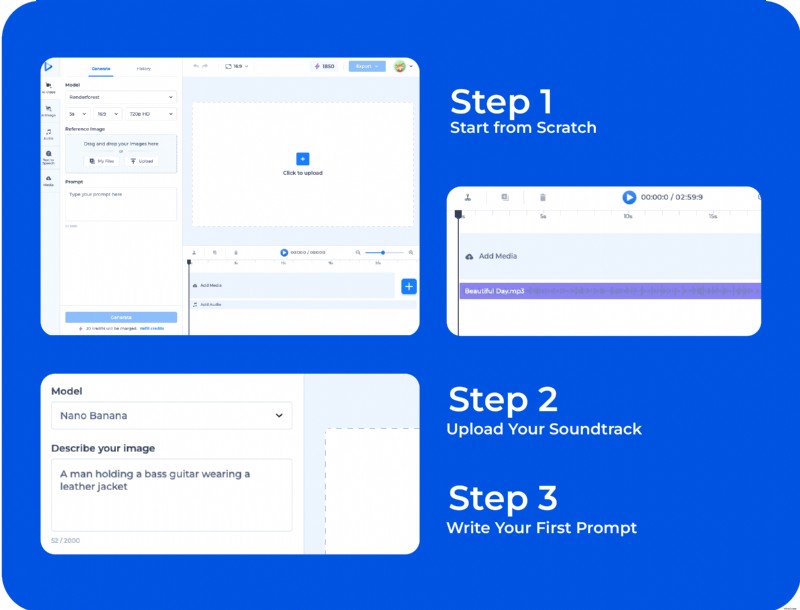
This method is ideal for artists who want complete creative authority. Start with a blank canvas and build your video shot by shot, aligning every frame with the music’s rhythm.
Step 1: Start from Scratch
On the Renderforest dashboard, click “Create from Scratch” and select a 16:9 blank project. The familiar video timeline will appear.
Step 2: Upload Your Soundtrack
Your song is the foundation. Upload the final track directly to the timeline; the audio waveform will guide you in placing and timing each scene.
Step 3: Become the Editor (Write Your First Prompt)
Listen to the opening of your track. On the timeline, add a new scene. Craft a prompt that describes what you want to generate. For example:
- Bad Prompt: “A person.”
- Good Prompt: “A lonely astronaut floating in space, gazing at a vibrant, swirling nebula, cinematic lighting, realistic.”
The more detail you provide, the better the AI will render the image.
Step 4: Generate Your Storyboard
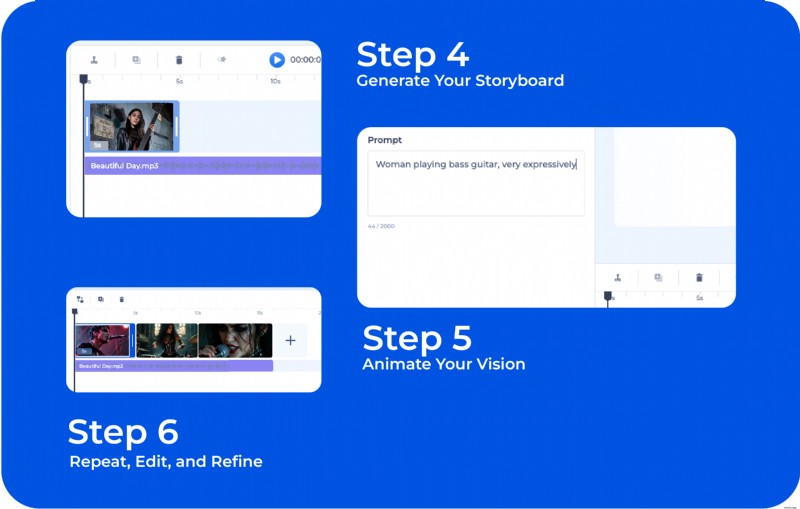
Click “Generate.” The AI produces a static image based on your prompt. This image serves as your storyboard. Generate multiple variations until you find the perfect shot. This step ensures you’re satisfied with the composition before animating.
Step 5: Animate Your Vision
Once you’ve selected an image you love, write an animation prompt. The AI will add subtle motion—camera pans, dynamic effects—matching the style you specified. The animated clip will be inserted automatically into the timeline.
Step 6: Repeat, Edit, and Refine
Now you’re in the creative loop. Move the playhead to the next beat, add a new scene, and repeat the process. Adjust clip duration by dragging the edges on the timeline—fast cuts for an energetic chorus, longer scenes for a quiet verse. Enhance your video with transitions, text overlays, or effects from the Renderforest library.
This method grants you total creative control over every second of your music video.
Method 2: AI Story and Video Generation (Fast and Narrative‑Driven)
If you prefer speed over micromanagement, Method 2 delivers a full, narrative‑driven video in minutes. Provide a long, descriptive story prompt, and the AI crafts a multi‑scene music video. Ideal for three‑minute tracks.
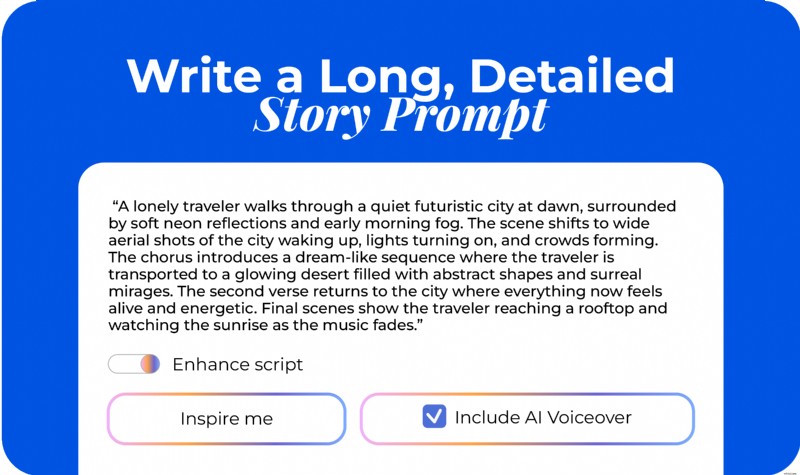
Step 1: Write a Long, Detailed Story Prompt
Open the AI Video Generator and enter a full narrative in the single prompt box. For multi‑minute songs, craft a story of at least 4–8 sentences, describing mood shifts, visual beats, and overall progression.
Example for a 3‑minute video:
“A lonely traveler walks through a quiet futuristic city at dawn, surrounded by soft neon reflections and early‑morning fog. The scene shifts to wide aerial shots of the city waking up, lights turning on, and crowds forming. The chorus introduces a dream‑like sequence where the traveler is transported to a glowing desert filled with abstract shapes and surreal mirages. The second verse returns to the city, now alive and energetic. Final scenes show the traveler reaching a rooftop and watching the sunrise as the music fades.”
A detailed prompt gives the AI enough context to distribute scenes across the entire timeline.
Turn off Text‑to‑Speech so the AI generates visuals only.
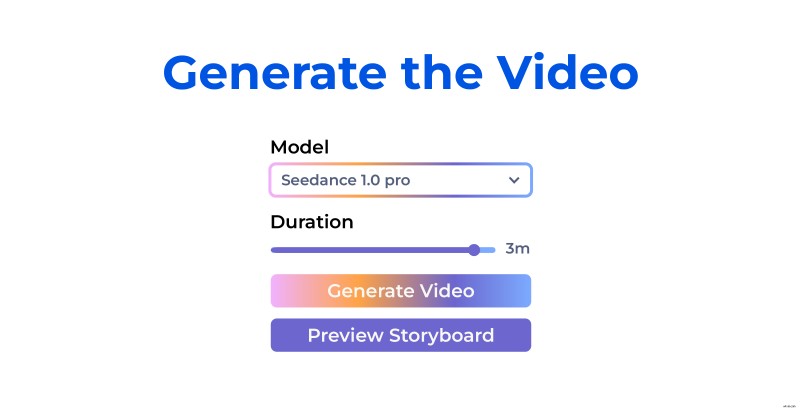
Step 2: Select Generative AI and Choose a 3‑Minute Duration
In settings, choose “Generative AI.” Pick your video style, aspect ratio, model, and set the final duration to three minutes. The AI will use your narrative to structure scenes, pacing, and transitions automatically.
Step 3: Generate the Video
Click Generate. The first draft will contain:
- A multi‑scene video with beginning, middle, and end
- Visual pacing aligned with your story
- Smooth scene transitions maintaining narrative flow
- An automatically structured timeline for a three‑minute track
This draft serves as a strong foundation for refinement.
Step 4: Upload Your Music Track
Switch to the editor and upload your final song. The waveform will appear, helping you sync visuals to the audio.
Step 5: Refine with Smart Edit and Smart Add
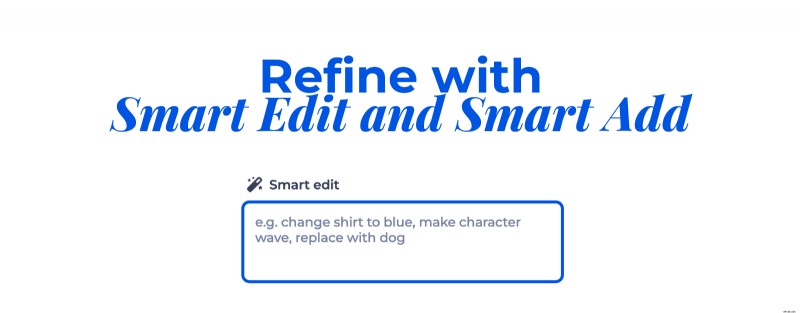
Use Smart Edit to replace any element in the video for a polished final product. Smart Add lets you insert new AI‑generated shots that blend seamlessly with the existing style.
Step 6: Finalize, Download, and Publish
Once satisfied with sync, pacing, and visuals, export the video. Your complete music video is ready for YouTube, TikTok, Instagram, or any platform.
Final Thoughts: Your Music Deserves a Visual World
The music industry has entered a new era. For the first time, any artist can transform a song into a compelling visual narrative without a production crew, expensive gear, or weeks of editing. AI has eliminated the constraints that once defined music video creation, opening a playground where imagination leads.
Whether you opt for full creative control with scene‑by‑scene editing or a fast narrative workflow, the Renderforest AI Video Generator equips you to bring your sound to life. Start with a simple idea, craft a story, upload your track, and walk away with a professional music video ready for YouTube, TikTok, Instagram, or Spotify Canvas.
Your song is already alive—now give it a world to inhabit. Start creating your AI music video today and showcase what your music looks like.