
On this page
- Elements of a great video collage
- How to make a video collage
- 3 popular video collage ideas
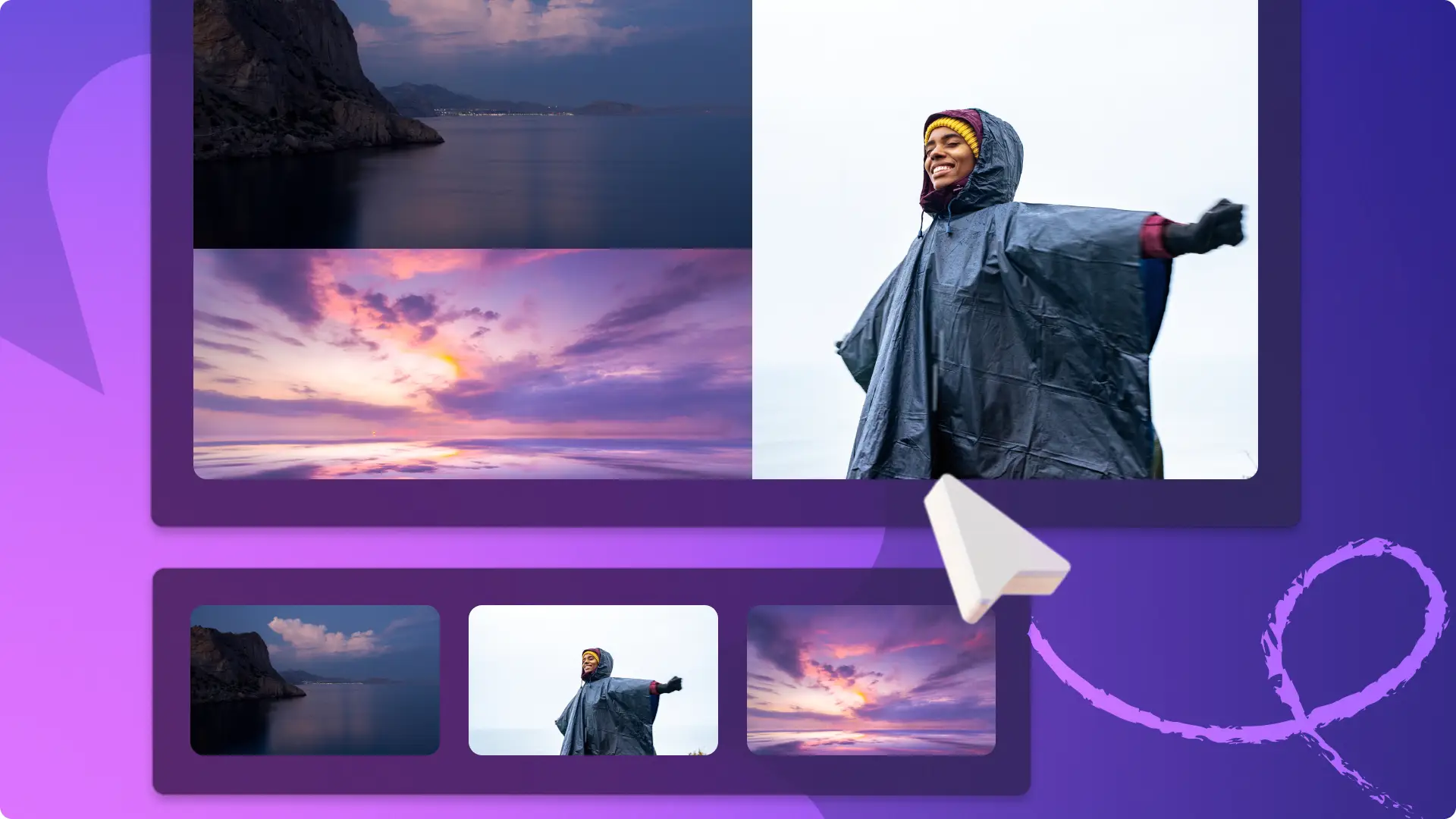
From travel highlights to yearly wrap‑ups, merge videos, photos, and overlays to tell your story in an engaging video collage. Pair your media with ambient background music, personalize your background with on‑theme stock videos, and, if time is short, start with a professional template. Add your own media, customize text, colors, and branding, then share directly to social media from the export page.
Explore how to create a video collage ready for Instagram Reels using Clipchamp’s free montage maker.
Elements of a great video collage
Combine pictures and videos
The most compelling collages mix photos and clips. Place your media in layers on the timeline, using overlay effects with backgrounds. Adjust each layer’s size so multiple assets fit within a single scene, then export in a 9:16 aspect ratio for Instagram Reels.
Create unique video layouts
Experiment with square grids, split‑screen layouts, and other formations. Use the crop tool to ensure each video asset blends seamlessly into the overall design.
Enhance emotions with background music
Elevate your narrative with royalty‑free tracks that match the mood—from upbeat jingles to slow, soothing melodies—so you can avoid copyright strikes on social media.
Match the pace with video transitions
Add personality by inserting scene transitions between clips. Drag a transition—such as liquid drops, fades, fire, glitches, or heart shapes—directly onto the timeline to create a smooth flow.
Add emphasis or explanations with titles
Include captions to clarify talking points and provide context. Clipchamp’s text and sticker tools let you style titles with fonts, colors, sizes, and positions in the property panel.
Step 1. Import videos or select stock footage
To bring your own videos, photos, and audio, click the import media button in the media tab or connect OneDrive. 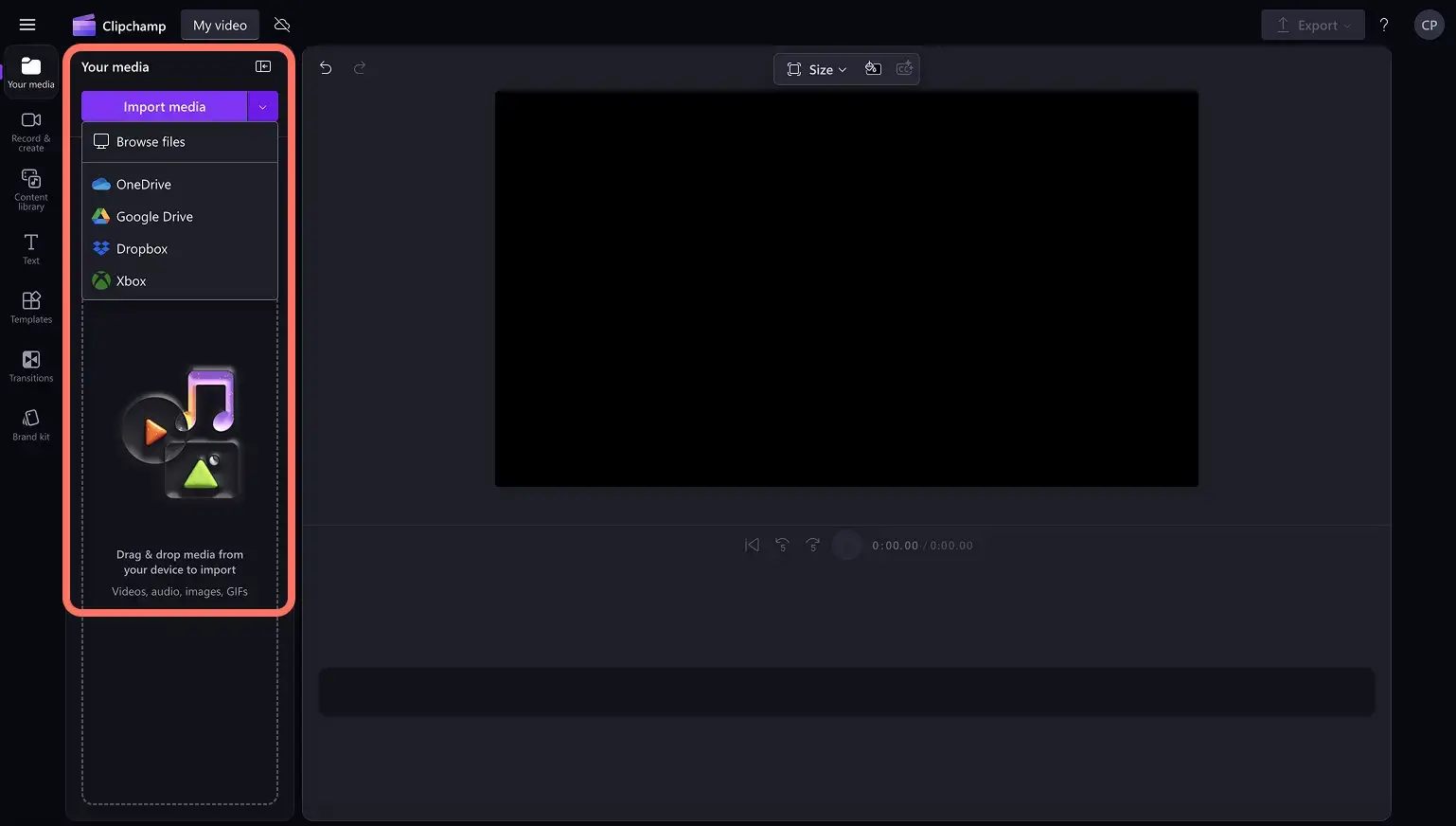
Alternatively, browse Clipchamp’s free stock library for videos, backgrounds, and music. Access the content library, select the visuals dropdown, then choose videos or search by category. 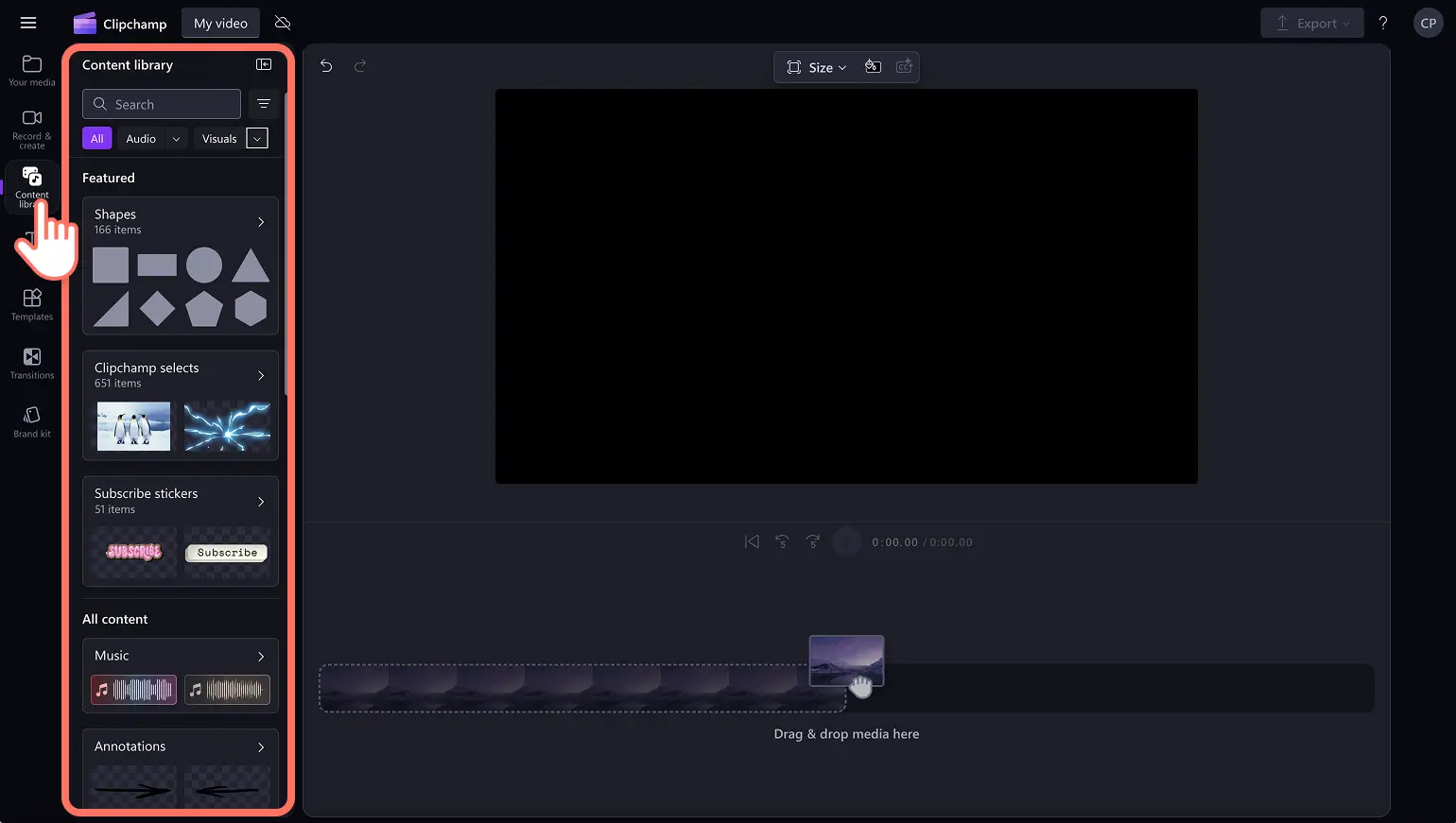
Step 2. Place a video or colored background onto the timeline
Select a background video from the library: content library ➜ visuals ➜ backgrounds. Drag the chosen background onto the timeline. 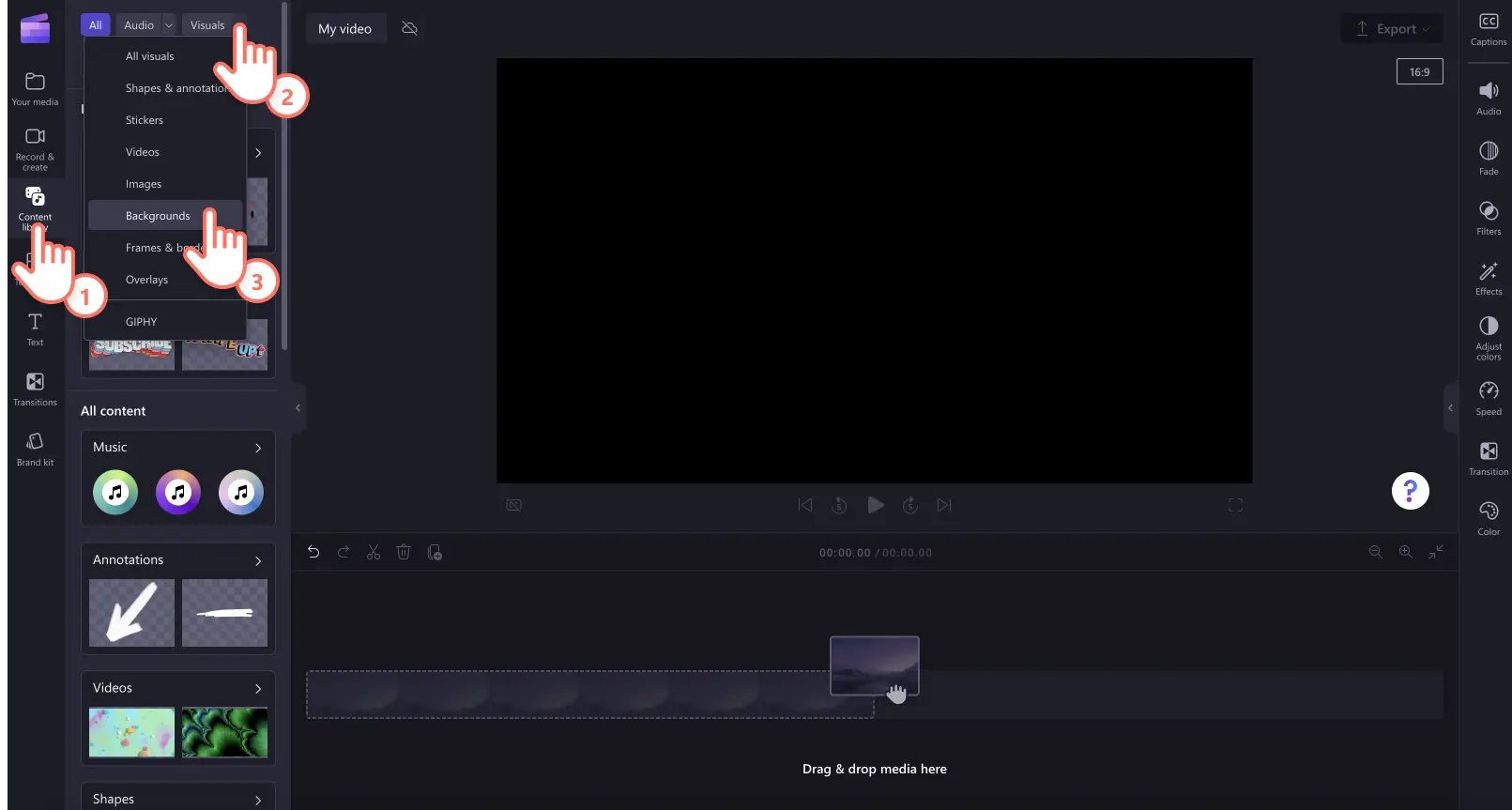
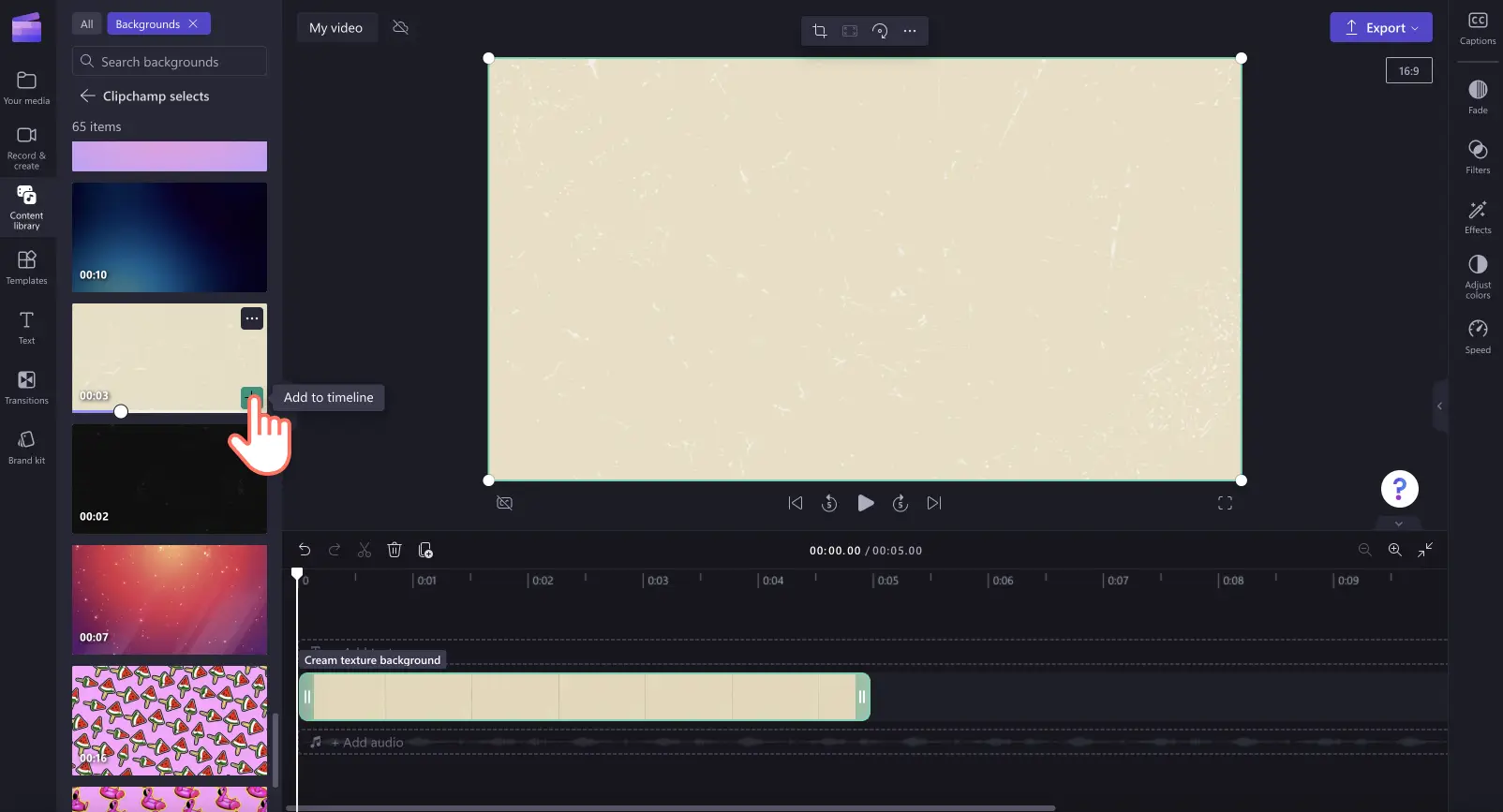
Step 3. Add your media to the timeline
Drag your first media asset onto the timeline. Resize it using the corner handles. 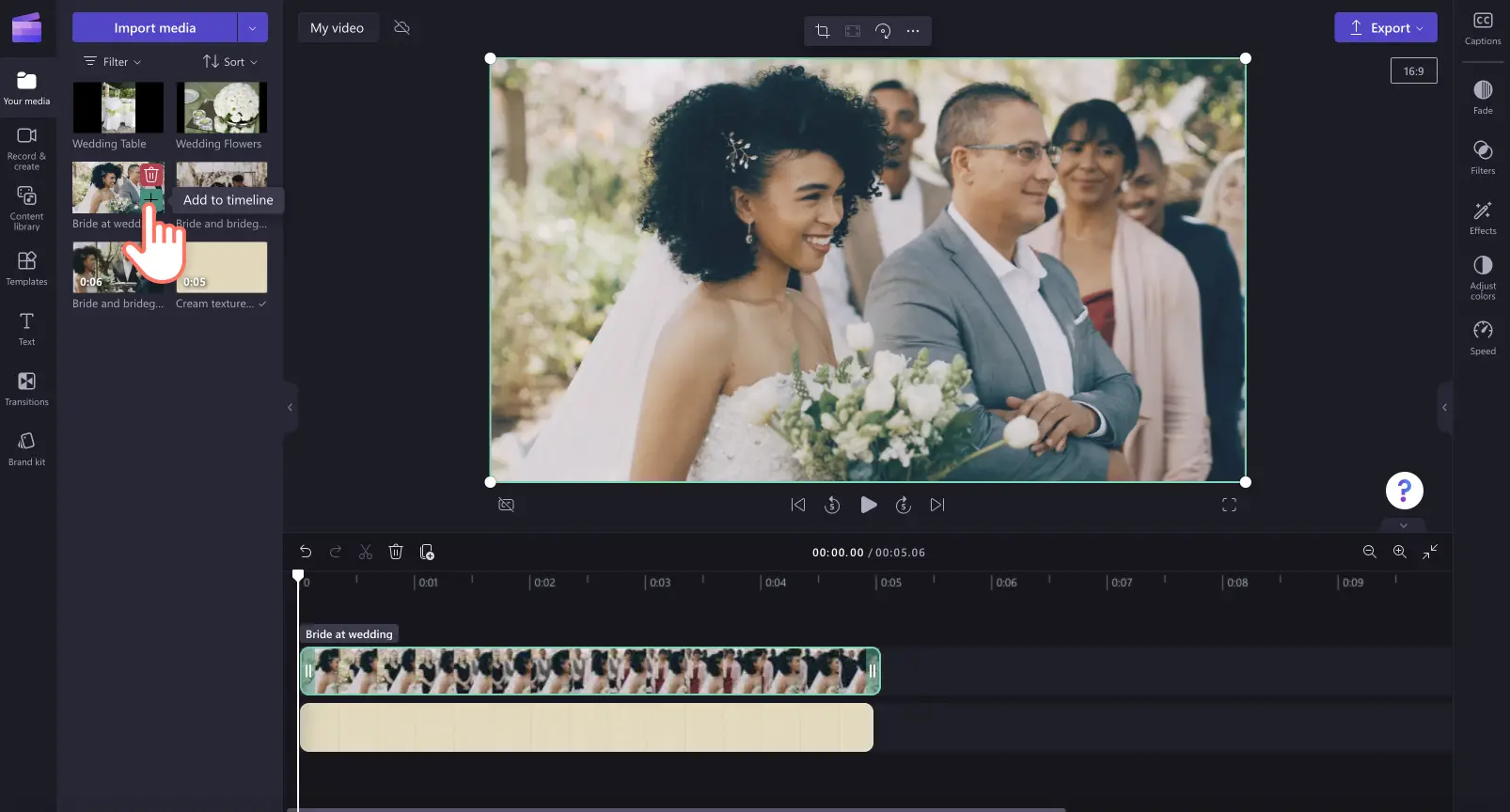
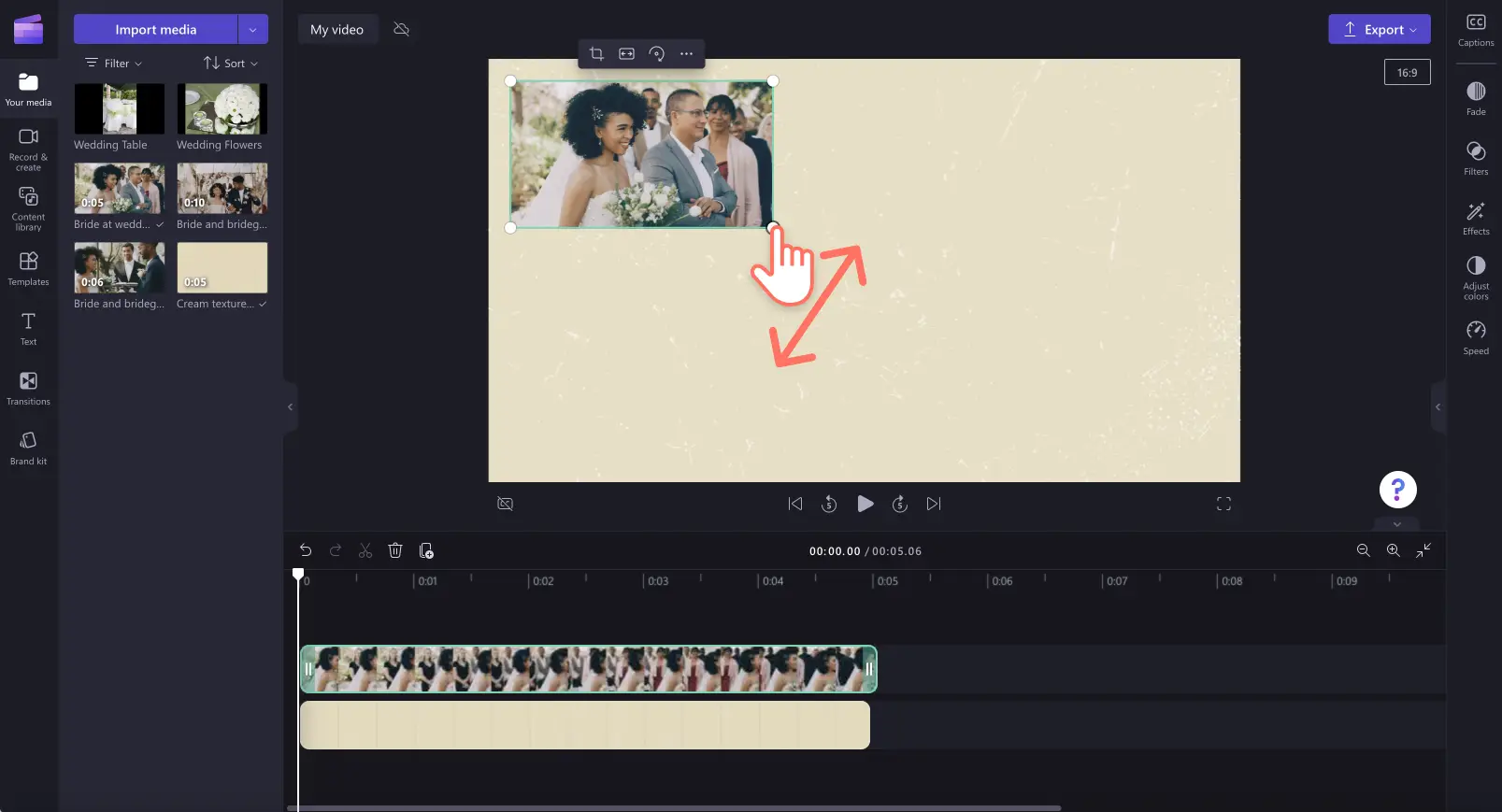
To display multiple assets simultaneously, place additional clips above the existing one; they will play in sync. Repeat as needed. 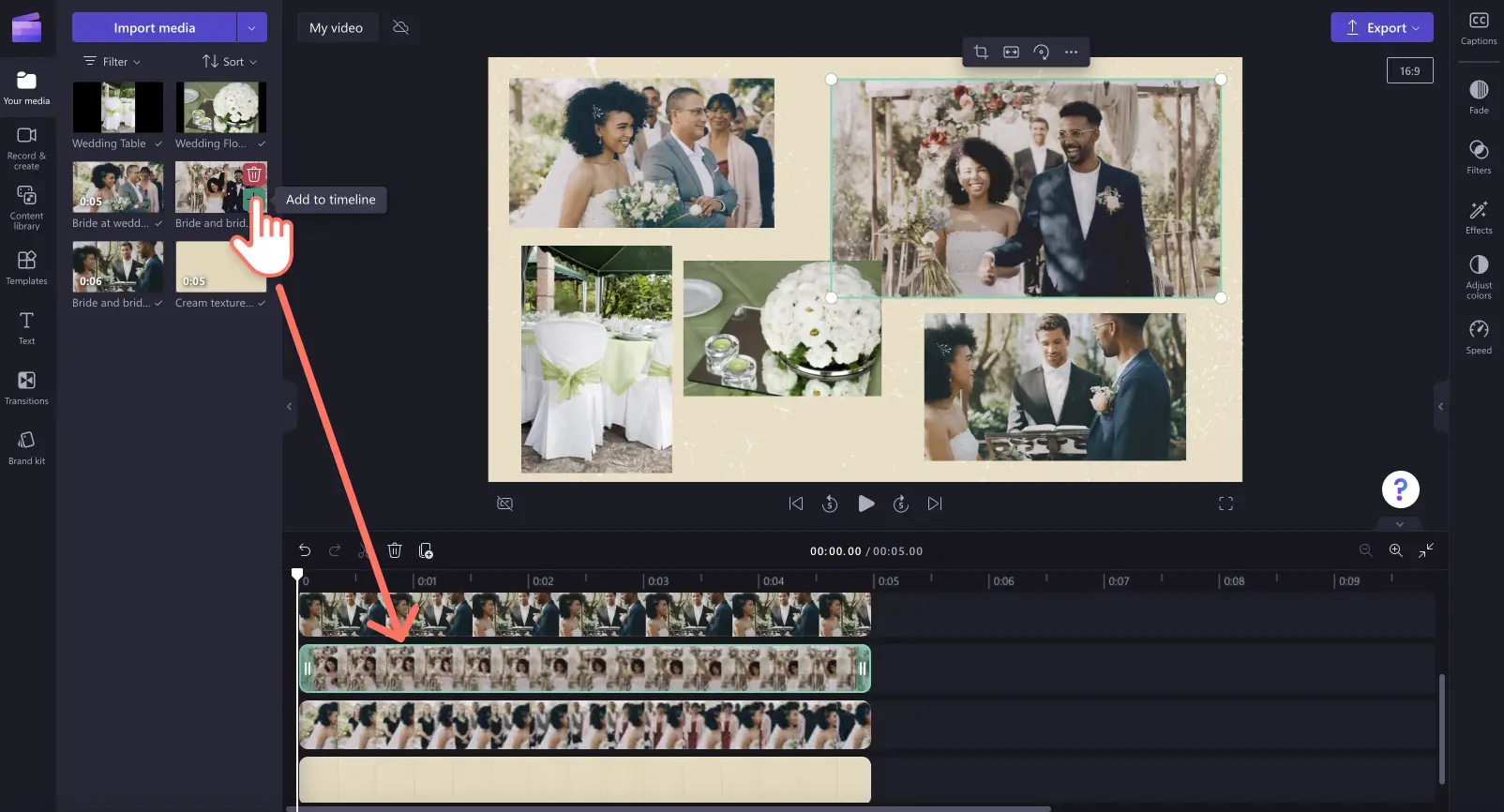
Step 4. Personalize your video collage with music, overlays, and text
Drag an audio file from the content library’s audio category onto the timeline beneath your video. 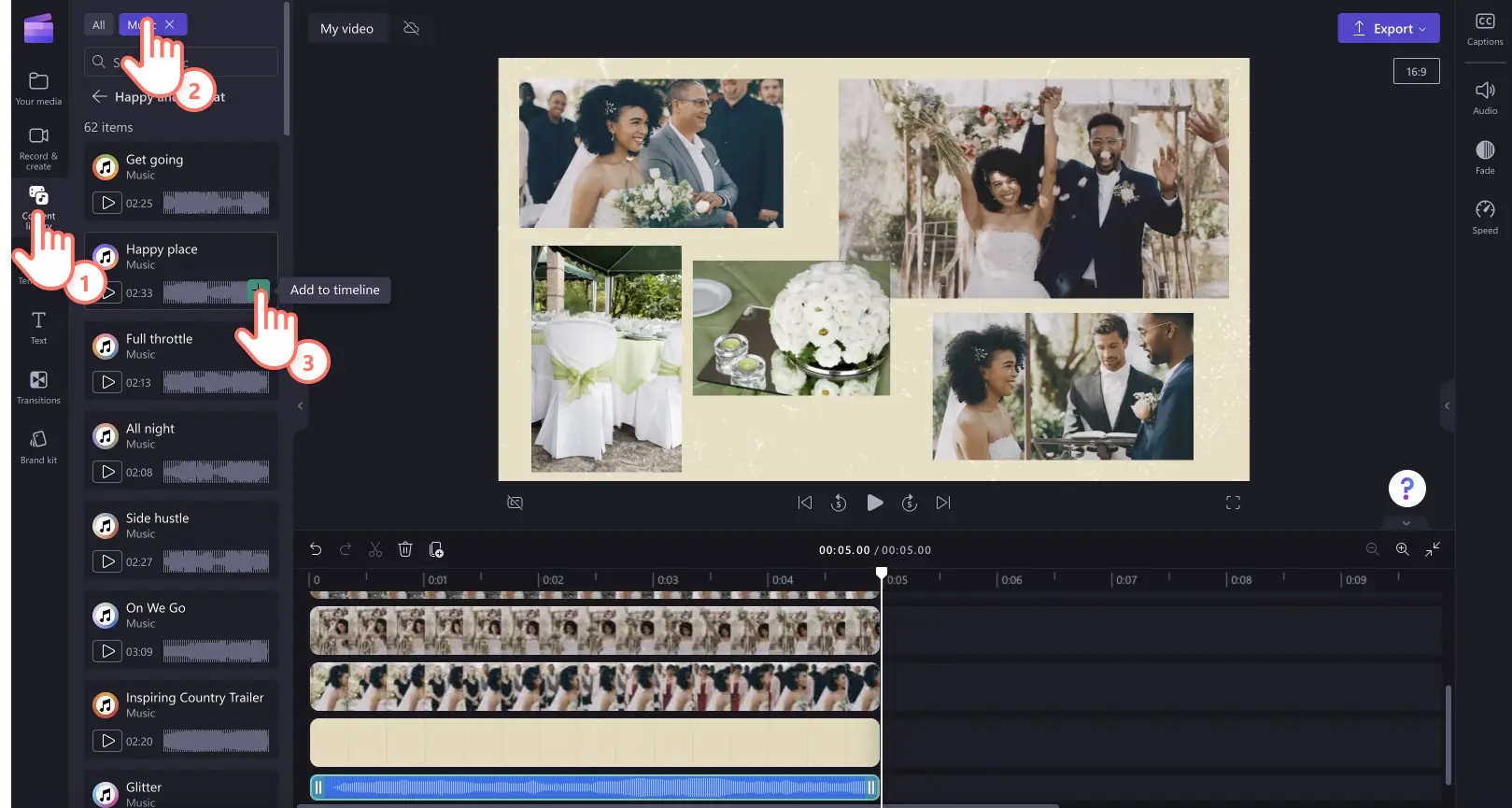
Add frames and borders: content library ➜ frames and borders ➜ choose a frame, then drag it above your clip. Resize and reposition freely. 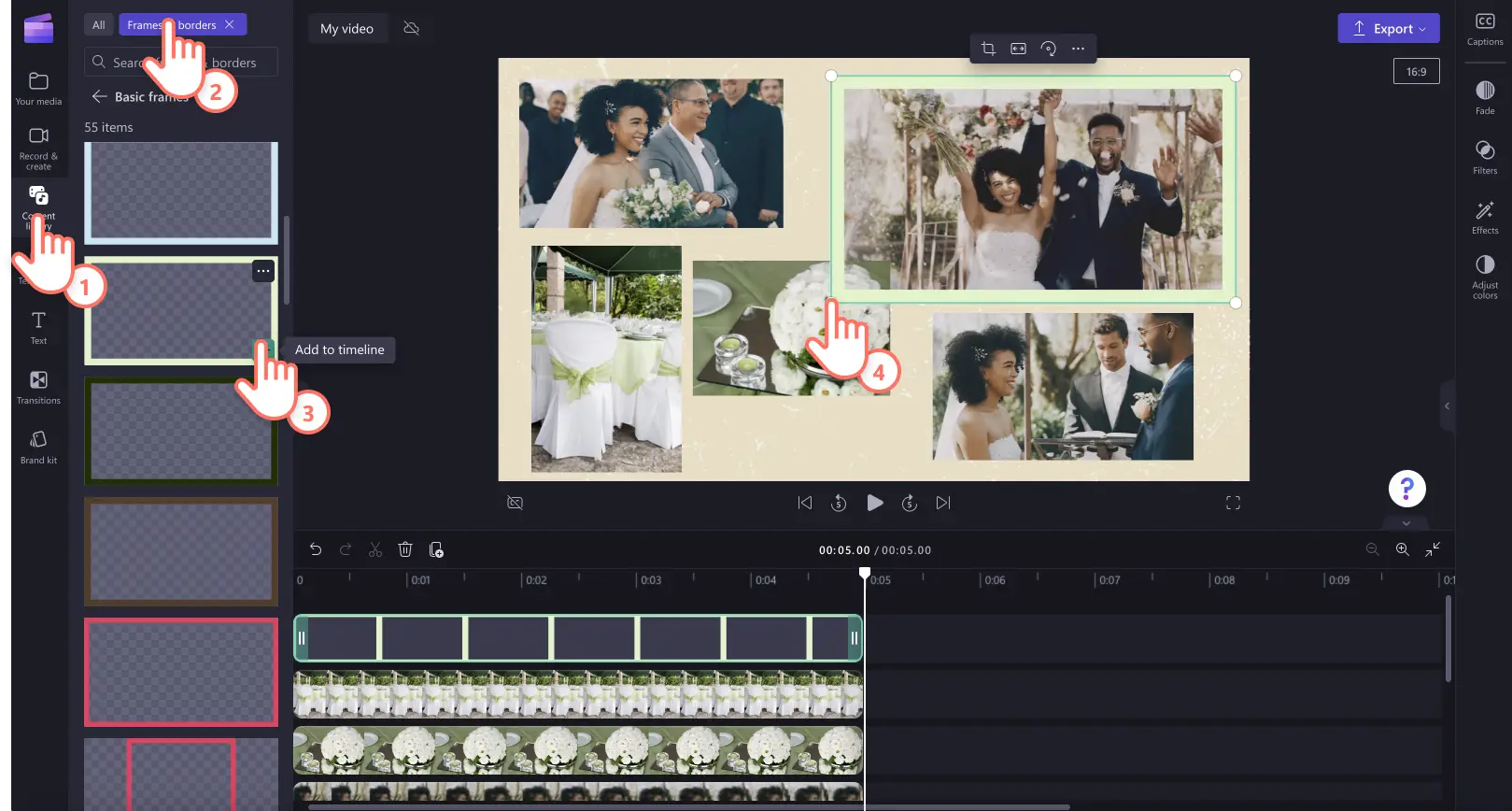
Insert stickers and graphics: content library ➜ stickers ➜ drag a sticker onto the timeline. Adjust size and placement in the preview window. 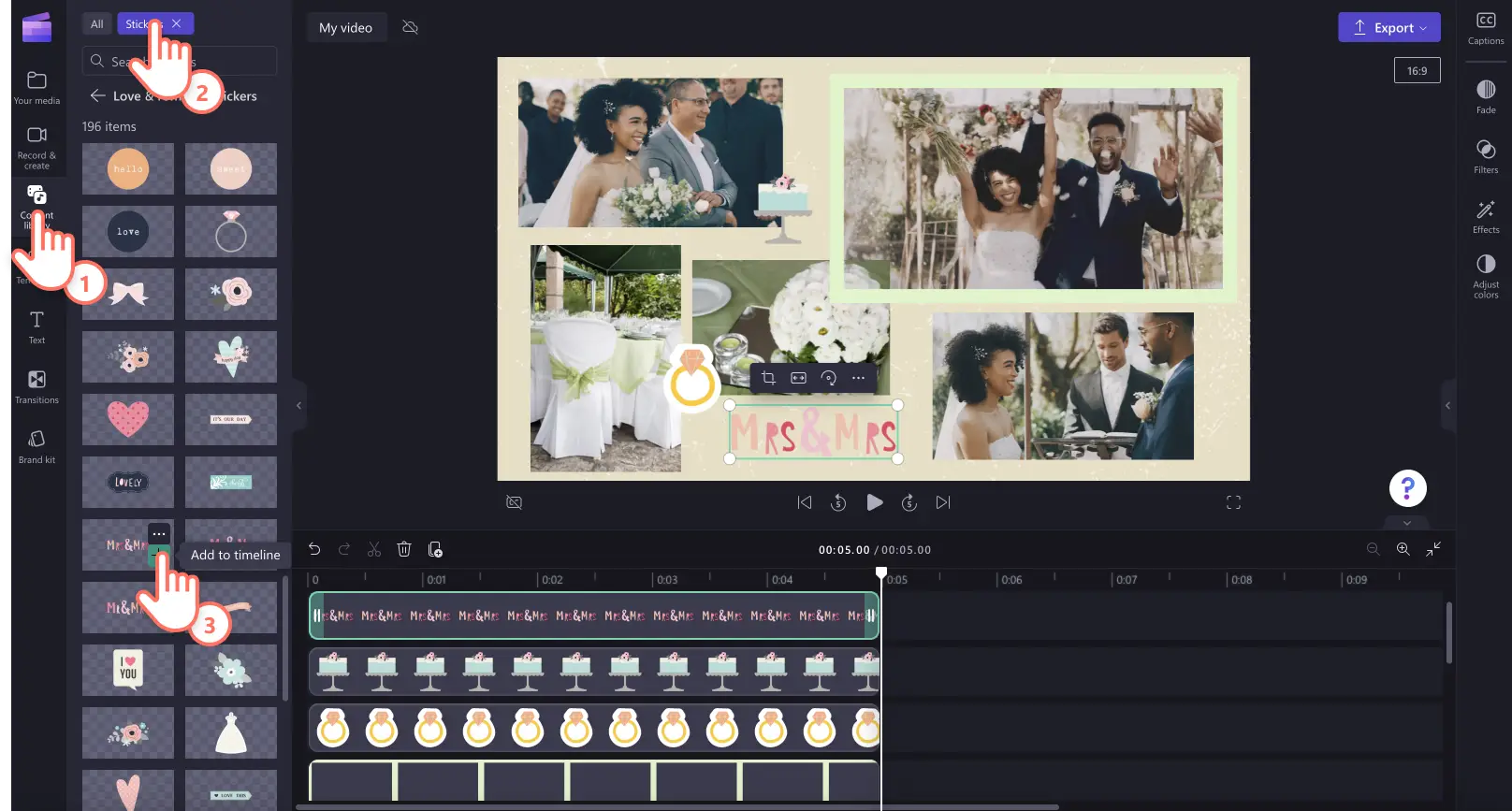
Insert animated text: property panel ➜ text ➜ select a title, drag it onto the timeline, then customize via the text tab. 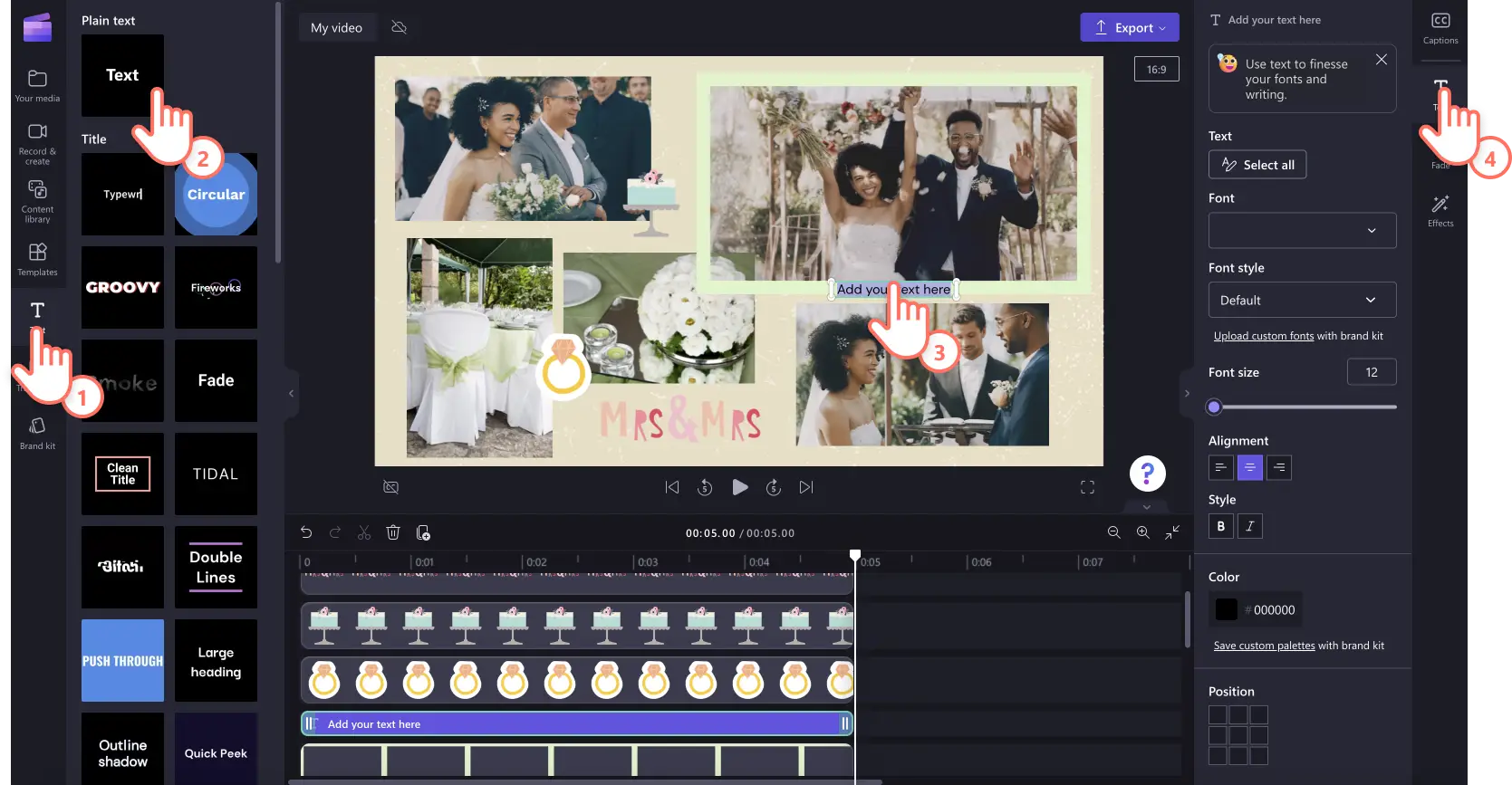
Step 5. Preview and save your video collage in HD
Preview by clicking the play button. When ready, export and choose a resolution—1080p for high‑quality standard videos, or 4K if you’re a paid subscriber. GIF export is also available for quick social media sharing. 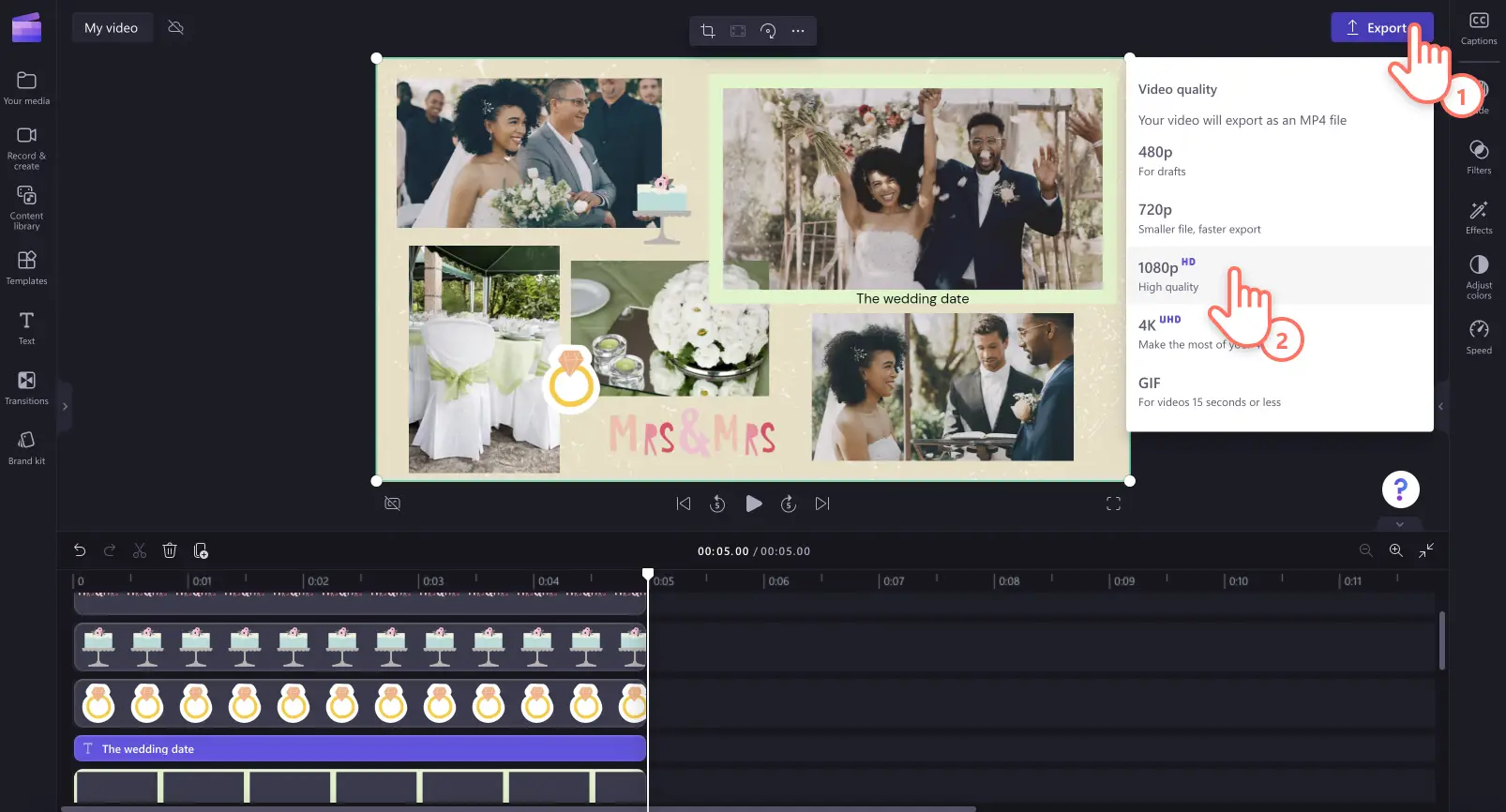
3 popular video collage ideas
1. Birthday video collages
Celebrate a loved one by mixing photos and videos of past birthdays with the current one. Add themed stickers, upbeat music, smooth transitions, and captions to highlight milestones or share heartfelt messages.
2. Travel and holiday highlight collages
Turn travel footage and photos into a professional‑looking montage. Guide viewers through adventures, show favorite sites, and showcase local cuisine. Use titles to label locations, enhance emotion with sound effects, and consider AI voiceovers for narration.
3. Special occasion video collages
Mark milestones such as weddings, graduations, or anniversaries with a memorable collage. Overlay event‑specific stickers, animate text to share details, and apply filters or effects to elevate the mood.
For more guidance on creating scroll‑stopping videos, read the ultimate guide to Instagram videos or watch the slideshow video tutorial.
Start editing today with Clipchamp or download the Clipchamp Windows app.