
What’s in a name?
Not much? Think again.
You might be underestimating the importance of names all this while.
But, everything changes now. We have come up with an exciting update to our already existing Cname feature that will make you change your opinion.
With this new update, you can identify who in your organization or team is sharing a video link. Not just you. Your customers will be delighted by this nifty addition too.
Read this blog till the end, to learn everything about this feature update.
What is the Cname feature?
Cname is an advanced feature that lets you customize the video link that you record on Vmaker. With the help of this feature, you can add your website domain name to the URL. Instead of sharing a random link, you can share more structured links with your customers that include your branding too.
Here’s how a video link looks like after you record a video on Vmaker:
https://sub_domain_name.vmaker.com/record/videolink
Here’s how it looks like after you use the Cname feature to add your website domain name:
https://sub_domain_name.your_company_domain_name/record/videolink
This way,
- Your customers will have better brand recognition
- They will not mark your video as spam as they know it’s coming from a trusted source
- They will look forward to more videos from you
- Overall, it will leave your customers with a positive impression
A quick note here - Cname is a premium feature, and it’s available only for Enterprise users.
How does the new update help?
The new feature goes into a deeper level. Now you can also customize the subdomain name in the video link. This feature adds an extra layer of personalization to the existing Cname feature. You can add your name in the subdomain space so that your customer will know who is sharing the video with them.
One of the best use cases of this feature is when your sales team sends a personalized product pitch to a prospective customer with a customized domain name only for that customer. How cool is that?
Here’s an example of a URL with customized domain and subdomain name:
https://john.chromososi.com/record/videolink
This feature is a blessing when you’re working with a big team. By adding subdomains, you will know who is sending you a video and what the context will be. You can plan your schedule more effectively by prioritizing the videos.
How to customize your subdomain name in Vmaker?
Before mentioning the steps, it’s important to remember that the subdomain feature is an advanced feature. It’s available only if you’re in the Teams plan or above. If you’re in the Lite or Starter plan, consider upgrading to enjoy this feature.
You can upgrade your account from our pricing page.
The process of customizing subdomain name is easy and takes only a few steps:
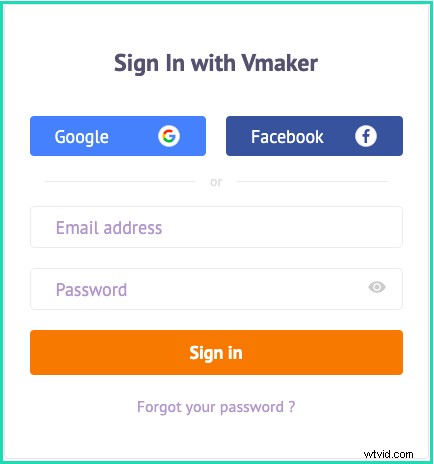
- Sign in to your Vmaker account
Log-in using the email address that is registered under the Teams plan. If you have more than one email address registered with Vmaker, you have to be a bit careful here.
2. Head over to the branding section in your dashboard
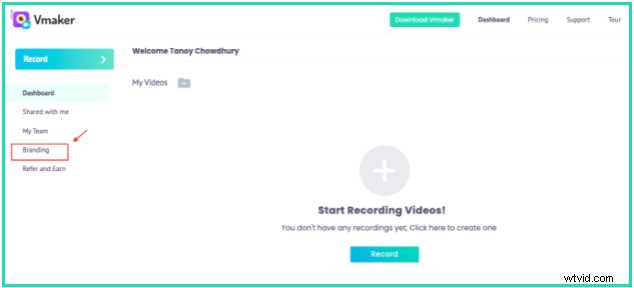
After you log in, you will see your dashboard by default. All your recorded videos come here. However, to change your subdomain name, you have to click on the Branding tab on the left pane of the screen.
3. Enter your domain name
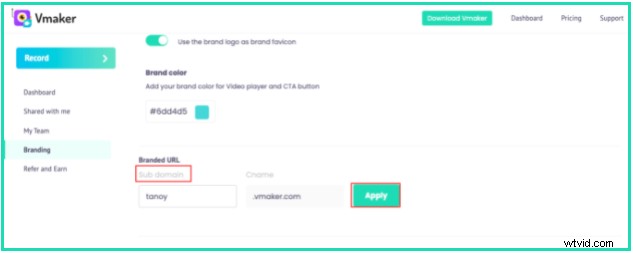
Once you’re in the branding section, scroll down till you see Branded URL. This is the place where you can add the subdomain name to the URL. Fill in the name and click on Apply, and you’re good to go.
Final note
Subdomain name is a very handy feature for customizing the URL that you share with internal and external users. It can help you stand out from others and make your work easy too. Make sure that you check out the feature. If you get stuck or if you have questions, feel free to drop an email at josh@vmaker.com