
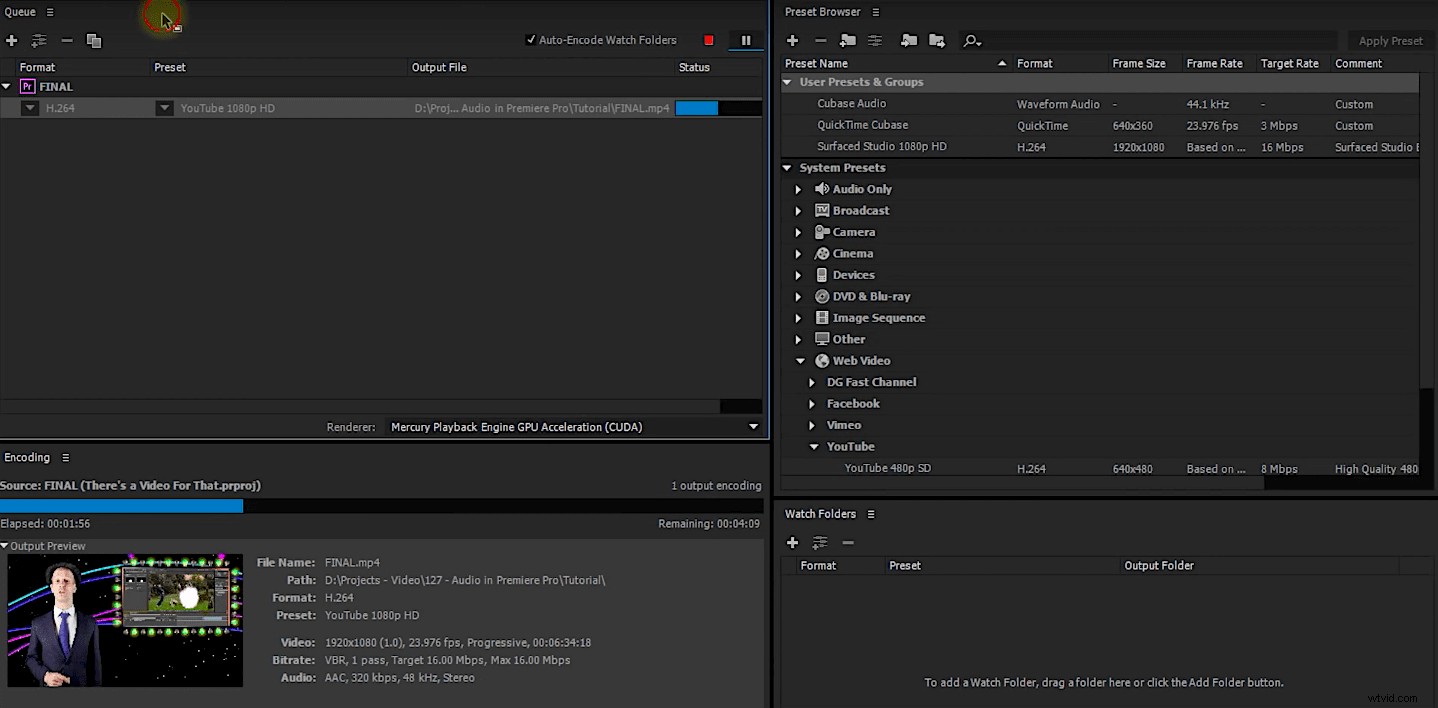
The Adobe Media Encoder can be a bit intimidating at first glance, but after watching this tutorial, you’ll be transcoding like a pro in no time.
The tutorial comes from Tobias Gleissenberger of Surfaced Studio (one of the better YouTube channels around for Premiere and After Effects tutorials that aren’t completely boring), and it tackles the basics of the Adobe Media Encoder. You’ll learn a few different ways to get Premiere sequences and After Effects comps into Media Encoder, some tips for changing your encode settings and a really neat way to automate some of your encoding workflows. Check it out:
The Features of Adobe Media Encoder
So the big advantage of Media Encoder that Tobias mentions is that it allows Premiere and After Effects users to encode their projects in the background. If you choose to encode natively in Premiere or After Effects, the screen locks up until the process is finished. But if you send your projects to Media Encoder, you can keep working on your projects while the encoding happens.
With that said, in my experience, I typically don’t want to keep editing in Premiere if Media Encoder is working in the background. It just slows down my system to the point where doing any work in Premiere is kind of frustrating. But hey, the option is there if you want it and your computer can handle it.
The other great Media Encoder feature that Tobias shows off in this tutorial — and the one that’s far more exciting — is “watch folders,” which allows you to create automated encoding workflows. As the name suggests, watch folders are local folders on your computer that Media Encoder constantly scans for new media files. Whenever something new is added to a watch folder, Media Encoder will automatically transcode the file based on whatever preset you want.
There are a number of ways that you could use watch folders to save yourself some time. it can be part of the workflow for automatically creating dailies or proxy files, or for converting your audio files from one format to another. Basically, if there’s any repetitive encoding task you do on a regular basis, watch folders can do all of the work for you. It’s seriously magical.
In Sum
In the end, there are quite a few other things that you can do inside of Media Encoder (including a few new features in the upcoming version). But for those of you who are new to this, this is more than enough to get you started.