

Shreshtra - July 23, 2025 - Leave your thoughts. 5 min read
AI‑powered video creation is no longer the domain of seasoned designers. With tools like Animaker’s Text to Animation feature, anyone can transform a simple sentence into a polished, engaging video with just a few clicks.
In this guide we’ll walk through the entire process—from crafting the prompt to downloading the final product—using Animaker AI as our example platform.
Key benefits include:
- Zero design experience required
- Fast, AI‑driven workflow
- High‑quality assets and voiceovers
- Customizable styles and settings
- Free trial available
Ready to see the magic in action? Let’s dive in.
How to Turn Text into Animation
Begin by navigating to Animaker’s Text Animation Maker. If you’re new, sign up for a free account; existing users will land on their dashboard where they can click Generate to launch the AI video builder.
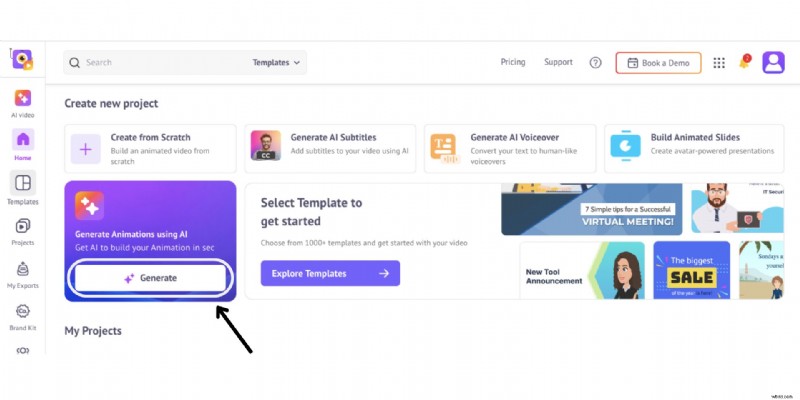
Once inside the AI workspace, you’ll be just four steps away from a professional animated video:
- Step 1: Enter the Video Prompt
- Step 2: Choose Video Preferences
- Step 3: Generate & Edit
- Step 4: Download the Video
Step 1: Enter the Video Prompt
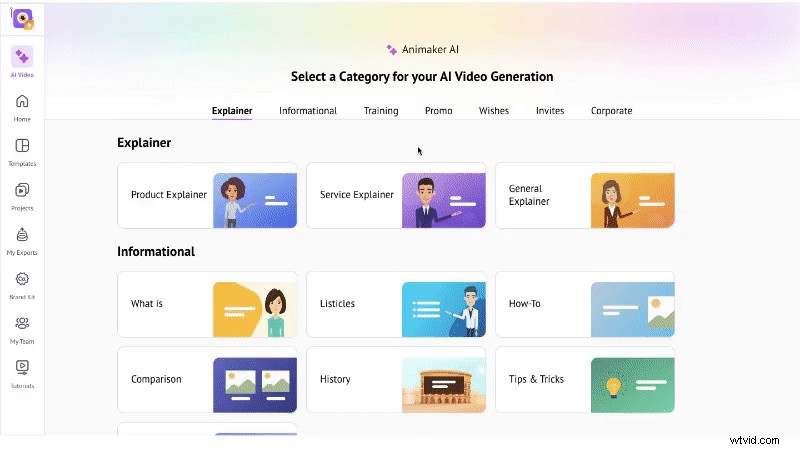
Select a category that aligns with your goal. Animaker offers 30+ curated options such as Explainer, Informational, Training, Promo, Wishes, Invites, and Corporate. For this example, we’ll choose Informational.
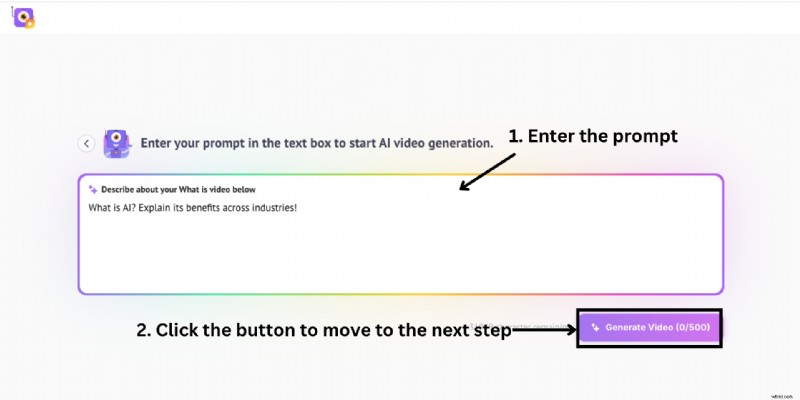
Type your prompt into the field. If you’re unsure, the platform provides AI‑suggested examples to help you get started quickly. Once your prompt is ready, click Generate Video and watch the AI analyze your input.
Step 2: Choose Video Preferences
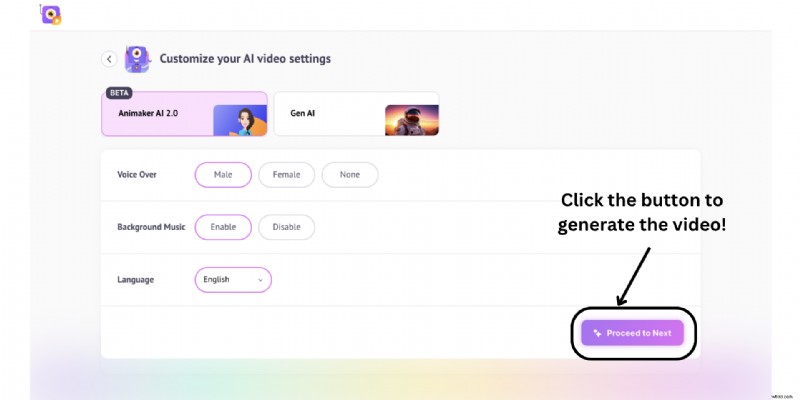
Configure the style and settings that best match your vision. Animaker offers two AI modes:
- Animaker AI 2.0 – Ideal for classic 2D animation with customizable voiceovers, music, and language options.
- Gen AI – Provides a generative video style with enhanced control over format, duration, captions, and more.
For this tutorial, we’ll select Animaker AI 2.0 and click Proceed to Next.
Some categories may prompt a few follow‑up questions to refine the output. Answer them, then click Proceed to Create and let the AI generate your video.
Step 3: Generate & Edit
In just a minute, the AI will produce a fully polished video, complete with voiceovers, animated text, and transitions. Preview it by clicking Play.

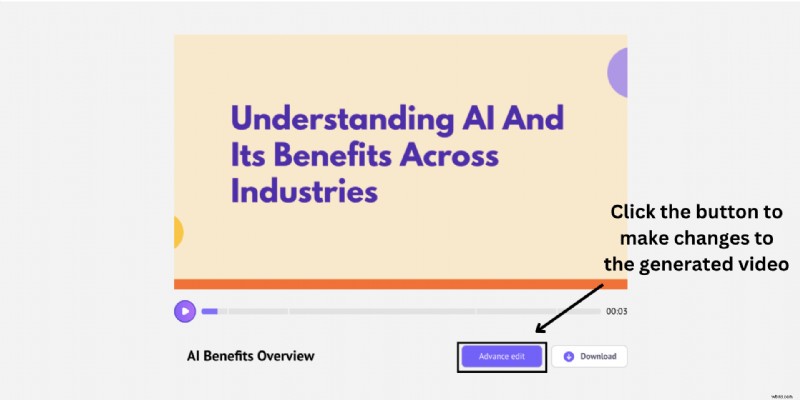
If the result meets your expectations, download it immediately. For deeper customization, click Advanced Edit to access the full editor.
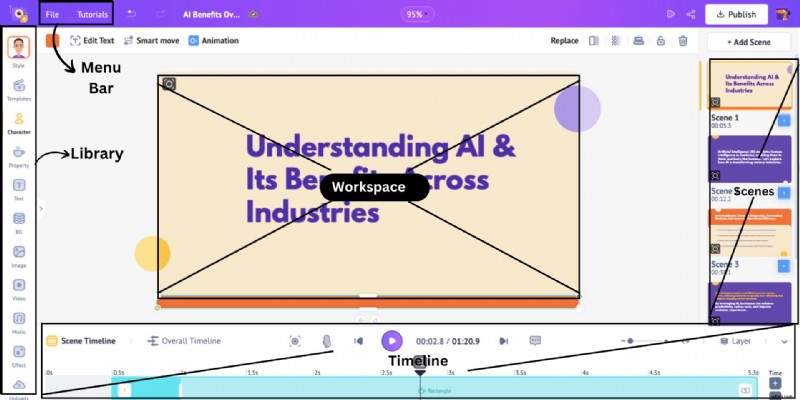
The editor opens a new project window where you can tweak every element. The central workspace shows your video in real time, the left panel hosts the asset library (characters, props, backgrounds, etc.), and the right panel lists your scenes. The top menu offers additional tools, while the timeline at the bottom lets you fine‑tune timing and animation.
From here you can:
- Add characters
- Insert new properties
- Modify text elements
- Change backgrounds & images
- Record or upload voiceovers
Once satisfied, preview the final version one last time.
Step 4: Download the Video
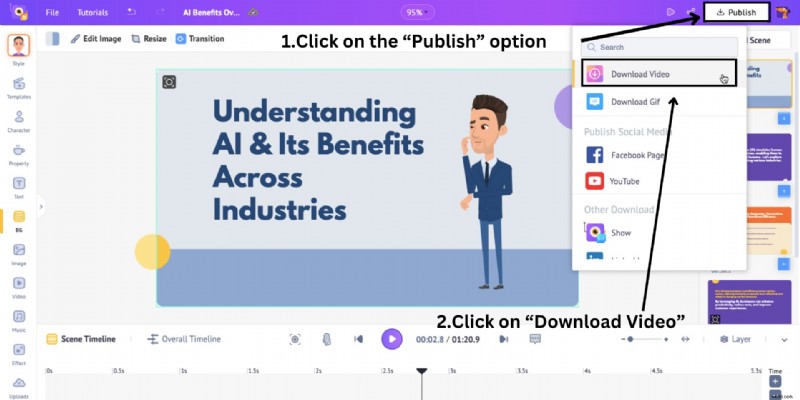
Click Preview to ensure everything looks perfect. Then go to the top menu, select Publish, and click Download Video.
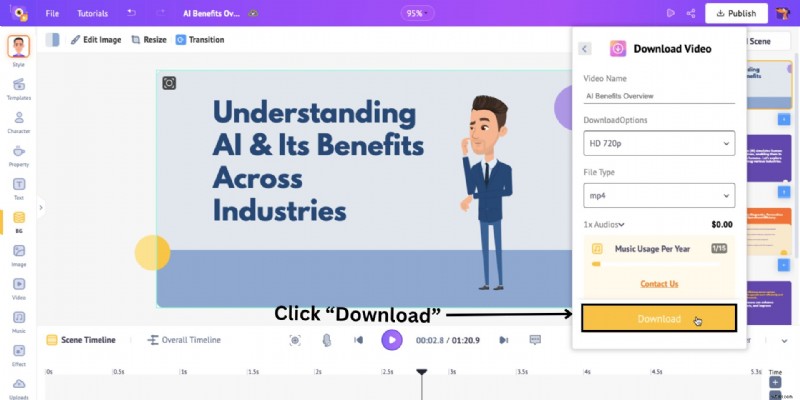
Confirm by clicking Download and the video will be processed. When ready, retrieve it from the Exports section in your dashboard.
And that’s it! A complete walkthrough of turning text into an animated video using AI.
With Animaker’s intuitive platform, the entire process—from prompt to download—takes just a few minutes, making professional animation accessible to everyone.
Ready to let your words come alive? Start creating today.

Shreshtra
Shreshtra is a Content Marketer at Animaker, where she’s helped creators and businesses bring their stories to life with 2D animation for over three years. She has authored clear, SEO‑driven guides that have helped Animaker’s community grow from 18 M to 30 M+ users worldwide.
Her work spans AI‑powered voice tools, subtitle generators, and the latest in video creation technology, all aimed at making animation simple, fun, and accessible. She also explores how animation can transform learning and development in corporate settings.
When not writing or teaching, Shreshtra enjoys thriller novels and K‑pop playlists. She believes a well‑crafted video can connect people across cultures, just like a great story or song.