
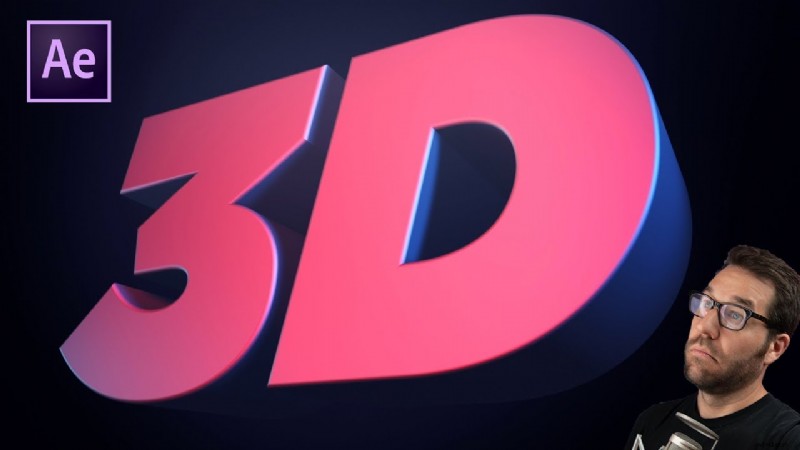
Elevating your titles and graphics with 3D text can transform ordinary footage into engaging, memorable content. After Effects offers a variety of powerful tools that make 3D lettering both accessible and versatile, even for seasoned editors.
Below we break down four reliable techniques for creating 3D text in After Effects, explain the benefits of each, outline the learning curve and cost considerations, and finish with a lightweight alternative for those who need speed and affordability.
Benefits of Adding 3D Letters to Videos
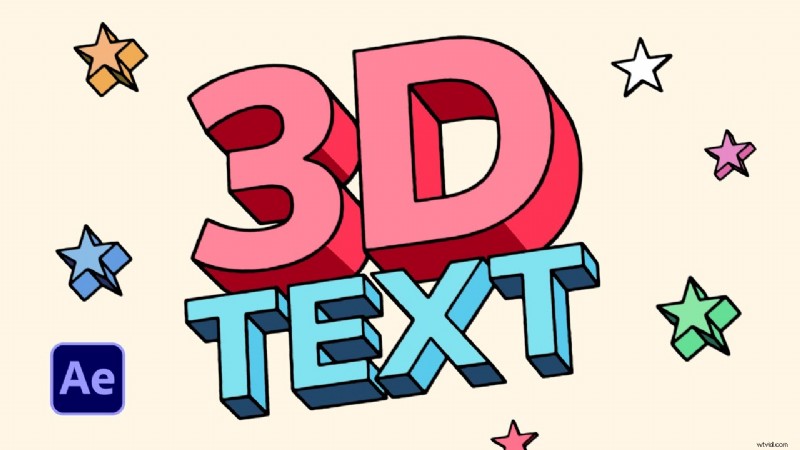
- Enhanced Readability: Depth and shadow help viewers distinguish text from complex backgrounds.
- Visual Appeal: 3D characters add dimension, making scenes feel more dynamic.
- Brand Consistency: Customizable colors, styles, and shapes reinforce your visual identity.
- Audience Engagement: Visually striking titles keep viewers glued to the screen longer.
Method 1 – Stacking 3D Text Layers
This straightforward approach layers multiple 3D text objects to simulate depth. It’s quick, but subtle – no hard separation between layers.
- Create a new text layer: Layer > New > Text and type your headline.
- In the Character panel, set font, size, and color.
- Enable 3D by ticking the 3D box in the layer panel; a cube appears.
- Adjust the layer’s X, Y, and Z rotation values for orientation.
- Add a Null object (Layer > New > Null Object), then pick‑whip all text layers to the Null to control them collectively.
- Duplicate the text layer for each “depth” slice, changing the color slightly to accentuate separation.
Method 2 – Using the Extrude Function
For richer geometry, the Extrude feature turns flat text into true 3D objects with bevels and depth.
- Create a text layer and enable 3D.
- Open Composition > Composition Settings, select Cinema 4D as the 3D renderer, then click OK.
- In the layer’s properties, tweak Extrusion Depth, Bevel Style, and Hole Bevel Depth.
- Animate the text by adding a Camera layer and keyframing position or rotation.
- Fine‑tune lighting and material settings to match your scene.
Method 3 – Using Cinema 4D Lite
After Effects bundles a lightweight Cinema 4D Lite. This method allows full 3D modeling inside AE.
- Create a new MAXON CINEMA 4D File via Layer > New.
- In Cinema 4D, use the Pen tool to select Text and type your string.
- Add an Extrude object and parent the text under it.
- Adjust extrusion settings to achieve the desired depth.
- Return to After Effects, and your Cinema 4D composition will appear as a 3D layer you can animate.
Method 4 – Using the BCC Extruded Text Filter
The BCC Extruded Text plugin offers a robust, animation‑ready 3D text solution.
- Create a new Solid layer.
- Apply the BCC 3D Objects > BCC Extruded Text effect.
- In the Effects Controls, click Edit Text, set font, size, and enter your string.
- Configure lighting via the composition’s native lights or the plugin’s built‑in options.
- Adjust Extrusion parameters for depth, bevel, and animation style.
- Use Transformations to fine‑tune position, scale, and rotation.
- Explore Pulse, Ripple, Shatter, Curl, Jitter presets for dynamic motion.
Challenges of Working with After Effects
While powerful, After Effects demands:
- Proficiency with the Adobe interface and compositing concepts.
- Regular updates and a steep learning curve for newcomers.
- A subscription cost of $22.99/month (or a perpetual license for long‑term savings).
- High CPU/GPU usage; large projects can trigger crashes or freezes without a robust system.
Budget‑Friendly Alternative: Wondershare Filmora
Filmora offers a streamlined workflow for 3D text, ideal for beginners, hobbyists, or small businesses. Key points:
- Annual license: <$50 – a fraction of After Effects’ cost.
- Lower system requirements; runs smoothly on mid‑range hardware.
- Intuitive drag‑and‑drop interface with a vast library of pre‑made 3D titles.
- AI features and speech‑to‑text add creative flexibility.
Creating 3D Text in Filmora – Quick Guide
- Download and install Filmora (Get Started for Free for Windows or macOS).
- Launch the app, click New Project, then Titles > 3D Titles to pick a preset.
- Add the title to the timeline and edit the text in the Properties panel.
- Open the Animation tab to set entrance/exit styles and duration.
- Use the Advanced panel to tweak font, color, shadow, border, and opacity.
- For custom shapes, enable the Shape option under Basic and choose intensity.
- Export when satisfied.
Additional Text Features in Filmora
Filmora hosts 5,000+ templates, covering end credits, lower thirds, memes, and cinematic titles. It also supports SRT files for subtitle editing and offers built‑in text animation libraries.
Conclusion
After Effects delivers powerful 3D text capabilities through four distinct methods, each suited to different creative needs. However, the software’s complexity and cost can be a hurdle for newcomers.
If you’re looking for a quicker, more affordable entry point, Filmora’s 3D text tools provide an excellent balance of quality and simplicity.
Experiment with the techniques above, choose the one that fits your workflow, and elevate your projects with crisp, dimensional typography.
Get Started for Free – Windows 7 or later (64‑bit) or macOS 10.14 or later