
Large video files can create friction when you try to share or upload them. Even platforms that allow big uploads—like YouTube’s 256 GB limit—may still struggle with long processing times, errors, and slow connections. Worse, most social‑media sites apply their own compression, which can blur even the sharpest footage.
The answer? Reduce the file size while keeping the visual quality intact. This article shows you how to compress MP4 files effectively, with step‑by‑step instructions for Wondershare Filmora’s Auto Compression and several other proven techniques.
Table of Contents
Part 1. Compressing MP4 Files While Preserving Quality
If you want to shrink MP4 videos without losing detail, a dedicated editor like Wondershare Filmora is a powerful ally. The software lets you tweak resolution, bitrate, and codec settings while giving you real‑time previews of the final file size.
Filmora’s Auto Compression feature simplifies the process: you choose a target quality level, and the tool automatically calculates the optimal bitrate and codec for that setting. It’s especially useful when you plan to upload to YouTube, which has its own recommended settings.
Follow these easy steps:
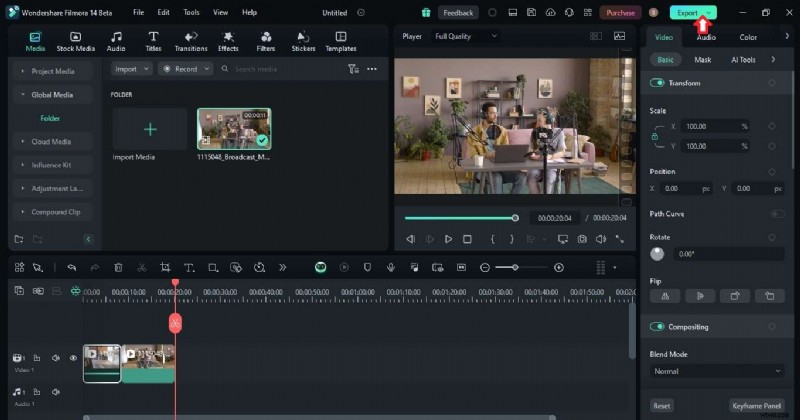
- Install and launch Filmora. Sign in with a Wondershare account and create a new project. Drag your MP4 file onto the timeline.
- Export the video. Click the
Exportbutton in the top‑right corner. - Enable Advanced Compression. In the export dialog, toggle on
Advanced Compression.- By Quality: Select this option to set a target visual quality. The software will reduce file size accordingly while keeping the picture sharp.
- By YouTube Upload: Pick this if you’re uploading to YouTube. Filmora will apply YouTube’s recommended bitrate for your chosen resolution, ensuring the platform’s own compression doesn’t degrade the video further.
- Export and save. Hit
Exportagain to start the compression. The resulting MP4 will be smaller but visually identical to the original.
Part 2. Other Expert Compression Strategies
While Filmora covers most use cases, you can further optimize 4K footage by tweaking a few key parameters. Below are the most effective tactics.
Target a Slightly Lower Resolution
For most viewers, the difference between 4K (3840 × 2160) and 1080p (1920 × 1080) is negligible on smartphones and laptops. Resizing to 1080p can cut the file size by 50%–70% without a perceptible loss in quality.
Find the Optimal Bitrate
Bitrate controls how many bits per second are allocated to the video stream. Higher bitrate means better quality but larger size. For example, YouTube recommends a bitrate of 10 Mbps for 1080p videos at 20–60 fps. This balance delivers smooth playback while keeping files manageable.

Explore Efficient Codecs
Modern codecs such as H.265 (HEVC) compress video more effectively than older ones like H.264. If your editor supports H.265, export using it to reduce file size by up to 30% while maintaining the same visual fidelity.
Adjust the Frame Rate
Higher frame rates (e.g., 60 fps) produce smoother motion but also increase file size. For most online content, 24, 25, or 30 fps is sufficient. Stick to 30 fps for HD videos unless you’re filming high‑speed action.
Conclusion
By combining Filmora’s Auto Compression with strategic adjustments to resolution, bitrate, codec, and frame rate, you can drastically shrink MP4 files without sacrificing visual quality. Whether you’re sharing on social media, uploading to YouTube, or archiving on a local drive, these techniques give you the best balance of size and clarity.
Experiment with the methods above to discover the optimal settings for your specific footage. Your videos will stay crisp, your upload times will drop, and your storage needs will shrink.
FAQ
Need help? Below are answers to the most common questions.
-
Why do MP4 files lose quality?
MP4 uses lossy compression, which discards some data to reduce size. Each re‑save can introduce minor quality loss, especially at low bitrates.
-
Can MP4 files be compressed without quality loss?
Yes. By carefully selecting bitrate, codec, and resolution, you can compress an MP4 while keeping the visual quality virtually unchanged. Offline tools like Filmora give you that control, unlike many online compressors that impose size limits.
-
What is an MP4 compressor?
An MP4 compressor applies advanced algorithms to shrink file size while preserving as much visual detail as possible. It lets you set a target quality or file size and chooses the best settings behind the scenes.
-
How to upload YouTube videos without losing quality?
Upload the original high‑resolution file and let YouTube handle the compression. To avoid extra loss, first use Filmora’s By YouTube Upload setting to match YouTube’s recommended bitrate.