
Want to transform ordinary footage into cinematic slow‑motion on your Android? A well‑crafted slow‑motion video can dramatize action, highlight fine details, or simply add visual flair.
Android’s latest devices already include powerful built‑in slow‑motion options, and for users who need finer control, third‑party apps like Filmora for Android deliver studio‑grade results. This guide walks you through both paths, from native camera settings to advanced editing with Filmora, and shows how to elevate your clips with music, effects, and text.
In this article
- How to Make a Slow‑Motion Video on Android
- How to Slow Down a Video on Android Using a Third‑Party App – Filmora for Android
- Enhance Your Slow‑Mo Videos
Part 1. How to Make a Slow‑Motion Video on Android
If you’re new to slow‑motion editing, start with your phone’s native tools. Most recent Android models—from Samsung to Google Pixel to OnePlus—offer a dedicated slow‑motion mode or a simple speed‑adjustment feature in the gallery.
Method 1: Using the Built‑In Slow Motion Mode
1. Open the Camera app on your device.
2. Tap More (or swipe) and select the Slow Motion option. On Samsung phones, you may see Super Slow‑Mo or simply Slow Motion; on Pixel and OnePlus, the label is usually Slow Motion.
3. If available, choose a frame rate such as 120fps or 240fps—higher frame rates produce smoother slow‑motion.
4. Hit the record button and capture your footage.
5. When you’re finished, preview the clip in the Gallery app.

Limitations:
- Frame‑rate options vary by device and can influence the final quality.
- Budget or older Android models may not include a native slow‑motion mode.
Method 2: Slowing Down a Normal‑Speed Video Using Built‑In Editing
1. Open the Gallery app and tap the video you wish to slow down.
2. Select Edit (usually a pencil icon).
3. Find the Speed or Playback Speed setting.
4. Reduce the speed—common options include 0.5× or 0.25×—to achieve the desired slow‑motion effect.
5. Preview and Save the new clip back to your gallery.
Limitations:
- If the original footage has a low frame rate, slowing it down may introduce stutter.
- Some Android devices lack a speed‑adjustment tool in the default editor, making this method unavailable.
If your phone does not support native slow‑motion editing, you can turn to a dedicated app. The next section explores Filmora for Android.
Part 2. How to Slow Down a Video on Android Using a Third‑Party App – Filmora for Android
Filmora for Android delivers professional‑grade slow‑motion editing with precise speed control, smooth rendering, and a suite of creative extras such as music, transitions, and filters.
Why Filmora?
- Fine‑grained speed adjustments beyond the built‑in options.
- High‑quality playback with minimal stutter.
- Built‑in library of effects, text, and music for a polished final product.
How to Slow Down a Video Using Filmora for Android
01of 05 Open Filmora and Start a New Project
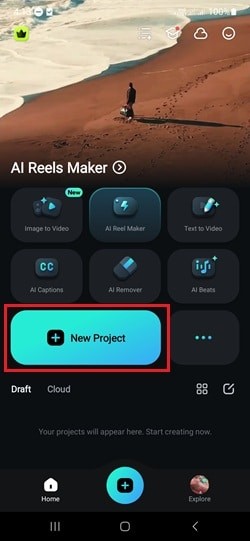
Launch the Filmora app, then tap New Project from the Quick Access panel.
02of 05 Import Your Video
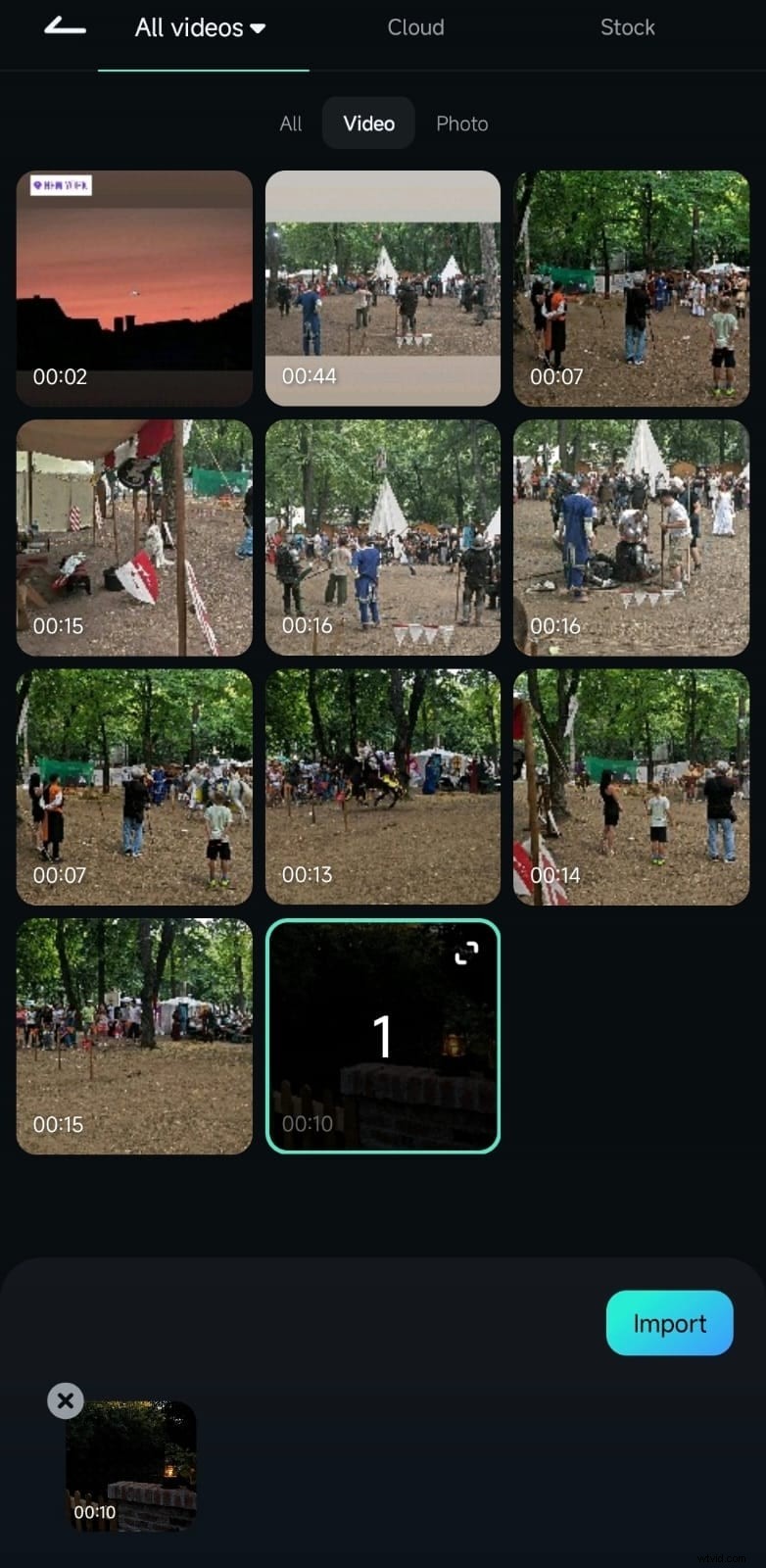
Browse your gallery, select the clip you wish to edit, and tap Import to add it to the timeline.
03of 05 Access the Speed Controls
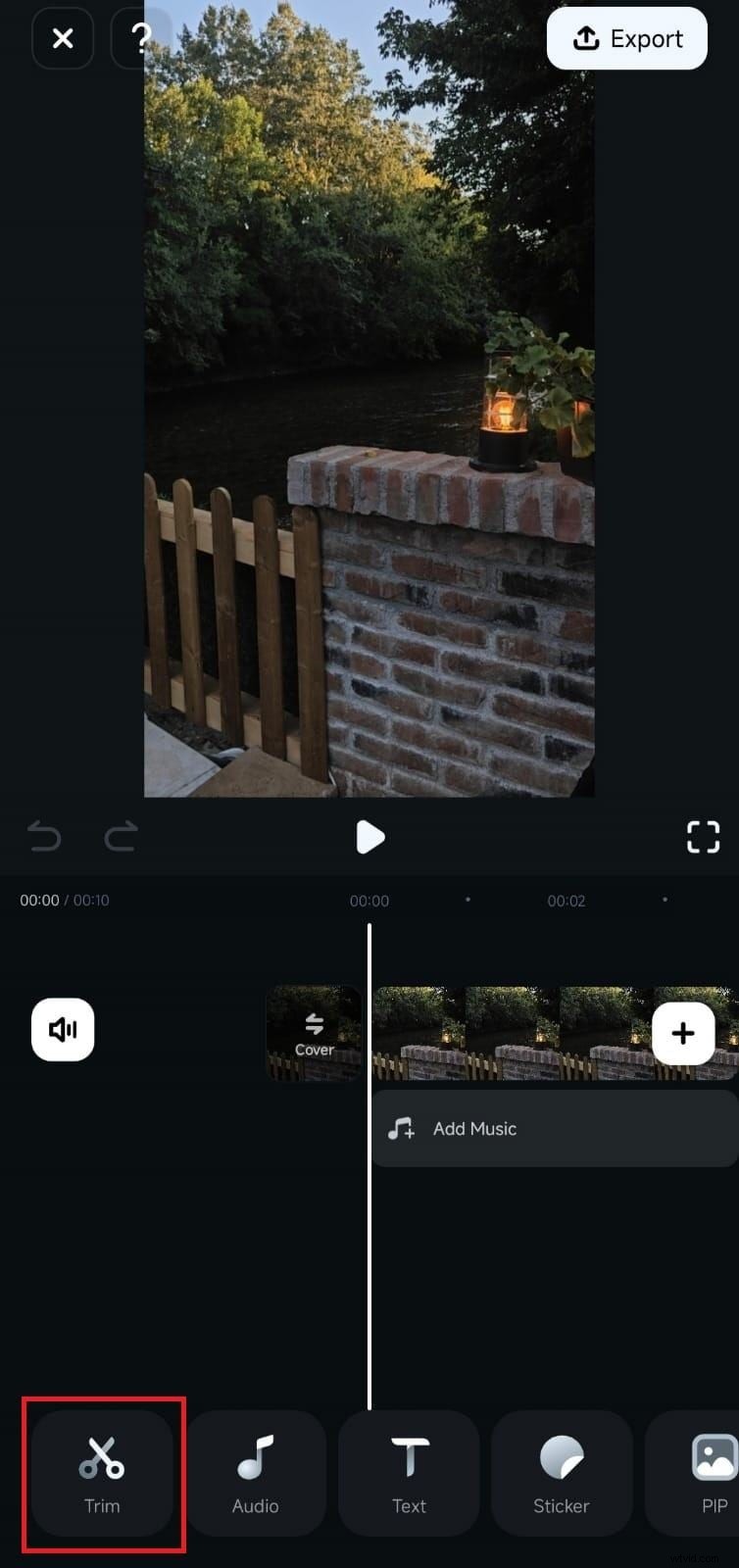
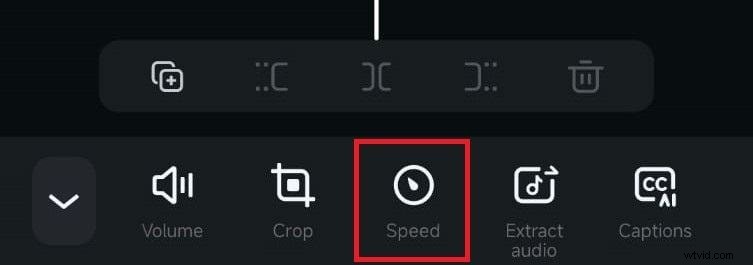
Tap the clip in the timeline, then tap the Trim icon from the editing toolbar. In the bottom menu, select Speed.
04of 05 Adjust the Playback Speed
The speed panel opens with the Normal tab selected. Drag the slider down from 1× to as low as 0.1×. The duration updates in real time, so you can fine‑tune the effect.

05of 05 Apply and Export Your Slow‑Motion Video
Once satisfied, tap the Checkmark to confirm. Then tap Export to save the edited video to your gallery.
With Filmora, you can maintain high quality and smooth playback while customizing the look to match your creative vision.
Part 3. Enhance Your Slow‑Mo Videos
After you’ve slowed down your footage, add finishing touches to elevate the visual impact. Filmora’s mobile suite offers music, filters, text, and more.
Other Features in Filmora for Mobile to Enhance Slow‑Motion Videos
- Background music or sound effects to complement the mood.
- Cinematic filters, color correction, and slow‑motion blur for dramatic emphasis.
- Text, captions, or stickers to provide context or humor.
Step‑by‑Step: How to Enhance Your Slow‑Mo Video in Filmora
Follow these five steps to polish your clip.
01of 05 Open Your Slow‑Motion Project in Filmora
Launch Filmora and open the project you created earlier.
02of 05 Add Background Music
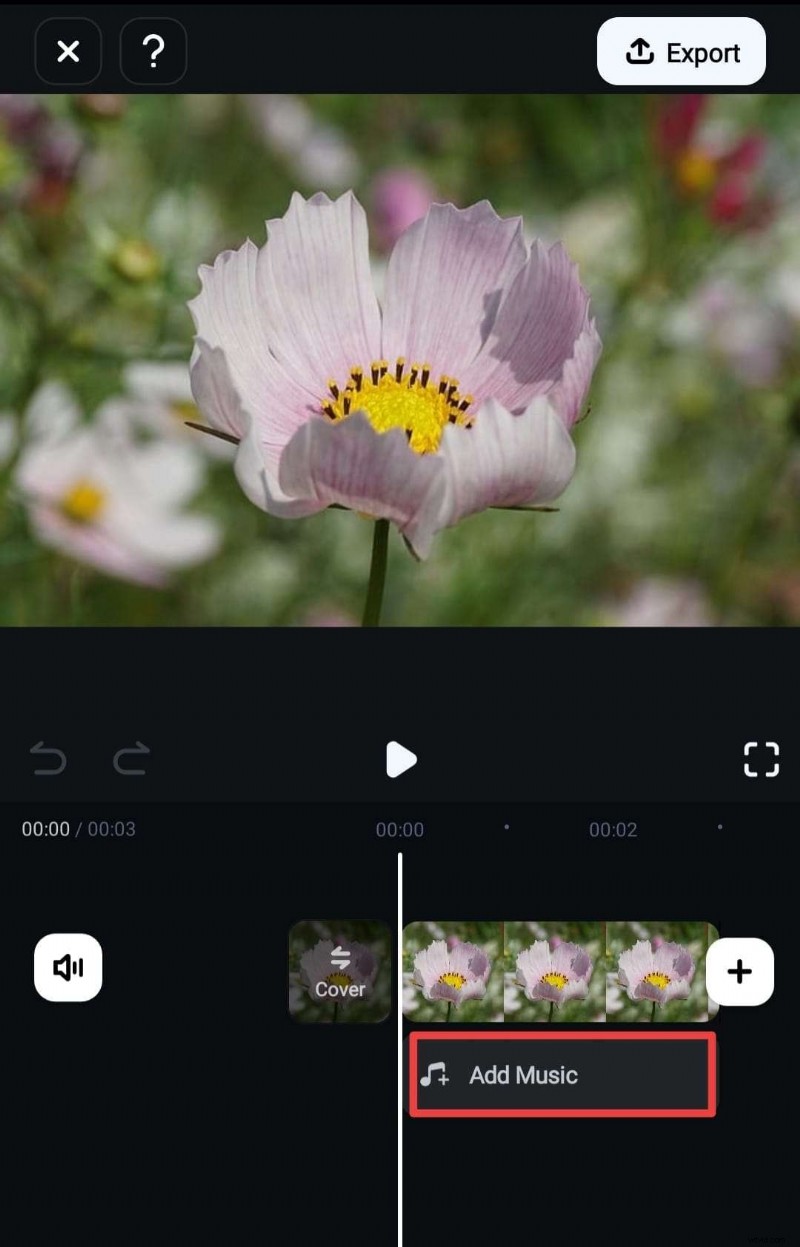
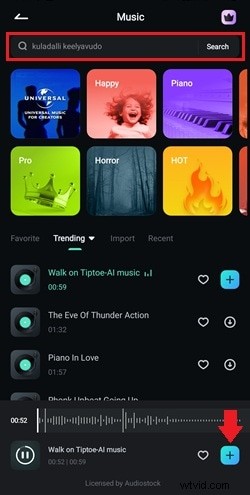
Tap Add Music on the timeline. Browse the Filmora library or search by keyword. Preview tracks and tap + to insert them.
03of 05 Apply Effects to Your Video
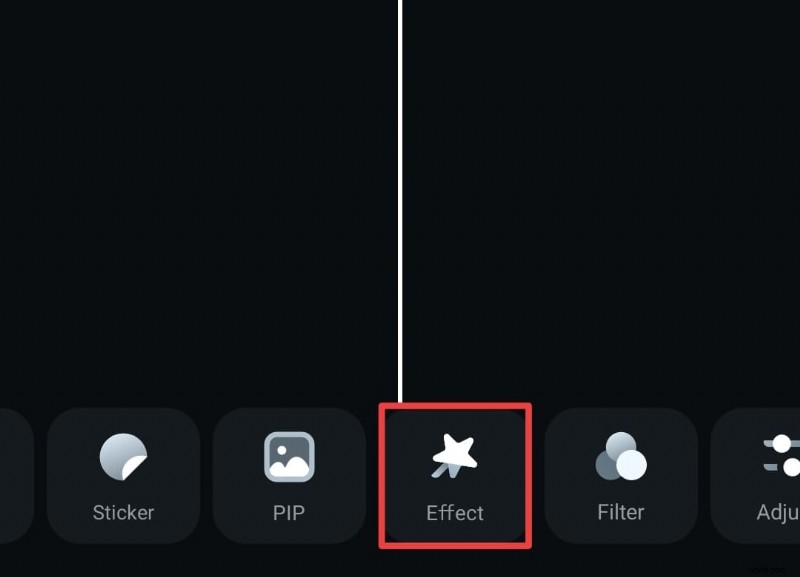
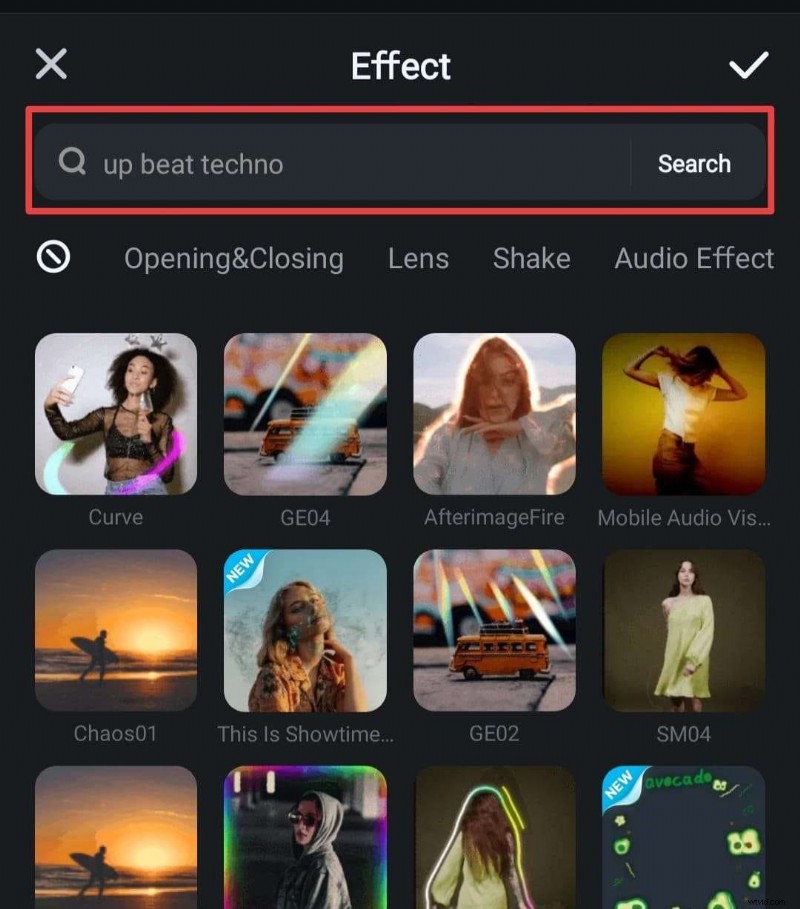
Tap Effects in the toolbar, browse or search for visual styles, preview them, and tap Checkmark to apply.

04of 05 Add Text to Your Video
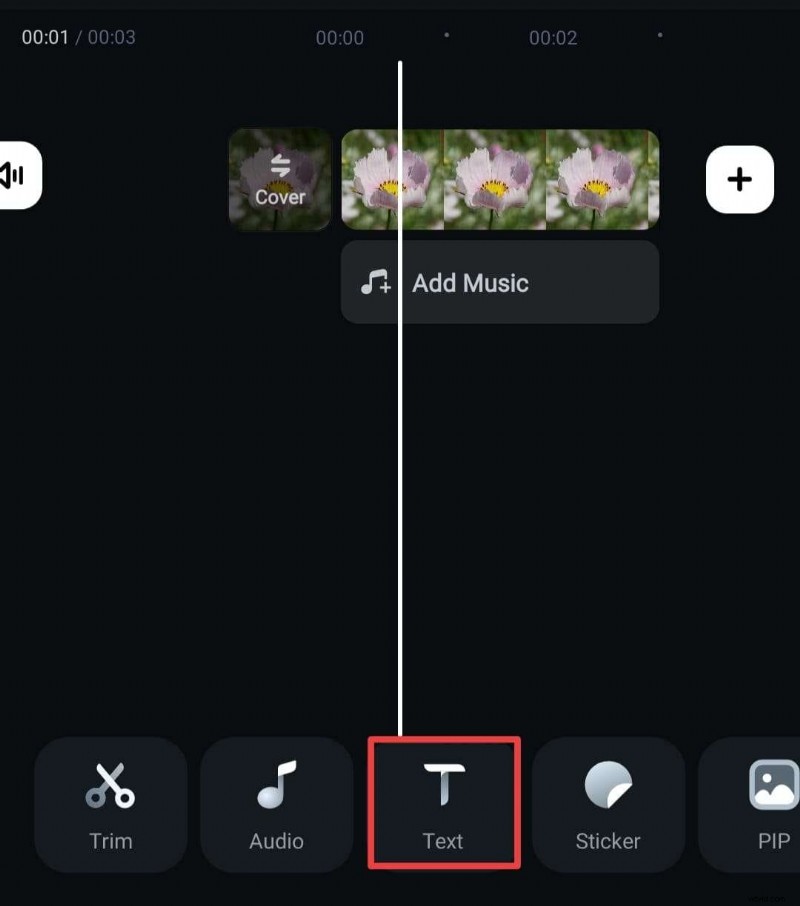
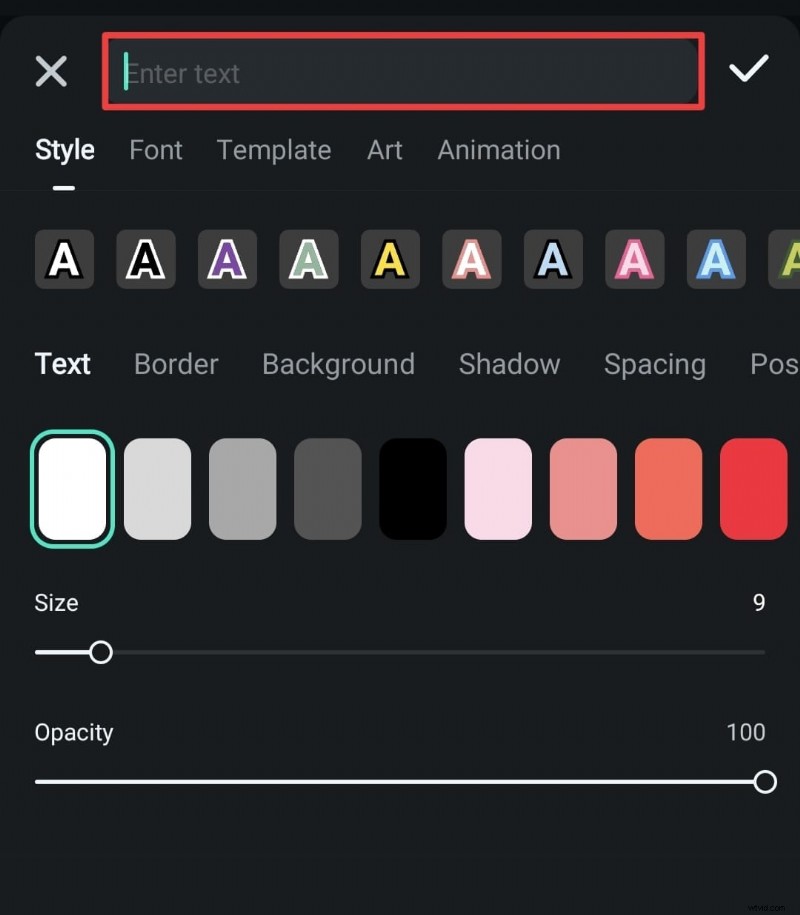
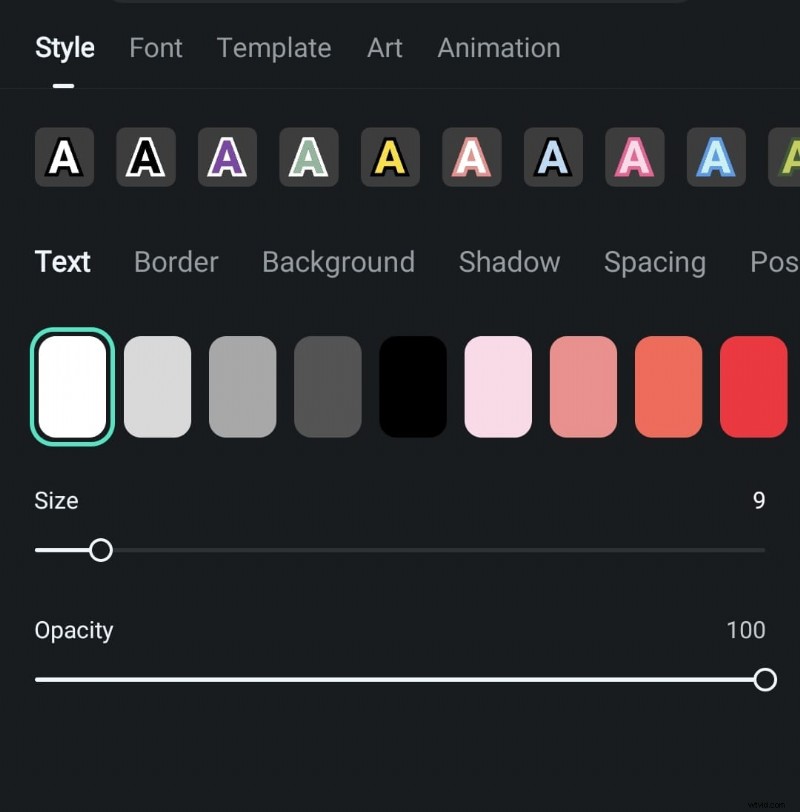
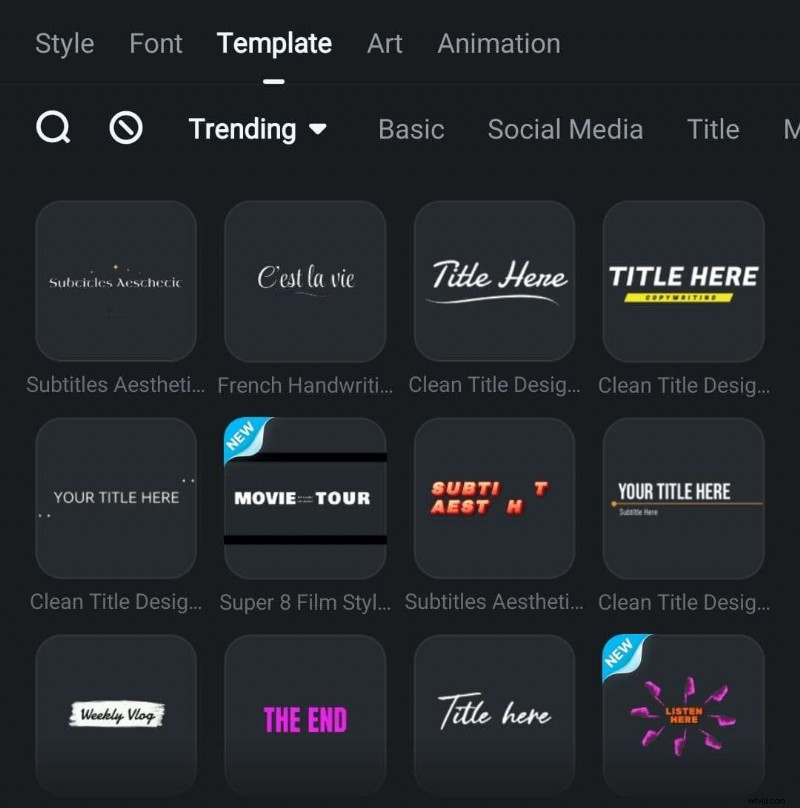
Go to Text → Add, type your caption, then adjust style, color, size, and opacity in the Style tab. You can also use templates for quick formatting.
05of 05 Export and Share Your Video
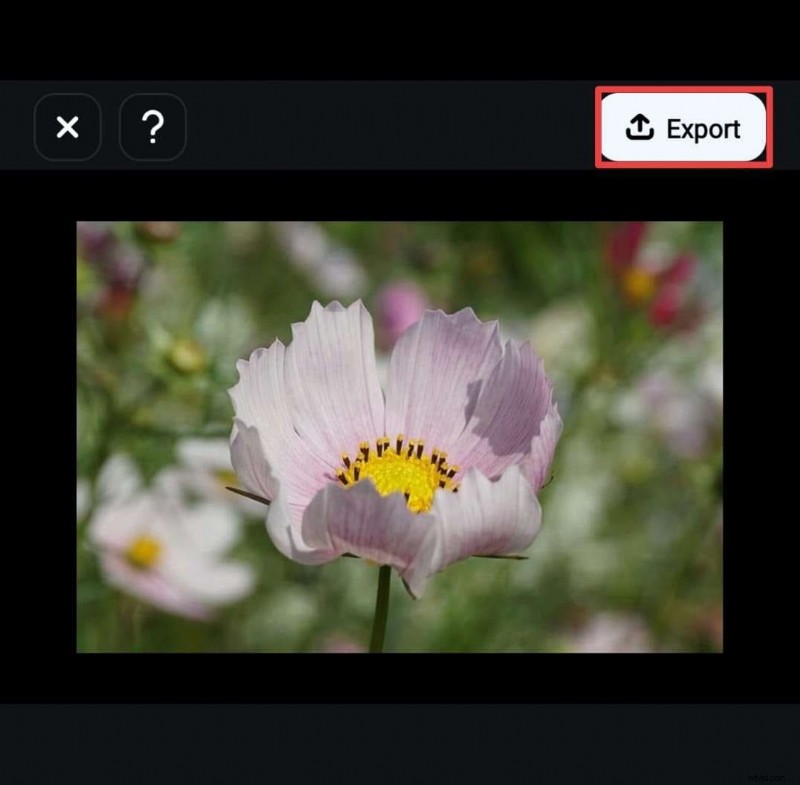
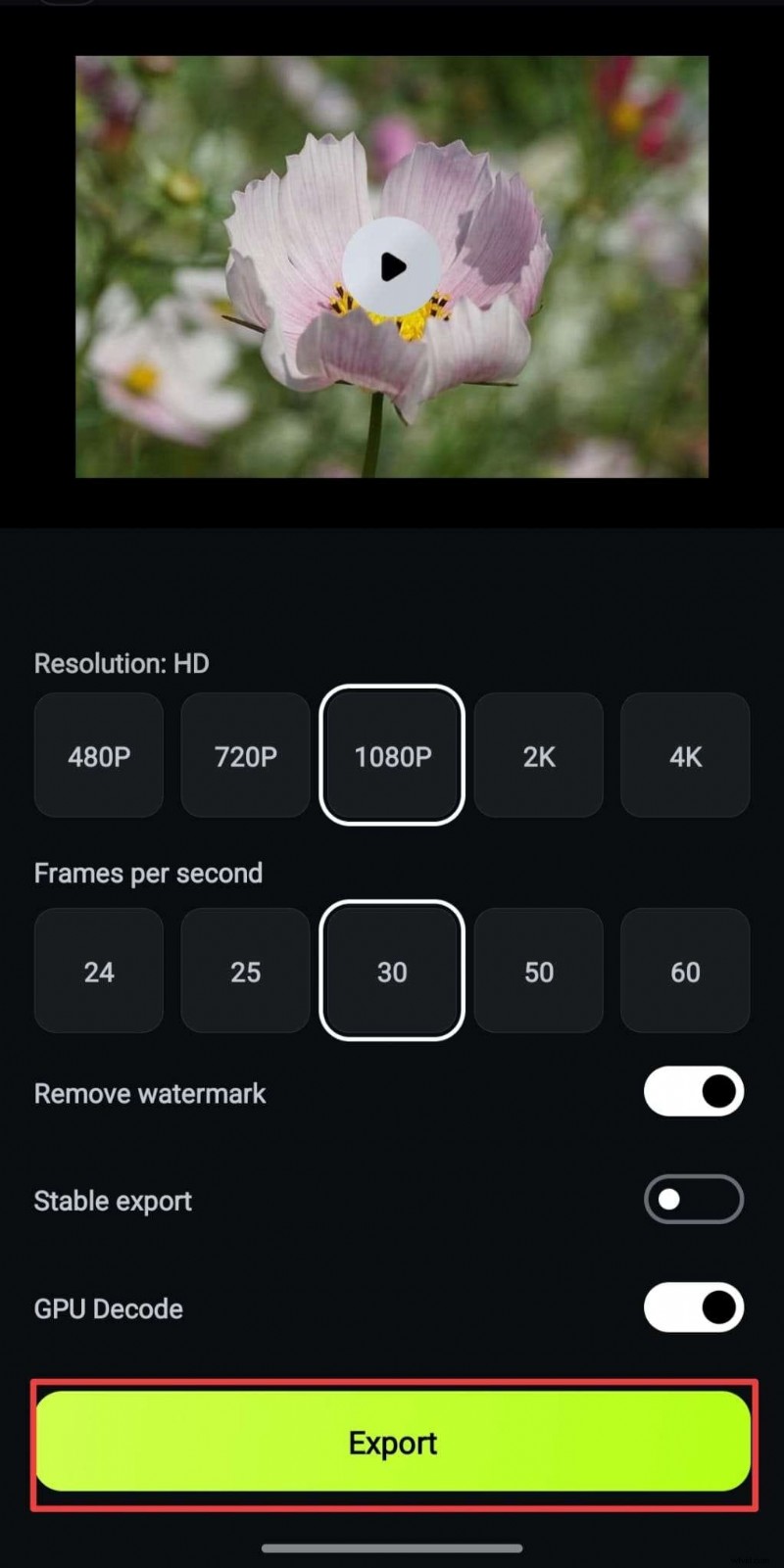
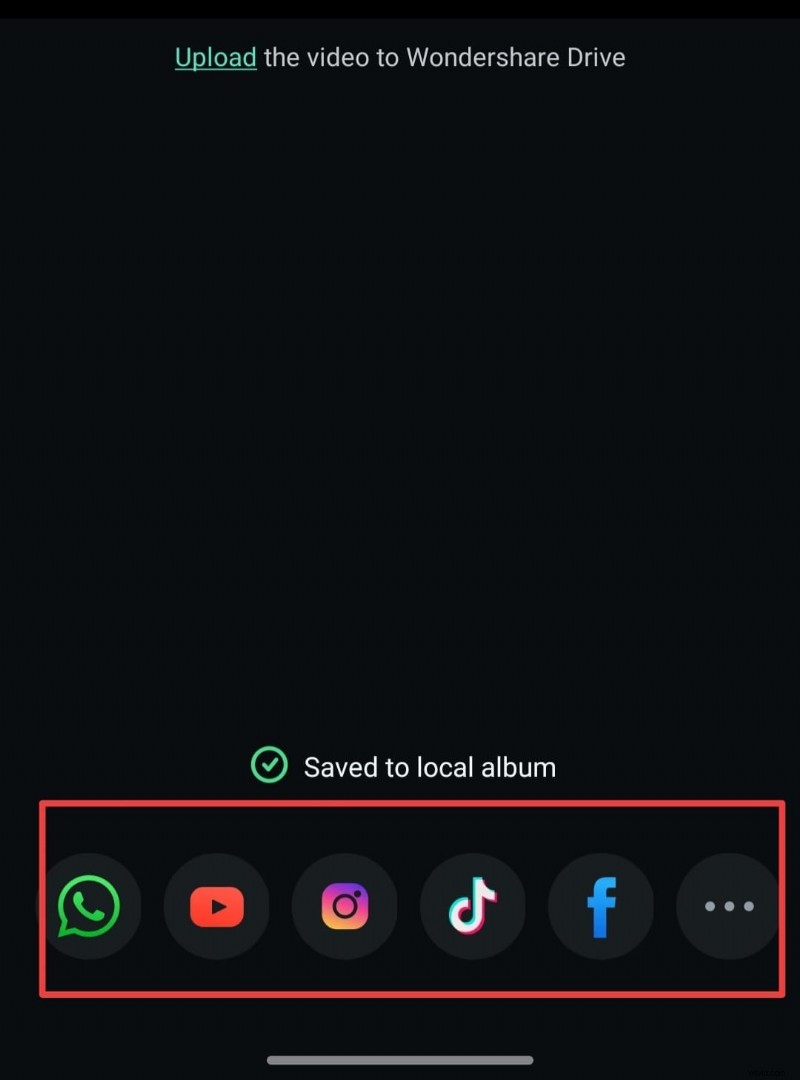
Tap Export in the top right corner, choose your resolution, and hit Export to save the final clip. From there, you can share directly to social media.
Conclusion
Today’s Android devices largely include native slow‑motion recording and basic speed adjustment, enabling you to craft captivating slow‑motion footage on the go. If your device lacks these features, Filmora for Android is a reliable, feature‑rich alternative that delivers high‑quality results with minimal effort.
With these tools, you can slow down videos, layer effects, and add music or text—all within a few taps. Try it now: download Filmora, start editing, and transform your everyday videos into stunning slow‑motion stories.