
Videos are a big part of daily life, whether for social media, vlogs, or fun edits. Sometimes, you need to speed up a video on an iPhone to create a timelapse or make a clip more exciting. Many people use iMovie for editing because it's free and built into the iPhone. However, the options for speeding up a video on iPhone using iMovie are limited to 2x max, which can be frustrating, especially if you need to fast forward video on iPhone more aggressively. If you are wondering how to speed up a video iMovie on an iPhone and looking for an alternative that offers more, you have come to the right place. This article will show you how to speed up a video in iMovie on an iPhone and how to do it without iMovie. Then, you'll also get expert tips to make your edits even better. Let's get started!
In this article
- How to Speed Up a Video in iMovie on iPhone
- How to Speed Up a Video on iPhone More Than 2X Without iMovie (Filmora)
- Bonus. Tips for Adjusting Video Speed Like a Pro
Part 1. How to Speed Up a Video in iMovie on iPhone
iMovie is a free and built-in video editing app for iPhone. If you want to speed up a video in iMovie on iPhone, follow these simple steps:
How to Speeding Up a Video in iMovie on iPhone
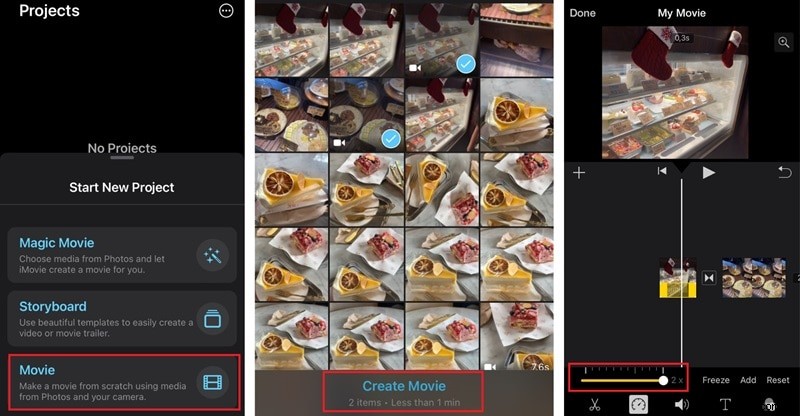
- Open iMovie: Launch the iMovie app on your iPhone. Then, create a new project by selecting "Movie."
- Import Your Video: Choose the video you want to edit and tap "Create Movie."
- Select the Clip: Tap on your video clip in the timeline, then tap the speedometer icon (a small clock). A speed slider will appear.
- Increase the Speed: Drag the slider to the right to speed up the video. The maximum speed is 2x.
- Preview and Save: Tap "Play" to check the changes. If satisfied, tap "Done" and save or export your video.
iMovie's Major Limitation: Why You Can't Speed Up a Video on iPhone More Than 2x
While iMovie is a good free option, many users find it too limited for professional speed adjustments. Here are some common issues:
Limited Speed Control (Max 2x) – You can only speed up a video up to 2x—a major limitation if you need to speed up a video on iPhone more than 2x for a true timelapse or fast-forward effect.
While iMovie is a good free option, many users find it too limited for speed adjustments. Here are some common issues:
- Limited Speed Control– You can only speed up a video up to 2x, which may not be enough for some projects.
- No Precise Speed Adjustment– There's no way to enter an exact speed value, making fine-tuning difficult.
- Clunky Interface – The timeline can be tricky to navigate, especially for beginners.
- No Speed Ramp Feature–iMovie doesn't allow smooth speed transitions; it only applies a fixed speed change.
If you need more control and flexibility, a better option is Filmora Mobile. It allows you to speed up videos on iPhone without iMovie and offers advanced speed controls for smoother adjustments. The next section'll show you how to speed up a video on an iPhone without iMovie using the best alternative app available.
Part 2. How to Speed Up a Video on iPhone More Than 2X Without iMovie (Filmora)
Not everyone finds iMovie easy to use. While it's free and built into the iPhone, it has limited features for adjusting video speed. If you've ever struggled with iMovie's 2x speed limit, clunky interface, or lack of precision, you might be looking for a better alternative.
As an alternative solution, you may need Filmora. Filmora offers more flexibility, better controls, and an easier way to speed up videos on iPhone.
Why Filmora Mobile is the Best Alternative for Speeding Up Videos on iPhone
Compared to iMovie, Filmora Mobile makes speeding up videos much simpler. Here's why it's a better choice:
- More Speed Adjustment Options: Unlike iMovie's restrictive 2x speed limit, Filmora Mobile lets you truly make videos faster on iPhone. You can adjust speed precisely from 0.1x (slow motion) up to 10x or more (depending on the clip), offering the flexibility needed for professional-looking fast-forward effects. This completely solves the problem of how to speed up video on iPhone more than 2x.
- User-Friendly Interface: iMovie can feel clunky and confusing, while Filmora Mobile has an intuitive, easy, drag-and-drop interface for beginners. There are no complicated menus—everything is straightforward.
- Extra Features for Better Videos: Add filters, transitions, text, and music overlays to make your video look professional. Use AI-powered tools like AI audio denoise for clearer sound. Export in multiple formats and resolutions, optimized for social media.
If you want a simple yet powerful way to speed up a video on an iPhone without iMovie, Filmora Mobile is the perfect choice.
Step-by-Step Guide to Speed Up Videos with Filmora on iPhone
01of 07Download and Open Filmora Mobile
Install Filmora Mobile from the App Store and launch it.
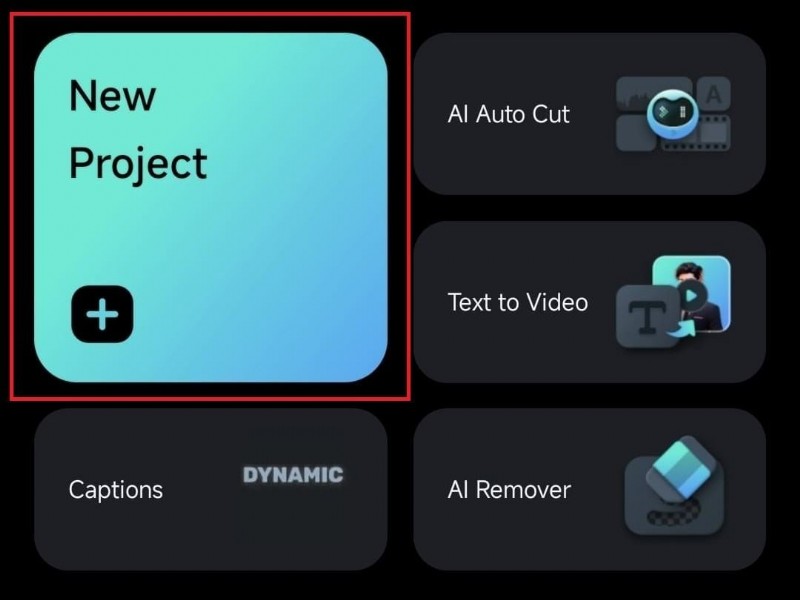
02of 07Import Your Video
Tap "New Project" and select the video you want to edit.
03of 07Select the Speed Tool
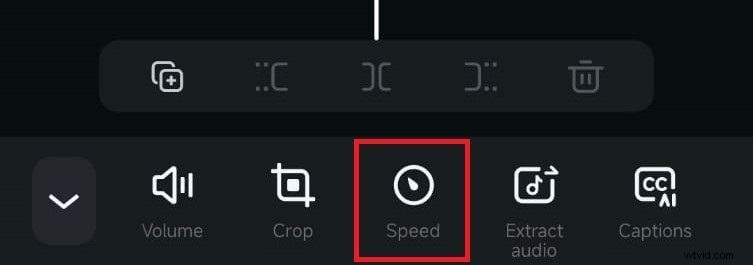
Tap on the video clip in the timeline, then choose "Trim" from the editing menu.
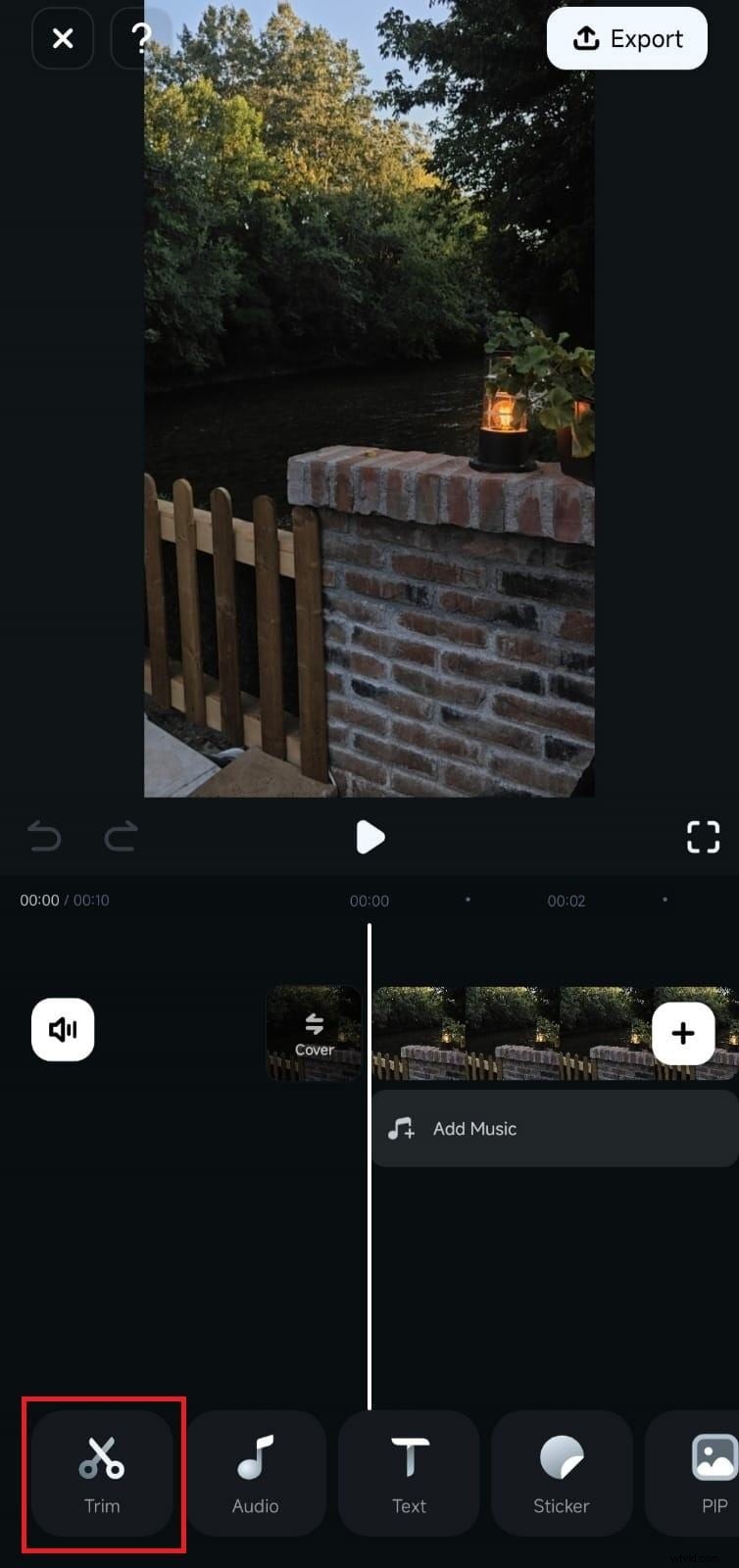
After that, you can find and select the "Speed menu".
04of 07Adjust the Speed (From 0.1x up to 10x)
Use the speed slider to increase the video speed. You can adjust it precisely, from 1.2x to 5x or more.
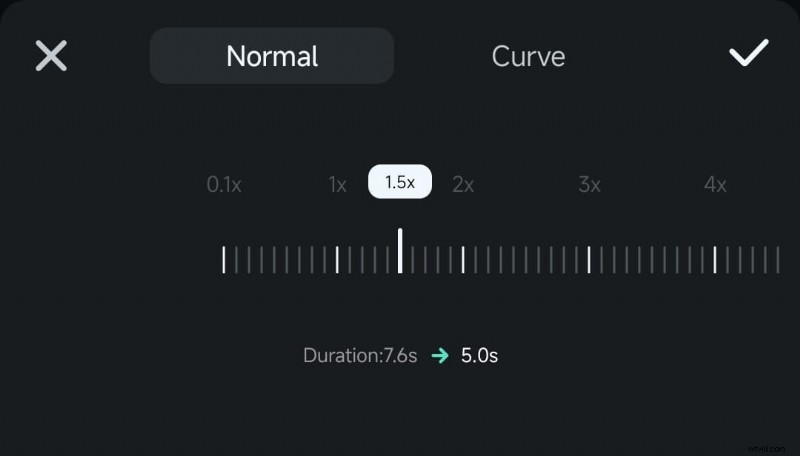
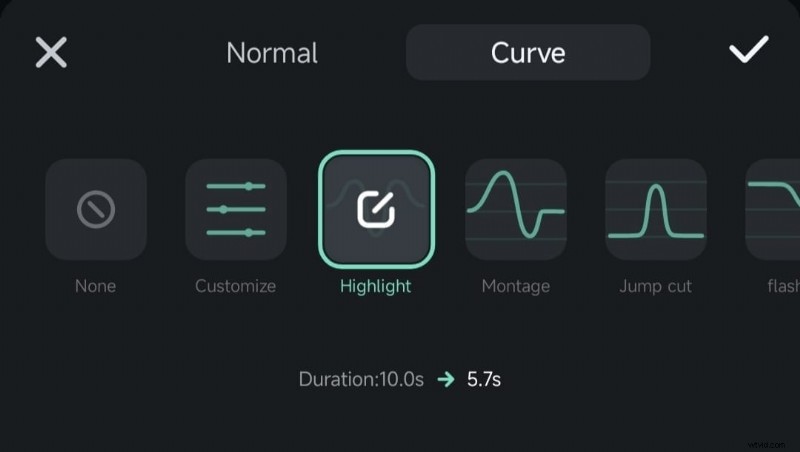
You can also create a dynamic speed effect with the curve tool. Access the "Curve" tab at the top, then select one of the five pre-made speed-ramping options.
05of 07Customize the Speed
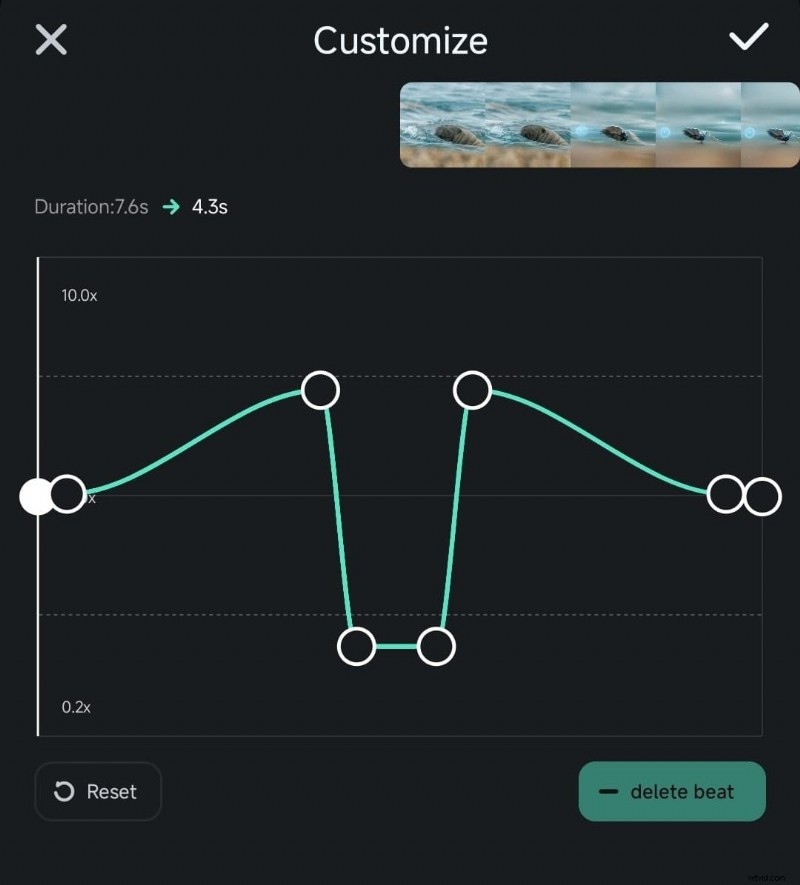
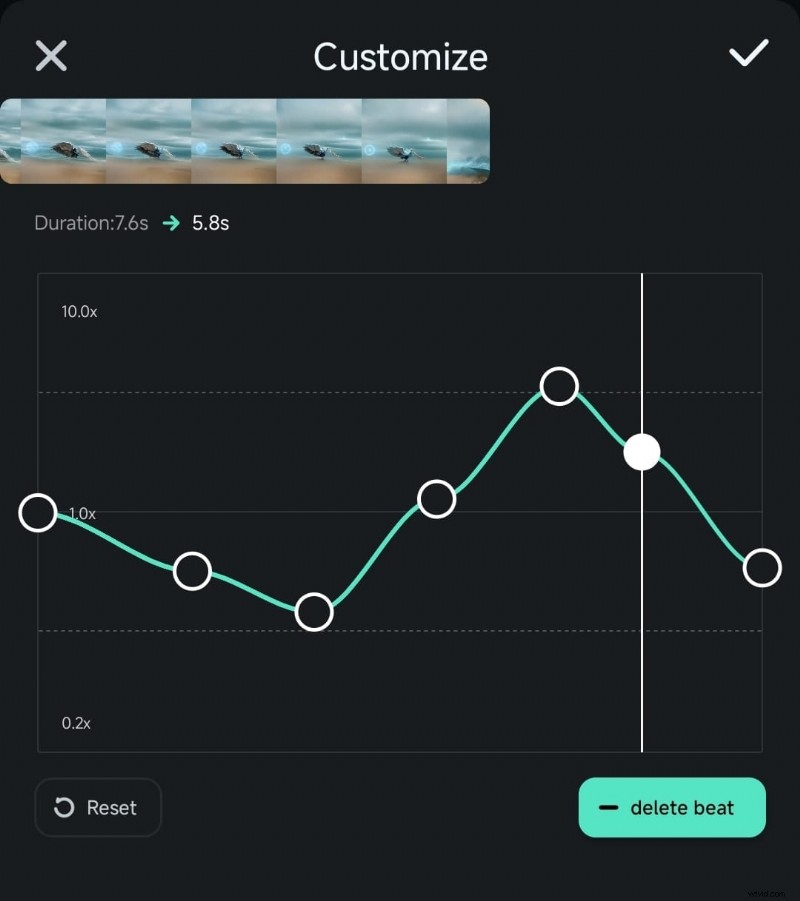
You can customize the speed based on your preferences. Click the "Customize" menu, then move the existing beats around the graph to increase or decrease the speed of certain clip parts.
06of 07Preview the Sped Up Video
Tap Play to check the changes. If needed, you can add or delete beats to make changes.
07of 07Export and Save
Tap "Export" to save your video in high quality.
With Filmora Mobile, you're not stuck with iMovie's limits. You get precise speed control, an easy interface, and pro-level features without the hassle.
Bonus. Tips for Adjusting Video Speed Like a Pro
Speeding up or slowing down a video isn't just about making it play faster or slower. When done right, it can make your video more engaging and professional. Whether you are speeding up a video in iMovie on your iPhone or using Filmora Mobile for more control, these tips will help you create polished videos.
1. Combine Speed Adjustments with Other Effects
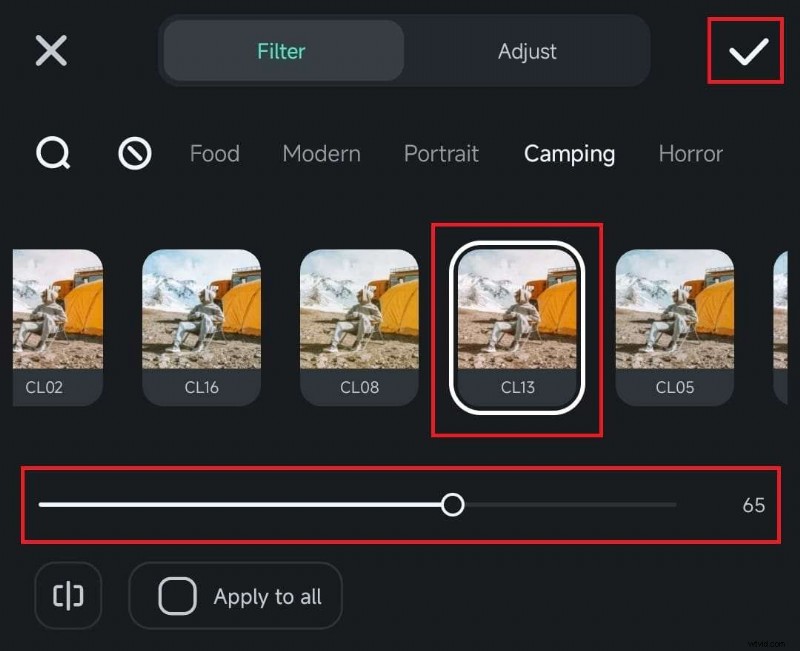
A video that speeds up or slows down suddenly can feel abrupt. Adding transitions, filters, or overlays helps make the change look natural.
- Fast-forward with transitions– If you speed up a scene, use a fade or dissolve transition to make it smoother.
- Slow motion with cinematic filters– Applying a color filter or a soft light effect enhances slow-motion clips.
Unlike iMovie, which has limited effects, Filmora Mobile offers a variety of built-in transitions and filters. You can easily combine speed adjustments with visual enhancements for a polished look.
2. Use Speed Changes Creatively
Speed adjustments can add excitement or drama to your video. Instead of just setting a fixed speed, try using speed changes to enhance storytelling.
- Slow motion for dramatic moments – Reduce speed to highlight a key action, reaction, or emotional moment.
- Fast-forward for time-lapse effects – Speed up long clips, such as travel footage or cooking videos, to keep viewers engaged.
Use speed ramping for smooth transitions – Instead of an abrupt speed change, gradually speed up or slow down with a speed curve.
Filmora supports speed ramping (curve speed adjustment), allowing you to create smooth speed transitions instead of sudden jumps, which iMovie does not offer.

3. Sync Video Speed with Background Music
Changing video speed can affect the rhythm of your footage. To keep it visually appealing, match speed changes to the beat of your background music.
- Fast cuts for upbeat music– Speed up clips to match a fast-paced song for an energetic feel.
- Slow motion for dramatic soundtracks – If your music has a soft or emotional section, slow down the video to match the mood.
Filmora has built-in royalty-free music and a beat detection tool, making synchronizing speed changes with your soundtrack easy. Unlike iMovie, which requires manual adjustments, Filmora helps you time speed changes perfectly.
Conclusion
Speeding up a video can transform an ordinary clip into something exciting, whether it's a quick timelapse, a fun fast-motion effect, or a polished social media post. While iMovie on iPhone lets you adjust speed, its 2x limit and lack of flexibility can be frustrating.
If you want precise speed control, smooth transitions, and easy editing, Filmora Mobile is the better choice. It allows you to speed up a video on an iPhone without iMovie, offering more creative freedom. Try both methods and see which one helps you easily create the perfect fast-motion video.

Filmora
⭐⭐⭐⭐⭐
The Best AI-powered Video Editing Software and App