
Master TikTok Video Creation: AI‑Powered Editing with Filmora & Viral Tips
Want to capture attention and grow your following on TikTok? This guide shows you how to craft viral videos, from planning and shooting to editing with Filmora’s AI tools and online editors. Whether you’re using a phone, desktop, or browser, you’ll learn the best workflow for maximum views and engagement.
Table of Contents
- Plan Your TikTok Video Before You Shoot
- How to Make a TikTok Video on Your Phone
- How to Create TikTok Videos on Desktop
- SEO & Growth Tips: Boost Views & Followers
- Conclusion & Next Steps
- Frequently Asked Questions
1. Plan Your TikTok Video Before You Shoot
Preparation is key to clear, engaging content. A solid plan saves time and ensures your message shines.
1.1 Start with a Basic Idea
Decide whether your video will be funny, relatable, informative, or aesthetic. A simple, focused concept provides a strong foundation.

1.2 Check Trending Sounds & Styles
Browse the For You or Discover pages to find viral audio, hashtags, and editing trends that align with your idea. Early audio selection shapes pacing and boosts algorithm favorability.

1.3 Choose Your Format
- Skits or short dialogues
- Tutorials or step‑by‑step demos
- Vlogs or day‑in‑the‑life clips
- Before‑and‑after transformations
- Product showcases or mini‑reviews
- Lip‑sync or trend participation
Sticking to one format per video keeps content clear and predictable for your audience.
1.4 Know Your Audience & Message
Define who you’re speaking to—students, beauty lovers, fitness fans, pet owners, etc.—and tailor your language and visuals accordingly.

1.5 Outline Shots or Script
Even for a 15‑second clip, jot a quick list of scenes or actions. A loose structure keeps filming focused and reduces wasted footage.

1.6 Plan with Editing in Mind
- Leave space at clip ends to sync with beats.
- Reserve blank areas for text overlays.
2. How to Make a TikTok Video on Your Phone
The quickest route to TikTok content is via your mobile device. Two main options: TikTok’s native editor or a third‑party app like Filmora for Mobile.
2.1 Method 1 – TikTok Built‑In Editor
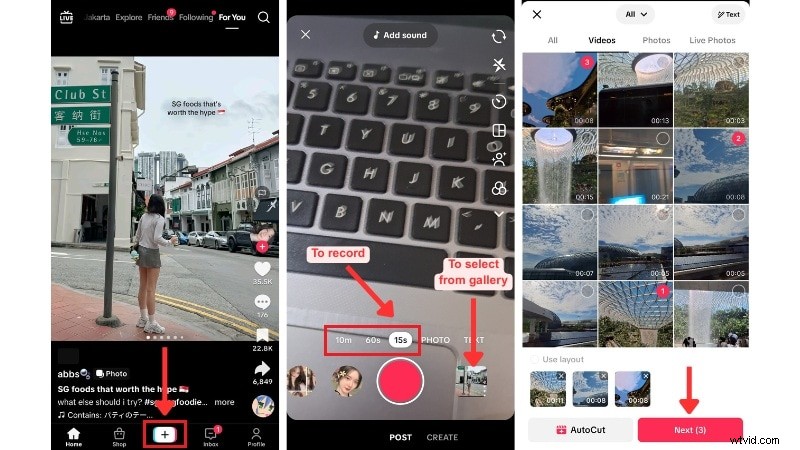
- Open TikTok & tap the plus button.
- Record or upload footage. Set duration (15s, 60s, 10m) or choose gallery clips.
- Quick edit or tap Edit. Add text, stickers, filters, or fine‑tune timing.
- Preview & finalize. Add caption, hashtags, cover image, privacy settings, then post or save as a draft.
2.2 Method 2 – Filmora for Mobile
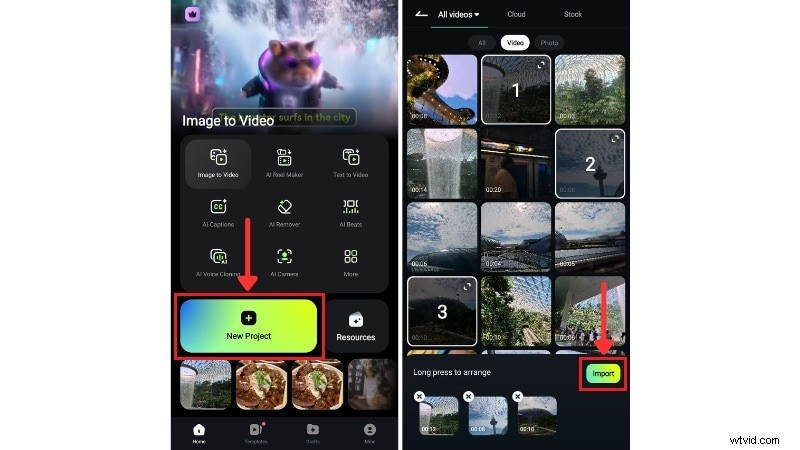
Filmora for Mobile offers AI‑driven tools such as Smart Cutout and AI Captions, giving you professional polish without steep learning curves.
- New Project → Import clips/photos.
- Trim & split. Drag edges or use Split for mid‑clip cuts.
- Adjust speed. Choose Normal or Curve to match rhythm.
- Smart Cutout. Replace background, sky, or use chroma key.
- AI Captions. Generate synced subtitles automatically.
- Final touches & export. Add transitions, music, then export to MP4. Upload to TikTok manually or schedule via TikTok.
3. How to Create TikTok Videos on Desktop
Desktop editing gives you a larger workspace and advanced features. Two primary methods: Wondershare Filmora or an online editor.
3.1 Method 1 – Wondershare Filmora
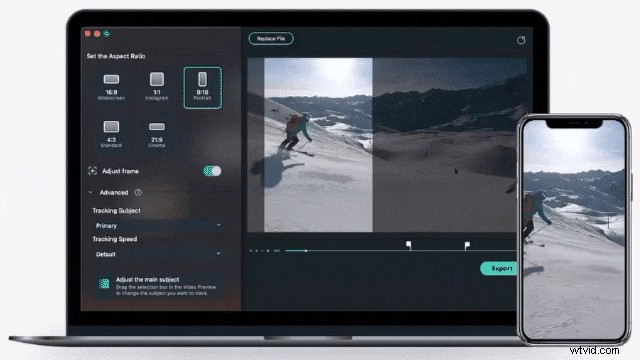
Filmora supports vertical video, motion tracking, AI text‑to‑video, and auto‑reframe for TikTok’s 9:16 aspect ratio.
- Launch Filmora → Auto Reframe. Find the AI Toolbox on the right.
- Import footage. Click Import to load your clips.
- Set aspect ratio to Vertical (9:16). Choose motion speed (Auto, Fast, Slow).
- Analyze. Let Filmora auto‑reframe your video.
- Review & adjust. Manually tweak focus if needed.
- Export or add to timeline. Save as MP4 or continue editing with effects.
3.2 Method 2 – Online Video Editor
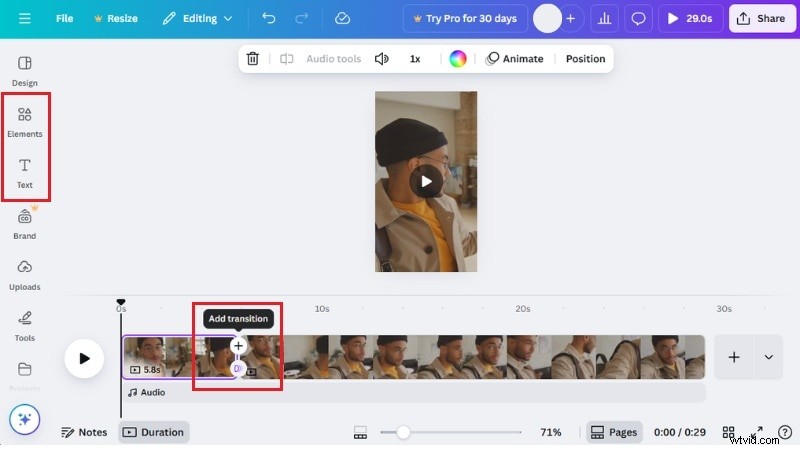
Browser‑based editors like Canva, FlexClip, or Kapwing let you edit without installing software.
- Go to canva.com. Log in or sign up.
- Choose Mobile Video (9:16).
- Upload clips/photos. Drag onto timeline.
- Trim, split, rearrange.
- Add text, stickers, music, transitions.
- Download MP4. Upload to TikTok.
4. SEO & Growth Tips: Boost Views & Followers
- Use TikTok Creative Center. Research trending sounds, hashtags, and top creators.
- Optimize captions. Combine trending and niche hashtags with keyword‑rich captions.
- Post at peak times. Schedule during your audience’s most active hours.
- Engage actively. Reply to comments, ask questions, and collaborate.
- Jump on trends early. Put your spin on new sounds or edits before they saturate.
5. Conclusion & Next Steps
From phone to desktop, the right tools and planning give you control and polish. Use TikTok’s native editor for quick uploads, Filmora for deeper creativity, and online editors for convenience. Keep your workflow streamlined, stay updated on trends, and engage with your community to grow your channel.
Start planning your next video today and apply these steps to produce high‑quality, viral TikTok content.

Frequently Asked Questions
- Can I reuse a TikTok template from another creator? Only if the creator allows it. Some templates are shared via CapCut or as open templates.
- What’s the difference between Stitch and Duet? Stitch adds up to 5 seconds of another user’s clip at the start of yours; Duet shows both videos side‑by‑side in real time.
- Can I schedule TikTok videos in advance? Yes, via the desktop scheduling tool (requires a Business account) or third‑party schedulers.
- Can I edit a TikTok after posting? No, TikTok doesn’t allow edits to live videos. Delete and re‑upload instead.