
Turn any of your favorite iPhone videos into eye‑catching GIFs with ease. Whether you’re sharing on social media, texting, or creating memes, these five proven methods let you convert and customize your clips right from your device.
From Apple’s built‑in Shortcuts to third‑party editors like Filmora and free online converters, you’ll find a workflow that matches your skill level and creative needs.
In this article
- Using Shortcuts App
- Using Photos App with Live Photos
- Using GIPHY App
- Using Filmora Mobile
- Using Online Converters (FreeConvert)
Part 1. Convert Video to GIF on iPhone Using the Shortcuts App
Apple’s Shortcuts app is a powerful automation tool that can turn a video into a GIF with just a few taps. No additional downloads are required.
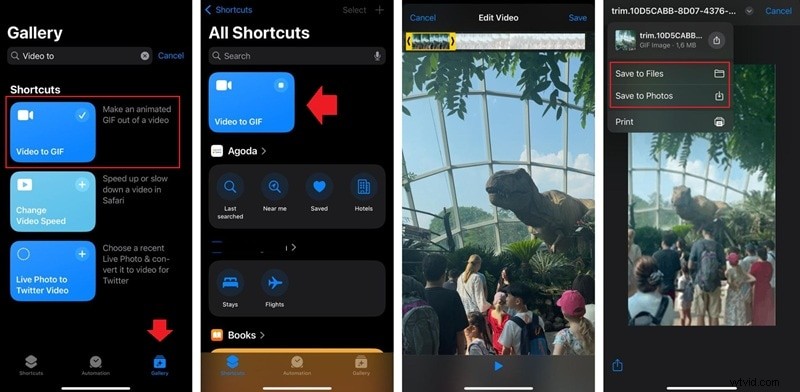
- Open the Shortcuts app and tap the Gallery tab.
- Search for the “Video to GIF” shortcut and add it to your library.
- Run the shortcut and choose the video you want to convert.
- Trim the clip as needed, then tap Save to store the GIF in Photos.

Note: The shortcut works only with videos recorded directly on your device and does not offer output‑quality controls, which may affect resolution.
Part 2. Turn Video Into GIF on iPhone Using the Photos App
By converting a video to a Live Photo first, you can leverage the Photos app’s looping feature to create a GIF without third‑party software.
- Open Photos and select the video.
- Tap Edit to trim it to a few seconds.
- Use a tool such as intoLive to save the clip as a Live Photo.
- Return to Photos, open the Live Photo, tap the Live icon, and choose Loop or Bounce to generate a GIF‑style animation.
When shared via messaging or social media, the file is automatically transmitted as a GIF.
Part 3. Turn Video Into GIF on iPhone Using the GIPHY App
The GIPHY app, familiar to many for browsing GIFs, also lets you create them from video files.
- Open GIPHY and tap Create (+).
- Select a video from your library.
- Trim the clip and tap Continue.
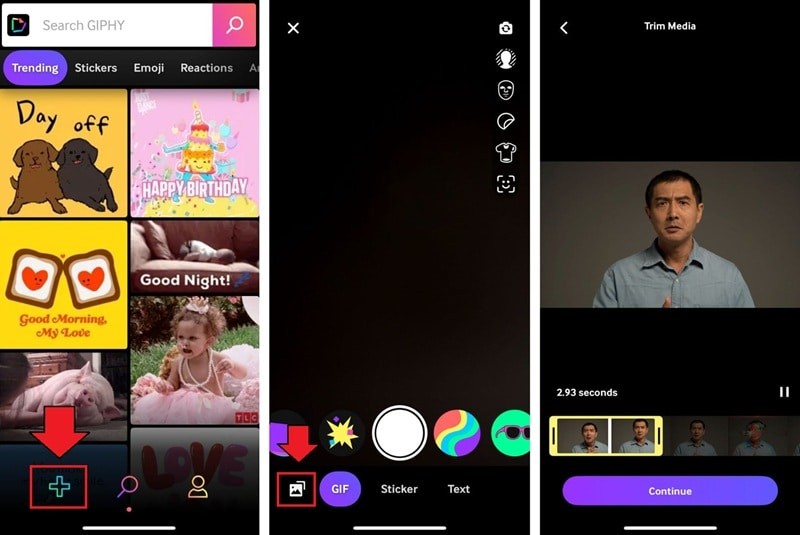
- Enhance the GIF with stickers, text, or adjust loop style.
- Tap the arrow, choose Share GIF > Save GIF to store it locally, or upload it to GIPHY.
Part 4. Convert Video Into GIF on iPhone Using Filmora
For advanced control, Filmora Mobile offers editing features that let you fine‑tune quality, speed, and visual effects before exporting as a GIF.


Key Filmora features:
- 4K export and custom FPS for crisp loops
- Video effects, transitions, and AI Ultra HD upscaling
- Speed adjustments for dynamic pacing
- Animated stickers, captions, and title overlays
After editing:
- Tap Export and select Live Photo.
- Set resolution, frame rate, and cover frame.
- Export to Photos.
- Open the Live Photo in Photos, switch to Loop or Bounce to create the GIF.
Part 5. Turn Video Into GIF Using Online Tools
If you prefer not to install extra apps, FreeConvert provides a quick browser‑based solution. It’s free, requires no account, and supports up to 1 GB files.
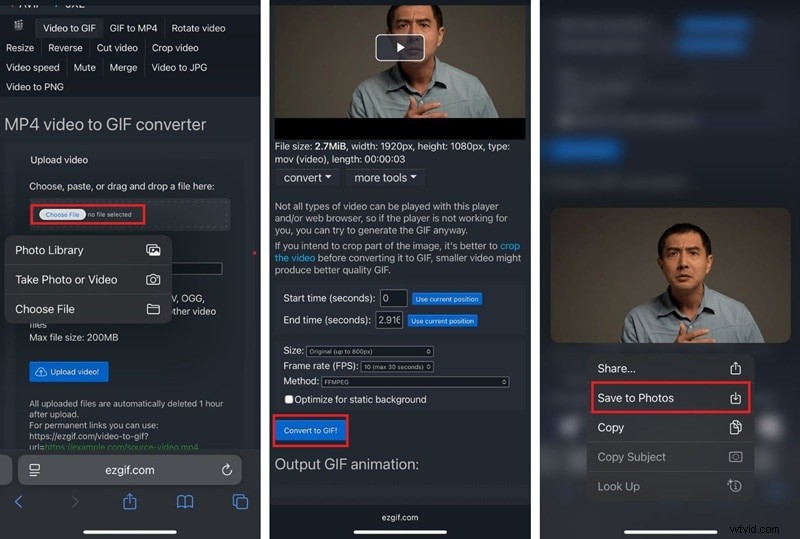
- Open Safari (or any browser) and go to the FreeConvert site.
- Tap Upload video and select your file.
- Optionally trim, resize, or set FPS.
- Tap Convert to GIF.
- After conversion, press and hold the GIF, then choose Save to Photos.
Conclusion
Converting videos to GIFs on the iPhone is straightforward, whether you rely on Apple’s native tools, a dedicated GIF maker, a full video editor, or a web converter. For quick, no‑frills results, use Shortcuts or Photos. For creative control and higher quality, Filmora offers robust editing before export. And if you want a one‑stop solution without installing anything, FreeConvert is a solid choice.
Whichever method you pick, you’ll be sharing polished, looping GIFs that capture your moments in an engaging way.