
Effortless Video Export & Publishing: A Practical Guide for Multi‑Platform Creators
Every editor eventually hits a pivotal moment: the project is finished, and the next step is to export the footage for YouTube, Instagram, TikTok, or other platforms. The export settings you choose determine whether your video looks sharp, plays smoothly, and meets each platform’s technical requirements.
Adobe Premiere Pro is the industry standard for professionals, offering deep customization options. Yet for small businesses, influencers, or hobbyists, the sheer volume of settings can feel overwhelming, and the lack of integrated publishing tools makes the process clunky.
This guide compares Premiere Pro’s export workflow with Filmora V15’s streamlined alternative, highlighting pain points and showing how Filmora turns a multi‑step export into a single, efficient action.
Background
Exporting is more than a button click; it involves selecting the right codec, resolution, bitrate, and aspect ratio for the target platform. Premiere Pro excels at precision—exporting in 4K, adjusting frame rates, or rendering transparent video with alpha channels. However, after export, creators still need to manually upload files or rely on third‑party scheduling tools.
Filmora V15 addresses this gap with ready‑made presets, batch export, and built‑in publishing, turning a five‑step Premiere workflow into a one‑step Filmora process.
How Premiere Pro Works for Video Export
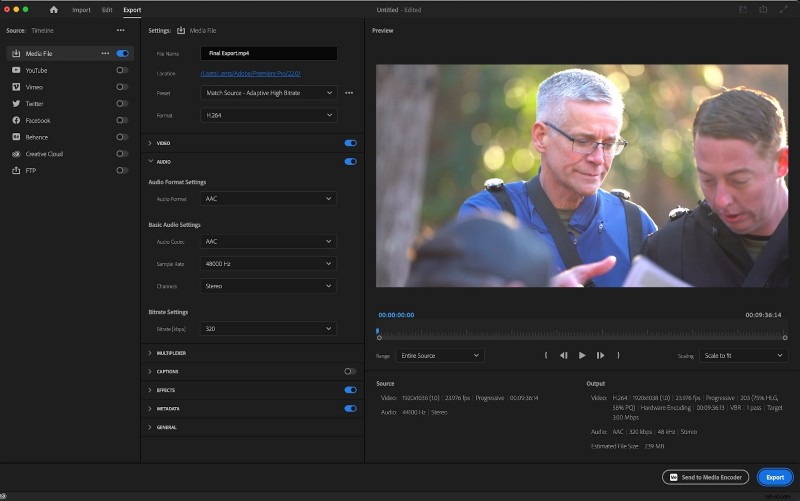
Premiere Pro’s export system is highly configurable, but that flexibility comes at the cost of complexity. The typical workflow is:
- Open Export Settings – File > Export > Media.
- Choose Format – H.264 for MP4 files, optimal for online platforms.
- Set Resolution – 1920x1080 (Full HD) or 3840x2160 (4K) for higher quality.
- Adjust Frame Rate – Match source footage (24fps, 30fps, 60fps) or set a custom value.
- Configure Bitrate – Variable or constant bitrate to balance quality and file size.
- Set Audio – AAC at 320 kbps for clear sound.
- Export Transparent Video (Optional) – QuickTime + GoPro CineForm with alpha channel.
After export, the file must be transferred to a mobile device or desktop, logged into each platform, and uploaded manually. Automation requires external tools like Buffer or Later.
Advantages of Premiere Pro Export
- Broadcast‑grade quality suitable for film, TV, and online.
- Full control over resolution, aspect ratio, bitrate, codec, and more.
- Trusted industry standard with extensive support.
- Custom presets can be saved for future projects.
- Transparent video export for motion graphics and overlays.
Drawbacks of Premiere Pro Export
- No direct publishing—manual upload required.
- Steep learning curve due to numerous settings.
- Time‑consuming: each platform requires a separate export.
- High subscription cost may be prohibitive for small creators.
Filmora V15 as a Publishing Alternative
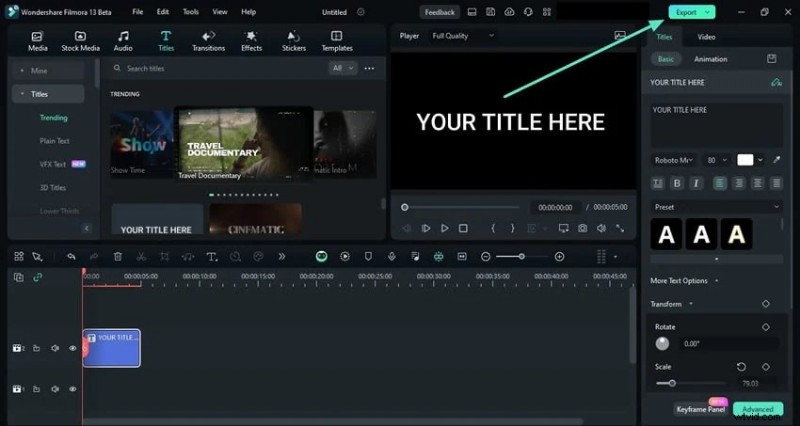
Filmora V15 offers a streamlined workflow that combines editing, exporting, and publishing in one platform. It removes repetitive technical steps, allowing creators to focus on content creation rather than configuration.
Key Features That Replace Premiere Pro
Social Media Planner
Filmora’s Social Media Planner turns the editor into a complete publishing hub, enabling direct uploads or scheduling to YouTube, Instagram, and TikTok without third‑party tools.
- Open Planner – Click the Planner icon or select Social Media Planner from the export window.
- Connect Accounts – Link YouTube, Instagram, or TikTok by granting permission.
- Schedule or Post – Choose “Post Now” or “Schedule for Later,” add captions, hashtags, and thumbnails.
- Track Posts – Monitor upcoming uploads in the Planner Dashboard; Filmora publishes automatically.
Batch Export
Export multiple versions of a single project simultaneously for different platforms, saving time compared to manual exports.
- Export Panel – Click Export, then select Batch Export.
- Add Tasks – Choose aspect ratios (16:9 for YouTube, 9:16 for TikTok/Reels, 1:1 for Instagram Feed).
- Configure Settings – Set resolution, file name, and output folder for each task.
- Export All – Run all tasks at once; Filmora processes them in parallel.
Platform‑Specific Presets
Export presets automatically adjust codec, bitrate, and resolution to match each platform’s standards.
- Choose Preset Category – Select Platform Presets and pick the desired platform.
- Customize Details – Set file name, location, resolution (1080p or 4K), and frame rate.
- Preview & Export – Confirm settings and export; Filmora ensures compliance with platform requirements.
Smart Templates & AI Tools
- Drag‑and‑drop templates for rapid editing.
- AI background removal for clean overlays without green screens.
- Motion tracking for dynamic text or object movement.
- Auto music sync to match cuts with beats.
Performance‑Friendly Design
Unlike Premiere, which demands high‑end hardware, Filmora is optimized for mid‑range laptops and PCs, providing smooth performance for students, small creators, and businesses.
Conclusion
Adobe Premiere Pro remains the gold standard for precision editing and export control, but its export process can feel slow, complex, and disconnected from publishing needs.
Filmora V15 addresses these shortcomings with batch export, platform presets, and built‑in publishing tools, making it the smarter choice for creators who need speed without compromising quality.
Try Wondershare Filmora V15 today and streamline your video export and publishing workflow.
FAQs
- Q1. How do I export video in Premiere Pro? Go to File > Export > Media, choose H.264, set resolution, bitrate, and audio, then export.
- Q2. Can Premiere Pro export transparent video? Yes. Use QuickTime with GoPro CineForm and enable the Alpha Channel.
- Q3. Is Filmora’s export quality as good as Premiere Pro? Yes. Filmora’s presets are optimized for YouTube, TikTok, and Instagram, delivering professional‑grade results.
- Q4. Can Premiere Pro batch export videos? Not natively; each format must be exported separately. Filmora supports batch export with one click.
- Q5. Can Filmora publish videos directly to platforms? Yes. The Social Media Planner connects to YouTube, Instagram, and TikTok for direct publishing or scheduling.