
Messaging has become more expressive and exciting with animated text on iPhone! Beyond the fun iMessage effects, you can also animate text on your videos using a dedicated animated text app for iPhone to make them more appealing. Animated titles, dynamic captions, or engaging quotes can help your videos stand out on social media. In this article, you'll learn the two main ways to use animated text iOS: 1) using iMessage's built-in effects and 2) creating cinematic text animation for videos with Filmora Mobile.
Part 1. Using the Built-in Animated Text Features in iPhone Messages (iMessage)
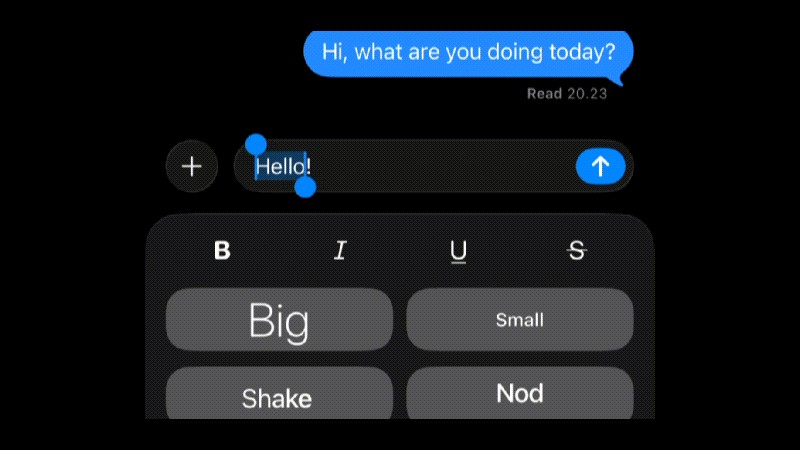
Starting with iOS 18, Apple introduced Animated Text in iPhone Messages, giving users a fun new way to express themselves. Choose from effects like explode, shake, bloom, or ripple and apply them right inside your message. You can animate single words, emojis, or even full sentences.

One thing to note, though, is that the text formatting and animation effects on iPhone only work when both you and the recipient are using iMessage. If the message is sent to someone on an older iOS version or a different platform, it will appear as plain text instead.
How to do animated text on iPhone
Step 1
Open the Messages App and Start a Chat
Go to the Messages app and open an existing chat or start a new one. Type your message in the text field.
Step 2
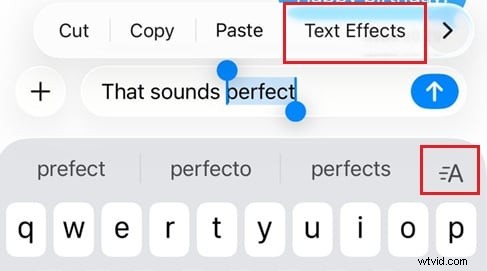
Select Your Text and Tap the Text Format Button
Highlight the text you want to animate, then tap the Text Format button. You'll see several formatting and animation options.
Step 3
Choose Your Animated Text Effect
Select one of the available effects like Big, Small, Shake, Explode, Ripple, Bloom, or Jitter. You can also format your text with bold, italics, underline, or strikethrough for extra emphasis.
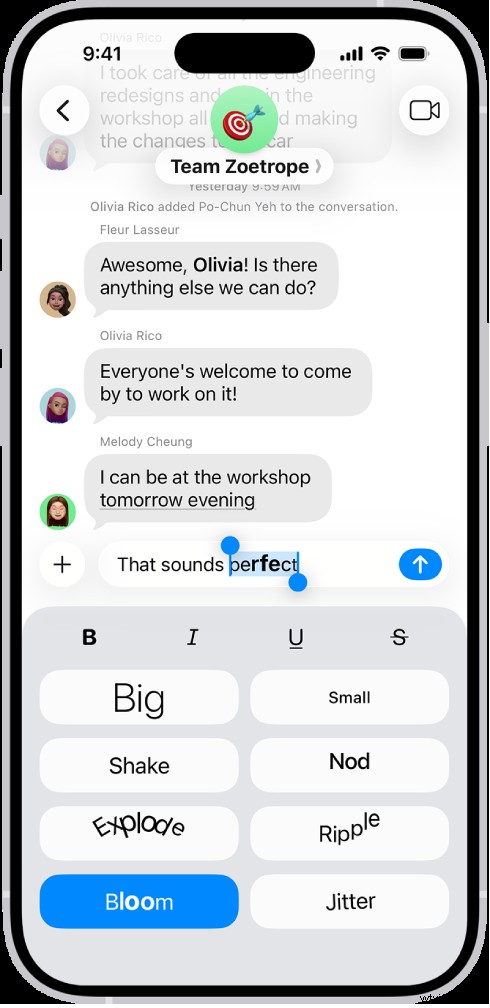
When you're happy with your effect, tap Send to deliver your animated text on iPhone. Your recipient will see it play automatically if they're using iMessage.
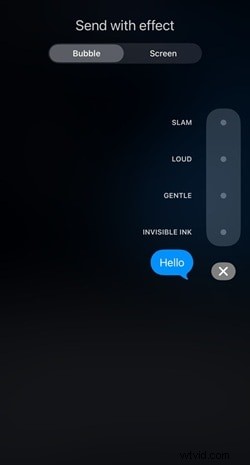
Tip: Animate the Message Bubble (Loud, Gentle, Invisible Ink)
You can also add motion to the message bubble itself to make your text stand out even more or hide it with Invisible Ink for a secret reveal effect.
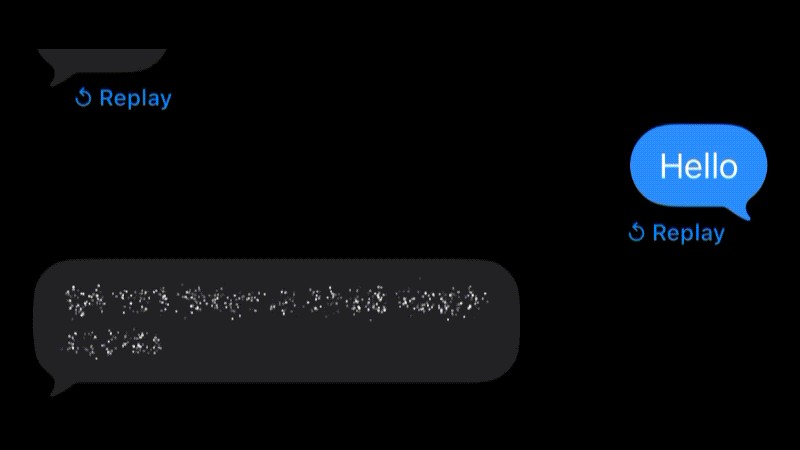
Follow the steps below on how to do it:
- After typing your message, press and hold the Send button to open Bubble Effects.
- Choose from Slam, Loud, Gentle, or Invisible Ink.
- Tap Send to deliver it.
Secret Words to Create an Animated Text Effect on iPhone
In addition to manual text effects, iPhone also includes hidden "magic words" that automatically trigger special animations in iMessage. These are preset phrases built into iOS that activate full-screen effects the moment you send them.
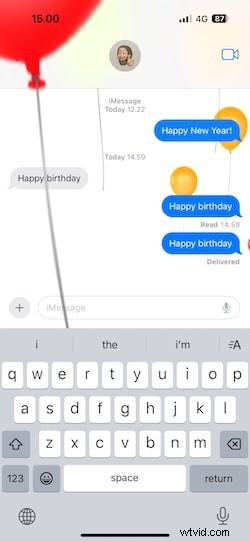
1. "Happy Birthday"
When you send a "Happy Birthday" message, it will fill the entire screen with floating balloons in different colors.
2. "Congratulations"
Typing "Congratulations" will trigger bright confetti that falls across the chat window.

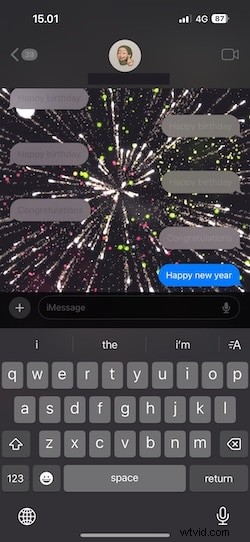
3. "Happy New Year"
When you send "Happy New Year," it launches a fireworks display that lights up the screen.
4. "Pew Pew"
Typing "Pew Pew" on iMessage will fire colorful laser beams that shoot across your conversation.
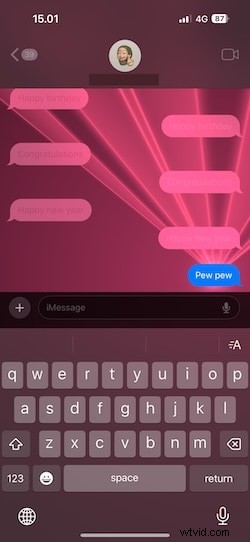
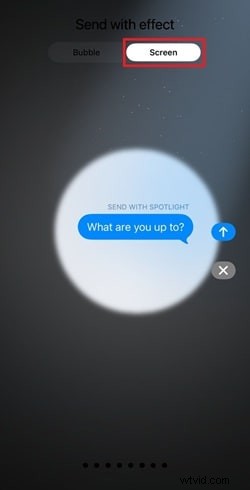
These secret effects add a playful and personal touch to your messages, making celebrations, greetings, and even casual chats more memorable. Even if you don't type one of the trigger phrases, you can still add a background animation manually.
- Press and hold the Send button
- Select the "Screen" tab at the top
- Swipe right or left to browse through the available effects
Part 2. Beyond iMessage: Filmora, the Best Animated Text App for iPhone Videos
If you enjoy using animated text on iPhone messages, it's time to take that creativity a step further by adding professional animation to your videos. We recommend the Wondershare Filmora for mobile, a top-tier animated text app for iPhone that allows you to create cinematic text effects with simple and intuitive controls. Filmora offers the best experience for adding animated text on iOS devices, providing stylish text presets, smooth animation options, and an easy export process that lets you produce professional-quality videos directly from your iPhone.
 Secure Download
Creative Filmora-Specific Ways to Use Animated Text in Videos (For Social Media)
Filmora Mobile gives you many options to use animated text on your iPhone creatively.
- Add captions that sync with the beat for music clips: Align text Animations with the rhythm of your soundtrack. This technique works well for music, dance, or lifestyle videos that rely on timing and energy.
- Highlight tips or steps in tutorial videos: Use subtle text movement to emphasize key points or instructions. Simple slide or fade effects keep your video organized and easy to follow.
- Animate your logo or tagline for intros and outros: Give your brand a professional look by adding a short motion effect to your logo or tagline. Smooth transitions or zoom-ins help create a strong impression from start to finish.
- Use fade-ins for subtle storytelling or emotional tone: Soft fade or dissolve animations add depth and emotion to your video. They work well for travel vlogs, personal stories, or scenes with a slower pace.
- Animate motivational quotes or testimonials for social media: Moving text draws attention to quotes or feedback in a crowded feed. Combine it with gentle background music or visuals to keep it engaging.
- Mix multiple text layers for cinematic opening sequences: Combine different text styles and animations to build a layered intro. You can use sliding titles, typewriter effects, or fading subtext for a cinematic opening.
How to Animate Text on Your Video on iPhone
Now, let's explore how to animate text on your video using Filmora Mobile.

Step 1
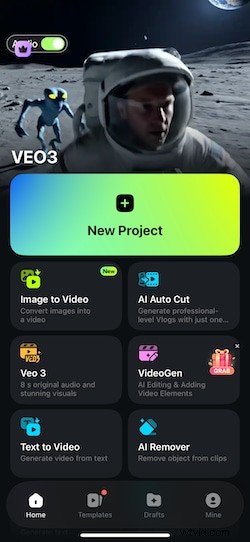
Launch Filmora and Start a New Project
Open Filmora Mobile, tap New Project, and import the video you want to edit. You can also record a new clip directly from the app if you prefer to start from scratch.
Secure Download
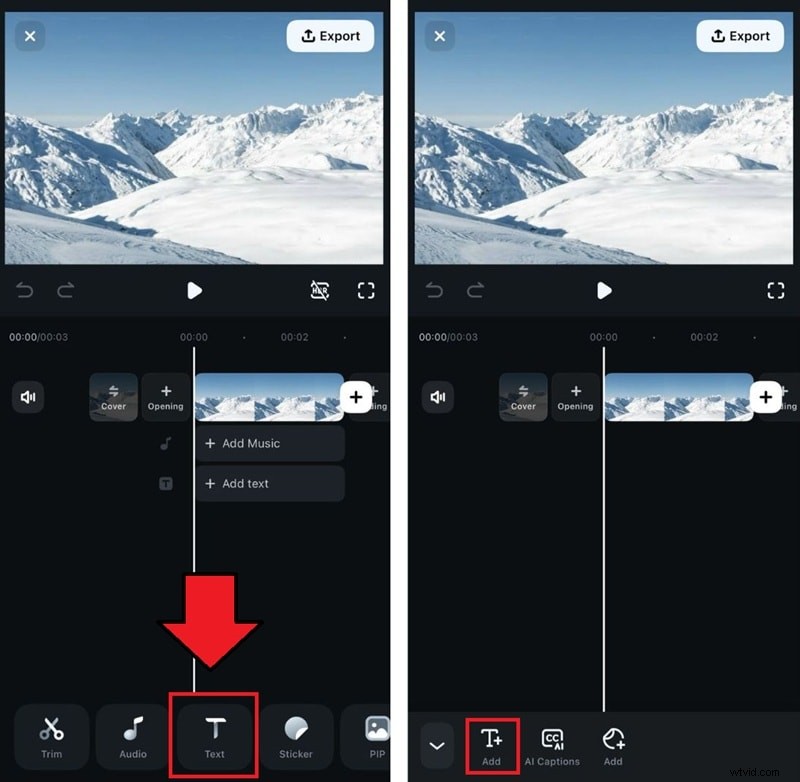
Tap the Text (T) icon on the toolbar, then select Add Text. Type your title, caption, or quote in the text box that appears over your video.
Step 3
Customize the Text Style
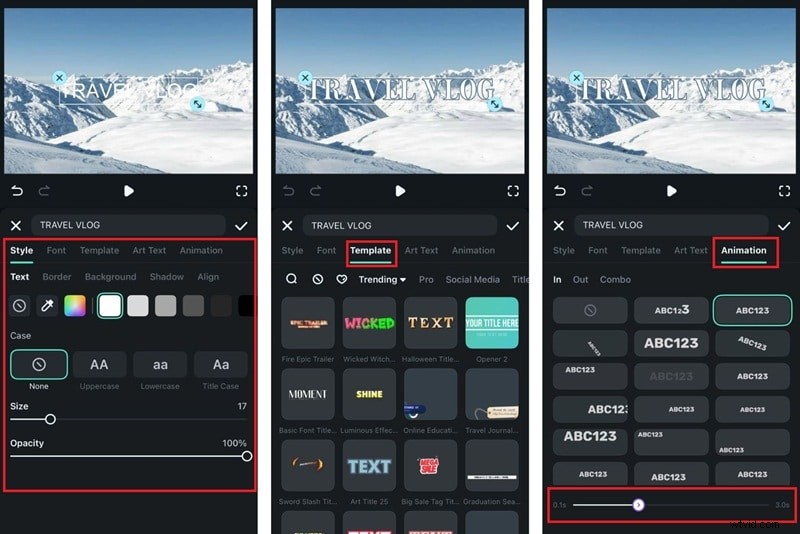
- Next, type in the text and adjust the font, size, color, and background. You can also add outlines or shadows to make the text stand out.
- If you want something pre-designed, go to the Templates section. These ready-made styles often include built-in animations.
- To add motion manually, open the Animation tab and choose from various effects. You can adjust the speed of the animation using the slider at the bottom.
Step 4
Refine Timing and Placement
Tap Done (the checkmark icon) once you've added your text. Then, you can fine-tune its timing and position for a perfect fit.
- Drag the text layer along the timeline to match it with specific moments in your video.
- Use pinch and drag gestures in the preview window to resize or move the text wherever you want.
- If you need further adjustments, open the bottom menu to tweak animations, colors, styles, and more.
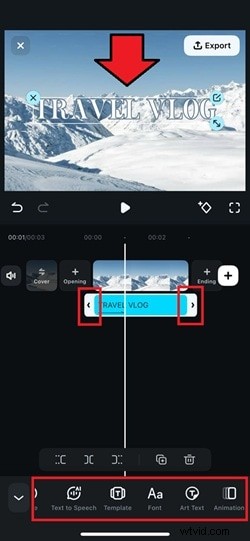
Play the full video to check how your animated text fits the flow. Once everything looks perfect, tap Export. Choose the resolution and format you prefer, then save the video to your camera roll or share it straight to social media.
Part 3. Pro Techniques: Advanced Filmora Mobile Text Animation and Effects
Once you've learned how to animate text on iPhone videos, you can start experimenting with Filmora Mobile's advanced tools. These features let you combine animations, sync timing with sound, and even use AI to make editing faster and more precise.
1. Combine multiple animations for complex transitions
Layer different text animations to build smooth and cinematic transitions. For example, combine a slide-in effect with a gentle fade-out to create a title that enters naturally and exits seamlessly. You can also stagger multiple text layers to make your video openings feel more coordinated and visually balanced.

2. Match text timing with sound effects or background beats
Good timing makes text animation more impactful. Use the timeline to align each motion with beats or sound cues in your background music. A simple fade or bounce synced with a drum beat or lyric drop can make the entire video feel more polished and rhythmic.
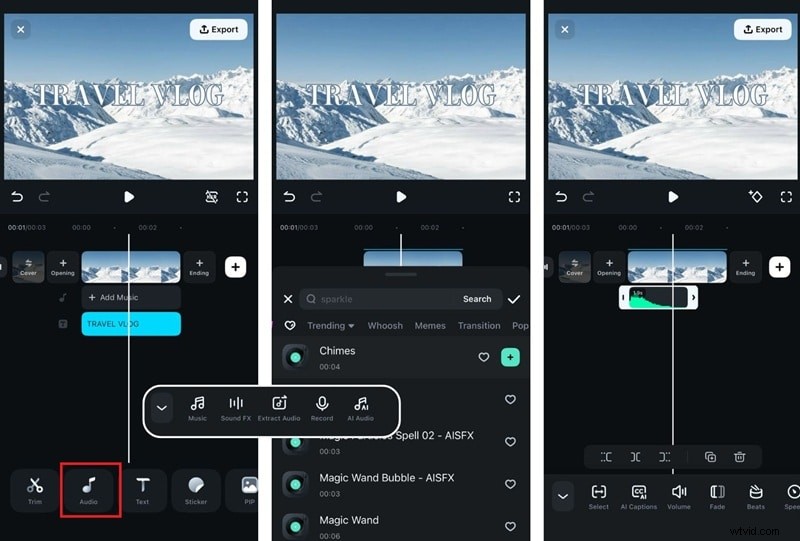
3. Pro-Tip: Attach text to a moving object with Filmora's Motion Tracking
Filmora Mobile allows you to anchor text to a moving object in your video using motion tracking. After enabling this feature, select the target area, and the app will automatically follow it. This is ideal for labeling products, people, or objects while maintaining smooth, natural movement across frames.

4. Experiment with AI Text-to-Speech or Auto Captions for dynamic editing
AI tools in Filmora Mobile can help you add spoken narration or automatic subtitles in just a few taps. Use AI Text-to-Speech to convert written text into natural-sounding voiceovers, or enable Auto Captions to generate accurate subtitles automatically. Both features make your videos more accessible and engaging, especially for viewers watching without sound.

Bonus: Tips for a Professional Animated Text Effect
Creating animated text on iPhone videos is easy, but making it look polished takes attention to detail. Here are some quick tips to help you achieve a professional result when editing in Filmora Mobile:
- Keep motion smooth and consistent: Avoid overly fast or jerky movement. Smooth, gradual transitions are easier on the eyes and look more natural in professional videos.
- Limit fonts to 1–2 per video for visual harmony: Using too many font styles can make your video look cluttered. Stick to one or two that complement each other and match your video's tone.
- Maintain a strong contrast for readability: Make sure your text stands out clearly against the background. Adjust brightness, add shadows, or use semi-transparent overlays to improve visibility.
- Preview on mobile before posting: Always check how your animated text looks on your phone screen. This helps ensure the timing, placement, and size work well for vertical or horizontal formats.
- Keep total animation under 3 seconds for best viewer retention: Short, quick animations maintain viewer interest and keep the pacing smooth. Longer animations may slow down your video and distract from the main content.
Conclusion
Animated text on iPhone adds more expression and creativity to your digital communication. You can use iMessage to send lively text effects that match your tone or mood, making every conversation feel more personal and engaging.
For videos, Filmora Mobile gives you complete freedom to design cinematic animated text with smooth motion, stylish fonts, and precise timing. Both tools help you bring your words to life in unique ways, turning simple messages and clips into something more memorable.
Start exploring these features to make your iPhone content more dynamic, creative, and visually appealing!

Filmora
AI Video Editing App & Software
Best tool for making videos anywhere for all creators!
Simplify all your steps in video editing, from the pre-processing to finalizing, Filmora AI stays tuned.