
Do you want to distort face in a photo or video for fun or to hide your identity?
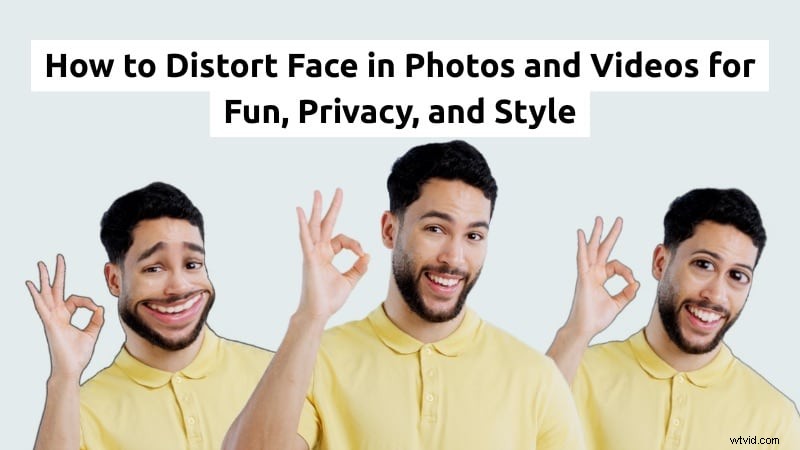
Face distortion is the process of warping or reshaping parts of a face using editing tools. People often use it to stay private online or create funny edits. Distorted faces can look humorous or artistic, depending on how you edit them.
With many distort face app options available today, you can twist, blur, or stretch faces right from your phone or desktop. This guide will show you how to distort face in a video and photo using simple tools. Let's get started!
Part 1. Why Distort a Face?
People distort faces for many reasons. Some do it for laughs, while others for privacy or creative expression. Face distortion can make content feel more expressive and personal. Distorted faces can also shift the mood or tone of your photos and videos.

A few common reasons why people distort their faces in photos or videos are:
- For Fun and Humor: Many people use filters or apps that distort faces to create funny and exaggerated expressions for memes or short videos. These effects turn regular selfies into hilarious moments that friends can share.
- For Creative Edits: For digital artists and content creators, face distortion goes beyond fun. They often use distort face apps to reshape their face into designs that match a theme or mood, such as abstract art or surreal visuals.
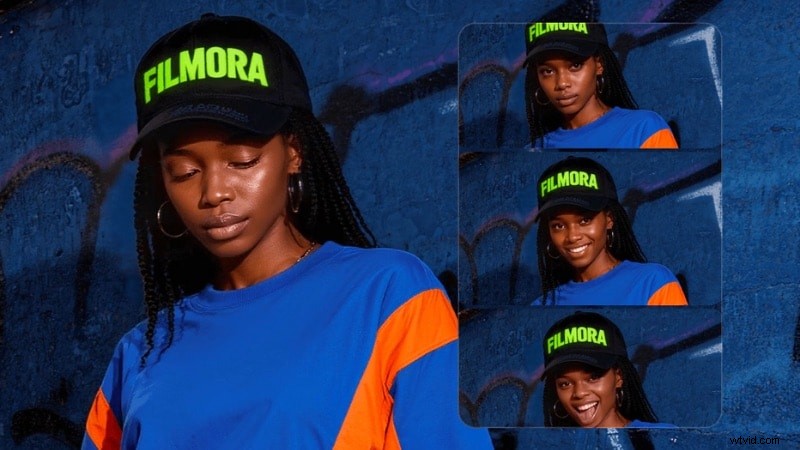
- For Privacy and Identity Protection: Not everyone wants to show their face online. Distorting your face helps hide personal features while keeping a presence in the content. It's popular among vloggers, educators, and anyone who wants to stay partly anonymous while still appearing on screen.
- For Stylized or Themed Projects: Face distortion also supports creative storytelling. Filmmakers and editors use distorted faces to express fear, confusion, or surreal moods. Visual artists often use it to explore ideas of identity, perception, and transformation.
Photo distortion focuses on reshaping still images, while video distortion adds motion and timing. Both let you distort your face for humor, privacy, or creative expression.
Part 2. How to Distort Face in Photos
If you want to distort a face in a photo, you can do it using either mobile apps or desktop software. Many apps and programs now include distortion filters that let you twist, stretch, or reshape your face in seconds.
On Mobile
If you want quick edits, you can use a distort face app on your phone. Look for one that's simple to use, includes a variety of effects, and offers a free version to start with.
Check out some of the best face distortion app options worth trying:
1. Face Warp
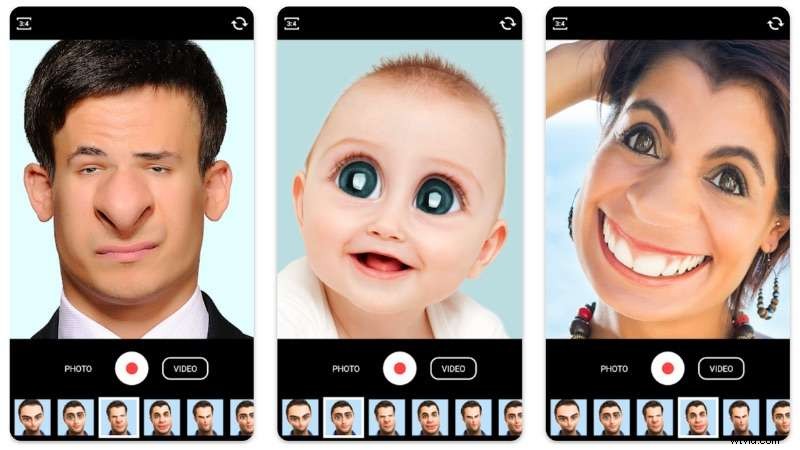
Face Warp lets you distort your face in real time using your phone’s camera to create funny or alien-like expressions. You can record videos or edit selfies with live filters that stretch, twist, or reshape facial features. It also supports quick sharing to social media.
Platform: Android
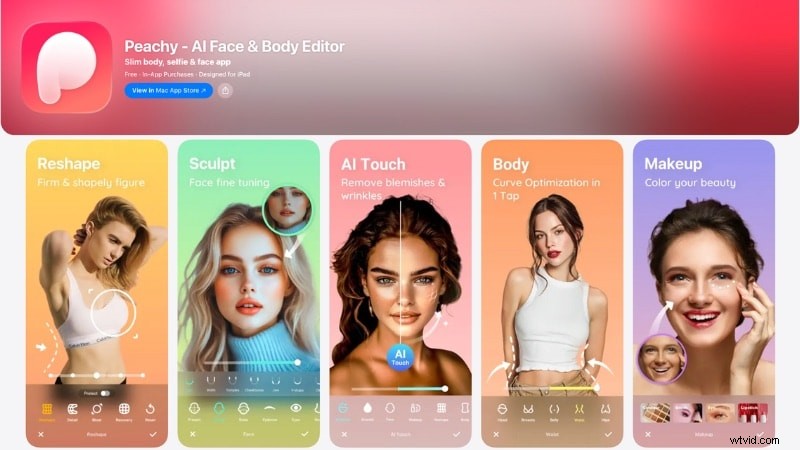
2. Peachy: Face App & Body Editor
Peachy makes it easy to adjust and enhance your selfies with clear, simple tools. You can smooth skin, reshape features, and adjust proportions for a balanced look. It also works as a distorted face app for fun edits, subtle touch-ups, or bold transformations.
Platform: Android and iOS
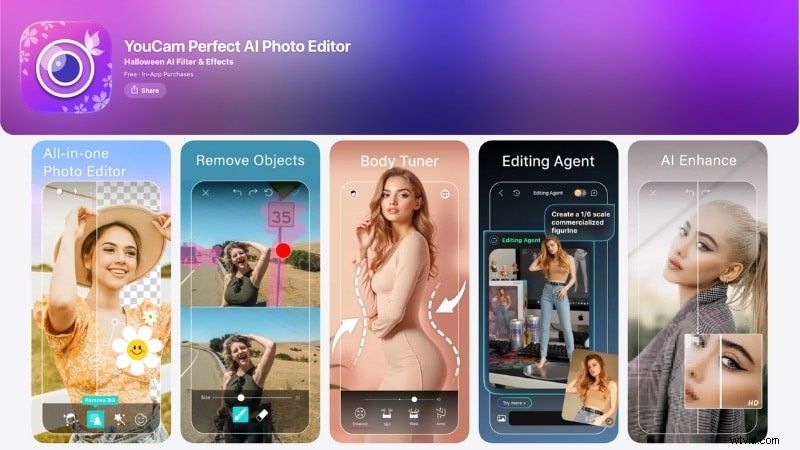
3. YouCam Perfect - Photo Editor
YouCam Perfect focuses on all-in-one photo enhancement rather than just a funny face distortion app. It lets you retouch skin, remove background objects, or adjust body proportions with natural results. It also includes creative tools like collages, filters, AI avatars, and an image-to-video feature.
Platform: Android and iOS
Three of the apps above offer a free version to start with. You can try each free face distortion app individually. Once you find the one that fits your editing style, you can upgrade to access higher export quality or additional tools.
Step-by-Step on How to Distort Face in Photos on Your Phone
Follow the steps below to learn how to distort a face in a photo using your phone. Each app may place its tools in different menus, but the overall process is quite similar. In this guide, we're using the Peachy app.
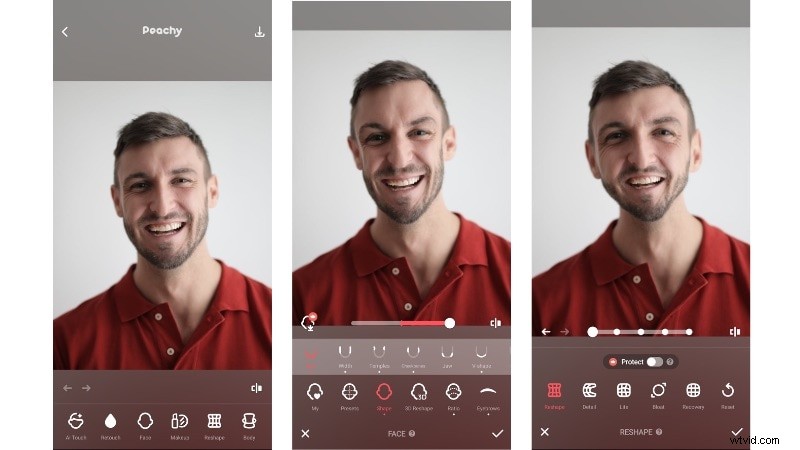
- Step 1. Open the app and go to Gallery to select the image you want to edit.
- Step 2. At the bottom of the screen, you'll find various Tools you can use to distort your face.
- Step 3. Open the Face or Reshape section. Experiment with the available options to find the right tool for the distorted face effect you want.
- Step 4. Adjust facial features by dragging on areas like the eyes, nose, mouth, or jawline to create playful or subtle changes.
- Step 5. Review your edit, make any final tweaks, and then save the distorted face photo to your phone.
On Desktop
If you prefer to distort a face on a computer, Adobe Photoshop is the one that many people use. It offers more control as it's a professional photo editing software. You can distort a face in Photoshop with its Liquify and Face-Aware Liquify tools.

Step-by-Step on How to Distort a Face in Photoshop
Follow the steps below to learn how to do face distortion in Photoshop:
- Step 1. Open your image in Photoshop. From the top menu, go to Filter > Liquify.
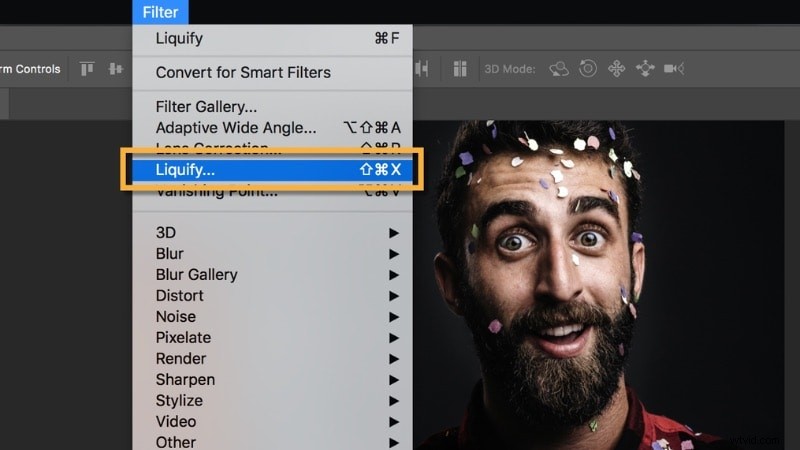
- Step 2. In the Liquify workspace, choose Face-Aware Liquify. Photoshop will auto-detect your facial features, allowing you to use sliders to adjust the eyes, nose, mouth, and face shape.
- Step 3. Once you're satisfied with the result, click OK to apply the changes. Then, save your image to your desktop.
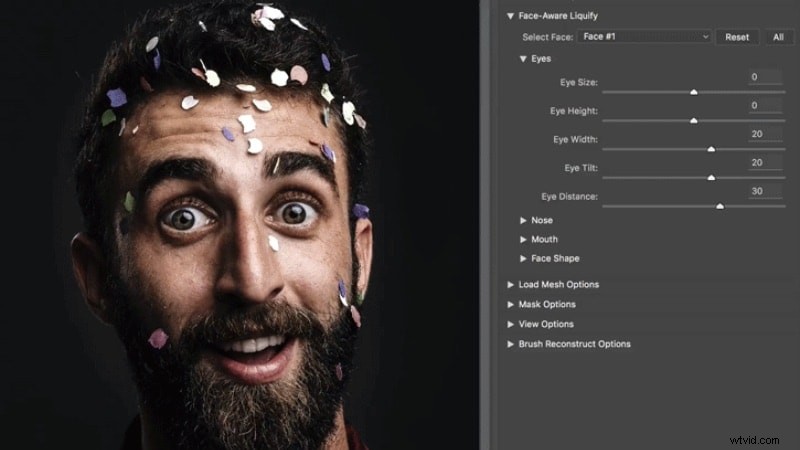
Photoshop distort face editing offers much more flexibility and tools than mobile apps. You can adjust the strength, preserve image quality, and even blend distortion with other effects like color grading or filters. It's an ideal tool for artists, designers, or anyone working on detailed projects.
Part 3. How to Distort Face in Videos
Want to learn how to distort a face in a video for fun edits or privacy? Video distortion takes more steps than a photo because both the face and the camera can move. You'll need to track motion, add keyframes, or use masking to ensure the distortion stays on the face throughout the clip.
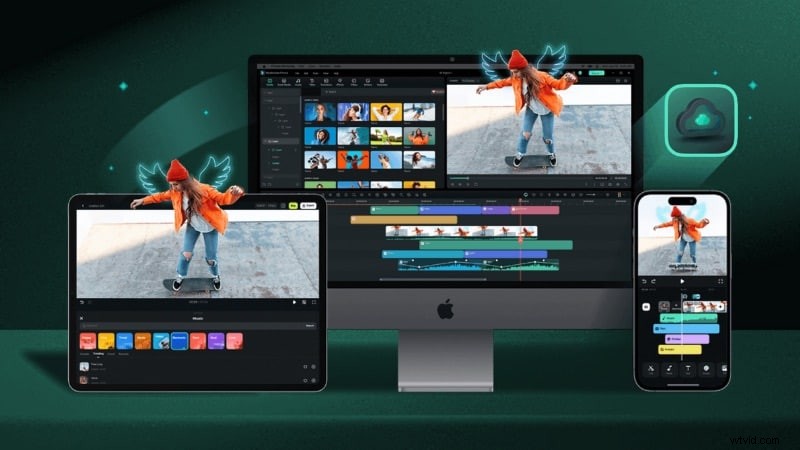
Distorting a face in a video might seem complicated, but Wondershare Filmora makes the process simple. The software is available on Mac, Windows, iOS, and Android. So you can distort faces or add creative effects using any device you have.


Distort a Face in Filmora for Mobile
When you have the Filmora app on your phone, there's no need to switch to other face distortion apps for videos. You can use its Retouch tool to reshape facial features in your video, or use the Mosaic tool to hide your face.
Method 1. Reshape Facial Features Slightly
You can use the Reshape tool to distort your face in Filmora, but it doesn't let you do extreme distortion.
Follow the steps below to learn how to distort a face in a video slightly:
- Step 1. After importing your video into Filmora, go to Trim, then slide along the toolbar to find the Retouch tool.
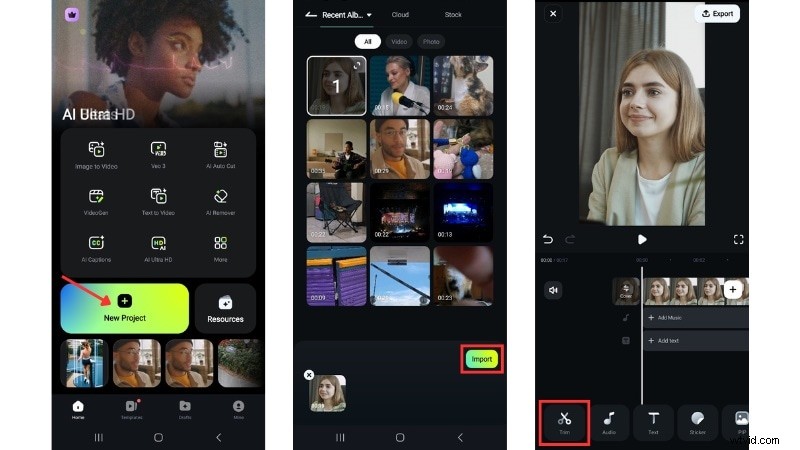
- Step 2. Open the Reshape tab, then choose the facial feature you want to distort.
- Step 3. Move the sliders to adjust the intensity of the effect until you're satisfied with the result. Finally, tap the Checkmark icon to save your changes.
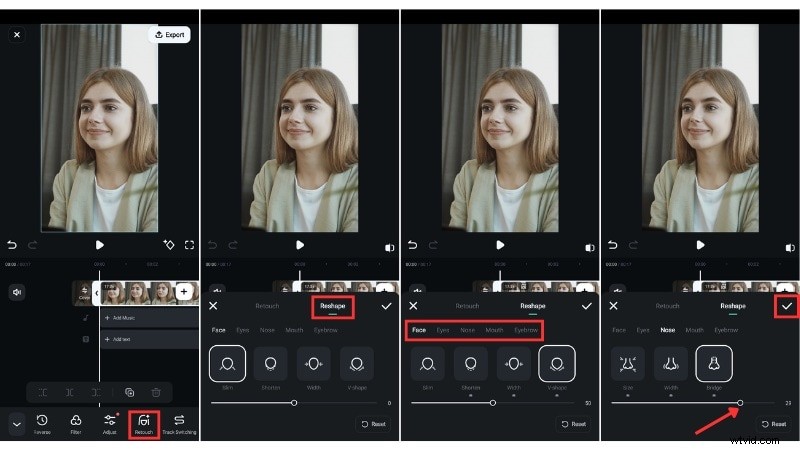
Method 2. Use the Mosaic Tool to Hide Your Face
As shown in Method 1, using Filmora's Reshape tool will still keep your face recognizable. If you want to make it unrecognizable, try using the Mosaic tool instead.
Follow the steps below to distort a face with the Mosaic tool in Filmora:
- Step 1. Go to Trim and find the Mosaic tool in the toolbar menu.
- Step 2. Select the type of mosaic you want, and move the Slider to adjust the mosaic intensity. The higher the value, the stronger the distortion.
- Step 3. In the Preview window, drag the Mosaic box to cover your face and adjust its size as needed. Then, click the Checkmark icon to save the edits.
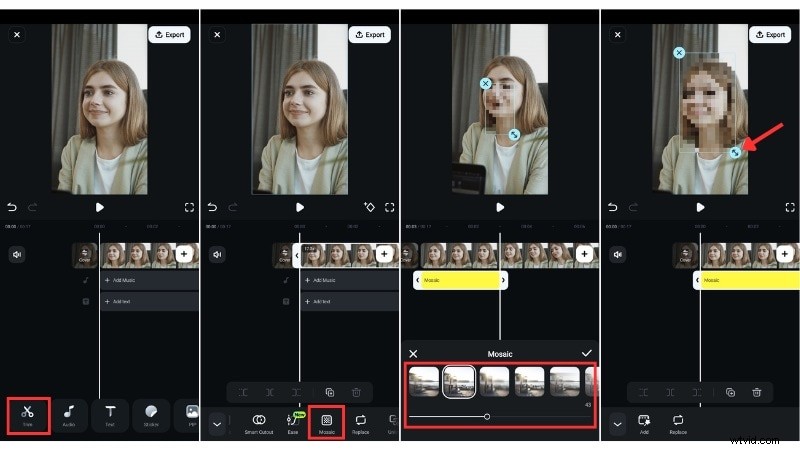
Distort a Face in Filmora for Desktop
You can distort faces in Filmora for desktop using the AR filters, which are included in its built-in Preset Effects. These filters let you apply fun effects to your face and create exaggerated or animated expressions in your videos.
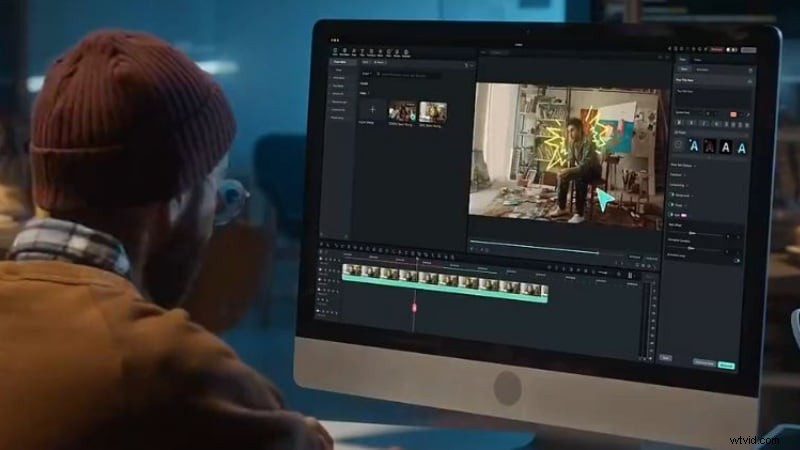
Here are the steps on how to distort a face in a video using Filmora's AR filters on desktop:
- Step 1. Import your clip and drag it to the timeline.
- Step 2. Go to the Effects tab and type "face" or "face distortion" in the search bar.
- Step 3. Drag the AR filter onto the track above your video clip. Filmora will automatically detect faces in the video, allowing the distortion effect to apply instantly.
- Step 4. Adjust the duration of the filter by dragging the end of its track on the timeline.
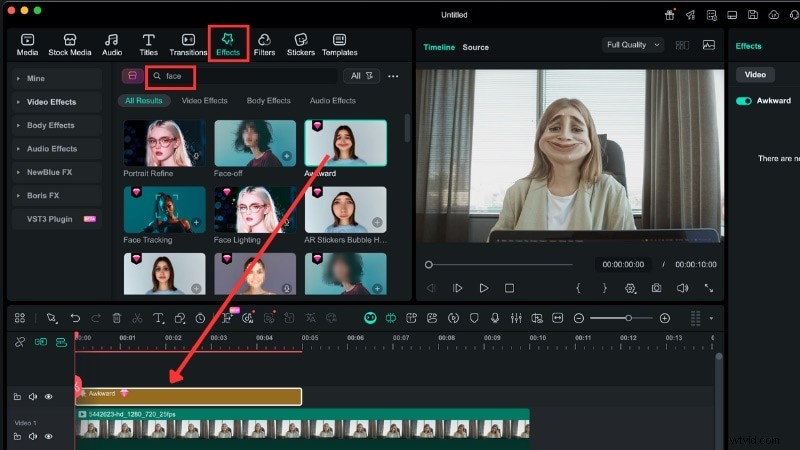
Besides, you can use the Mosaic or retouch feature, which is similar to the app version, to distort your face in a video.

Conclusion
Learning how to distort a face in photos and videos can serve many purposes. You can reshape or refine facial features to create natural or exaggerated results.
For quick edits, try any of the distort face apps mentioned in this guide to adjust or refine your pictures. For more detailed work, you can distort a face in Photoshop.
This guide also showed how to distort a face in a video using Filmora on both mobile and desktop. Try one today and see which tool matches your editing style best.
FAQs
-
What's the difference between blur, mosaic, and warp on faces in video?
Blur and mosaic effects help hide or protect identity by covering the face, while warp distorts the shape of facial features. Warp tools let you stretch, twist, or reshape parts of the face for humor, while blur and mosaic focus on privacy.
-
Can I distort faces live or in real time?
Some camera and streaming apps include real-time distortion filters, but they offer limited control. For detailed results, it's better to distort a face in a video using editing tools like Filmora.
-
Can I distort only part of a face (eyes or mouth) and keep the rest natural?
Yes. Most distort face app tools let you isolate specific areas such as the eyes, mouth, or nose. In Filmora or Photoshop, you can use masks or reshape sliders to target only the feature you want to distort, leaving the rest of the face unchanged.