
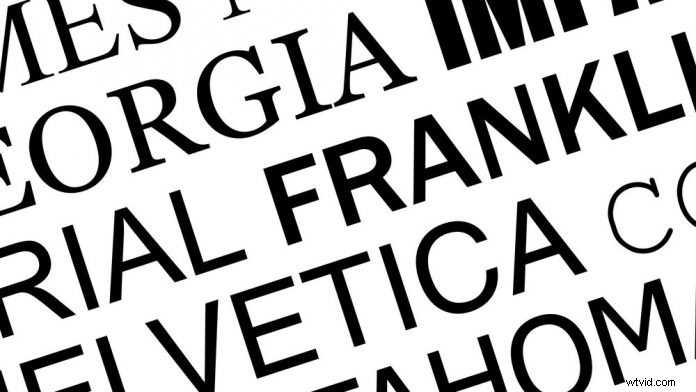
If brackets, terminals, shoulders, and bowls sound like hardware, something you find at airports, a part of your body, and something you eat your morning cereal out of, then you've probably never thought too much about the elements that make up a good font.
Using fonts effectively isn't something most video producers think about, but it's an important piece of your project, especially if you're designing motion graphics. With that in mind, here are 5 tips for choosing and using a font for your next project.
1. Make it Cohesive
The top priority when selecting fonts should be supporting the visual style of your project. Using a western style font for a sci-fi film (unless it's Cowboys and Aliens) is going to send a confusing signal to your audience. Likewise, using a sci-fi font for a wedding video is something you probably want to avoid.
2. Keep it Readable – Serif or Sans Serif?
Serifs are those little projecting details or lines that some fonts have on the ends of their letters. Two common examples of serif fonts are Times New Roman and Georgia. In general you should stay away from these types of fonts, as they are difficult to read when used in video projects. There are different types of serifs including old-style, transitional, modern, and slab. Slab serifs are usually thicker and rectangular, which can work in some cases, such as a project that requires an old western looking font.
Sans Serif literally means “without serif”. These are typically the best choices when it comes to video and motion graphics. They have a cleaner, more readable appearance. Anything with Gothic, Egyptian, Antique, Grotesque, or Doric in the font name will be sans serif. Helvetica and Arial are two of the most common sans serif fonts.
3. Use Tracking
Tracking changes the amount of spacing across a range of letters you select. Increasing the tracking of your text can make it feel more cold and uninviting, while condensing it can have the opposite effect. Of course, condensing to the point where your letters overlap can give a jumbled feeling as well. And for motion graphics, you can adjust the tracking over time to really make your text dynamic.
4. Avoid Stretching
I can spot a stretched font a mile away. In most cases, if you find yourself horizontally or vertically stretching a font to get it to work, you're probably better off searching for a font that works natively for your project. So keep searching and resist the urge to take the stretching shortcut.
5. Choose Color Wisely
Nothing ruins a good font like a fully saturated neon green or red fill. These colors are hard to read, and just look amateurish. So tone down those saturation levels, and go easy on your viewers eyes. Also, if you're going with white text on black, it's a good ideas to tone down the the brightness to 80 or 90.
Choosing the right fonts, and using them correctly is a simple way to help raise the overall production value and make it more professional. So the next time you're in the edit room, consider these tips, and take your project to the next level.
Greg Olson, Videomaker's Associate Multimedia Editor