

Your computer's graphics card isn't just for games anymore — with recent updates to essential core products, including Lightroom and Photoshop, there are a number of reasons why you should start paying attention to your GPU.
What's A GPU Doing Anyway?
Your computer's graphics card, a separate chip from Nvidia/AMD or built into some CPUs, helps create what you see on your computer's screen. While this was the primary function for photographers in the past; video editors have enjoyed graphics card accelerated workflows for a while now. Photographers were left waiting for their CPU to perform the work involved in making adjustments. This has been changing, with Adobe adding updates that have moved more and more tools in Lightroom and Photoshop over to the GPU. GPU enabled processing can be much faster than CPU limited tools, typically showing a preview on the fly or enabling features that'd be prohibitively slow via CPU.
The distinction behind CPU and GPU preferred tasks is technical, but it's important to recognize that only some features will benefit from GPU acceleration. To get a sense of the features that require or are greatly improved by a GPU, check out this list from Adobe. In Photoshop, all of the following features can take advantage of your GPU:
- Camera Raw
- Image Size – Preserve Details
- Select Focus
- Blur Gallery - Field Blur, Iris Blur, Tilt-Shift, Path Blur, Spin Blur (OpenCL accelerated)
- Smart Sharpen (Noise Reduction – OpenCL accelerated)
- Perspective Warp
- Select and Mask (OpenCL accelerated)
- Scrubby Zoom
- Birds Eye View
- Flick Panning
- Smooth Brush Resizing
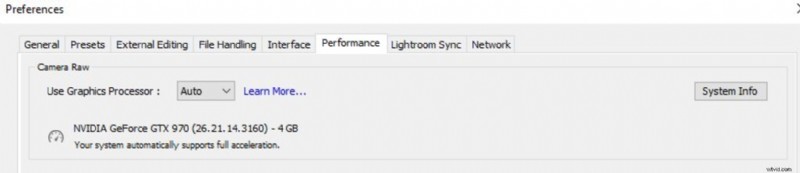
Support has just now been greatly expanded in Lightroom, "Using Process Version 5, most adjustments are now GPU accelerated. For example, full acceleration can improve how fast you see results as you move the Texture slider. Using the GPU also helps Camera Raw keep up with the demands of 4K, 5K and larger displays" This speedup, especially with a high performing GPU, can make culling quicker and editing smoother.
For video editing, a powerful GPU is even more important. Simple clips may not show a drastic performance improvement with any acceptable GPU, but when you start piling up GPU-accelerated effects or high resolution clips, you'll need a recent, higher end card. Based on testing from Puget Systems, you should have 4GB minimum of VRAM for 1080P footage, going to 6GB at 4K.
Updating Drivers
To take full advantage of these features, you'll want a newer card and the latest drivers. For example, running a driver that is a few months out of date will preclude the use of your GPU in Adobe Premiere. Fortunately, it's easy to update the drivers.
On Apple's computers, GPU updates are handled through the system update mechanism, so just run and install any outstanding updates.
On Windows, you'll want to confirm whether you have an AMD or Nvidia graphics card, if any. Depending on the computer, you may have a sticker indicating this, or you may be able to right click on your desktop and see a mention of Nvidia or AMD. Some computers may not have either, instead relying on the graphics built into your CPU — these are often updated via Windows Update. If you can't find it by looking around, open up Device Manager by opening the Start Menu, then click Run. In the Run dialog box, type "devmgmt.msc" without the quotes. This will bring up the device management window, a list of all the hardware in your computer. You can click the triangle next to Display Adapters, which should show you whether or not a GPU is installed, as well as the manufacturer.
Once you've identified the brand of card, download the latest drivers from the manufacturer. If you have an Intel CPU and no additional graphics card, you can use Intel's tool to automatically identify and update your drivers. If you have an AMD CPU with no card, or an AMD graphics card, AMD offers a tool on their support page to automatically perform the updates. Lastly, if you have a Nvidia card, you can use Nvidia's automated tool called GeForce Experience — although I recommend manually searching for and downloading the drivers, as Nvidia requires creating an account just to use their tool.
Once you've updated your drivers, make sure you're running the newest versions of your editing software. New GPU supported functionality is being added frequently, so consider updating when possible.
Future tools may increasingly rely on GPU performance improvements to help the editing experience, since GPUs have been improving at a greater rate while CPU's single thread performance gains have decelerated. Beyond just raw speed, GPUs are powering developments in the field of deep learning. Deep learning based tools are still in the very early stages, but software like Gigapixel AI, an intelligent upscaling tool that actually synthesizes new detail, show the promise in this field.
Upgrading Your GPU
If you're having difficulty enabling these features, or want to know what part to upgrade to, Adobe provides some guidelines. The card should be released in 2014 or later, with over 2GB of VRAM. This is a pretty low bar to hit, but if you are running an older computer, you should consider upgrading to take advantage of these features.
Typically, you'll only be able to upgrade the cards in desktop computers, as the laptop form factor necessitates the GPU to be mounted directly to the motherboard. Have a desktop and are looking to update? Consider the Nvidia GTX 1660 Ti. It is more than capable in Photoshop and Lightroom, while its 6GB of VRAM means 4K editing in Premiere is no problem. Recent trends in GPU prices also make this the most affordable option that doesn't compromise performance.
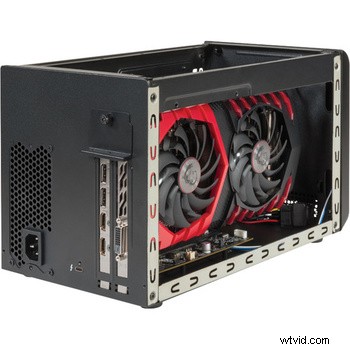 If you have a recent laptop with Thunderbolt 3, and need more graphics power, consider an external GPU enclosure. These boxes allow you to slot in a desktop style graphics card, while wiring it up to your laptop over a single cable. Enclosures can cost a fair bit, especially considering you'll still need to buy a card to put in it, but present the only upgrade option for most laptops. For an idea of the products available, check out the Sonnet eGFX Breakaway Box.
Depending on your existing equipment, taking advantage of the new GPU based improvements to photo and video editing may be as simple as updating your drivers and software. Even if you need to upgrade some hardware, consider the benefits of a faster and smoother editing experience — it may make more of a difference than you think.