
WhatsApp has got its place in social media apps for its features like messaging, group chats, document sharing, group video call, audio call, broadcast, and especially status that have gained immense popularity. Is it your friend's birthday? Want to wish him/her a favorite pic in your WhatsApp Status to make them feel special. Have essential news to reveal to everyone? Try out posting them in your WhatsApp Status.
However, sometimes you would prefer or wish to save/download individual WhatsApp Status of your friends or loved ones for further use or to be posted on your status. Thus, you need WhatsApp status video download tools, and here we are with a complete guide for you.
- Part 1: How to Download WhatsApp Status Videos on PC?
- Part 2: How to Download WhatsApp Status Videos on an iPhone?
- Part 3: How to Download WhatsApp Status Videos on an Android Phone?
- Part 4: Custom WhatsApp Videos and Surprise Your Friends
How to Download WhatsApp Status Videos on PC?
Are you confused or puzzled about how can you download WhatsApp status videos on PC? With WhatsApp web, it is possible, and for your better understanding, here is a step-by-step guide.
Step 1:On your web browser, say Google Chrome, enter the website, https://web.whatsapp.com/.
Step 2: On your smartphone, open the WhatsApp app, and from the settings, click the “WhatsApp Web” option. Scan the QR code with your PC, and your WhatsApp account will openon the PC.
Step 3: Now, click the "Status" icon beside the new chat option you can find on the screen's left corner.
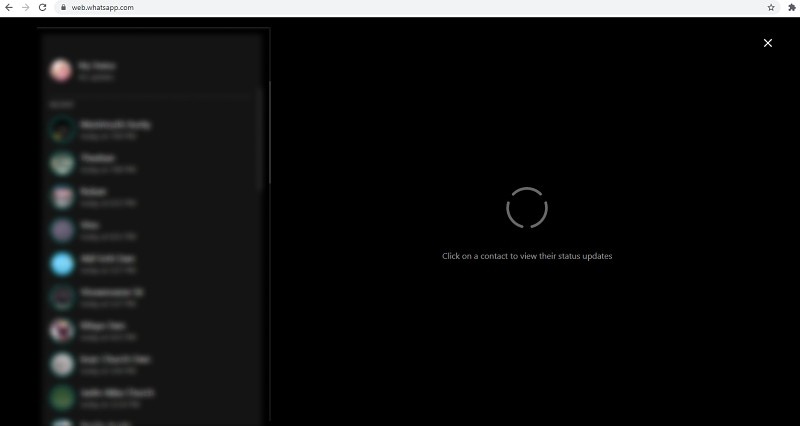
Step 4: From the status session, open the “Status” of the contact you wish to download.
Choose the option “Save Image as,” or “Save Video as” by right-clicking on the video.
Step 5: Now, choose the file directory or the PC's location to which you want to save the video. Finally, click the "Save" button.
That is how you can download the WhatsApp status video on your PC directly.
How to Download WhatsApp Status Videos on an iPhone?
Unlike WhatsApp web for PC or laptop, you do not get any standalone application for WhatsApp status download. However, screen recording might help to grab the video with the audio.
Step 1: All you should to do is, execute “Settings” and then enable “Screen Recording.”
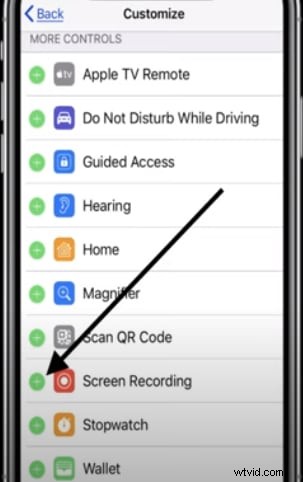
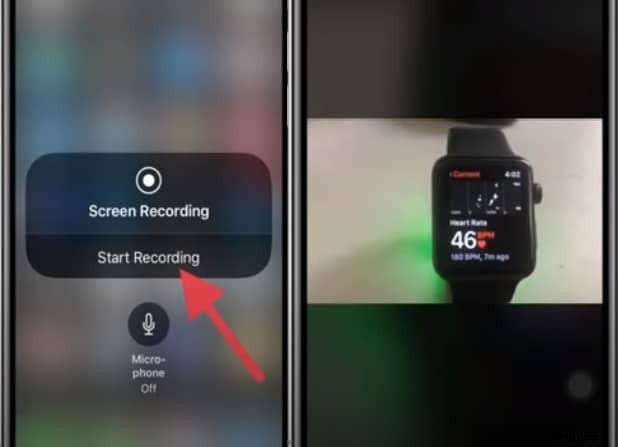
Step 2: Now, to save the video, click the "Start recording" option, and view the status video on WhatsApp. It will start recording. You can save when the video ends and find it on the "Photos" app.
While the above method is a free manual method, you can use a third-party application like WhatsApp++ to require a BuildStore subscription. All you have to do is,
1.Uninstall the WhatsApp application; register your iOS device on the BuildStore by signing up.
2.Now, open Safari, and start installing the “WhatsApp++” application.
3.With your phone number, register on the application.
4.Open WhatsApp++; navigate to the status page, tap download, and select the location to save the video from the top right corner.
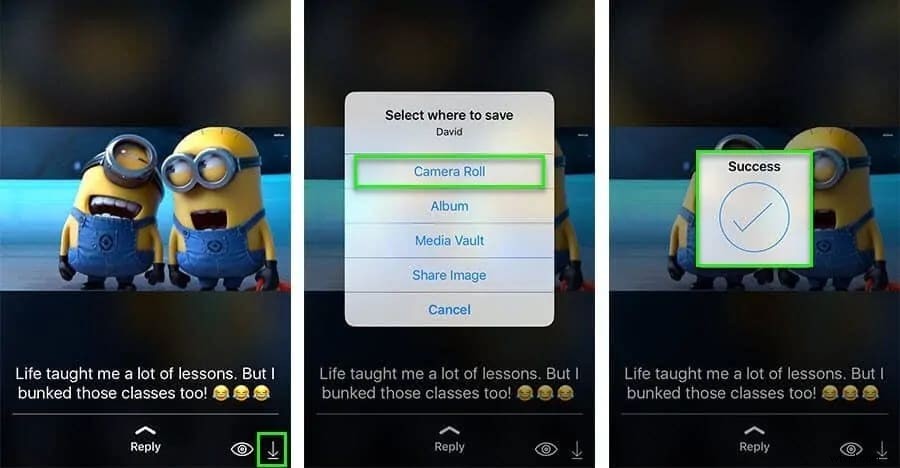
source:geekdashboard.com
WhatsApp++ is the best option for WhatsApp status video download that works well for iPhone/iPad.
How to Download WhatsApp Status Videos on an Android Phone?
WhatsApp status video download on PC and iPhone is easy, but what about your Android device? Without a doubt, it will be your next question where you have the solution already on your Android device. Your file manager is the free option for WhatsApp status download, and if you are not aware of it before, follow the below manual.
Note: Make sure you have Google File Manager installed on your smartphone already. If not, download it from the Google Play Store.
Step 1: Open the WhatsApp application, and view the status that needs to download.
Step 2: Now, click the “File Manager” app, and then on the three-dotted icon on the top right, followed by the Settings option.
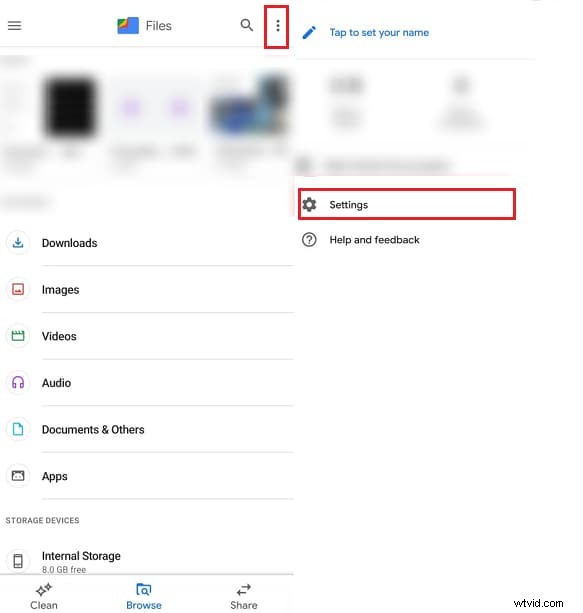
Step 3: Swipe the “Show hidden files” option to the extreme right and navigate back, and execute internal storage>WhatsApp>media>statuses.
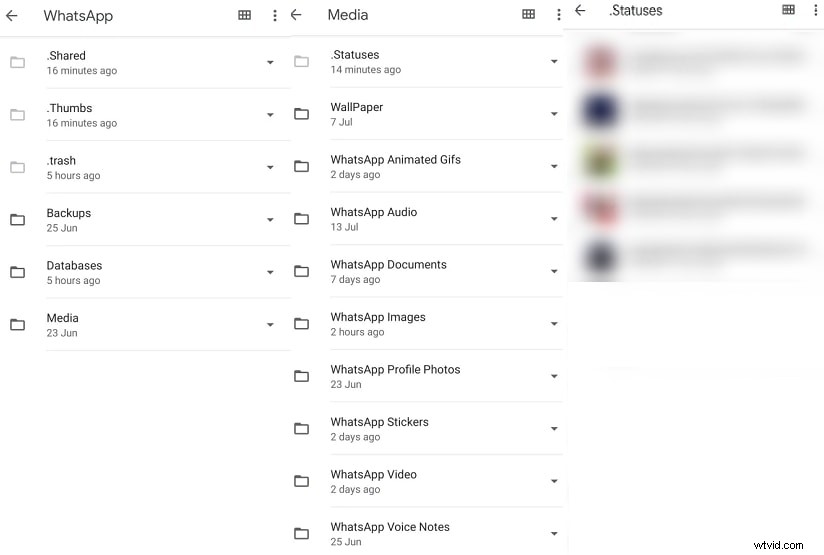
You can now access the entire WhatsApp status you viewed on WhatsApp, and this is how you can download WhatsApp status video on an android device.
Custom WhatsApp Videos and Surprise Your Friends
Now, you have come to know how to download the WhatsApp status video, but how about customizing it and presenting it to your friends to surprise them? These effects are what the Filmora video converter does.
Filmora from Wondershare is an all-in-one video editor tool that is all you need to perform all your video related editing & customization. With Filmora, you can create without limits, casting life to your creation, and make your video inspired by many. Match for both beginners and professionals, it is the best video editing software recognized by top leaders like 10 Top Ten Reviews, TechRadar, and a lot more. If you wonder why it is the best recommendation from our side, maybe reading through the below feature set would help.
Features of Filmora- Video Editor
- GIF support: Import, edit, and export GIF files that you could readily upload on your social media apps.
- Noise removal: Filmora helps you remove the unwanted background noise from the WhatsApp status video& other videos hassle-free.
- Reverse & Speed control: Let’s make your video a little more unique and different by flipping it over, playing video backward, or making the clips play ten times faster or slower, time-lapses, slow-motion effects, and still a lot more.
- Color Tuning: Make your creation colorful by balancing & adjusting a dynamic range of clips.
- Split Screen& advanced editing: Play two or more slips simultaneously and edit the video text by adding customized text and images.
Conclusion
Thus, on the whole, I hope you have come to know how to make the WhatsApp status video download process a successful one on PC/iPhone/Android and at ease. So, do try it today to get your favorite video, and while you do, do not forget to customize it for your friend with Filmora. Get inspired and make other inspired as well with Filmora video editor!