
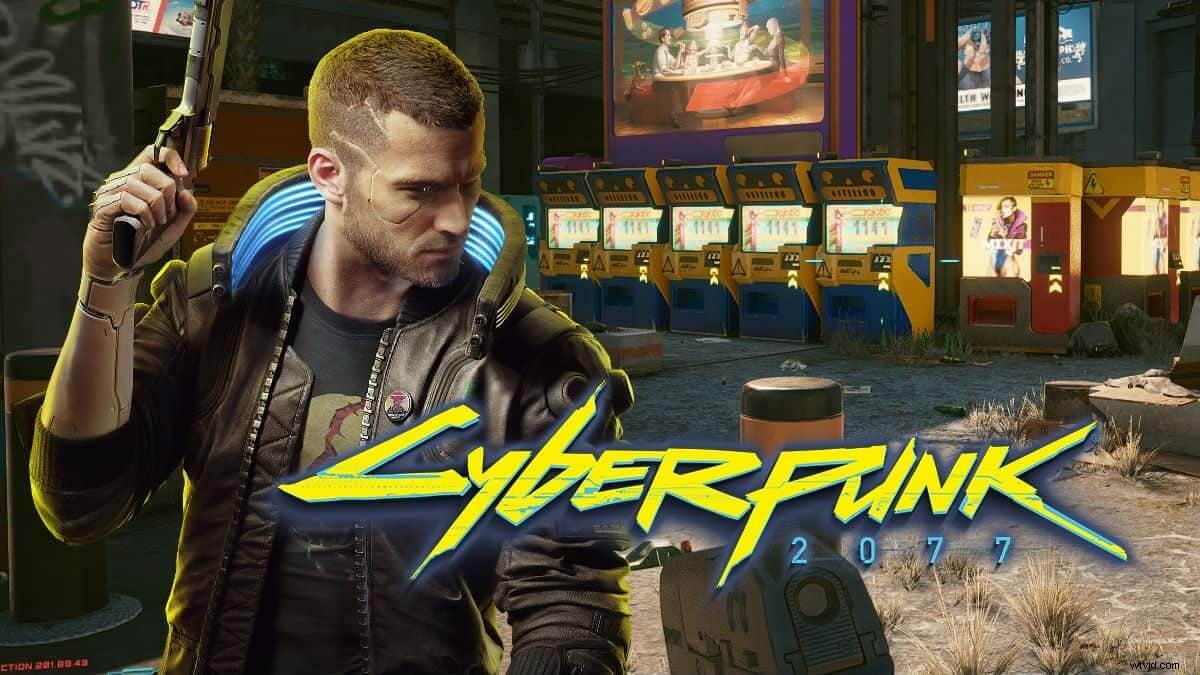
One of the most popular games presently is Cyberpunk 2077. Its popularity is no joke, and this is visible in its rank among other adventure games. Should we talk about its insane graphics, its gameplay or other features? No!!!
While the game boasts of exception features, one thing about the game making wave is its futuristic approach. You are familiar with it and you call it the glitch effect. This effect does not only make it unique. It further improves its relativeness in the game world. For example, it has led to a revolution in video production and video editing. Therefore, a popular thing most people are looking for is how to make a Cyberpunk video.
Here you will learn the steps you need to make a Cyberpunk video. To make it easy, this will be in three categories, which are:
- What makes Cyberpunk 2077 unique.
- What you need to make a Cyberpunk video on Mac.
- Steps to take to make a Cyberpunk video using FilmoraX on Mac.
At the end of the article, you should be able to include magic when you make a Cyberpunk video using FilmoraX. Read on!!!
Section 1. What Makes Cyberpunk 2077 Unique?
Again, many people sought after Cyberpunk 2077 because of it features. However, a major reason why you all sought after it is its futuristic view. This view is visible in the color and the glitch effect exhibited in the game. It is these effects that many people want to replicate in their videos. They do this for no other reason than the coolness and sophistication it adds to any video that properly integrates it.
Section 2. What Do I Need to Make a Cyberpunk Video?
To the game developers, making Cyberpunk 2077 undoubtedly cost a lot. We are talking about millions of US dollars. However, you don't need to have that much to make a cyberpunk video of your choice. In simple words, it should be the simplest thing you could do. You just need to understand some steps, and you are done. Generally, making one will be in terms of the color and glitch effect.
To make a cyberpunk styled video on Mac, you need three things. These are FilmoraX, a photo editing application, and a wide imagination. You can use any photo editing application available on Mac. For example, you can use Pinta, Krita, or Affinity.
Of the three things, the most important is a wide imagination. This article will only show you the steps. It is your imagination that will go beyond that to make a cyberpunk video considered unique.
Section 3. Steps to Make a Cyberpunk Video on Mac Using FilmoraX
With FilmoraX, you should have no problem editing a video clip. Therefore, you have an assurance of an easy way to make a Cyberpunk video. Here, you will get to know the steps needed to make a Cyberpunk video on your Mac computer.
To effectively make a good one, you will need to make sure the video has the right color. After this, you will use FilmoraX for the editing. It is during the editing stage that the glitch effect needed for the process comes in. With FilmoraX, the step is very easy. Follow the steps below on how to make a good one.
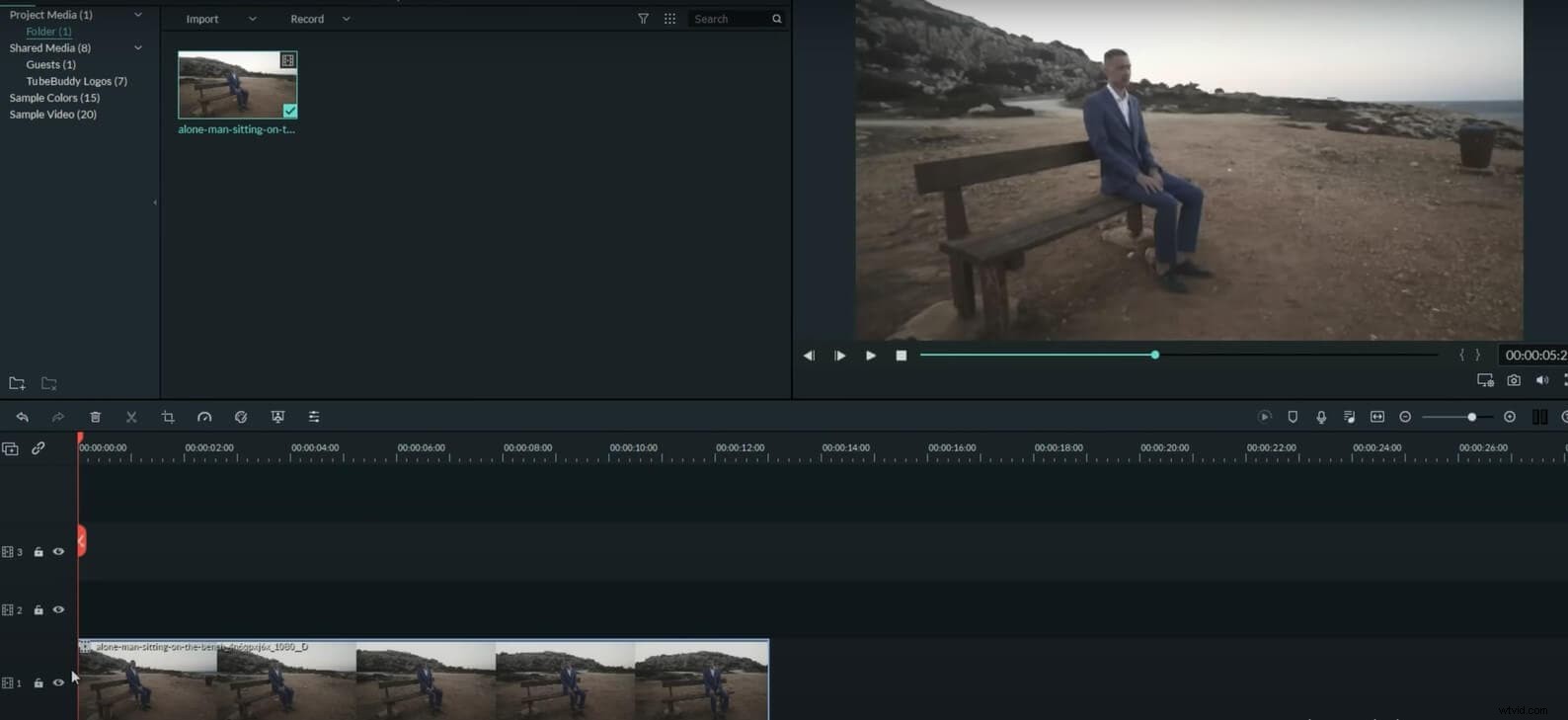
Step 1 – Import the Video
- Click on the video you want to edit and import it into FilmoraX.
- Drag the video into the timeline.
Step 2a – Take A Snapshot
This is an optional part, and it depends on what type of video you want to create. If you want to create a video in which only a small part glitch, you will need this step.
- Cut the image at the point you want it to glitch.
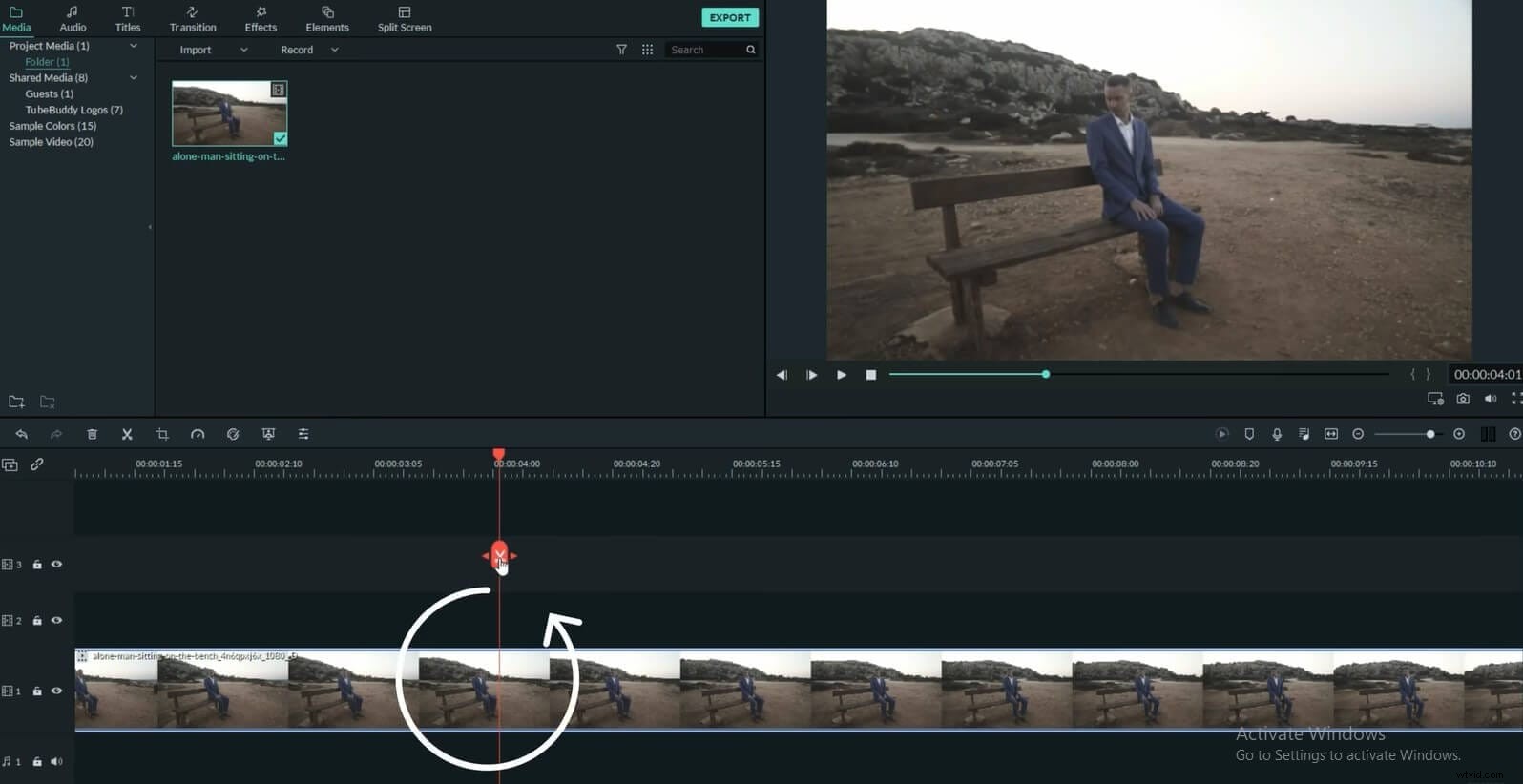
- Click on the snapshot button to take a snapshot of the exact part you want to glitch.
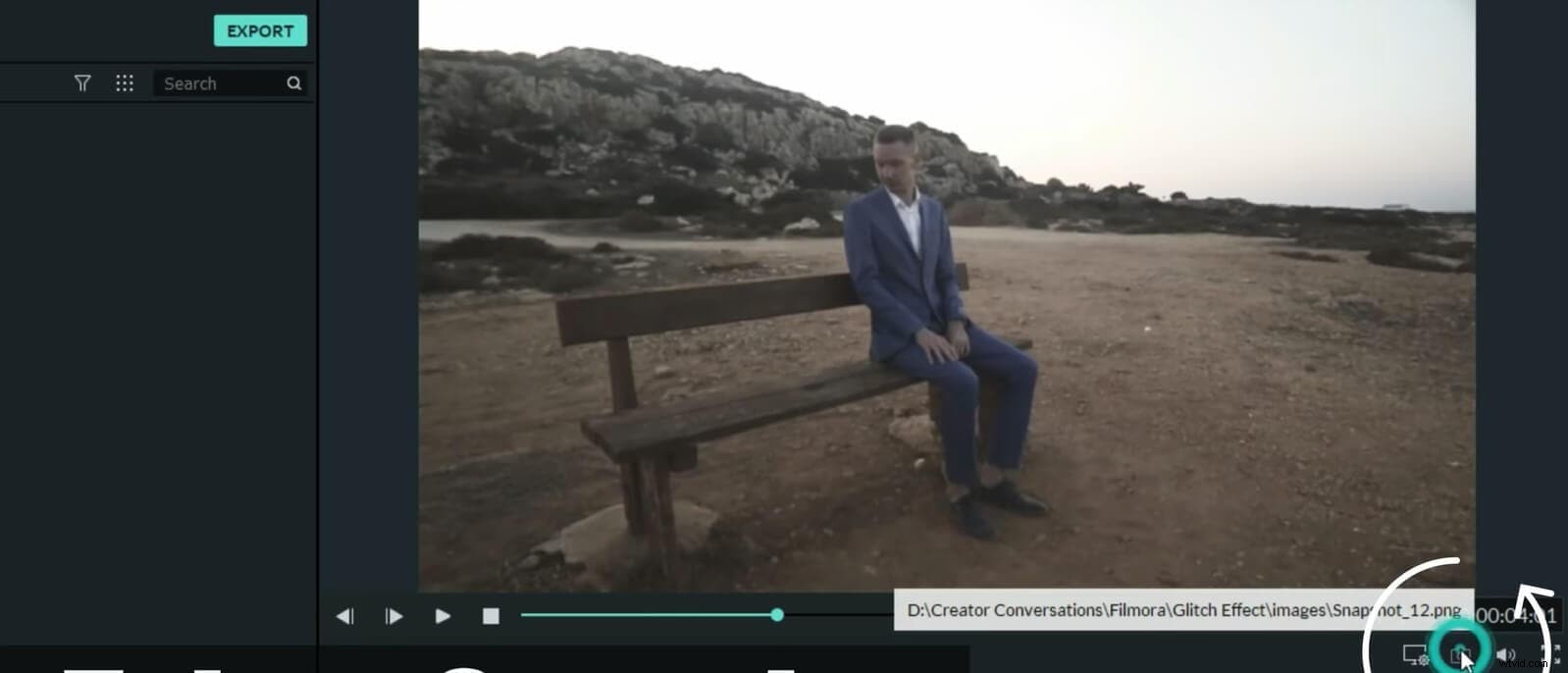
- Save the picture.
Step 2b – Edit the Snapshot
It is here you will edit the snapshot with a photo-editing application. Remember that it is not necessary to include these steps if you want to glitch the whole video. The photo-editing application for this illustration is Affinity.
- Open Affinity and import the snapshot.
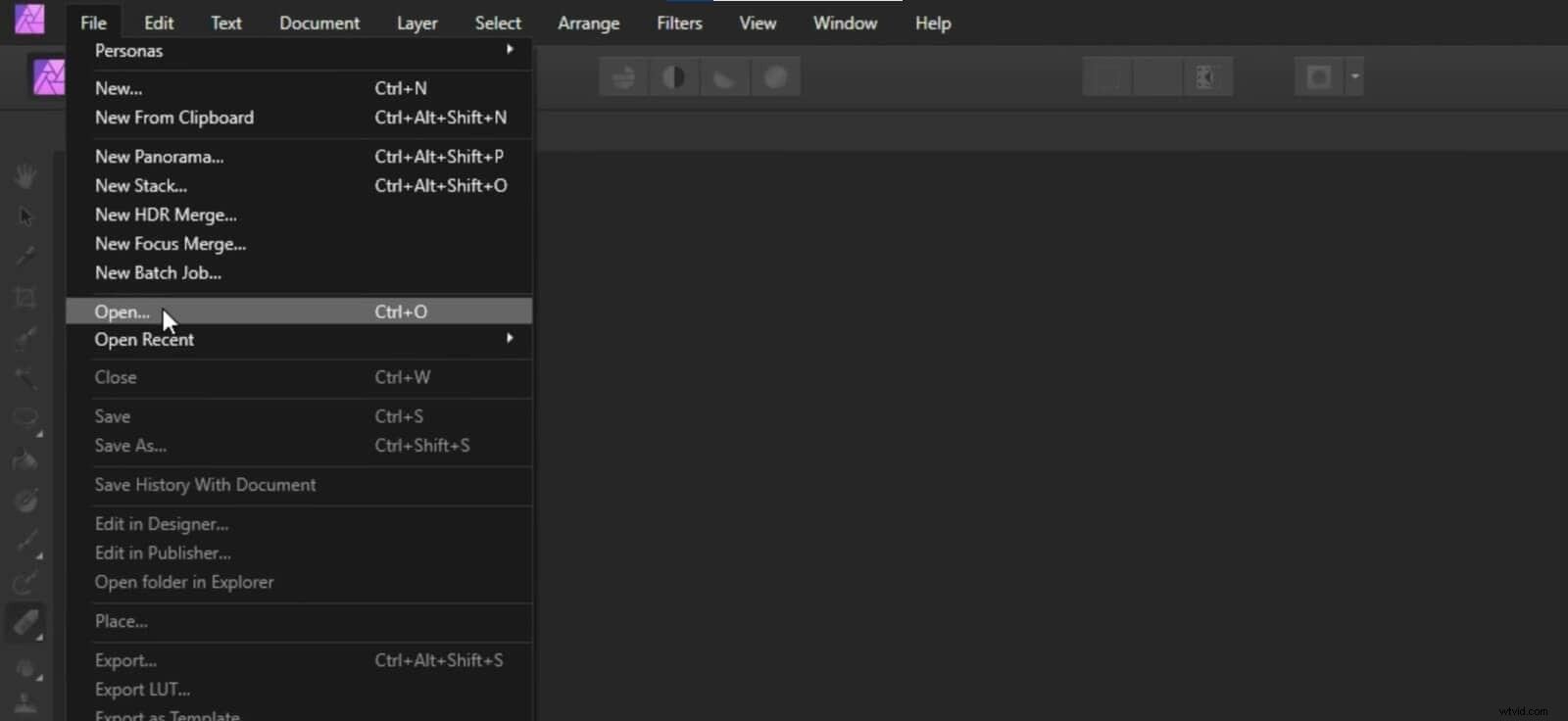
- Choose the Selection Brush Tool to edit the image.
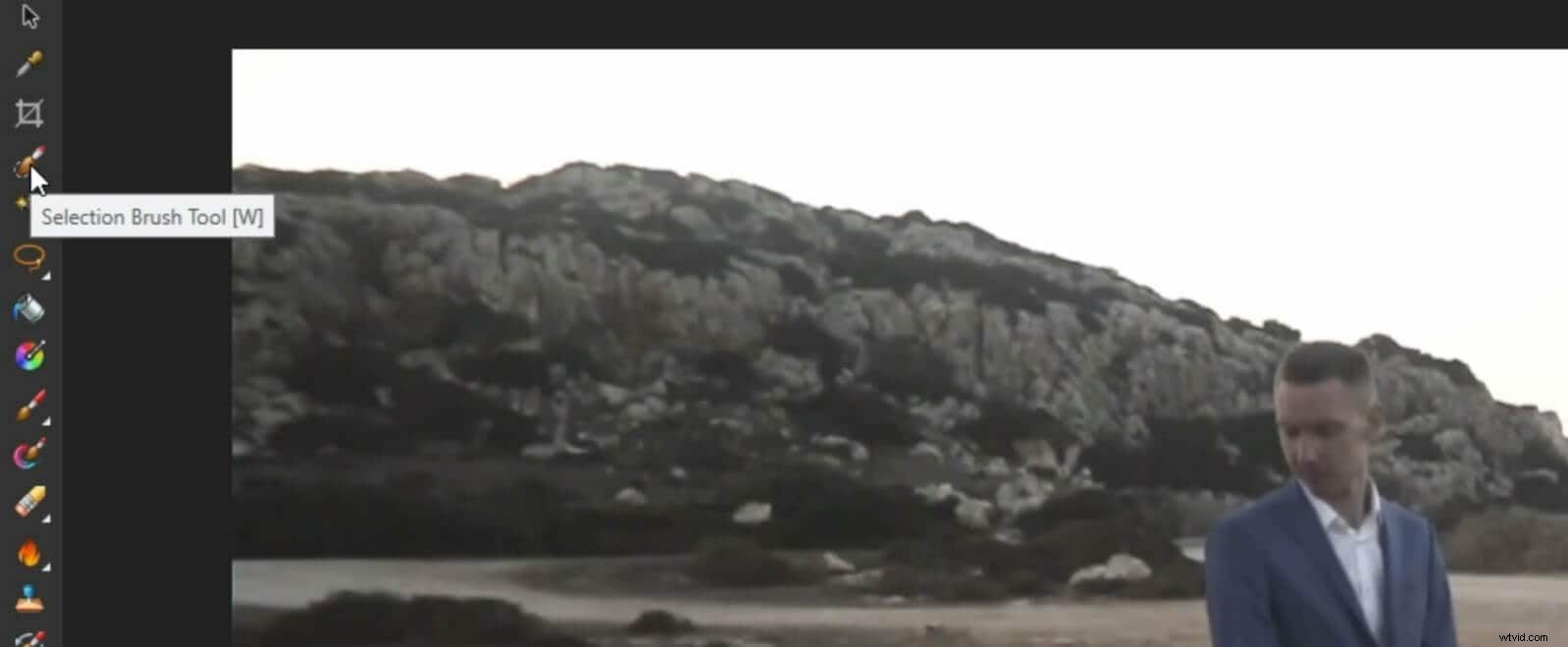
- Select the part of the snapshot you want to glitch.
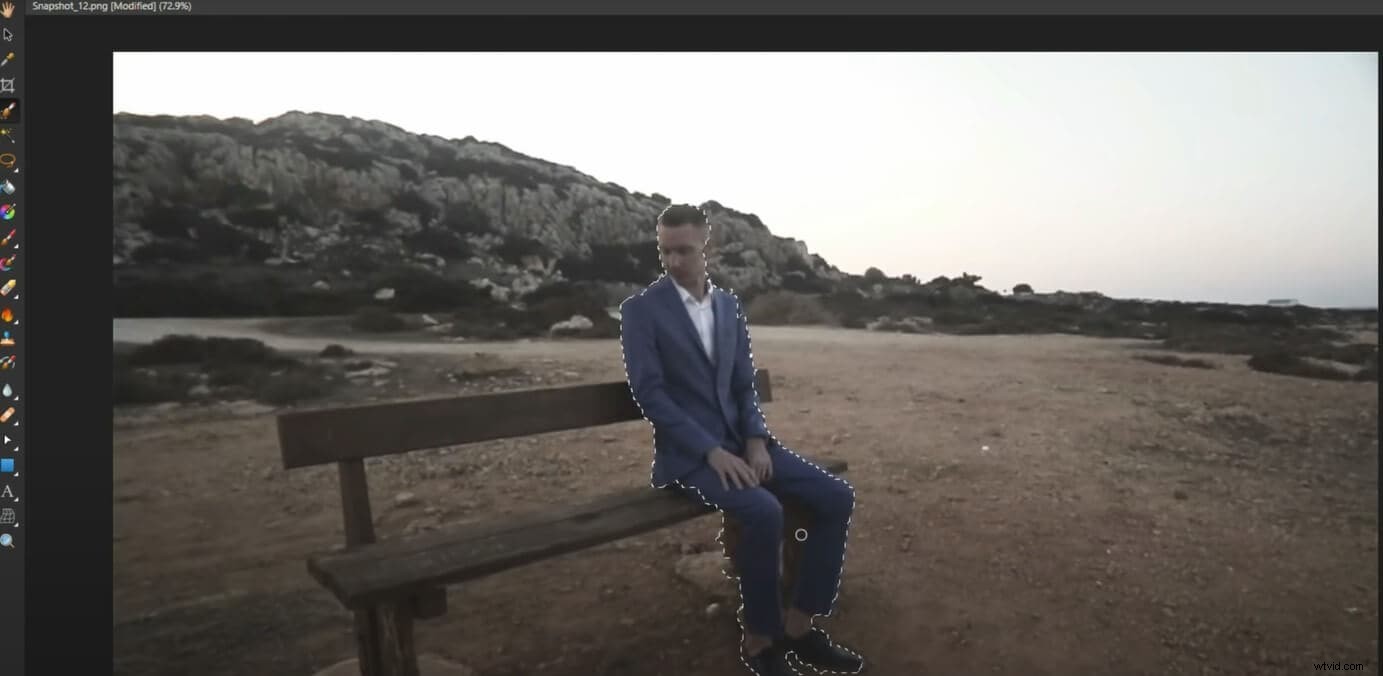
- Click on the Eraser Brush Tool.
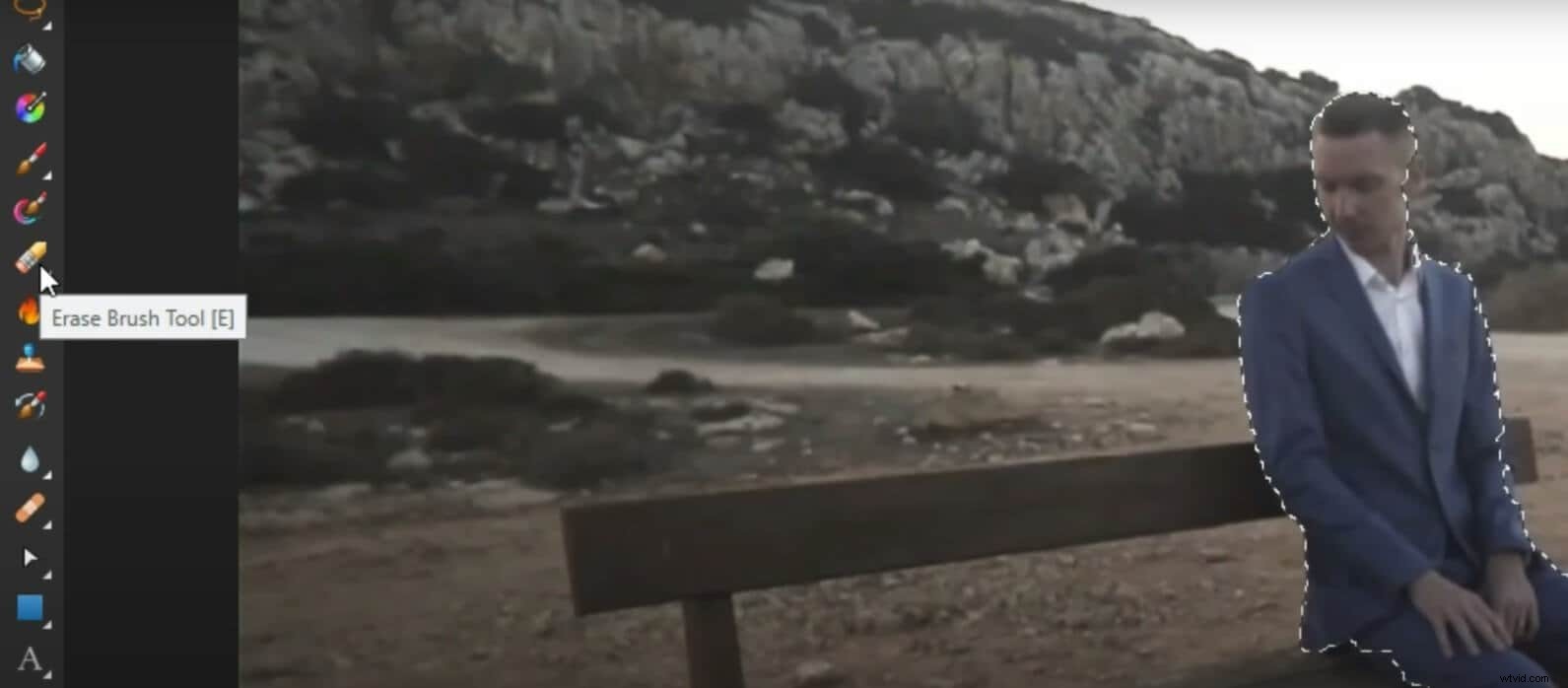
- Erase the selected part of the image.
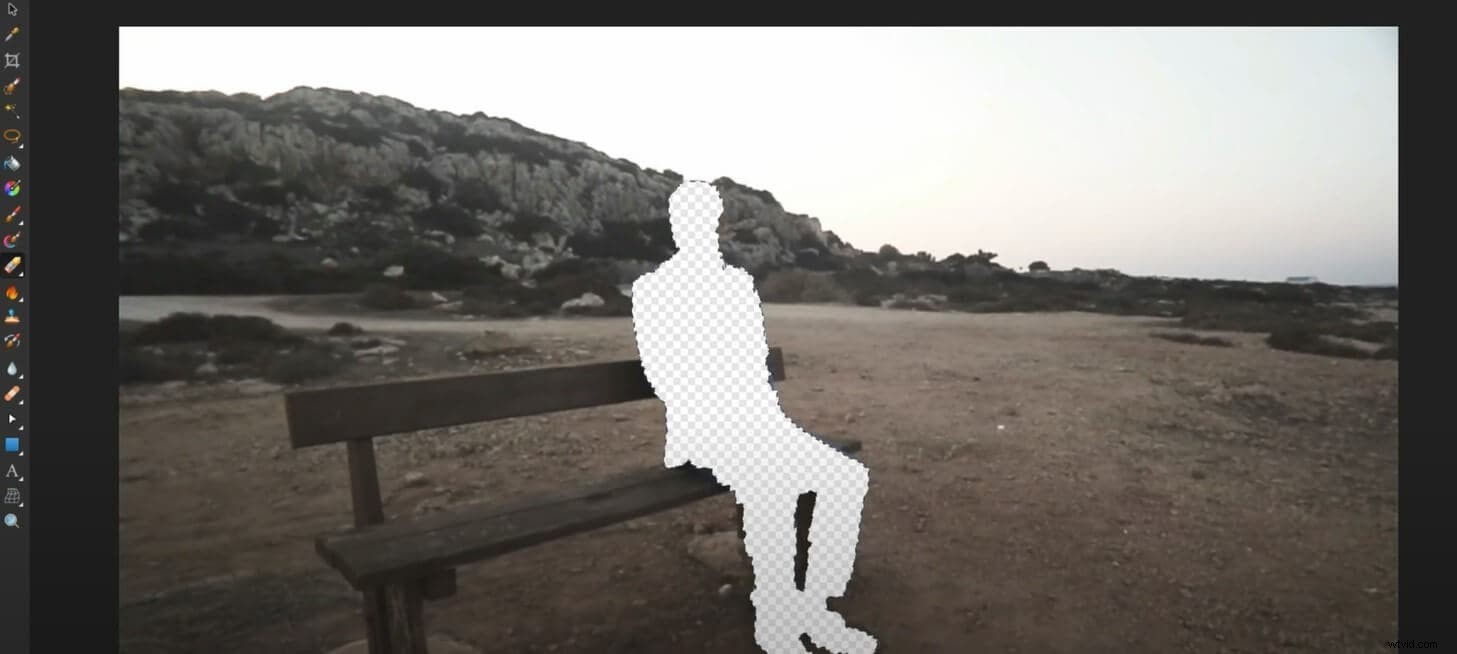
- Save the file as a PNG file.
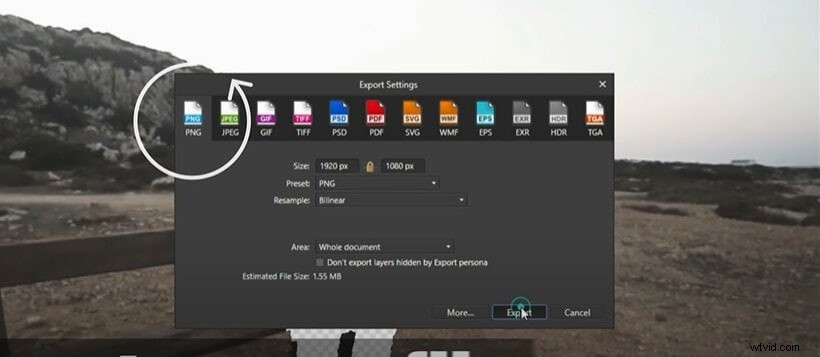
Step 3 – Import the Edited Snapshot
- Add the Edited Snapshot by importing it into FilmoraX.
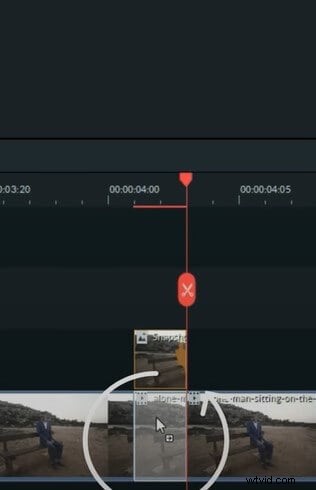
- Drag the edited snapshot above the imported video and place it where you took a snapshot.
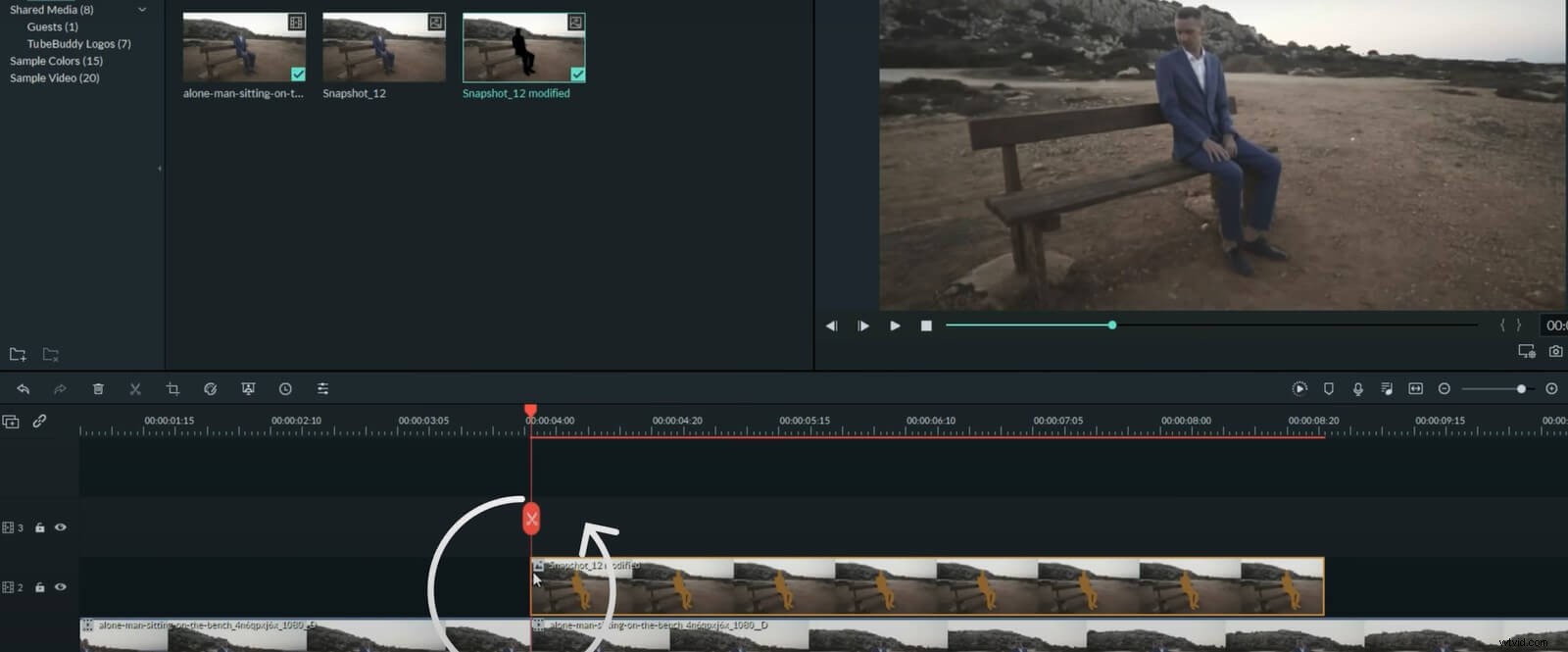
- Slice the picture to the required length. While you do this, slash the video at the same time.
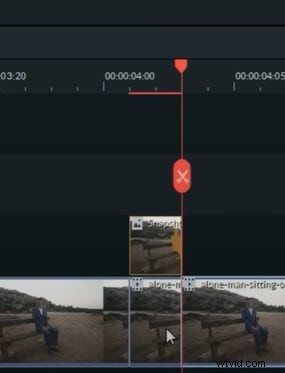
- Navigate to Export and choose Effect. Search for glitch and select any Glitch Effect you like.
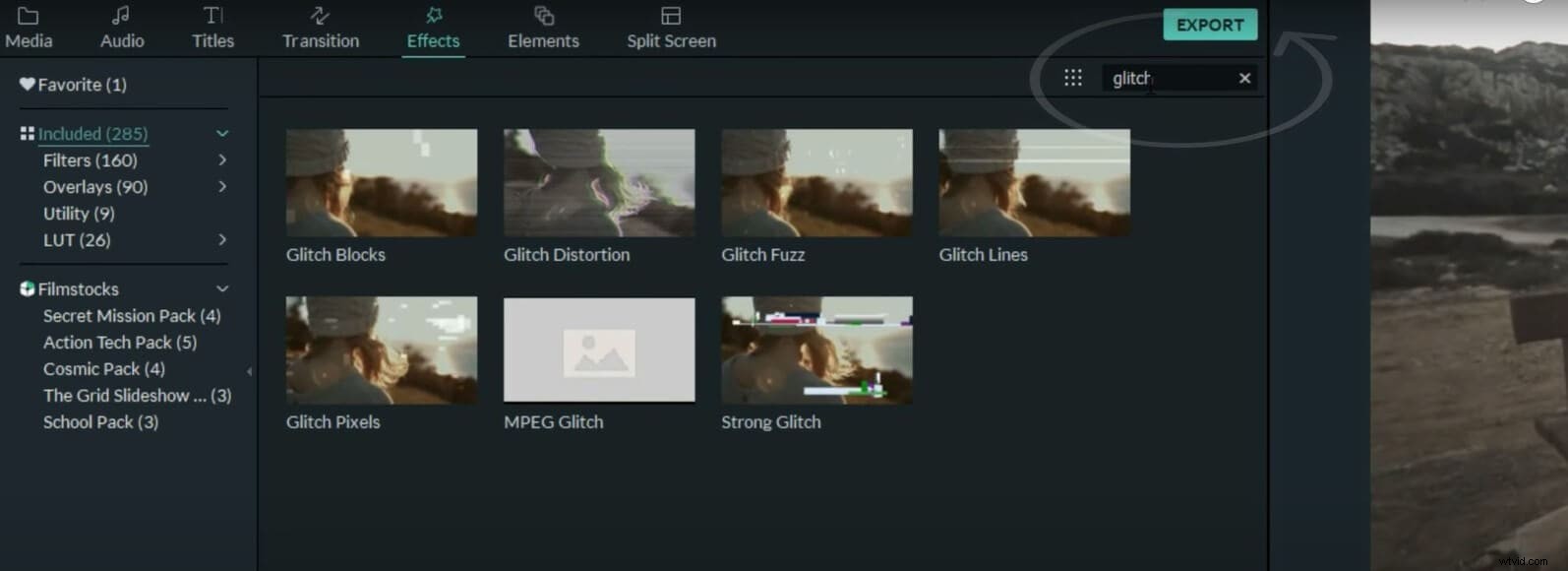
- Drag the effect into the slash video below the imported edited snapshot.
- Add a Custom LUT over the top to make it cooler.
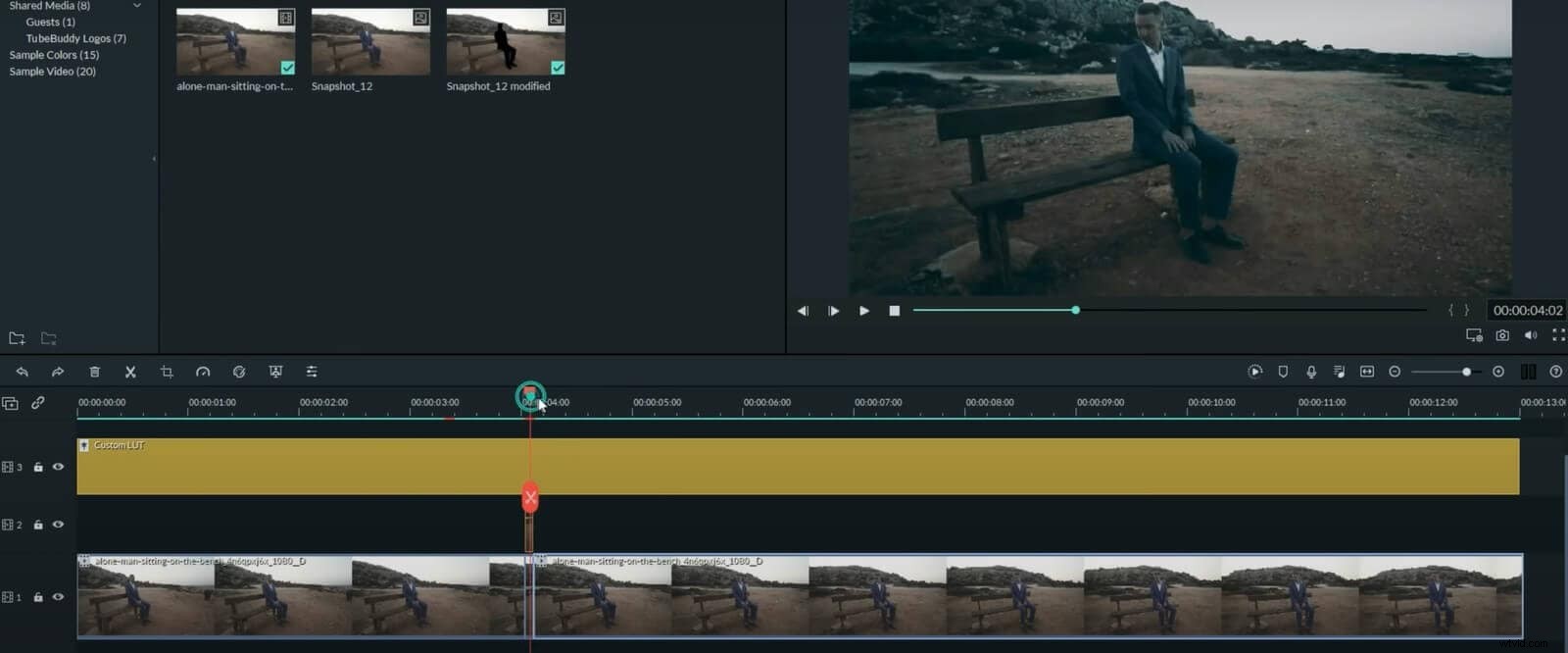
You can repeat the steps as many as you like for different parts of the video. This is where your imagination comes in. You can also select other types of glitch effects to recreate what you think suits your video.
Step 4 – Export the Motion Picture
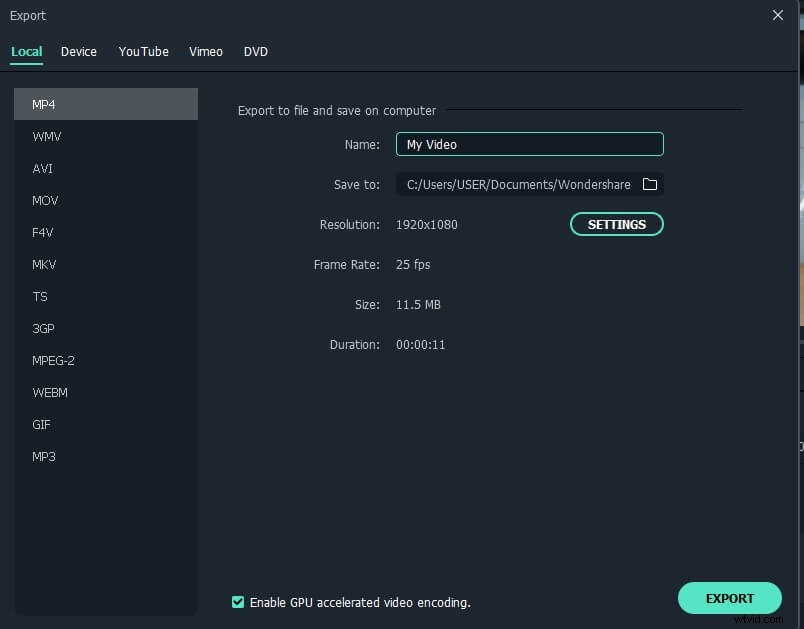
- Click on Export to save the motion picture.
- You can save in many formats such as MP4, GIF, and 3GP.
Conclusion
It is not surprising that many people are passionate about making cyberpunk style videos nowadays. This is because of Cyberpunk videos' futuristic approach or, in common terms, the glitch effect. In this article, you will get to know how to make a cyberpunk video. This will include what makes Cyberpunk 2077 popular and what you will need to make a good one using FilmoraX on Mac.
Learn More: How to Make a Moving Picture on Mac>>>