
Want to keep a life‑hack video or a friend’s birthday surprise from Instagram Stories? Recording the screen is the quickest way to save it to your device, whether you’re on a laptop, tablet, or phone.
Below is a clear, step‑by‑step guide that covers desktop, Android, and iPhone recording methods, explains when Instagram will notify you, and offers privacy‑friendly tips for capturing content responsibly.
Table of Contents
- Record on Desktop
- Record on Android
- Record on iPhone
- Does Instagram Notify You?
- Recording Safely and Respectfully
- Conclusion & Recommendations
- FAQ
Record an Instagram Story on Desktop
Modern operating systems include a built‑in screen recorder, but for users who want advanced editing, a dedicated tool can be invaluable. Wondershare Filmora combines powerful recording with a full suite of editing features, making it a top choice for creators.
Here’s how to capture a Story and edit it with Filmora:
- Download and install Wondershare Filmora on your computer.
- Log into your Filmora account and launch the Screen Recorder.
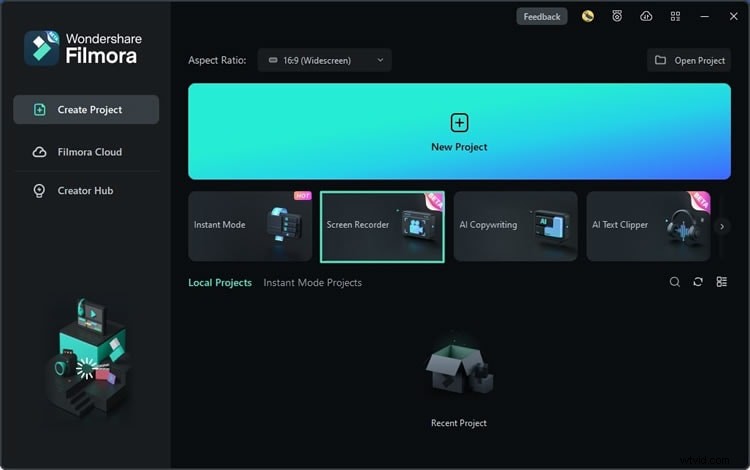
- Select a custom recording area that matches Instagram’s 9:16 aspect ratio.
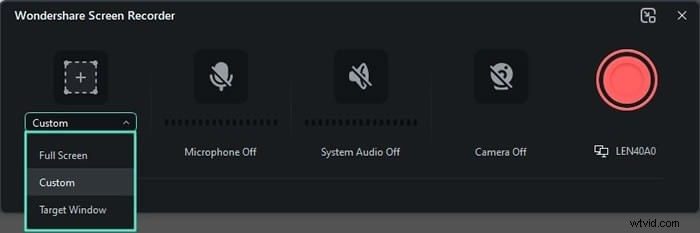
- Disable the microphone and camera; enable system audio if you want to capture the story’s sound.
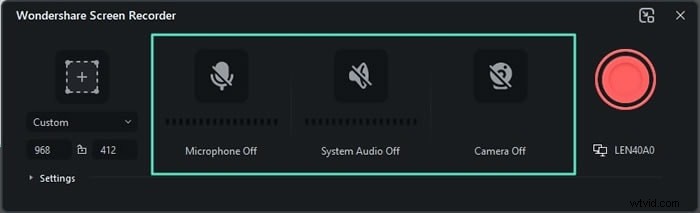
- Configure any additional settings—file name, location, frame rate, and mouse‑click visibility—via the Settings panel.
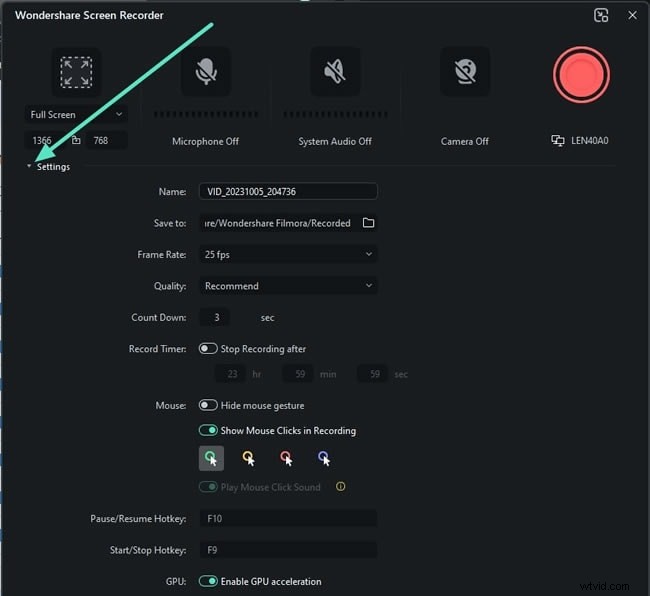
- Open Instagram in your browser, navigate to the desired Story, and start the Filmora recording (F9). When the Story ends, stop recording (F10).
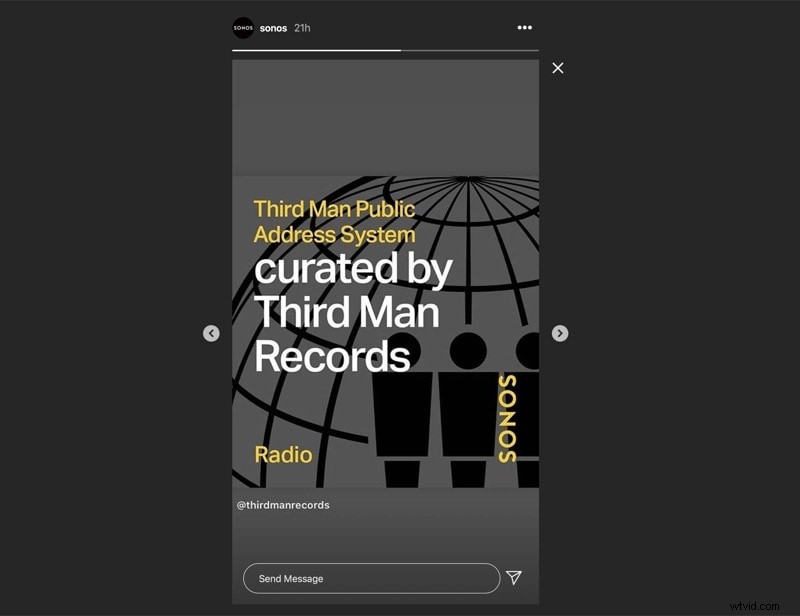
- Filmora will auto‑open the editor; trim or edit as needed, then export the final video.
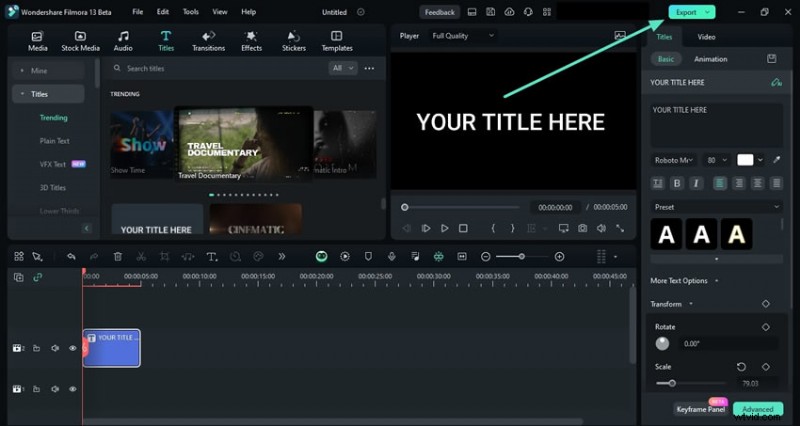
- Choose export settings and click Export to save the video to your device.

Filmora’s editing arsenal—motion tracking, speed ramping, chroma key, auto‑captioning, and more—ensures your saved Stories look polished and professional.
Record an Instagram Story on Android
Android devices come with a native screen recorder that’s quick to activate:
- Swipe down from the top right to open the Quick Panel. If you don’t see the Screen Recorder icon, tap the + or Edit button, long‑press the recorder, and add it to the panel.
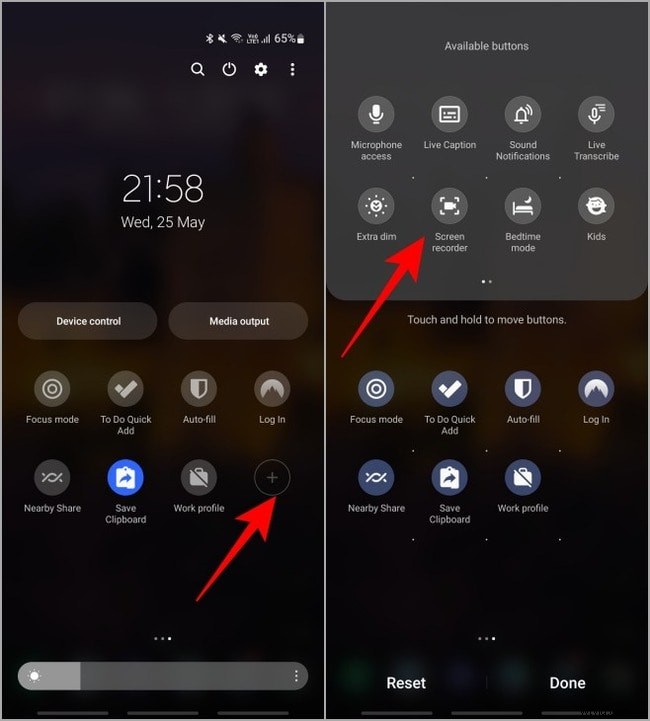
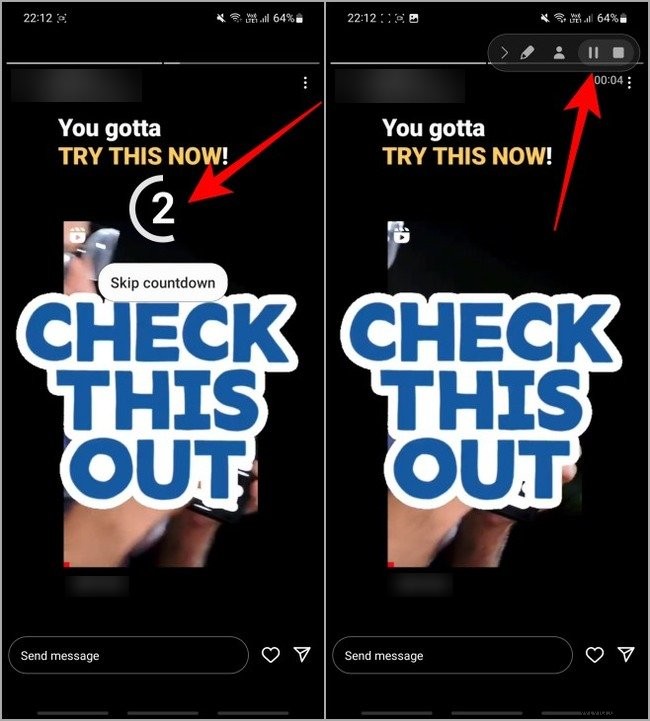
- Pause the Story (tap and hold), then tap the Screen Recorder icon. Grant any requested permissions and select your audio preferences.
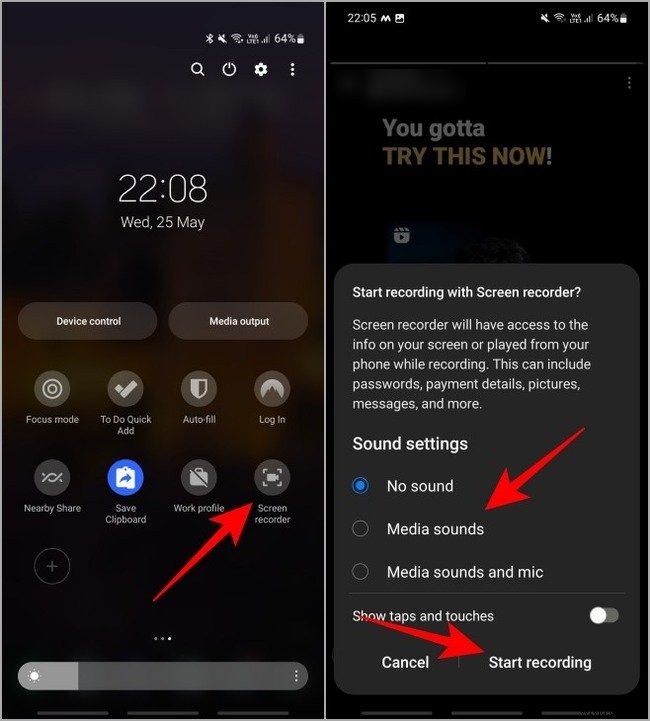
- Release the hold to resume the Story. When it finishes, tap Stop or the timer to end recording.
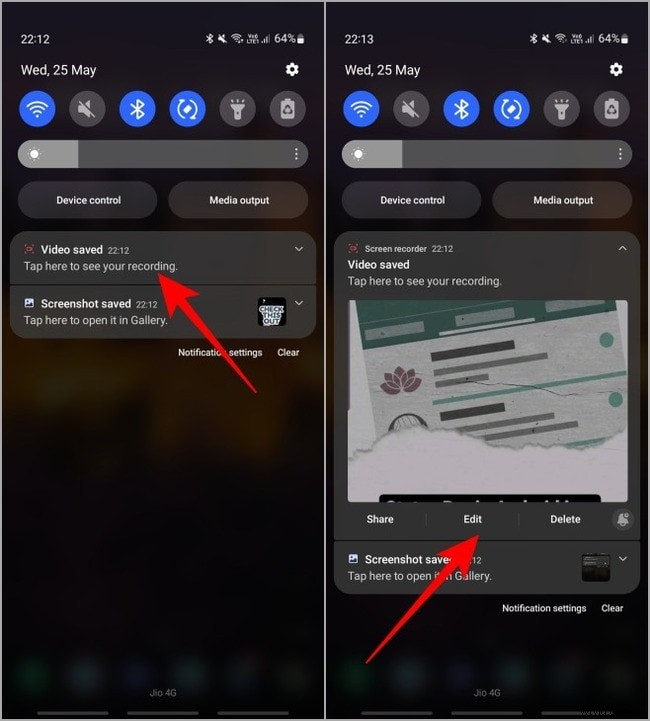
- Open the recording from the Gallery or the notification bar for quick review or editing.
Record an Instagram Story on iPhone
iOS users can leverage the built‑in screen recorder found in Control Center:
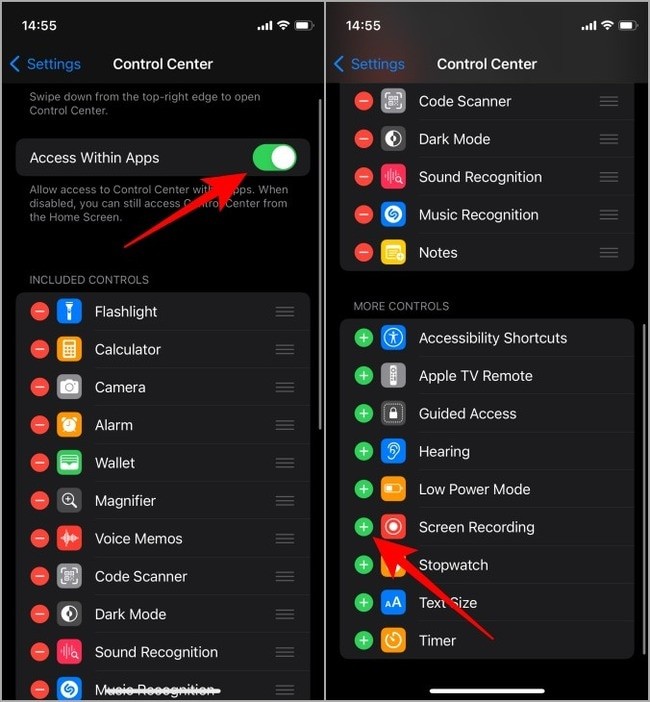
- Navigate to Settings > Control Center, enable Access Within Apps, and add Screen Recording if it’s not already present.
- Pause the Story, open Control Center, tap the screen‑record button, and wait for the three‑second countdown. Release the hold to start recording.
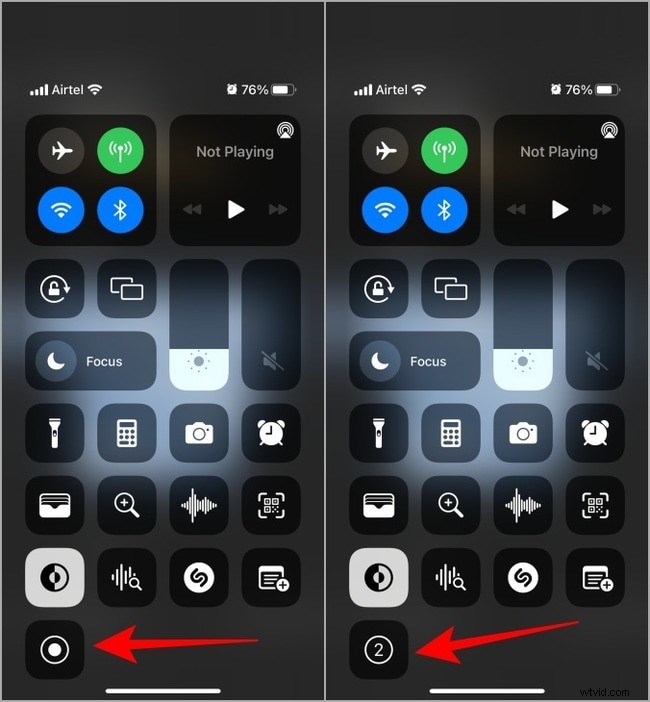
- When the Story ends, tap the red dot or Timer in the status bar to stop recording.
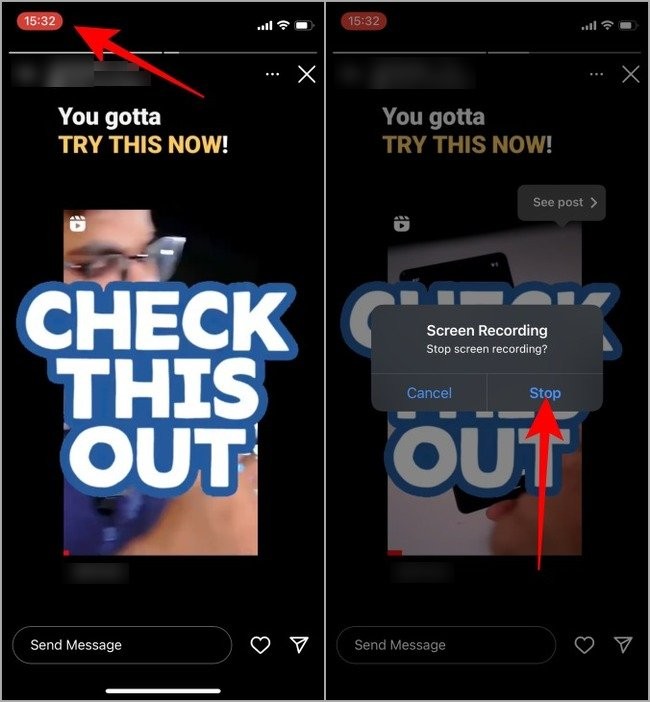
- Tap the notification in the status bar to open the recording in Photos for viewing or editing.

Does Instagram Notify You When You Record?
Instagram does not alert users when you record or screenshot a Story. The only scenarios where a notification appears are:
- Capturing a disappearing DM photo or video.
- Recording media from the Vanish mode or the in‑chat camera.
In these cases, Instagram displays your username next to the media. To prevent a burst symbol from appearing in the chat, the sender must have missed the notification. Regardless, it’s best practice to respect privacy and refrain from sharing such content publicly.
Recording Safely and Respectfully
While Instagram no longer notifies users of screen recordings, there are a few techniques to reduce detection risk, especially if you’re capturing private DM content:
- Disconnect from Wi‑Fi or mobile data before starting the recording, ensuring the app can’t report activity.
- Enable Airplane mode and optionally uninstall the Instagram app before reconnecting to the network.
These methods are not guaranteed. Always seek explicit permission before recording or sharing someone else’s content, particularly if it is copyrighted.
Conclusion
Recording Instagram Stories is straightforward across all platforms. Use your phone’s native recorder for quick saves, or choose a professional tool like Wondershare Filmora for advanced editing. Remember to respect privacy and follow copyright rules when sharing recorded material.
FAQ
-
Can I record an Instagram Story?
Yes—Instagram does not send a notification for Story recordings. However, screenshots and recordings of DM media will notify the sender.
-
Can I record Stories without third‑party tools?
Absolutely. Both Android and iOS devices have built‑in screen recorders, and desktop users can use native tools or free screen‑recording software.
-
What’s the best screen recorder for Instagram?
Popular Android options include AZ Screen Recorder and Mobizen. For iOS, consider Record it! or TechSmith Capture. On desktop, Wondershare Filmora and DemoCreator are top picks.