
Getting podcast guests from different locations can be challenging. However, remote recording of podcasts makes it easy to interview anyone, no matter where they are. You can even add multiple guests or record videos without needing a studio.
The problem? Remote podcast recording often leads to bad audio, lag, and messy setups. But with the right tools, you can avoid all that.
This guide covers the best ways to record a podcast remotely with simple, effective methods. You’ll also find practical tips to keep your audio clear and your setup ready, so your podcast sounds its best.
In this article
-
- How To Record a Podcast Remotely?
- Remote Podcast Recording On Mobile
-
- How To Record a Podcast Online and Interview Remotely?
-
- How To Record a Remote Podcast With a Video Conferencing App?
Method 1: Use a Podcast Remote Recording Software
The best way to record a podcast remotely is with a dedicated podcast recording and editing software like Wondershare Filmora. You can directly record solo by capturing your webcam or making a voiceover. Aside from that, combine separate audio and video recordings sent to you by your guests or co-hosts to create a new podcast episode.
It also lets you connect your equipment for recording a podcast remotely with co-hosts or guests from different locations. Use its screen recording tool alongside a video conferencing app to record the entire remote podcasting session.

Filmora
⭐⭐⭐⭐⭐
The Best AI-powered Podcast Recording Software and App
Here’s why Filmora stands out as a podcast remote recording software:
- AI Video Enhancer: Automatically boosts the quality of your video podcast recordings. Reduce blur and upscale video in one click.
- AI Voice Enhancer: Improves the clarity of voices by reducing background noise and enhancing speech.
- Auto Synchronization: Aligns separate audio and video tracks, so you don’t have to deal with offbeat recordings.
- AI Audio Denoise: Removes unwanted noise, giving your podcast a cleaner, more professional sound.
- Silence Detection: Identifies and cuts out awkward pauses to make your podcast flow better.
- Audio Ducking: Lowers background music volume when someone speaks, so voices stay clear and easy to hear.
- AI Text-Based Editing: Let you edit your podcast by editing the transcript. It is easy to cut or rearrange sections by simply removing or moving the text.
- Multi-Track Editing: Edit multiple audio and video tracks at once, making it easy to combine guest recordings, add sound effects, or adjust layers independently.
Using remote podcasting software like Filmora gives you flexibility in editing. Create podcasts from home, a café, or anywhere you like. The built-in editing tools make it easy to achieve professional studio-quality results, especially for beginners.
How To Record a Podcast Remotely?
Follow these steps to record a podcast remotely on a desktop:
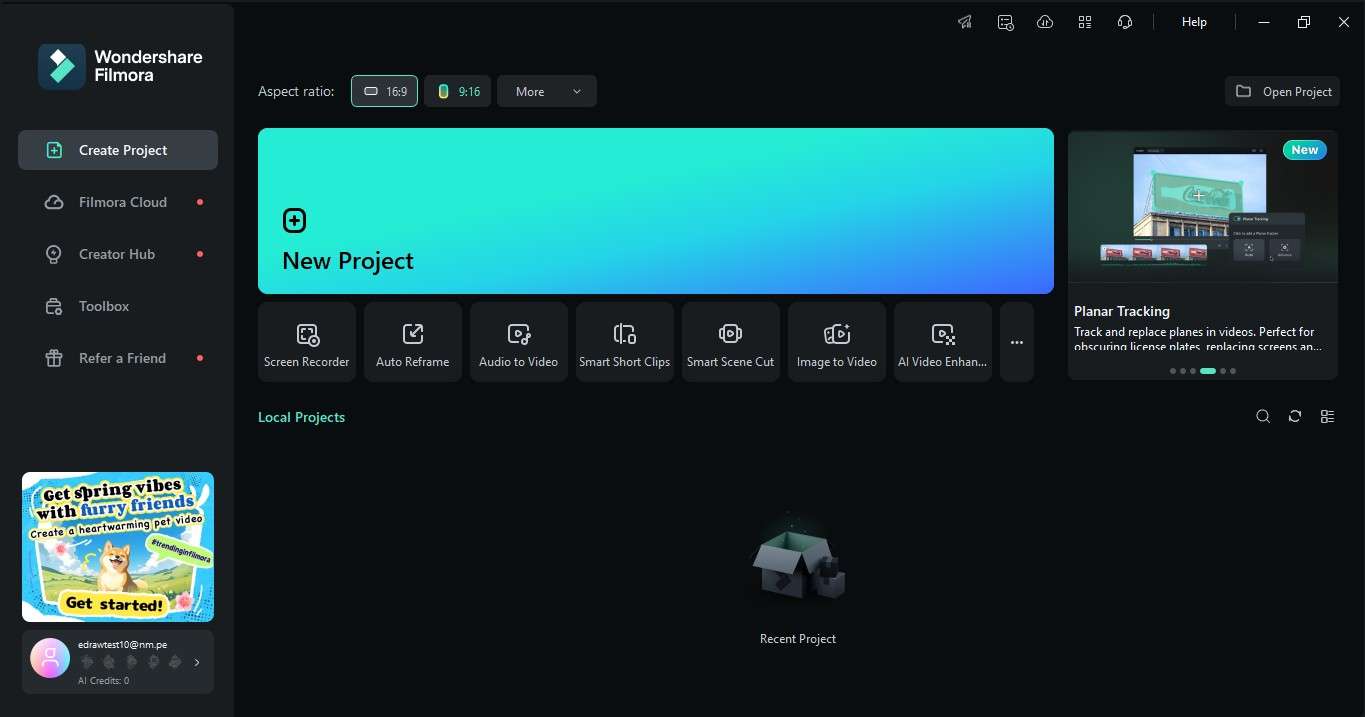
Step 1: Create a New Project
Launch Filmora on the desktop and click Create New Project. It will open the editor where you’ll manage your podcast files.
Step 2: Set Up Podcast Recording
There are three ways to record a remote podcast in Filmora. First, go to File > Record Media and choose an option.
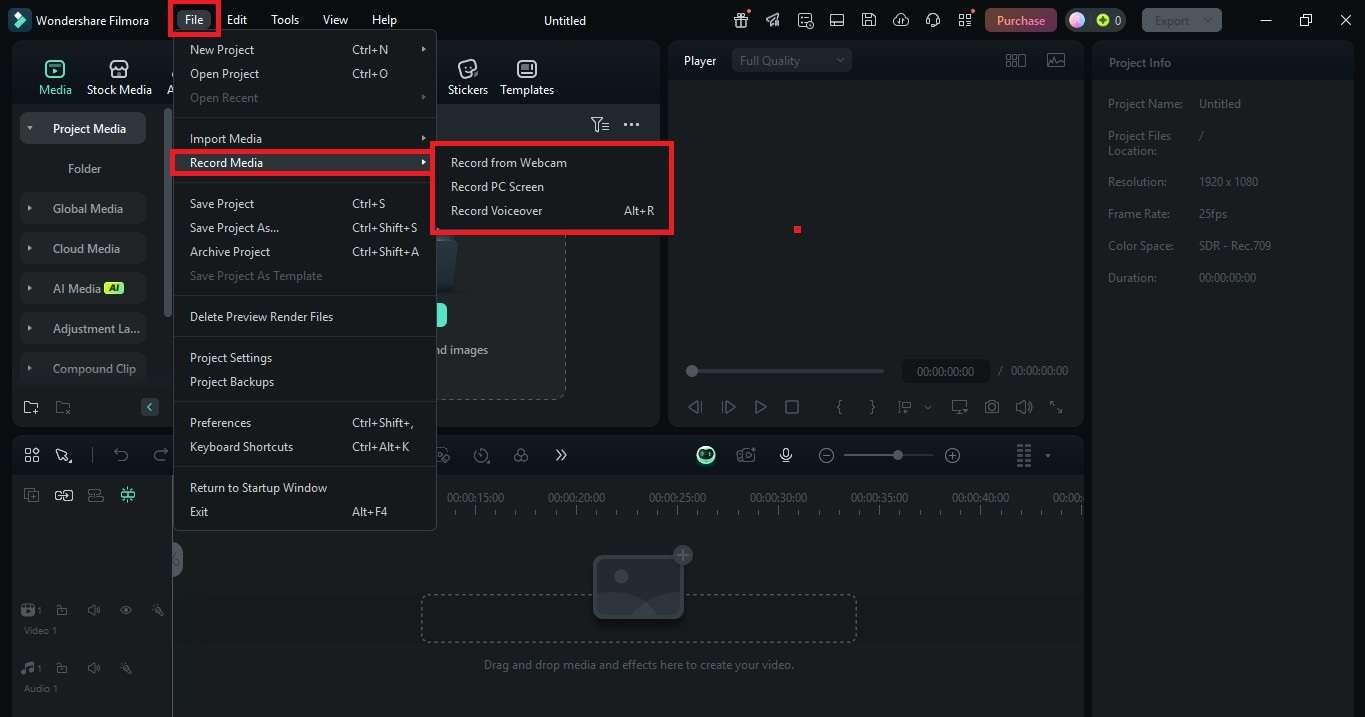
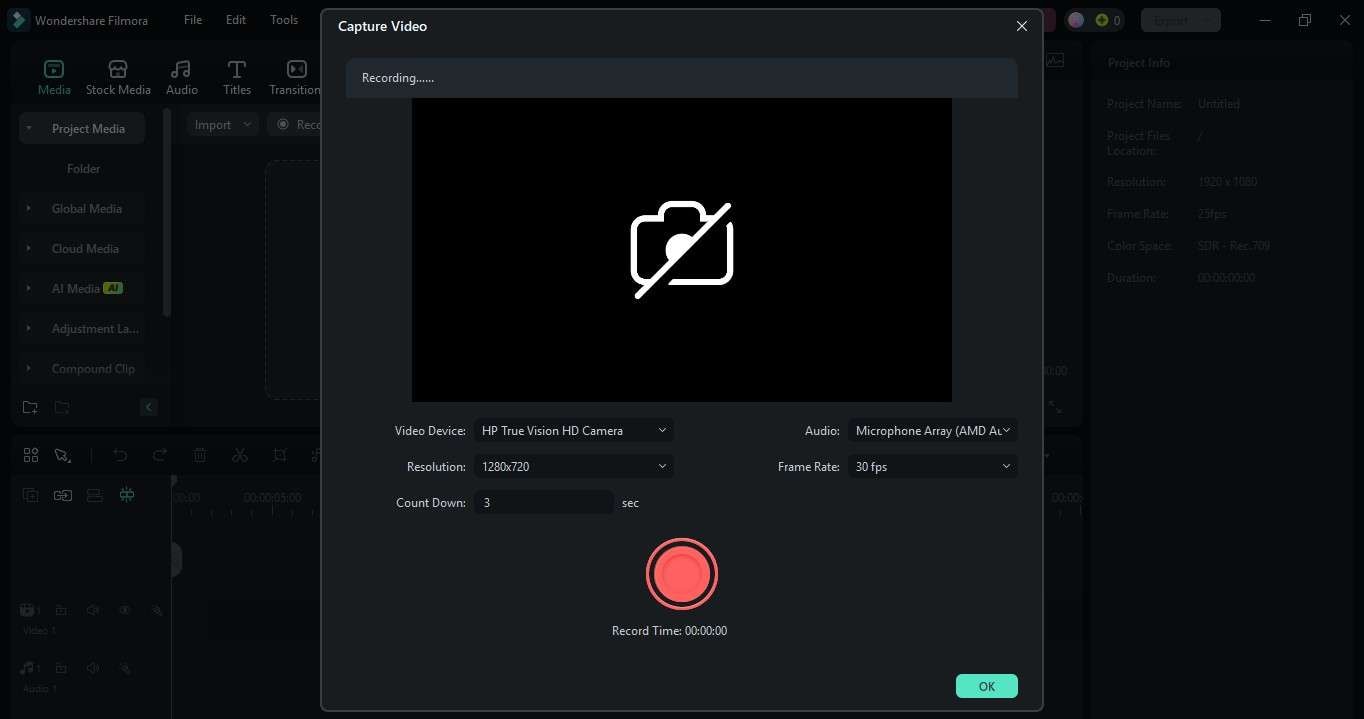
- Record from Webcam: The Capture Video pop-up window will open. Adjust the settings, such as camera, resolution, and audio source.
- Record PC Screen: This lets you record your screen while running a video conferencing app with your guests. Choose the recording area (full screen or custom) and enable Microphone and System Audio to capture your voice and guests.
- Record Voiceover: Make a podcast voiceover from the Record Audio pop-up window.
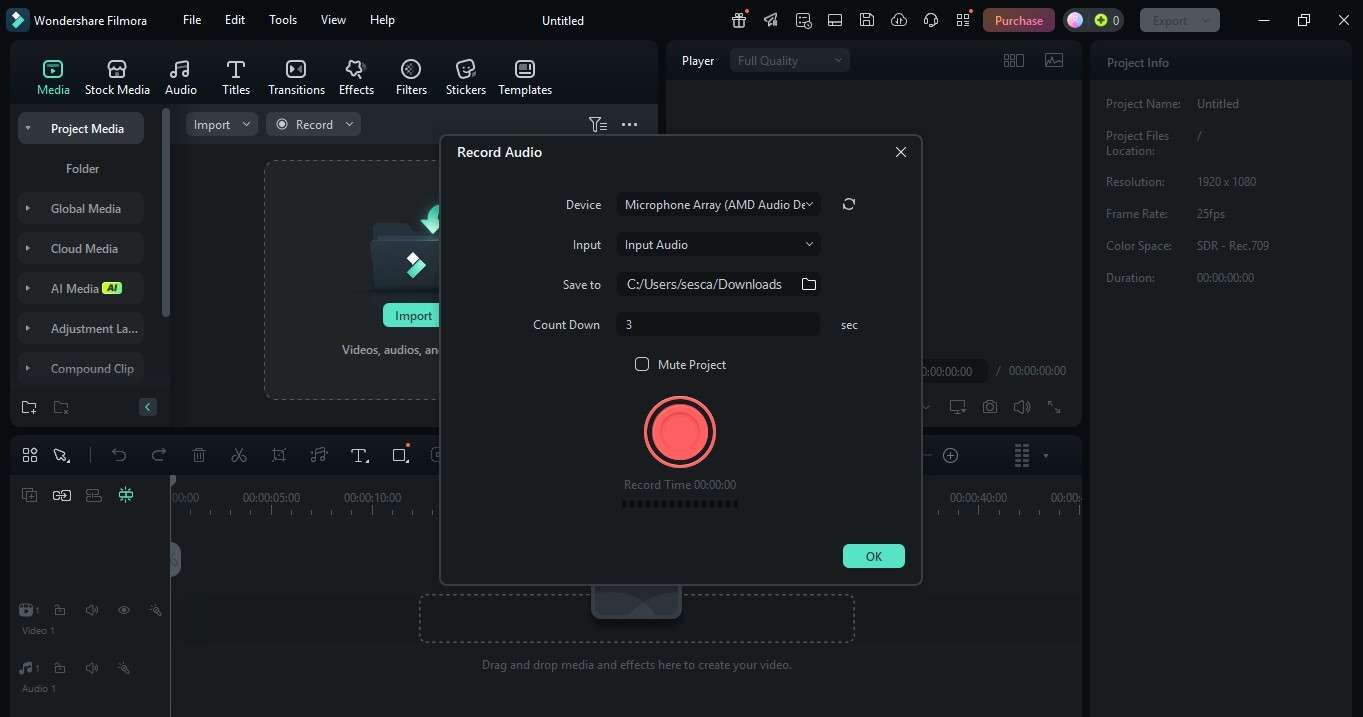
Step 3: Start Recording the Podcast
Click the Record button and begin your remote podcasting session. Filmora will capture the conversation in real-time. Once done, click Stop. The recording will automatically be added to your project timeline.
Step 4: Import More Podcast Files (Optional)
If you or your guests have separate remote recordings from other equipment, you can import the files into Filmora. Go to Media > Import and add the audio or video tracks to the editing timeline. Use Filmora’s editing tools to polish your podcast.

Step 5: Edit and Export Your Podcast
Once you’re happy with the editing, click Export. Choose your preferred format (MP3, MP4, etc.) and save your podcast.
Remote Podcast Recording On Mobile
Here's another way to do remote podcast recording on the go:
Step 1: Install the Filmora mobile app from the App Store or Google Play. Open the app and tap New Project to start remote podcasting.
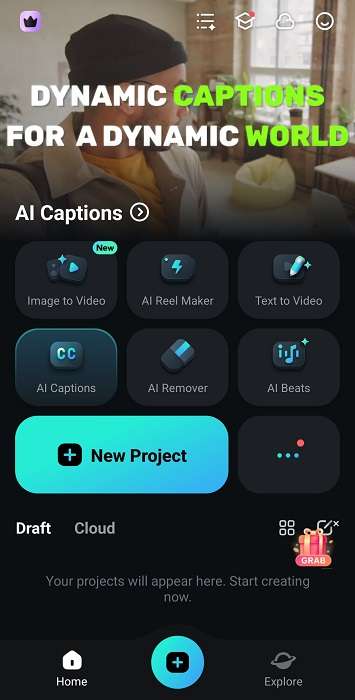
Step 2: If you or your co-hosts did their remote recordings, you can import them into Filmora. Tap Import and add the files from your device. To add a voiceover, go to Audio > Record from the bottom menu.

Alternatively, select Camera from the Toolbox to record your podcast’s video and audio using your phone.
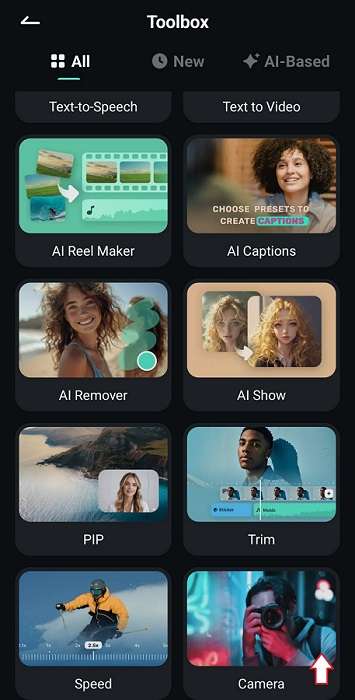
Step 3: After importing the files or recording the podcast, use Filmora’s built-in editing tools to enhance it.
Method 2: Record a Podcast Remotely Using an Online Tool
You can also use online tools like Riverside.fm or SquadCast to record a remote podcast. They capture high-quality audio and video from different locations all at once.
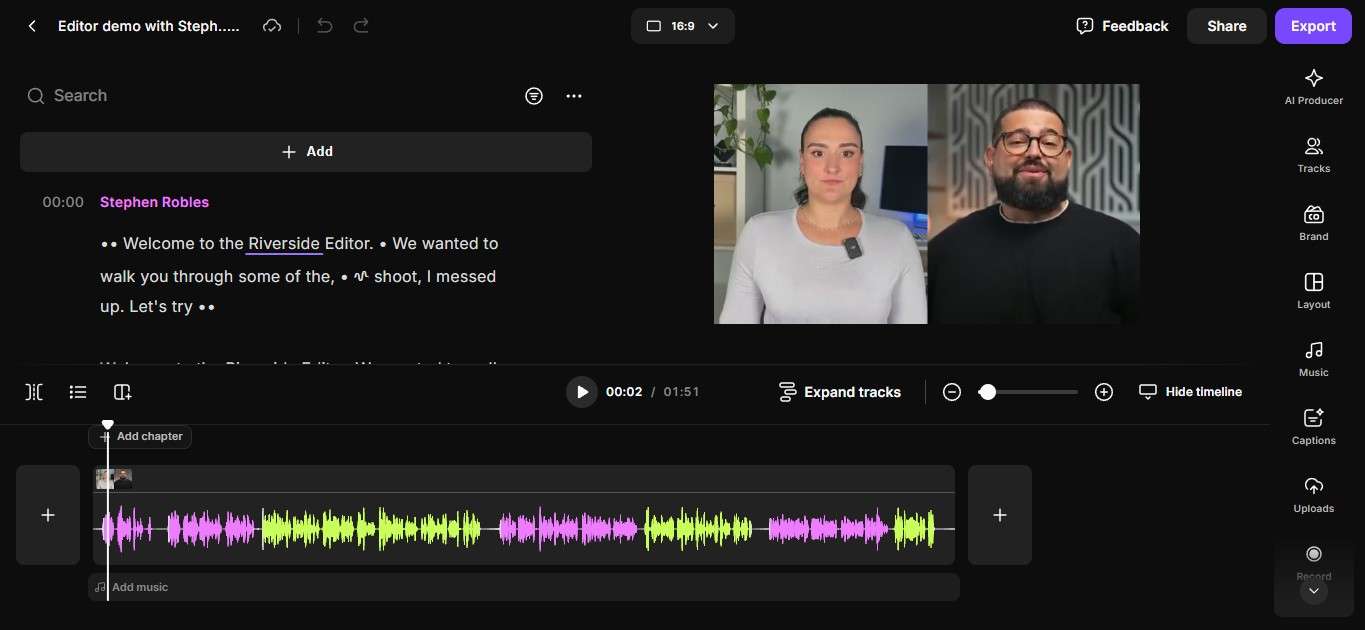
With Riverside, for instance, you and your guests just join through a browser. Each person gets their own separate audio and video track. This makes refining your remote podcast recording easier afterward.
How To Record a Podcast Online and Interview Remotely?
For recording a podcast remotely online, follow these steps:
Step 1: Visit the Riverside website and click Open studio on the left side menu. Next, enter your name as a host and click Allow Access to continue.
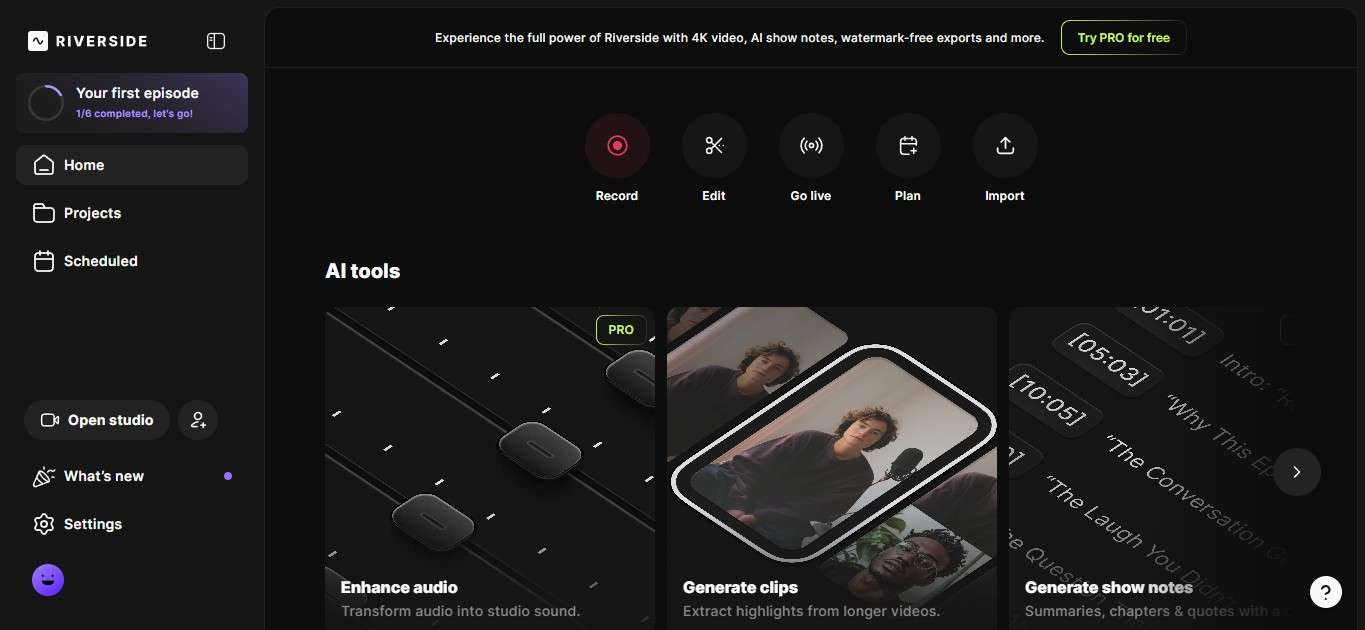
Step 2: Click Join Studio to enter the session. Then, send the link to your co-hosts or guests and wait for them to join the remote podcast.
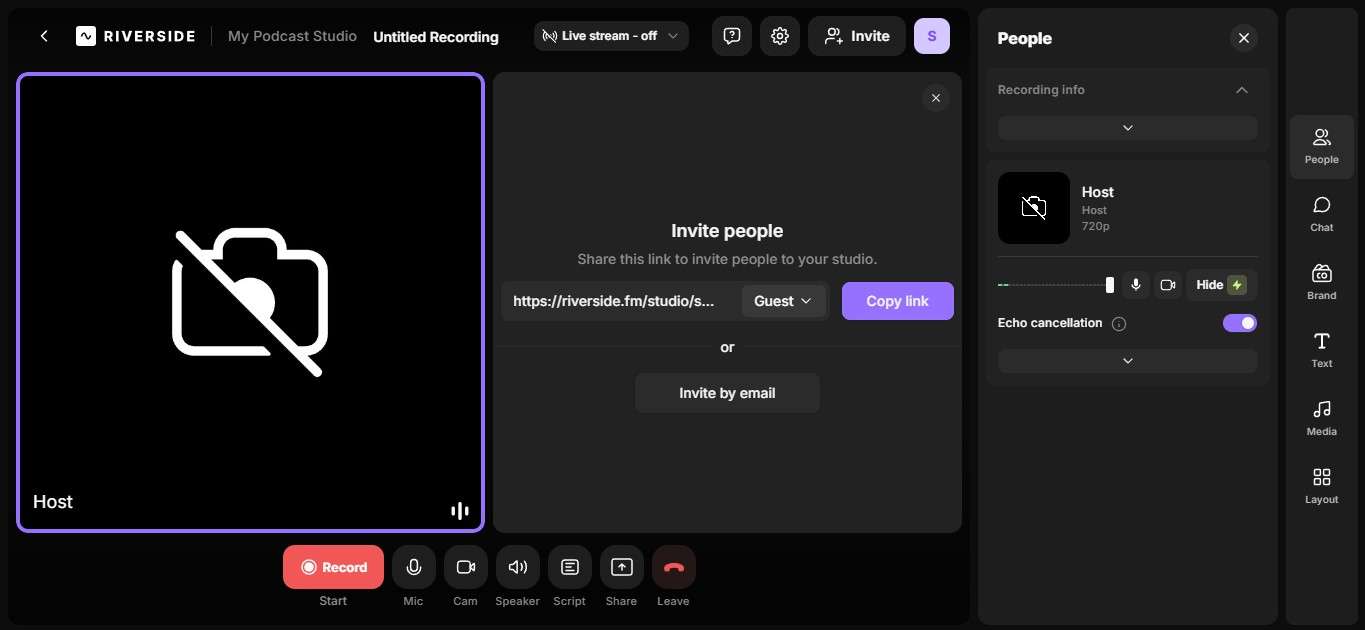
Step 3: Ask your guests to test their audio and video setup before you start. Click Record when everyone is ready.
Step 4: After recording, edit the podcast in Riverside using its text-based editing feature.
Method 3: Record Remote Podcast With Video Conferencing Software
One way to do podcast remote recording is by using apps like Zoom, Google Meet, or MS Teams. Zoom’s free plan lets you record your meeting, while Google Meet only allows recording on paid plans. If you don't have access to these features, you can use a free screen recorder like Filmora.
How To Record a Remote Podcast With a Video Conferencing App?
Here are the steps for podcasting remotely with your guests and co-hosts using Google Meet:
Step 1: Open Google Meet and click New Meeting or Join with a code if you have an invite.
Step 2: Once everyone has joined, click the Activities icon at the bottom right corner of the screen. Next, select Recording and click Start recording.
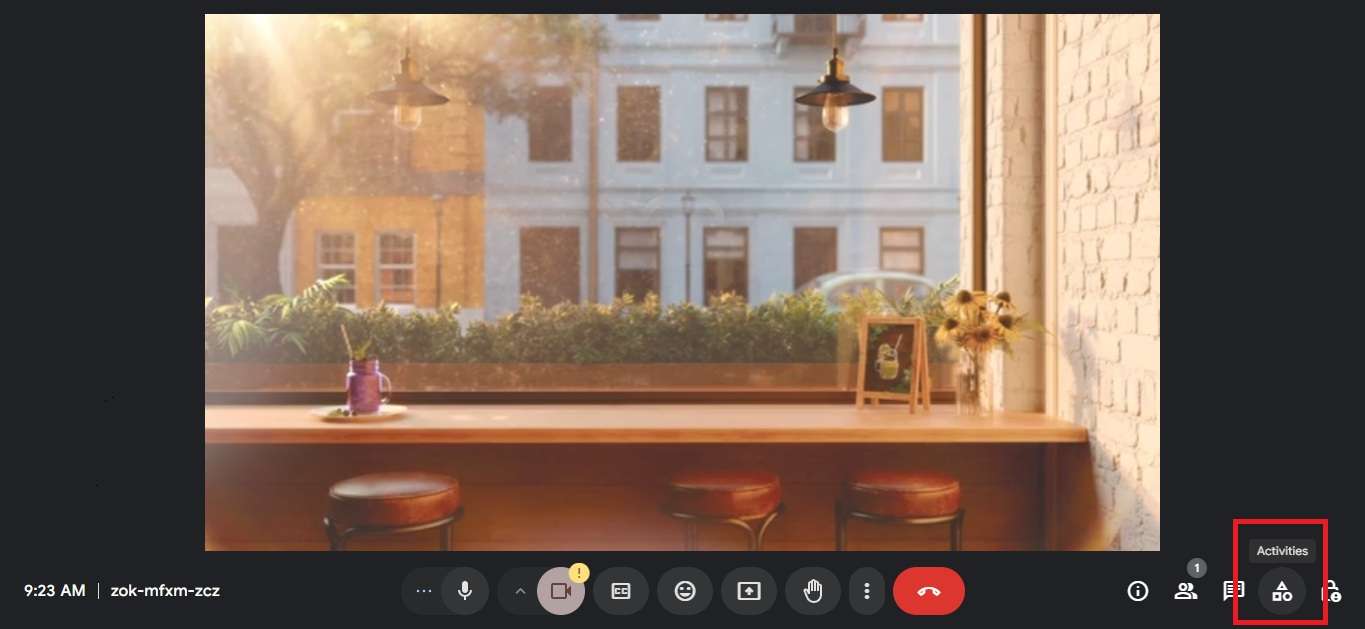
Step 3: Click Stop recording in the pop-up window to end.
Part 4: Tips for the Best Remote Podcast Recording
Good audio keeps people hooked. If they enjoy listening, they’ll keep coming back for more. Here’s how to improve your podcast remote recording process:
- Remove Background Noise: Random hums, clicks, or echoes can distract listeners. Make sure your audience can hear you. After all, your content is nothing if the audio isn’t good. Make them listen. And to do that, keep background noise out of the picture. Use noise reduction tools to keep your audio clean and clear.
- Balance Audio Levels: Keep your volume steady. No one wants to deal with voices that jump from too quiet to too loud. Balanced audio makes your podcast easier to follow.
- Add EQ presets: Give your voice some character. Adjusting the EQ can make it sound richer or smoother. It also helps cut out any sharp or muddy tones.
- Use Auto-Subtitles for Video Podcasts: If you’re sharing video episodes, subtitles help viewers catch every word. They also make your content easier to follow.
- Trim Unnecessary Pauses: Long, awkward silences can break the flow. Cut them out to keep your podcast snappy and engaging.
- Use AI Tools: Don’t overthink the editing. AI tools can clean up your audio, remove noise, and even add subtitles. It’s a quick way to polish your podcast without hours of editing.
Conclusion
Remote recording of podcasts has made it easier than ever to share your voice. You no longer need a professional studio or expensive equipment. With Filmora remote podcast recording software, you can create high-quality episodes from anywhere.
The best way to record a podcast remotely? Keep it simple. Get clear audio, stay consistent, and let your content do the talking. With the right setup, you’ll sound sharp no matter where you are. Now, go create something your listeners will love.