
If you are looking for the best screen recording software, you can either for a free recording software or go for a premium software. OBS Studio is the best free recording software available. Among premium recording software, you will come across various applications and Fraps is surely going to be one of them. Just because Fraps is a premium software, you should not buy it blindly.
You have to check the features of each of these best screen recording software applications. You should go through OBS Studio vs Fraps to understand their similarities and differences. Depending on your requirements, you can select the perfect one based on your own judgement. We have also provided you with a better alternative for your consideration.
1. Key Features OBS Vs Fraps
Before starting to use any software, you should be aware of its key features. You should make sure that the key features of the software meet your requirements specifically.
OBS Studio -
Easy screen capture: OBS ensures high-quality video and screen capture. It is suitable for capturing gameplay, screen activities as well as video from webcam and external devices. There are many audio and video filters as well as effects available to make the video capturing process better.
Customize Parameters: In spite of being completely free, there is no dearth of advanced features and functionalities. You can customize various audio and video parameters to suit your requirements.
Advanced Recording: You can add multiple scenes and switch between them. There are powerful configurations options available from recording from multiple sources. Besides, it supports plugins and external applications for better recording. The intuitive audio mixer helps in capturing better quality audio.
Live Streaming: OBS supports live broadcasting of videos on various online platforms. It is extremely popular for broadcasting real-time videos on Twitch, Facebook Live, YouTube and much more. Once you have the stream URL and key, you can broadcast on any platform.
Besides, the customizable hotkeys for different functions make the recording operating seamless.
Fraps -
Record Professional Videos: Fraps lets you record high-quality videos in 120 frames per second. You can even record 4K videos smoothly depending on your webcam or screen resolution. It will automatically optimize the bitrate so that there will be an improved quality video capture.
Capture Screenshots: You will be able to capture screenshots at any time while recording a video as well. All you have to do is to press the shortcut key and it will automatically save the screenshot according to the timestamp. You can pre-select the screenshot file format.
System Requirements – Fraps is compatible with the older version of Windows such as Windows XP, Windows Vista as well as Windows 7 and higher. Naturally, the system requirement is optimal and significantly lower than most screen recording software. The capturing is also smooth without the software crashing or system hanging.
Easy to use: Fraps comes with a clean and intuitive user interface. While recording, it shows you various useful parameters at one corner. You can customize various parameters for perfect recording.
2. How To Use OBS Studio and Fraps -
OBS: Here are the steps on how to record video with OBS Studio.
Step 1: Download and install OBS Studio on your computer.
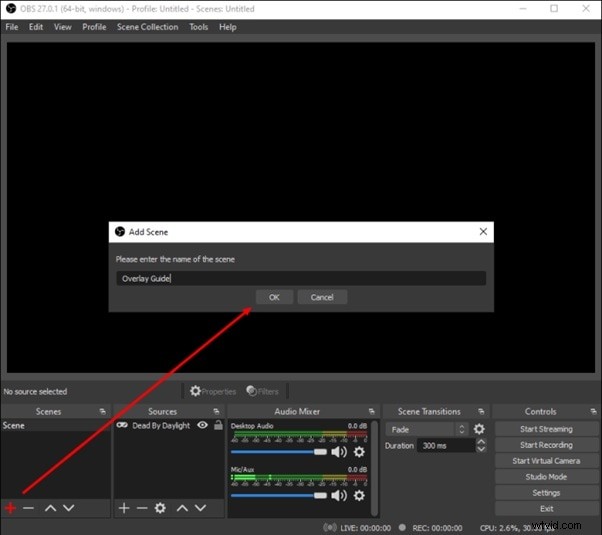
Step 2: Go to Scenes tab, click on “+” button to create a new scene. You can create multiple scenes and switch between them while recording.
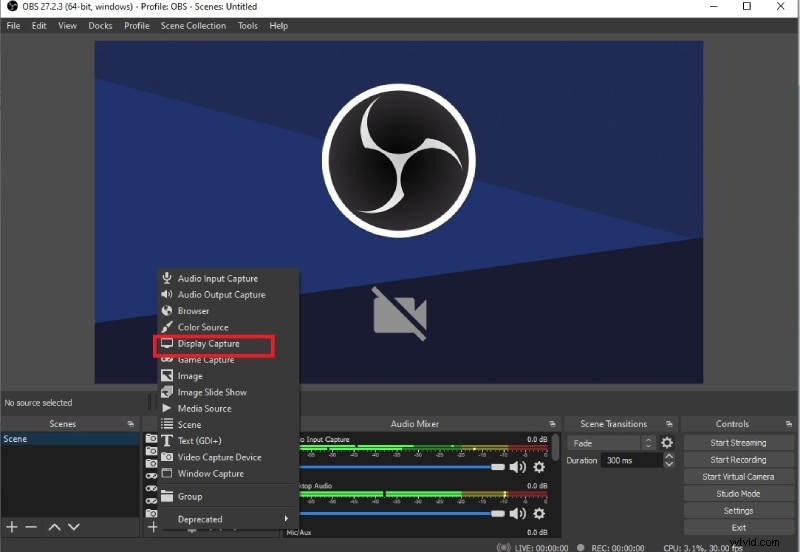
Step 3: Go to Sources tab, click on “+” button and select Display Capture option to capture your screen. If you want to capture from gaming console or external video capture device, select accordingly.
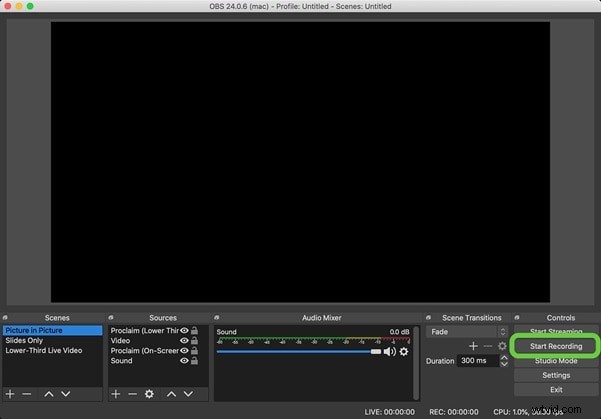
Step 4: Go to Controls tab, click on Start Recording to start recording.
Step 5: When your recording is done, click on Stop Recording option under Controls tab.
Fraps: Here are the steps on how to record video with Fraps.
Step 1: Download and install Fraps. You can go for the trial version and if satisfied, you can opt for the premium version.
Step 2: Open the application and under General tab, check the required parameters.
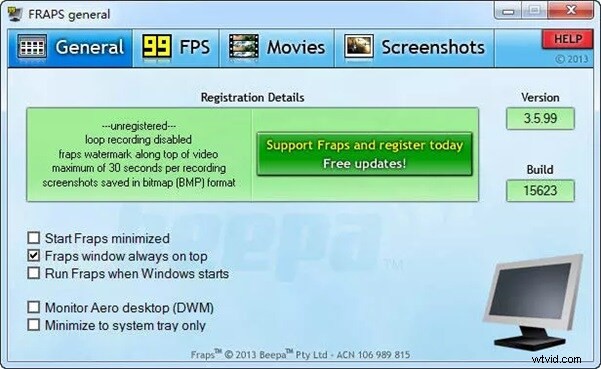
Step 3: Go to Movies tab and set the settings as required.
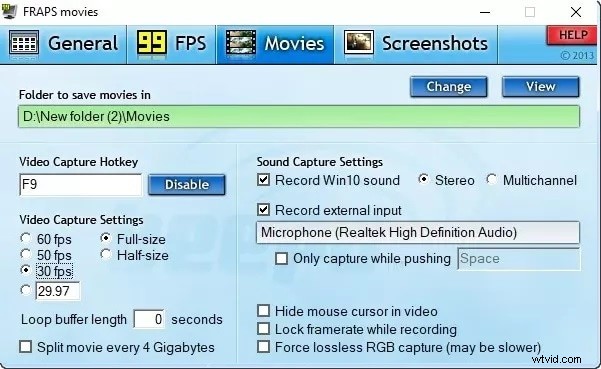
Step 4: Open the screen that you want to record and press F9 to start recording with Fraps. To stop recording, press F9 key again.
3. Comparison - Fraps vs OBS
OBS lets you use it for free on different operating systems. Fraps charges you a one-time free and it only supports the Windows platform. In terms of features, Fraps has limited features as well as configuration settings. However, Fraps is easy to use and the limited controls are intuitive in nature.
Fraps offers great video quality even though there is a low frame rate and it does not require high computer configuration. On the other hand, OBS is highly customizable and there are advanced features available for video recording and even live streaming. Here are the key points of comparison to choose OBS or Fraps as the best screen recorder.
|
Parameters |
OBS |
Fraps |
|
OS Support |
Windows, Mac, Linux |
Windows |
|
Ease Of Use |
Complicated |
Easy |
|
CPU Usage |
Relatively High |
Relatively low |
|
Video Quality |
Not Always Great |
Great |
|
File Size |
Adjustable |
Very Large |
|
Output File Formats |
MP4, MOV, AVI and more |
AVI |
|
Customizable Configurations |
High |
Limited |
|
Third-party Integrations |
Possible |
Not Possible |
|
Price |
Free |
$37 (one-time purchase) |
4. A Better Alternative
If you find OBS Studio complicated to use and the features of Fraps do not meet your requirements, we recommend you to opt for Wondershare Filmora. In terms of features of screen and video capturing, Filmora is as good as OBS Studio. Additionally, there are video and audio editing tools available which will make your recorded video ready for publishing online. Here are the steps to record the screen with Filmora.
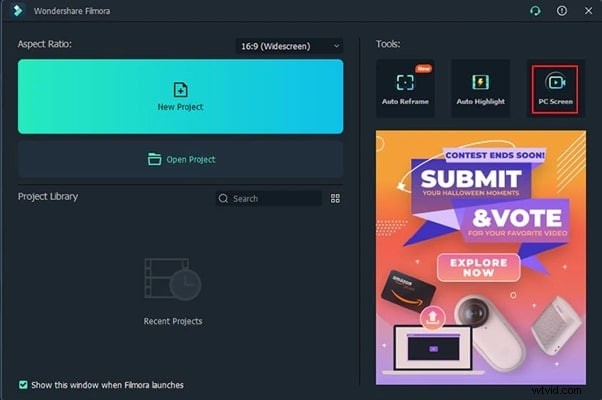
Step 1: Download and install Wondershare Filmora as per you operating system and launch the applications. Select PC Screen option at the top-right corner.
Step 2: Customize the recording screen size and select the audio source as required. , If you want to record your facecam at one corner, turn on Record the Camera Stream option.
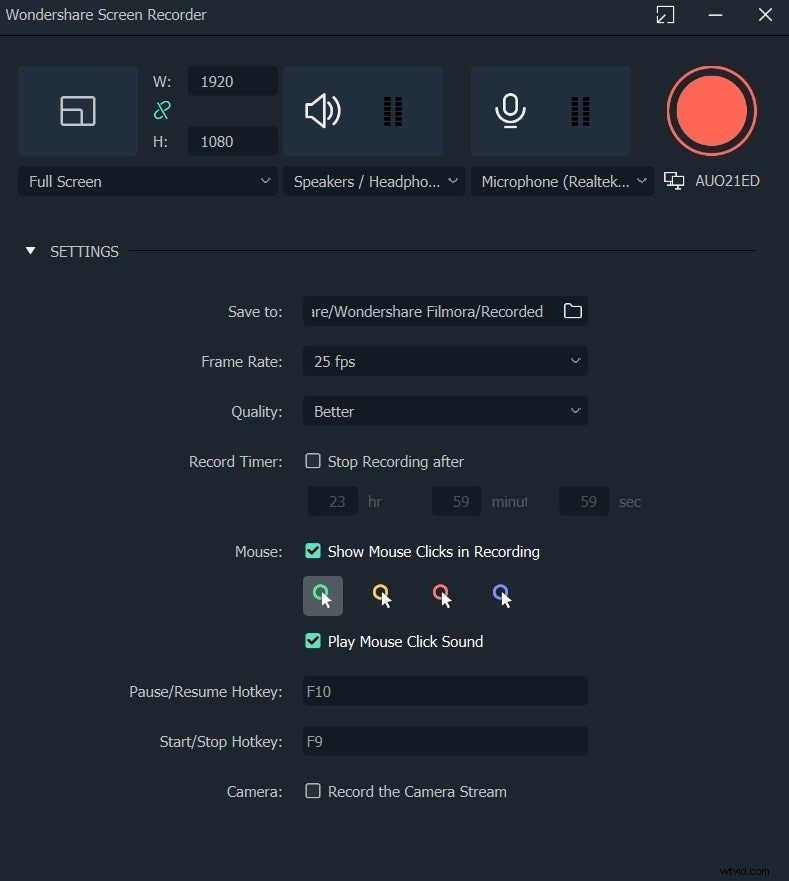
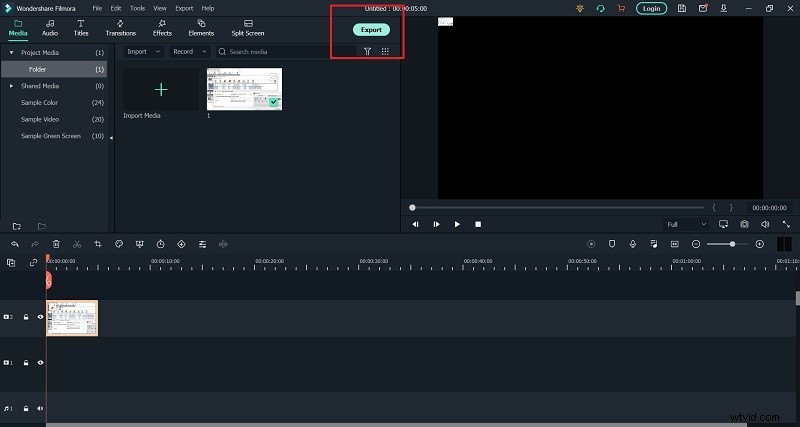
Step 3: Click on Record button to start recording. When you are done, press F9 key to stop recording. You can then edit the recording and export instantly.
Conclusion:
To sum it up for you, if you have a low configuration computer, you should opt for Fraps. If you have low-budget, you should go for OBS Studio. In terms of features, OBS is far better than Fraps even though it is completely free to use. If you compare the user interface, Fraps is the clear winner. If you want a better alternative to OBS Studio and Fraps, we recommend Wondershare Filmora as the best screen recording software for Windows and Mac.