
Surely it’s just a flip of a switch? At least that’s all it usually takes to swap from shooting stills to video on the majority of DSLRs and Mirrorless cameras. However, with the Canon EOS R there’s an extra layer of complexity.
Does it make sense? I’m sure it does to someone, but unless you know the process of swapping from one mode to another it can be a complete mystery.
There is, of course, a short cut. Just push the red button and the EOS R will start to record video. But how do you change resolution, framerate or video mode?
Thankfully like any good puzzle, Canon has left a trail of icon clues to assist you. Let’s take a look at what they mean and how to switch from still to video on the Camera EOS R.
How to switch from still to video on the Canon EOS R
- Push the mode button (it has Mode written on it)
- Push ‘Info’, (you’ll see the icons on the small top LCD)
- Use the control dial to select Video
- Tap the Q (Set) button to select
Now when you access the menu system you’ll get all the options for the video mode rather than stills.
By default, you’ll be in one of the auto video modes. To swap out of this, tap the Mode button and you’ll see all the options appear on the LCD. You can then use the control dial to select the mode that you want.
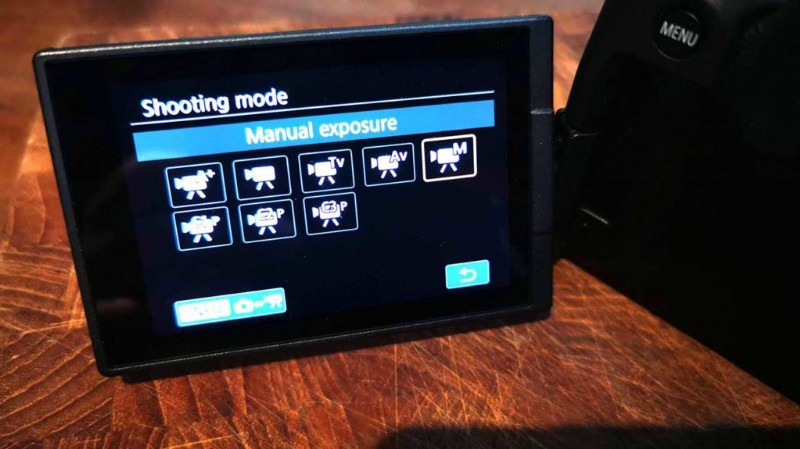
If you select M you’ll get complete control over all of the Canon EOS R’s video settings. You can then use the top and rear dial to adjust shutter speed and aperture, just as you do in stills mode.
A good additional option is to configure the rear touch bar to adjust the sensitivity.
To swap back to stills, just tap the mode button then push info and select the stills mode you want.