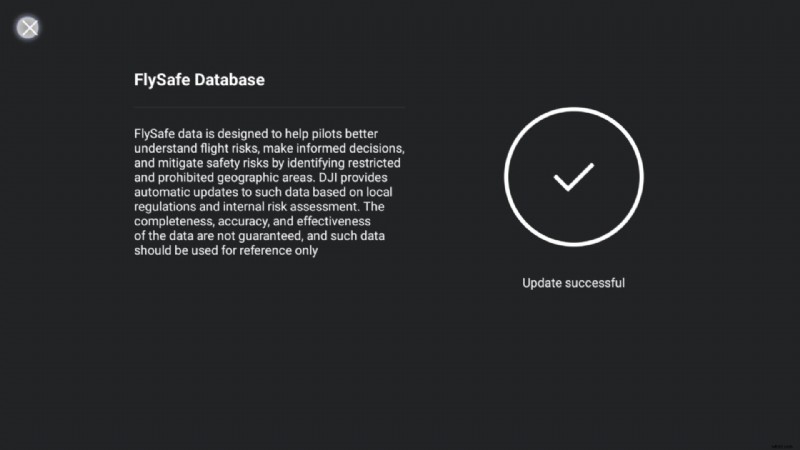
Although the DJI Flip is a very new drone (as of this article’s writing), having been released in January 2025, it has already received a few firmware updates.
For those new to drones in general, firmware updates are very important for drones. This is because they oftentimes implement performance enhancements, add new features, and address and fix bugs that otherwise hamper an excellent flight experience.
This article and YouTube video serve as step-by-step guides showing how to update the DJI FlySafe Databases and firmware on the DJI Flip and DJI RC 2 remote controller.


Updating the Flip’s Firmware
For those who have been flying drones for a while, staying with a drone’s original release firmware was a common practice, a practice we likewise followed.
This was primarily because the firmware updates then would oftentimes break a feature or cause the drone to fly inconsistently. With newer drones, like the Flip, updating the firmware is beneficial.
As mentioned, new features, tweaks, and fixes are added over time. These updates improve the overall user experience.
DJI has been quite committed to improving the flight characteristics of their new line of drones, regularly.
To update the firmware on your DJI Flip, you’ll need your:
- DJI Flip and installed battery
- DJI remote controller (in this instance the DJI RC 2)
Additionally, we suggest that any time you run a firmware update on your drone, have the Flip batteries and remote controller fully charged before running firmware updates.
The steps to update the firmware on your Flip are as follows:
STEP 1: Before turning on the DJI Flip, remove the gimbal and silicone camera covers. This will ensure that when the Flip is turned on, the gimbal’s movement will not be impeded and cause errors.
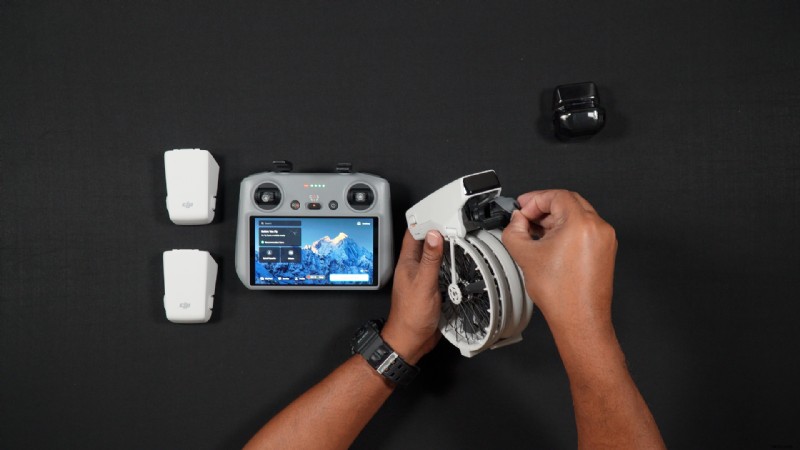 Image Credit: Dan Bayne/Droneblog
STEP 2: After booting up your DJI RC 2, make sure you are connected to a WiFi network. To check this, go into your settings screen by double-sliding down the notification shade. If your WiFi is not enabled, tap the WiFi icon and wait for a connection.
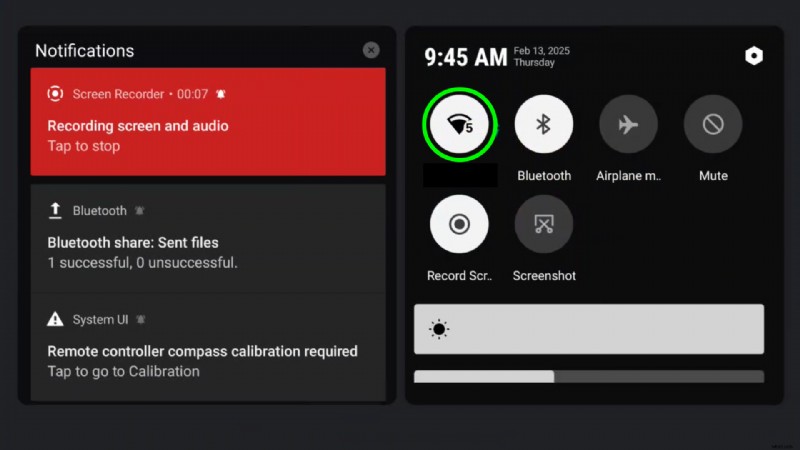 Image Credit: Dan Bayne/Droneblog
If you are connecting to WiFi for the first time, press and hold the WiFi icon. This will bring you into the WiFi settings. Here you can connect to your preferred network.
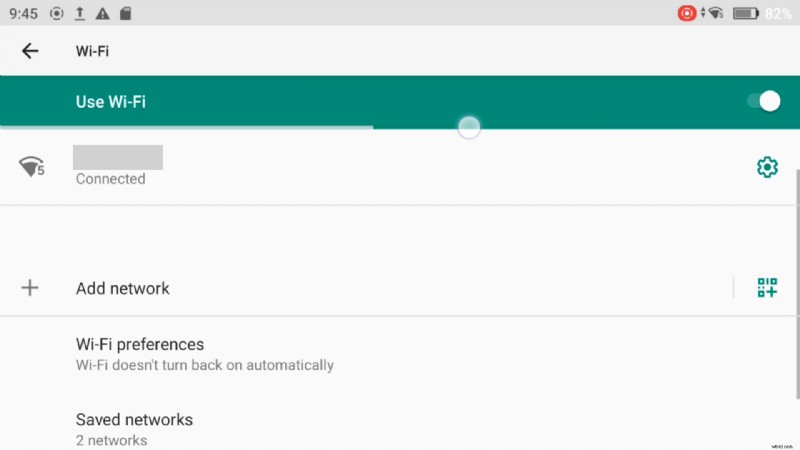
STEP 3: Turn on the Flip. Press, then press and hold the power button.
Note: If you have not changed the “power on when unfolded options” in the DJI Fly app, ignore this step.
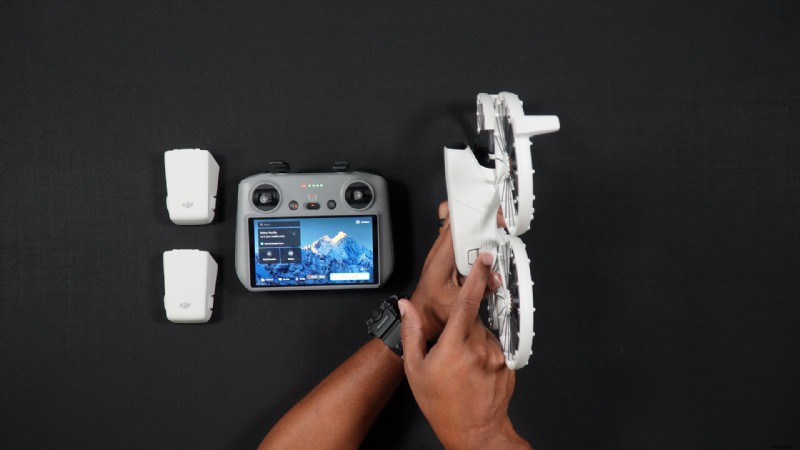 Image Credit: Dan Bayne/Droneblog
STEP 4: From within the Camera View screen, press the back button, which will take you to the Flip home screen.
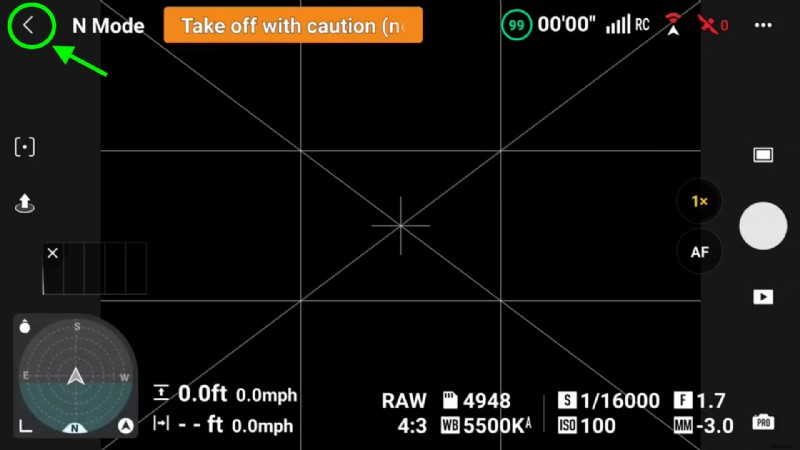 Image Credit: Dan Bayne/Droneblog
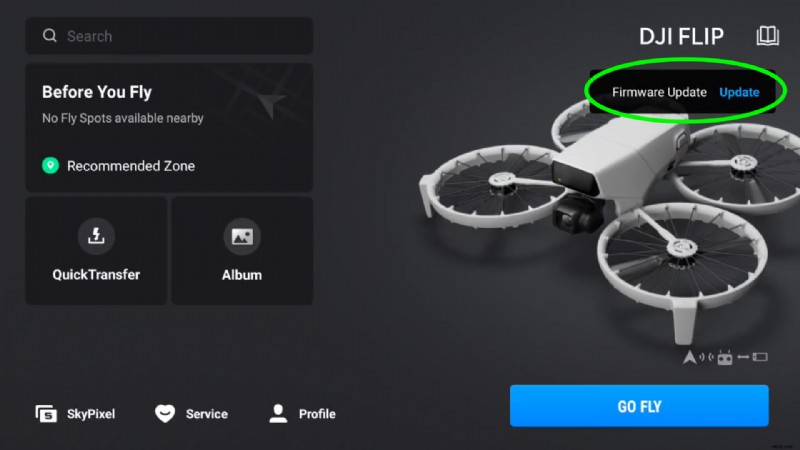
Here you will see that there is a firmware update available. Choose Update.
During the update process, the lights on the Flip will flash. The DJI RC 2 may also reboot itself. You will be alerted when the update is complete.
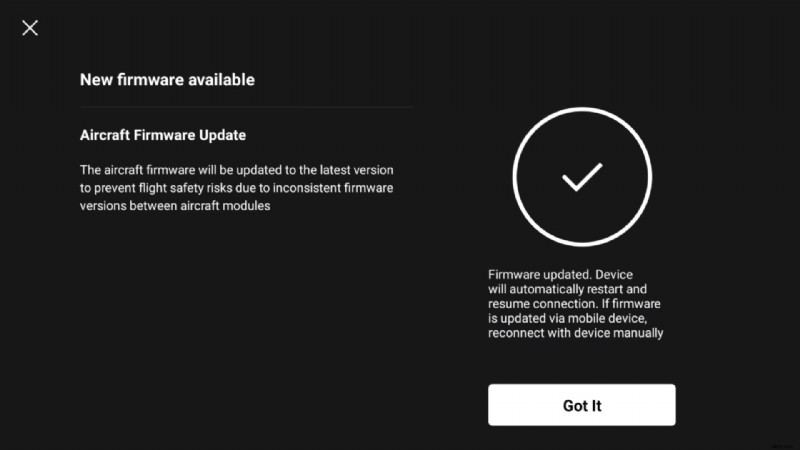
Note: Oftentimes, the Flip may not restart itself after the Update is complete. You may have to manually power it on afterward to begin flying.
Manually Checking for Firmware Updates
If you have not been prompted automatically that there is a new firmware available, you can manually check for updates, by doing the following:
With the DJI RC 2 turned on and connected to your WiFi network, while on the DJI Fly home screen, simply go to Profile > Settings > Firmware Update > Check for Firmware Updates.
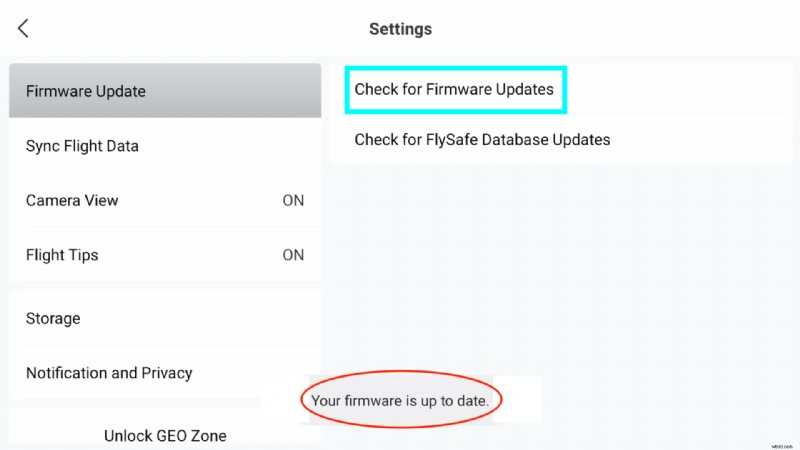
After the DJI RC 2 checks for the update, if there is none, you’ll receive a message saying “Your firmware is up to date”.
If there is a new firmware update, you’ll be alerted and will have the option to run the update.
Updating the FlySafe Database
Firstly, what is FlySafe data?
Directly from DJI: “FlySafe data is designed to help pilots better understand flight risks, make informed decisions, and mitigate safety risks by identifying restricted and prohibited geographic areas. DJI provides automatic updates to such data based on local regulations and internal risk assessment. The completeness, accuracy, and effectiveness of the data are not guaranteed, and such data should be used for reference only.”
Like with firmware updates, updating the FlySafe Database is a very easy process.
To update the Flip’s FlySafe Databases:
STEP 1: Before turning on the DJI Flip, remove the gimbal and silicone camera covers. This will ensure that when the Flip is turned on, the gimbal’s movement will not be impeded and cause errors.
Image Credit: Dan Bayne/Droneblog
STEP 2: After booting up your DJI RC 2, make sure you are connected to a WiFi network. To check this, go into your settings screen by double-sliding down the notification shade. If your WiFi is not enabled, tap the WiFi icon and wait for a connection.
Image Credit: Dan Bayne/Droneblog
If you are connecting to WiFi for the first time, press and hold the WiFi icon. This will bring you into the WiFi settings. Here you can connect to your preferred network.
STEP 3: Turn on the Flip. Press, then press and hold the power button.
Note: If you have not changed the “power on when unfolded options” in the DJI Fly app, ignore this step.
STEP 4: From within the Camera View screen, press the back button, which will take you to the Flip home screen.
STEP 5: If there is a FlySafe Database Update available, it will show on the DJI Fly homescreen.
Press Update and the FlySafe Database will proceed to update.
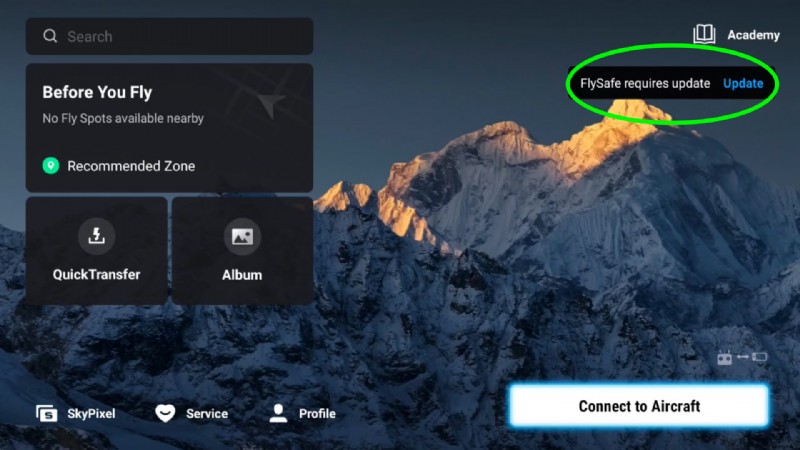
The process only takes a minute or two and should not restart your DJI Flip.